 English
 Magyar


Email forwarding means that emails sent to one address are automatically forwarded by the server to one or more other addresses. This allows you to read your emails wherever is most convenient for you, without having to set up each address separately in your email client.
When is this useful?
- You would like to forward emails sent to a general company address (for example,
info@pelda.hu) to the inboxes of one or more staff members. - You don’t want to lose any emails sent to an old, disused address either.
- You would like to read emails from multiple domains in a single inbox (such as Gmail); this article explains how to set up a domain account in Gmail as a secondary account.
- You would like to use an email address without a mailbox, simply for forwarding purposes – for example, an
szamlazas@address to your accountant.
Forwarding a domain in cPanel
- Log in to cPanel and, under the ‘Email’ section, open the ‘Forwarders’ menu item.
- Click on the ‘Add Forwarder’ button.
- In the ‘Forwarding address’ field, enter the part of the address before the
@and select the domain. - In the ‘Destination’ section, select the ‘Forward to email address’ option and enter the destination address. To forward to multiple destinations, create multiple forwarders to the same address.
- Click on the ‘Add Forwarder’ button.
In the ‘Destination’ section, instead of ‘Forward’, you can also select the option ‘Reject and send error message to sender’: this rejects emails sent to a discontinued address with the specified error message.
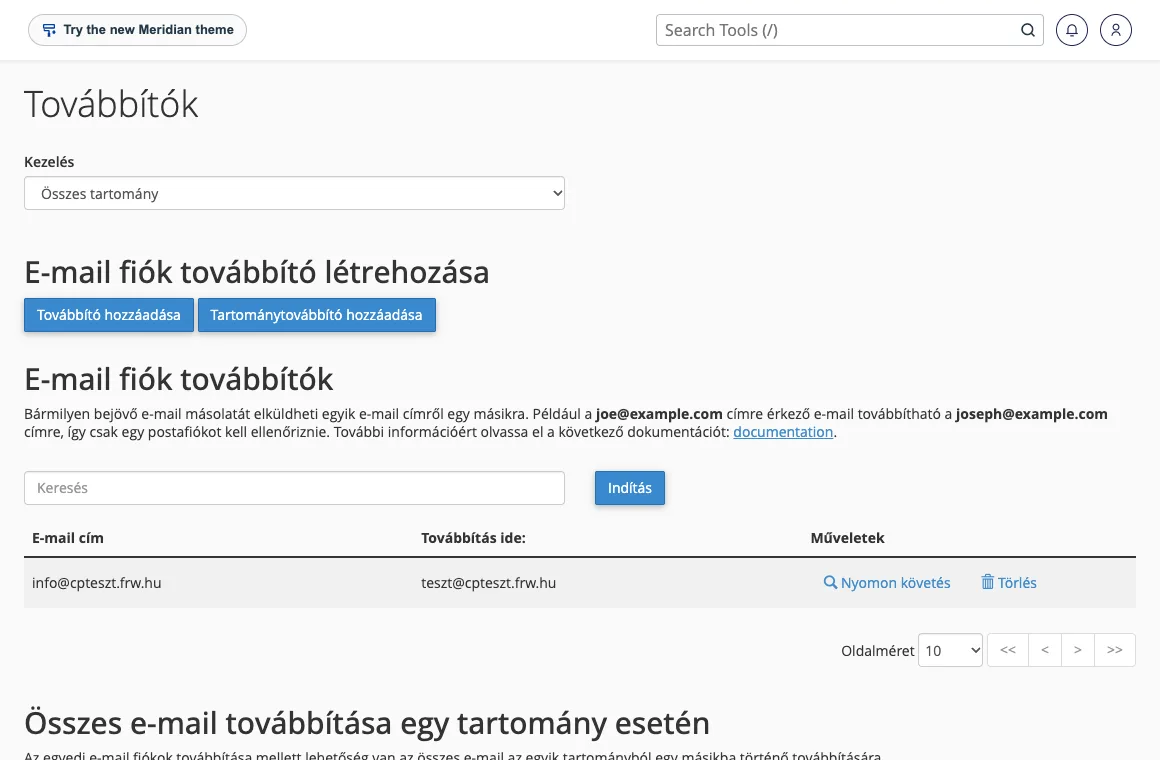
Forwarding on the web hosting account (KeyHelp)
In the web hosting plans, you can set up forwarding in the mailbox settings:
- In the control panel, open the ‘Email addresses’ menu item and click on the pencil icon in the mailbox row (or, for a new address, click the** ‘Add email account’** button).
- Open the ‘Forwards’ tab and enter the destination address in the ‘Forwards’ field. You can separate multiple addresses with a space, a comma, a semicolon or a new line.
- With the ‘Store forwarded emails in the mailbox’ option, you can choose whether the email should also be retained in your mailbox.
- Click the Save button.
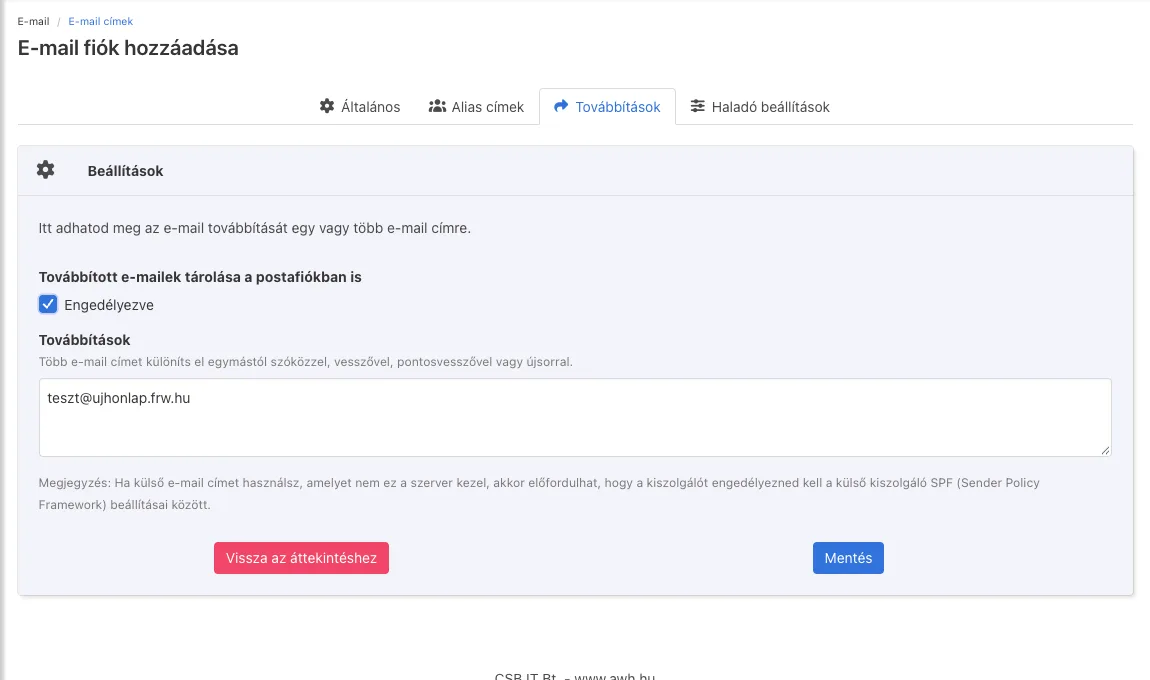
The article on setting up an email account and forwarding on the web hosting platform provides a detailed step-by-step guide, complete with images.
Will a copy remain in the original mailbox?
If the forwarded address is linked to a mailbox, emails will arrive in the mailbox as well as being forwarded to the destination address. If you only need the forwarding service, you can delete the mailbox; in this case, the address will continue to receive and forward emails. If you would like a backup copy of every email, email archiving may also be of help.
Forwarding an entire domain
On the Forwarders page, you can use the ‘Add Domain Forwarder’ button to redirect all addresses for a domain to another domain: for example, emails sent to anna@regi-domain.hu will be forwarded to anna@uj-domain.hu. This is useful when changing domains, whilst your contacts get used to the new addresses.
What should you look out for?
- Spam in the destination inbox: forwarding also forwards spam, and the destination service provider (such as Gmail) may attribute this to our server. Enable spam filtering on your hosting account to ensure that unsolicited emails are not forwarded.
- Authentication: an SPF check on a forwarded email may fail at the recipient’s server because the email does not originate from the original sender’s server. The DKIM signature remains valid in such cases, which is why emails from properly configured senders usually arrive without issue. The article on emails ending up in the spam folder provides further details on this.
- Loop: do not set up two addresses to forward to each other, as emails will go round in circles until the server discards them.
You can also read on our blog about how to set up email forwarding in Gmail and Outlook. You can set up forwarding in all our email hosting and cPanel hosting plans.