 English
 Magyar


If someone has gained access to your email account, you must act quickly: the attacker may send spam or fake invoices in your name, search your emails for passwords, and use your email address to take over other accounts. Please follow the steps below in this order. Changing your password alone is not enough, as the attacker often leaves behind a hidden forwarding rule.
How can you tell if you’ve been hacked?
- You can see emails in your Sent folder that you did not write.
- Bounced emails are being received from unknown addresses.
- Their partners are asking about strange emails or invoices.
- Emails are disappearing, or forwarding and filtering settings are appearing that you did not set up yourself.
- The domain has reached its hourly sending limit, even though it has sent hardly any emails.
If you are only receiving bounce-back emails, but there is nothing in your Sent folder and the server has not sent out any bulk emails, it is likely that your sender address is being spoofed. This is the subject of the article on email address spoofing.
1. Stop sending emails (if emails are being sent in large numbers)
If spam is currently being sent from your account, stop this immediately, as every further email damages the server’s reputation.
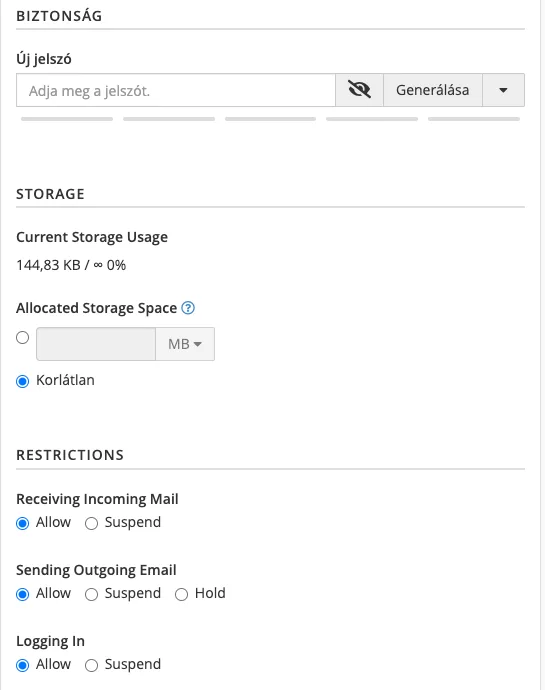
On your cPanel hosting account, open the Email Accounts page, click the Manage button next to the mailbox, select Suspend in the Sending Outgoing Email row under the RESTRICTIONS section, then click the Update Email Settings button. The account will then stop sending emails with an error message (has been suspended), whilst incoming emails will continue to arrive. Once the attacker can no longer access the account, re-enable sending by selecting ‘Allow’ in the same section.
2. Change your password from a clean device
Change your password from a computer or mobile phone that you are certain is free from malware. If you are unsure, do not enter your new password on the suspicious device first.
You can set your email account password via the hosting control panel; you do not need to know your old password to do this, so you can change it even if an attacker has already changed it:
- cPanel hosting: Email accounts › Manage – in the SECURITY section, enter the new password in the New password field (or click the Generate button), then click Update Email Settings.
- Web hosting: Email addresses, editing your mailbox, the ‘Password’ and ‘Confirm password’ fields on the ‘General’ tab. You can also change these via Webmail: Settings › Password.
Please choose a password that is at least 16 characters long, is not used elsewhere, and is stored in a password manager. You will then need to enter the new password on all your devices (computer, phone, tablet); from then on, your email clients will only be able to log in using this password.
If you have used the same password elsewhere, please change it there too. If the password for your hosting cPanel account is similar, please change that as well and enable two-factor authentication.
3. Find out what the attacker left behind
This is the step most often overlooked. Attackers leave settings in place so that they can still view emails even after a password change, or to cover their tracks. Delete everything that you did not set up yourself, everywhere.
| What should you look at? | cPanel hosting | Web hosting |
|---|---|---|
| Forwarding | Forwarding page, in webmail: Settings › Forwarding | Email addresses, editing your mailbox, the ‘Forwards’ tab |
| Message filters | Email filters and Global email filters page, in webmail: Settings › Message filters | In Webmail: Settings › Message Filters |
| Sender, reply-to address, blind carbon copy | In Webmail: Settings › Logins | In Webmail: Settings › Logins |
| Automatic reply | Automatic replies page, in webmail: Out of the office | In Webmail: Settings › Out of Office |
| Related links | **Default **homepage | Email addresses, editing mailboxes, Alias addresses tab |
Particularly suspicious is the filter that, based on a keyword (such as ‘invoice’, ‘bank’ or ‘password’), deletes the email, marks it as read or forwards it. On the ‘Identifiers’ page, open the identifier and check the ‘Reply-To’ and ‘Bcc’ fields: the former would send your partners’ replies to the attacker, whilst the latter would send copies of the emails you send to them.
4. Find out what happened
- How many emails have been sent? In cPanel, you can view outgoing emails from the past 60 days on the Delivery Tracking page. If you’re using web hosting, please contact us; we can check the log for you.
- How did the attacker gain access? The most common causes are a phishing email, a password leaked from another site and reused, or malware running on your computer. Run a full virus scan on every device on which you use your email account. If you find any malware, change your password again after removing it, as the attacker may have obtained your new one as well.
- What might you have read? Check your inbox for any emails containing passwords, bank account numbers, contracts or personal data. As your email address can often be used to reset passwords for other accounts, you should also change your passwords on important sites (banks, social media, online shops, hosting services).
5. Notify the data subjects
- Partners: please contact them via a separate channel to inform them that fraudulent emails may have been sent from your account, and in particular that they should disregard any emails regarding changes to account numbers. If they have already made a transfer, they should contact their bank immediately.
- Our support team: please open a ticket via the client portal if unsolicited emails have been sent from your account or if your server has been blacklisted.
- Data protection: if a business has found customers’ personal data in a mailbox, it should investigate whether this constitutes a data breach. Under the GDPR, this must generally be reported to the supervisory authority within 72 hours, so you should seek assistance from your data protection adviser in such cases.
- Police: if you or your partner have suffered financial loss, report the matter to the police and keep a record of any correspondence.
If you may need evidence, take a screenshot before deleting any emails or settings.
6. Protect your account in future
The steps to prevent this are summarised in the article on secure email. The most important ones are: a different password for every account, a password manager, up-to-date devices, and opening the service provider’s website from your own bookmarks rather than clicking on a login link received in an email. SPF, DKIM and DMARC records filter out forged emails, but they do not protect against emails sent from hacked accounts, as these are sent using the genuine password and follow the correct procedure.
If the compromised account sent emails via a form on a WordPress website, or if malware was found on the hosting account, the ImunifyAV article will also help.