 English
 Magyar


Email address spoofing is when someone lists an address as the sender of an email that does not belong to them: for example, that of a bank, a service provider, a business partner or even your own address. The recipient sees this fake sender in their email client, so they regard the email as more trustworthy and are more likely to click on any links, open any attachments or comply with any requests.
Why is it even possible to spoof the sender?
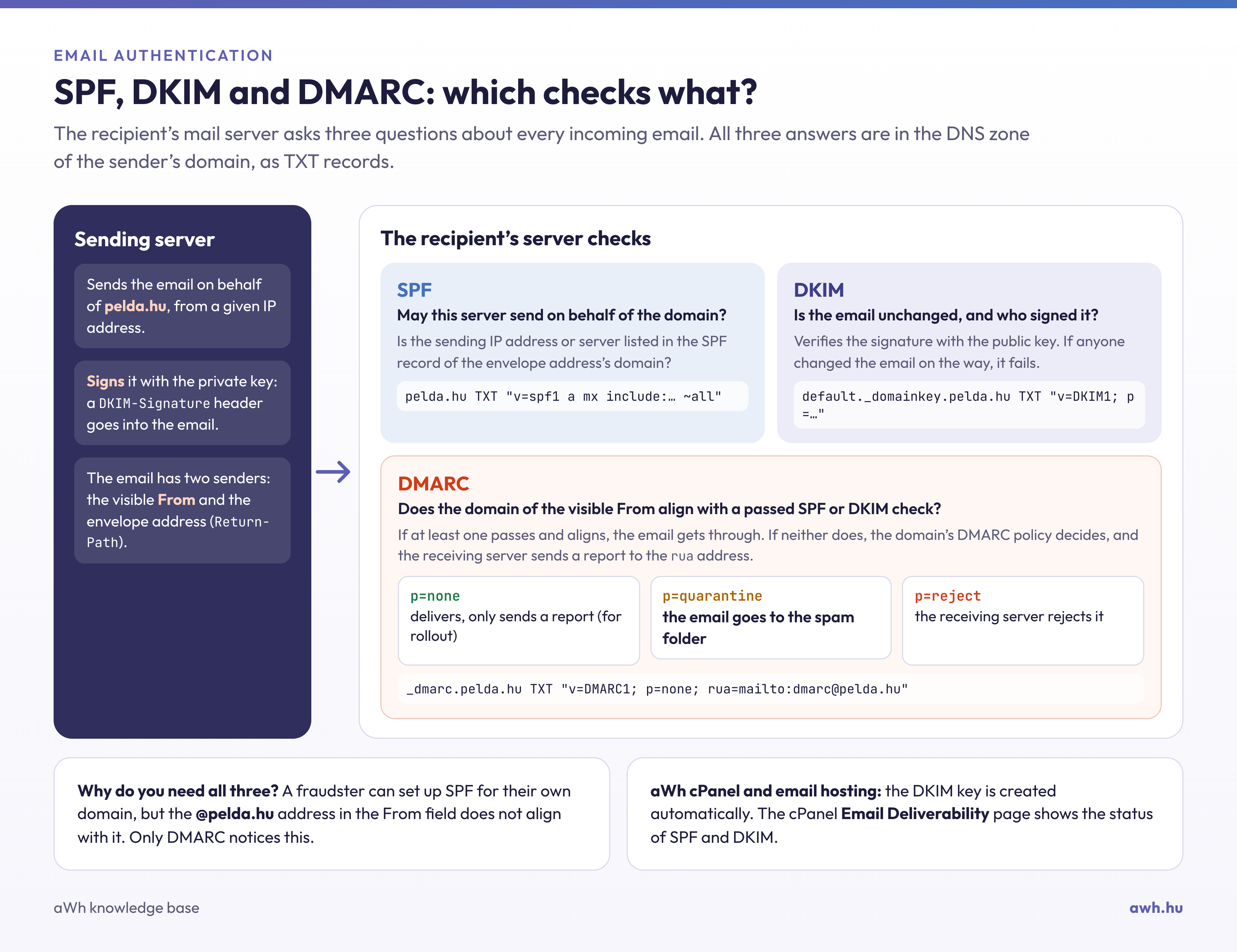
The SMTP protocol used for sending emails dates back to the 1980s and originally did not include any form of verification. An email contains two sender addresses:
- the sender of the envelope (shown as
Return-Pathin the letter’s header), which the servers use for delivery and for handling bounce-back emails; - The ‘From’ field, which is displayed by the email client.
Both are entered by the sender, and neither needs to match the person actually sending the email, just as anyone can write any sender’s name on a postal envelope. All that is needed to create a fake email is therefore a server capable of sending emails; no hacking is required to forge the sender’s details. The structure of the header is explained in the article on the parts of an email.
Forms of counterfeiting
- Spoofing the exact domain: for example, an email arrives from an address such as
ugyfelszolgalat@pelda.hu, even though it has nothing to do with the owner ofpelda.hu. The best way to protect against this is to configure the domain’s SPF, DKIM and DMARC settings (see below). - Displayed name: the sender’s name is ‘Pelda Bank support team’, but the address behind it is a free email account, for example
pelda.bank.ertesites@gmail.com. As email clients often only display the name, this is the most common trick. - Similar domain: the address comes from a domain that is confusingly similar, for example
pe1da.hu(a single digit instead of an ‘l’),pelda-hu.comorpelda.hu.ugyfelportal.xyz. - Mismatched Reply-To: The ‘From’ field appears genuine, but the
Reply-Tofield points to a different address, meaning the reply goes to the scammer.
If an email arrives from a partner’s genuine email account because their password has been stolen, this does not constitute forgery: such emails pass all checks. In this case, the only way to verify the authenticity of the email is to check whether the content is suspicious (an unusual request, a new bank account number) and to seek confirmation via an independent channel, such as by telephone.
What is it used for?
Most emails with a fake sender address are phishing emails: they ask for login details or credit card numbers, or contain attachments with malware. For businesses, CEO fraud and bank account number spoofing are particularly dangerous: the email requests an urgent bank transfer in the name of a company director or a supplier, or states that ‘our bank account number has changed’. Always verify such requests by telephone using the number you already have on file, not the one provided in the email.
How can you spot a fake sender?
- View the full sender’s address, not just the name: click or tap on the sender’s name.
- Check who you are replying to: if, when you click the ‘Reply’ button, an unfamiliar address appears in the ‘To’ field, the email is suspicious.
- Pay attention to warnings from your email client. Gmail, for example, alerts you if an email cannot be verified, or if another domain appears next to the sender’s address (via), meaning the email was sent from a server belonging to a different domain.
- Check the authentication result in the email’s source code. To do this, open the full header of the email:
- Gmail: the three-dot menu in the top right-hand corner of the email, ‘Show original’;
- Roundcube webmail: on the toolbar above the email, click ‘More…’, then ‘View source’;
- Outlook (desktop version): open the email, then go to File › Properties; the header is located in the ‘Internet Headers’ field;
- Thunderbird: with the email selected, press the
Ctrl+Ukey combination.
The receiving server writes an Authentication-Results line to the header containing the results of the checks. In the case of a forged email, this might look like this (excerpt):
Authentication-Results: mx.pelda-szolgaltato.hu;
    spf=fail smtp.mailfrom=pelda.hu;
    dkim=none;
    dmarc=fail header.from=pelda.hu
From: "Pelda Bank" <ugyfelszolgalat@pelda.hu>
Reply-To: pelda.bank.ugyintezes@gmail.com
dmarc=fail means that the email has not verified that it was sent on behalf of the domain name in the ‘From’ field. For a genuine email, all three results typically show pass. An spf=fail result on its own does not necessarily prove forgery (this is common with forwarded emails, for example), but if both DKIM and DMARC fail, the email almost certainly does not come from the sender it claims to be. Only take into account the Authentication-Results line generated by your own email provider (this is at the top); the lines below it may have been added by the sender.
The Received lines show the email’s journey, from bottom to top. The most reliable of these is the one written by your own provider’s server when it received the email: the IP address following from is the address of the server from which the email was received. Our free IP address lookup tool shows which network and service provider the address belongs to; a bank email arriving from an unknown foreign server is obviously a fake. The Received lines below this may also have been forged by the sender, so the result of the authentication check is always the deciding factor.
How can you protect your own domain?
You cannot prevent someone from entering your domain in the ‘From’ field of an email, but you can prevent the receiving servers from accepting such emails. To do this, you need to configure three DNS records:
- SPF record: lists which servers are authorised to send emails on behalf of the domain. If, in addition to your own mail server, a newsletter service, online shop or invoicing program also sends emails from the domain, these must also be included in the record.
- DKIM signature: the sending server digitally signs the emails, whilst the receiving server uses the key published in the DNS to verify that the email genuinely originated from the domain and has not been tampered with en route.
- DMARC record: links the two to the ‘From’ field and tells receiving servers what to do with emails that fail authentication. As long as the rule is set to
p=none, fraudulent emails will continue to be delivered; actual protection is provided byp=quarantine(to the spam folder) andp=reject(rejection). From the reports sent to the record’sruaaddress, you can also see who is attempting to send emails on behalf of the domain.
It is advisable to tighten DMARC settings gradually; otherwise, emails from your own services that have been blocked will also be held up. The steps are described in the DMARC article linked above. You can check your settings using our free SPF, DKIM and DMARC validation tools.
A DKIM key is automatically generated for our email hosting and cPanel hosting services. In cPanel, the Email Deliverability page shows whether the SPF and DKIM records are correct, whilst you can add the DMARC record on the Zone Editor page. If your domain’s DNS is managed elsewhere, you will need to configure the records there.
Domains not used for email
Fraudsters often target domains from which no emails are ever sent, as these often lack any form of protection. If you only need a domain for a website or a redirect, please make it clear that it does not send or receive emails:
pelda.hu.          TXT   "v=spf1 -all"
_dmarc.pelda.hu.   TXT   "v=DMARC1; p=reject"
pelda.hu.          MX    0 .
According to the first record, no server may send emails on behalf of the domain; according to the second, such emails must be rejected; and the third (null MX) indicates that the domain does not accept emails either; if there are already MX records in the zone, you should delete them in this case.
What should you do if fake emails are being sent using your domain?
This is usually indicated by you receiving bounce notifications for emails sent to unknown addresses, or by your partners enquiring about emails that you did not write.
- Rule out the possibility that your account has been hacked. Check your Sent folder; if the emails are there, or if a large number of emails have been sent from your account, it is not a case of spoofing. In this case, follow the steps outlined in the article on hacked email accounts.
- Check and tighten your DMARC settings. If you do not have a DMARC record, or if the rule is set to
p=none, the majority of receiving servers will continue to deliver fraudulent emails. - Please inform your partners if the emails were addressed to them, particularly if they were asked to provide an invoice or make a bank transfer.
Bounce notifications do not in themselves pose a threat, and they become less frequent following the tightening of DMARC policies.
What you can do as the recipient
- Never enter your password or card details via a link received in an email; open the provider’s website from your own bookmarks. The padlock icon and HTTPS no longer guarantee that a website is trustworthy: even fraudulent websites can have a valid SSL certificate, which merely ensures that the connection is encrypted.
- Always verify any unusual requests (bank transfers, changes to account numbers, login details) via a separate channel.
- Enable two-factor authentication wherever possible, so that a compromised password alone is not enough.
- Please mark any suspicious emails as spam or phishing in your email client; this will also help train the filter.
The differences between the three elements of email authentication are explained in more detail in a blog post comparing SPF, DKIM and DMARC, whilst protection against phishing emails is covered in greater detail in the guide on phishing protection.