 English
 Magyar


An email usually reaches its destination within seconds, but the service is not instantaneous: the message passes through several servers, and any of them may ask the sender to try again later. If an email is delayed or does not arrive, it is worth first finding out where it is. By following the steps below, the cause can usually be identified within a few minutes.
1. Check that you really haven’t received it
Many ‘missing’ emails are already in your inbox; they’re just not where you’re looking for them.
- Open your webmail. If the email appears there, your mailbox has not been updated in your email client or on your mobile phone. Mailboxes accessed via POP3 (such as an address added to Gmail as a secondary account) only check the server from time to time, and the battery-saving mode on mobile phones may also delay notifications.
- Check your spam folder. cPanel moves suspicious emails to the spam folder, whilst the web hosting service places them in the Junk Mail folder. This article discusses emails that end up in the spam folder.
- Bear in mind filters and forwarding. A message filter set up previously may move the email to a different folder, whilst forwarding may send it elsewhere.
- Check the size of your mailbox. A full mailbox will not accept any new emails; here’s how you can free up space.
If the sender has received a bounce message regarding the email, the error has already been identified: the article on 550 errors and the explanation of Exim status codes will help you understand it.
2. Track the progress of your email in cPanel
On cPanel hosting, the ‘Email Group Delivery Tracking’ page shows what information the server has about the email.
- Enter the recipient’s email address in the ‘Recipient Email (optional)’ field, or leave it blank.
- Click the ‘Run Report’ button. ‘Show All’ lists all emails, whilst ‘Show Blocked & Failed’ shows only those that were rejected or failed.
- In the Delivery Report table, check the Sender, Date, Spam Score and Result columns. The ‘Show deferred’ tick box also displays emails whose delivery has been deferred by the server.
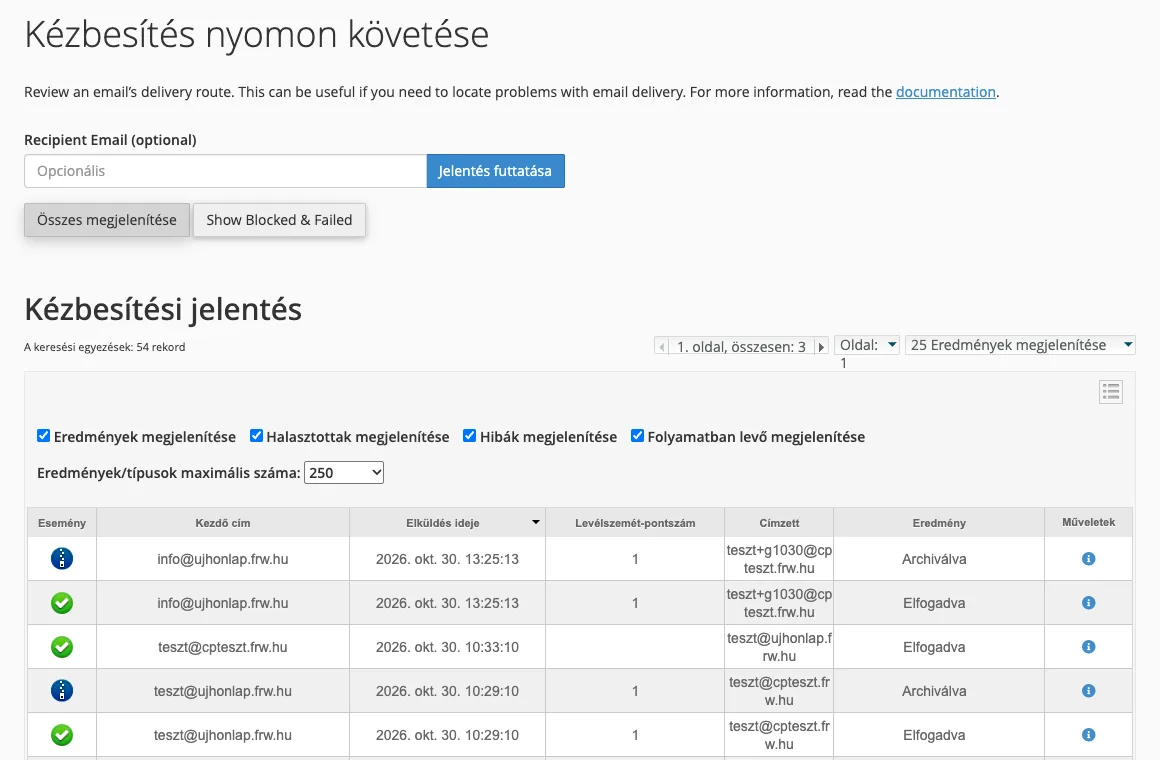
The page displays both incoming and outgoing emails; the server retains the data for 60 days. The information icon at the end of the row opens the details.
- If the email does not appear in the list, our server has not received it. The sender’s server may still retry due to being on a blacklist; the error may lie with the sender, or the sender’s server may not have sent the email to us (see the section below on updating MX records or name servers).
- If the email is marked as ‘accepted’, our server has received it, so it should be in your inbox, your spam folder or behind a filter.
- If an error or delay is indicated in the email you sent, the recipient’s server has not accepted it. The message text usually explains why.
There is no such email tracking page on the KeyHelp web hosting interface. In this case, please open a ticket on the client portal and provide the sender, recipient and time of sending, so that we can check the email log to see what happened to the email.
3. Check the header to see where the email was held
If the email has arrived, albeit late, the full header will show which server it was hosted on. The process for viewing the header in email clients is described in the article on email address spoofing.
Every server writes the Received lines at the top of the email, so they must be read from bottom to top. Compare the timestamps of consecutive lines:
Received: from mail.pelda-kuldo.hu by mail.pelda-fogado.hu; Fri, 30 Oct 2026 13:31:02 +0100
Received: from gep.pelda-kuldo.hu by mail.pelda-kuldo.hu; Fri, 30 Oct 2026 13:25:58 +0100
Here, the sending server received the email at 13:25:58, whilst the receiving server only received it at 13:31:02. A gap of more than five minutes arose between the two servers, which typically indicates a temporary rejection or being placed on a grey list. Please also note the time zone: the difference indicated by +0100 or +0000 at the end of the line does not constitute a delay.
What might cause a delay?
Temporary error and retry
SMTP recognises two types of rejection. Following a permanent error (5xx), the sending server gives up and sends a bounce message. Following a temporary error (4xx), the message is held in the queue and retries later, potentially for several days. In such cases, the sender may eventually receive a notification that delivery is delayed but still in progress. This is not an error; there is no need to resend the message.
A temporary error may be caused by a host server that is overloaded or undergoing maintenance, a network fault, or the host server throttling a large volume of emails from an unknown sender.
Greylisting
Greylisting is a spam filtering method that exploits the fact that most spam-sending programs do not retry. The receiving server records the sending server’s IP address, the sender and the recipient, and if it has not yet seen this combination, it rejects the message with a temporary error (usually a 451 code). A standard mail server will try again after a few minutes, and the message will be delivered on the second attempt.
It follows, therefore, that grey-listing causes problems when:
- The first email is delayed. The first email from a new partner or sent to a new partner arrives a few minutes later – and, in rare cases, up to an hour later – whilst subsequent emails arrive immediately.
- One-off codes may expire. A login code or password reset link may have expired by the time the email arrives. In this case, please wait a few minutes and request a new code: the second email usually goes through straight away.
- Large email systems send messages from multiple IP addresses. If a retry comes from a different address, the receiving server may treat it as a new sender, resulting in a longer delay.
Grey-listing is enabled on our cPanel hosting servers, with the following settings:
- First delivery attempt: the server does not accept a message from a new sender for at least 2 minutes. The actual delay is determined by the retry interval of the sending server, so it may be longer than this.
- Resend: the sending server must try again within 4 hours, otherwise the sender will be treated as unknown once more.
- Known senders: the server remembers an accepted sender for 3 days, so any further emails from that sender will arrive without delay.
- Exception: emails sent from servers with a valid SPF record are not blocked by the blacklist. In our own test, an email sent to such an address – which had never been used before – arrived within 15 seconds.
If emails sent to us are regularly delayed, please ask the sender to check their domain’s SPF record. If the first email you send to a partner is delayed, this may be caused by that partner’s server. As the sender, you usually do not need to do anything about this; the email will arrive of its own accord.
In cPanel, you can view the settings for each domain on the ‘Configure Email Group Filtering’ page. If delays in incoming emails are a greater concern for a particular domain than spam, you can disable this feature using the ‘Off’ button; however, this may result in more spam emails reaching your inbox.
The hourly sending limit
If your domain has reached the hourly limit for outgoing emails, the server will hold the emails back for a while. This is explained in the article on the hourly email sending limit. If you haven’t sent many emails, check whether your mailbox has been hacked.
Updating MX records or name servers
After an email migration, the old MX record may remain in the caches of sending servers for several hours, which is why some emails may still be sent to the old server. If you have recently changed your domain’s MX records or name servers, please wait for the DNS propagation to complete and keep the old mailbox active in the meantime.
The server’s IP address is on a blacklist
The receiving server may temporarily or permanently reject an email if the sending server’s address is on a blacklist. In such cases, the bounce message or the ‘Delivery Tracking’ message will usually specify the list. If you see this in emails sent from our servers, please contact us.
When should you contact us?
If you still cannot find the email after following the steps above, please open a ticket and provide the exact addresses of the sender and recipient, the time the email was sent and the error message you received. The full header of one of the emails in the conversation is also very helpful.