 English
 Magyar


The MX (Mail Exchanger) record determines which mail server emails sent to your domain should be routed to. If you move your email to an external provider (such as Google Workspace or Microsoft 365), or bring it back to your cPanel hosting, you will also need to amend the MX records.
Where do I need to make the changes?
The MX record must be updated where the domain’s DNS zone is managed, i.e. where the domain’s name servers point.
- If your domain uses our name servers, you can make changes via the cPanel Zone Editor interface (see below).
- If you manage your DNS elsewhere (for example, on Cloudflare or with another registrar), you must make the changes there; any changes made in the cPanel Zone Editor will have no effect in this case.
You can check where the domain points by running a WHOIS query, or by using our free DNS checker: it displays the domain’s name servers and queries them directly for the MX, SPF and DMARC records. After making any changes, you can also use this to check whether the new MX records are already listed on the authoritative name servers.
Changing an MX record in the Zone Editor
- Log in to cPanel and, in the Domains section, open the Zone Editor menu item.
-
In the domain row, click the ‘Manage’ button (you can also add a new MX record directly using the ‘MX Record’ button in that row).
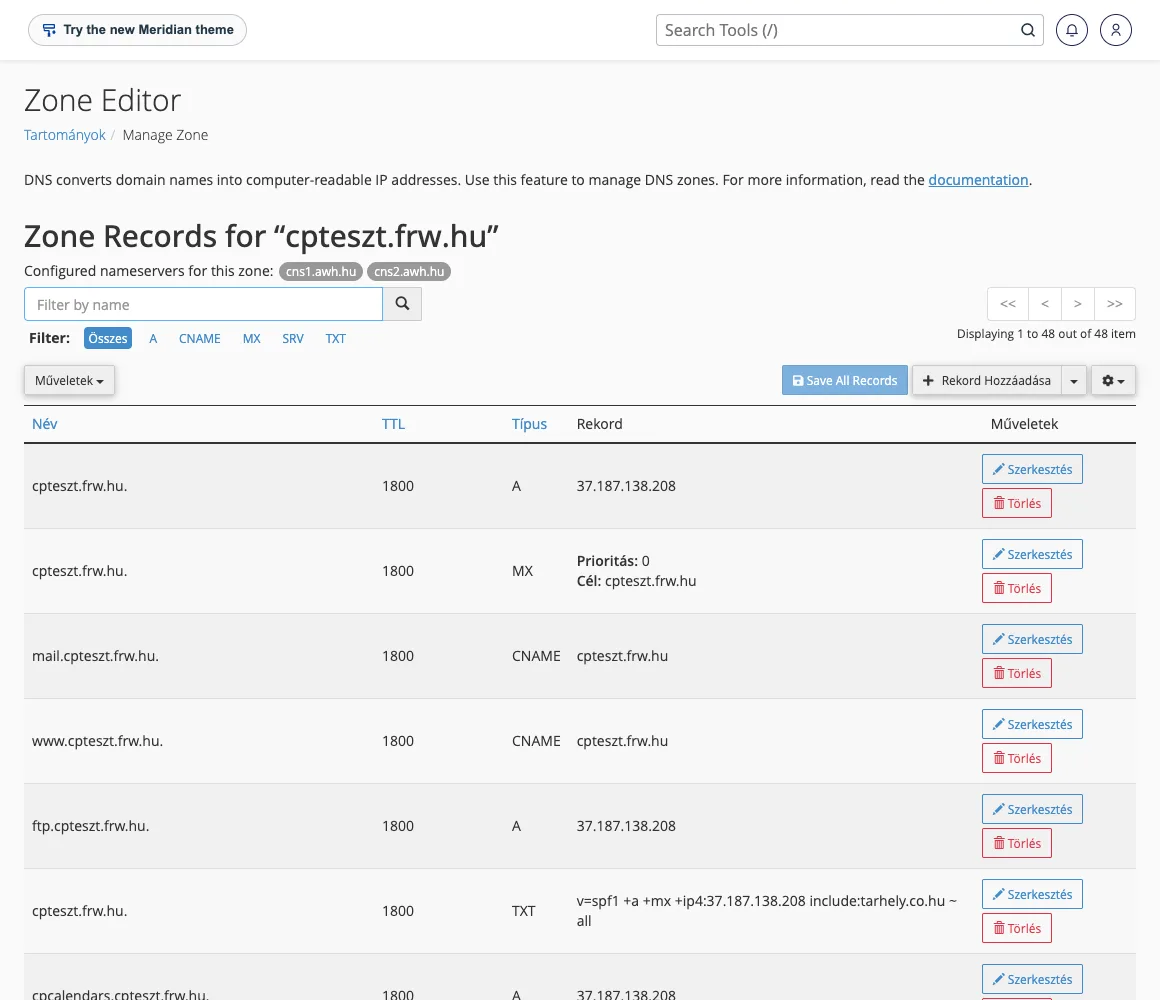
- In the filter, select the MX type so that only the mail records are displayed.
- You can edit an existing record using the Edit button, or add a new one using the Add Record button; save your changes by clicking the Save Record button. You must specify the priority and destination server for each record.
- Once you have added the new provider’s records, delete the old ones to ensure there are no MX records left pointing to the old server.
In the priority field, the lower number indicates the primary server; the records with higher numbers serve as backups.
Examples
| Service provider | Priority | Target server |
|---|---|---|
| Google Workspace | 1 | smtp.google.com |
| Microsoft 365 | 0 | pelda-hu.mail.protection.outlook.com (the exact name is provided by the Microsoft 365 admin centre) |
Always follow the latest guide provided by your new service provider, as the records may change.
Email routing
In the cPanel Email section, the Email Routing menu option tells the server whether to deliver the domain’s subdomains locally:
- Local mail server: emails are delivered to your cPanel mailboxes.
- Remote mail server: emails are routed to an external service provider.
- Mail server backup: the server acts as a backup mail server, receiving emails and forwarding them to the main (external) mail server.
- Automatic configuration detection (recommended): cPanel makes its decision based on the MX record.
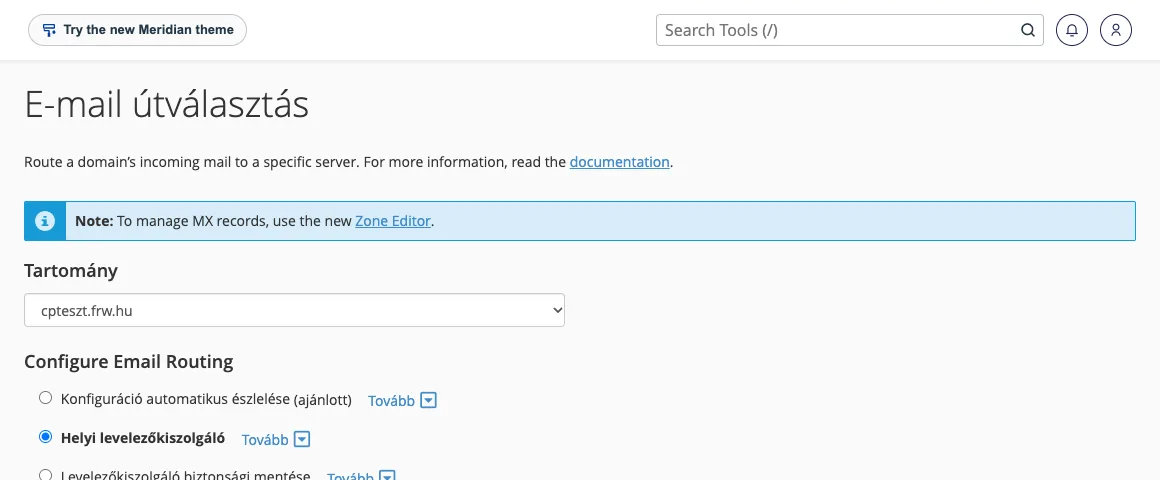
If you are using an external service provider, select the ‘Remote mail server’ option and click the ‘Edit’ button. Otherwise, emails sent by the website hosted on the hosting server (such as a contact form) will remain in your cPanel mailbox and will not be forwarded to the new service provider.
Don’t forget the SPF
If you send emails via another provider, you must also update the SPF record and add the new provider’s DKIM record; otherwise, your emails may end up in the spam folder. You can check the updated SPF record using our free SPF checker: it expands the include elements, indicates if the record exceeds the 10 DNS query limit, and also shows whether a given sender IP address complies with it.
How long does it take to take effect?
Due to DNS propagation, the change is not immediate: depending on the record’s TTL value, it may take anywhere from a few minutes to as long as 24–48 hours. During this time, it is advisable to monitor both mailboxes. You can also check the result via the command line:
dig MX pelda.hu +short