 English
 Magyar


A catch-all address is a setting that directs emails arriving at your domain but not associated with any existing mailbox, alias or forwarding rule to a designated mailbox, rather than having the server reject them.
How does it work?
If someone sends an email to a misspelt or non-existent address on your domain (for example, to ifno@pelda.hu instead of info@pelda.hu), the server will reject the email and the sender will receive an error message if catch-all is not enabled. With catch-all enabled, this email will also be delivered to the designated mailbox.
Configuration in cPanel
In cPanel, the catch-all is called ‘Default Address’.
- Log in to cPanel and, in the ‘Email’ section, open the ‘Default Address’ menu item.
- Select the domain from the ‘Send all undeliverable emails to the following domain’ list. Below this, the ‘Current settings’ row shows what happens to emails sent to non-existent addresses.
- Select what you want to do with them:
- Email rejection when your server processes the message via SMTP, with an error message: the server rejects the email upon receipt, and the sender is immediately notified of the error. The text specified in the ‘Error message (as seen by the sender)’ field (by default ‘No Such User Here’) is displayed to the sender in the bounce notification. This is the default setting, and we recommend it.
- Forwarding to an email address: this is the catch-all address; please enter the email address that will receive the messages.
- Disable (not recommended): this option can be found under ‘Advanced settings’. The email will be lost without notification, so we do not recommend this: the sender will not be aware that their email has not been delivered.
- Click the ‘Edit’ button.
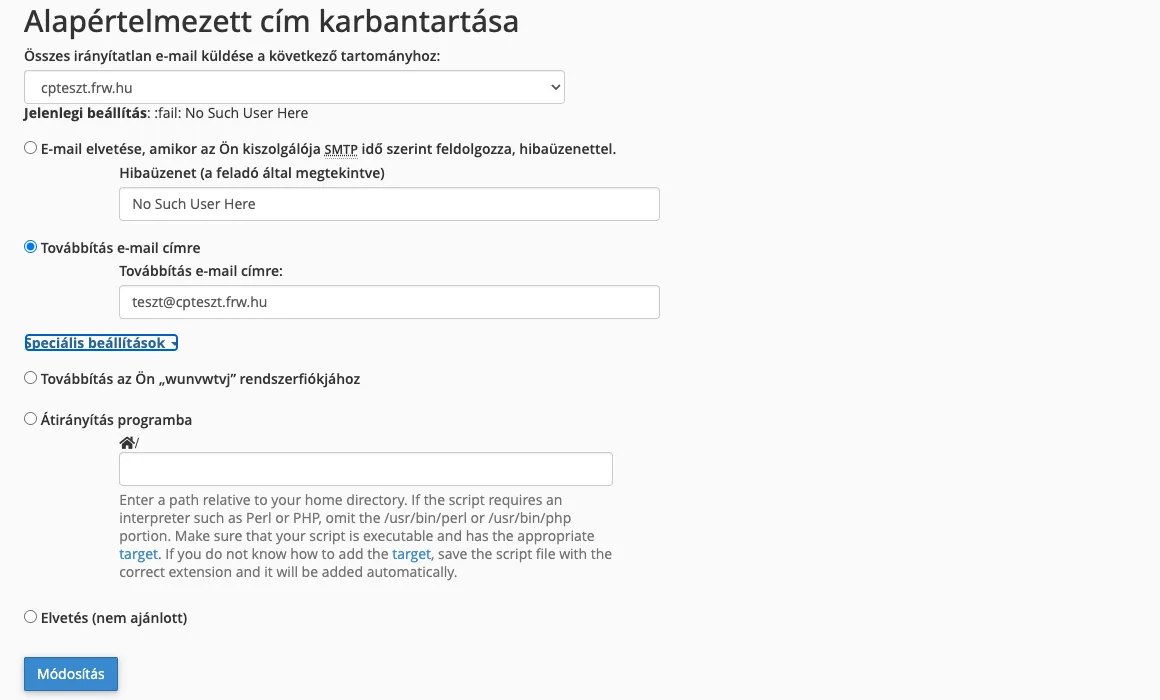
You can revert this setting to ‘Reject’ at any time: simply tick the ‘Error message’ option again and click the ‘Modify’ button.
What are the risks involved?
- A lot of spam: spammers often send emails to randomly generated addresses (
a1b2@,sales2@,admin@). With a catch-all rule in place, all of these emails are delivered, and the inbox fills up quickly. - Address harvesting: the spammer is unable to determine which addresses are genuine, so it treats all the domain’s fictitious addresses as valid and keeps trying again and again.
- Forwarding to an external mailbox: if the catch-all rule forwards to a Gmail or other external address, the service provider may attribute spam to our server, which damages the email reputation of the domain and the server.
- Missing error messages: a partner writing to a misspelt address does not receive an error message, so they do not realise they are using the wrong address.
- Automatic reply to spam: if an automatic reply is enabled for the designated mailbox, it will also reply to emails caught by the catch-all rule, including spam, often sent from forged sender addresses.
When is it still worth using?
- Temporarily, when changing domains or reorganising, whilst you are still unsure which old or misspelt addresses might receive important emails. After a few weeks, check which addresses have received genuine emails, create aliases for these, and then re-enable the rejection setting.
- To identify old addresses that have been published in many places, if there is no record of which addresses were used previously.
Better solutions, time and again
- Alias: if you wish to receive emails at multiple addresses within a single mailbox (
info@,ajanlat@,szamla@), create aliases (in cPanel, these are set up under the ‘Email Groups’ > ‘Forwarders’ menu item). Depending on the plan, our email hosting plans include between 50 and 500 aliases and unlimited forwarding. - Forwarding: you can forward individual addresses or an entire old domain; the steps for doing this are described in our article on email forwarding.
- Spam filter: if the catch-all remains enabled, ensure that the spam filter is enabled in the designated mailbox and that the spam folder is emptied regularly.