 English
 Magyar


An autoresponder sends a pre-written reply to incoming emails. It is most commonly used during holidays, sick leave or other periods of absence, but it is also useful for a general email address (such as info@) to ensure that the sender receives immediate confirmation that their email has been received.
The automatic reply runs on the server, so it works even when your computer is switched off, and you do not need to configure your email client’s settings.
Configuration in cPanel
- Log in to cPanel and, under the ‘Email’ section, open the ‘Autoresponders’ menu item.
- Click on the ‘Add automatic reply’ button.
- Please fill in the fields:
- Character set: leave it set to the default
utf-8so that accented letters are displayed correctly. - Interval: the number of hours between which the same sender can receive another automated reply. The field appears blank, and if left blank, the value will be 0: in this case, the system will reply to every single email. Enter 24 hours, for example, so that a sender receives no more than one reply per day.
- Email and Domain: the local part of the address (the part before the
@), followed by the domain from the list. - Sender: the name appearing in the reply, for example ‘Anna Kovács’.
- Subject and Message Body: the text of the reply. If you wish to send a formatted message, tick the ‘This message contains HTML’ option.
- Start and Stop: the response can start Immediately or at a Custom time, and can stop Never or at a Custom time. By clicking on the Custom label, you can select the date and time from the calendar.
- Character set: leave it set to the default
- Click the ‘Create’ button.
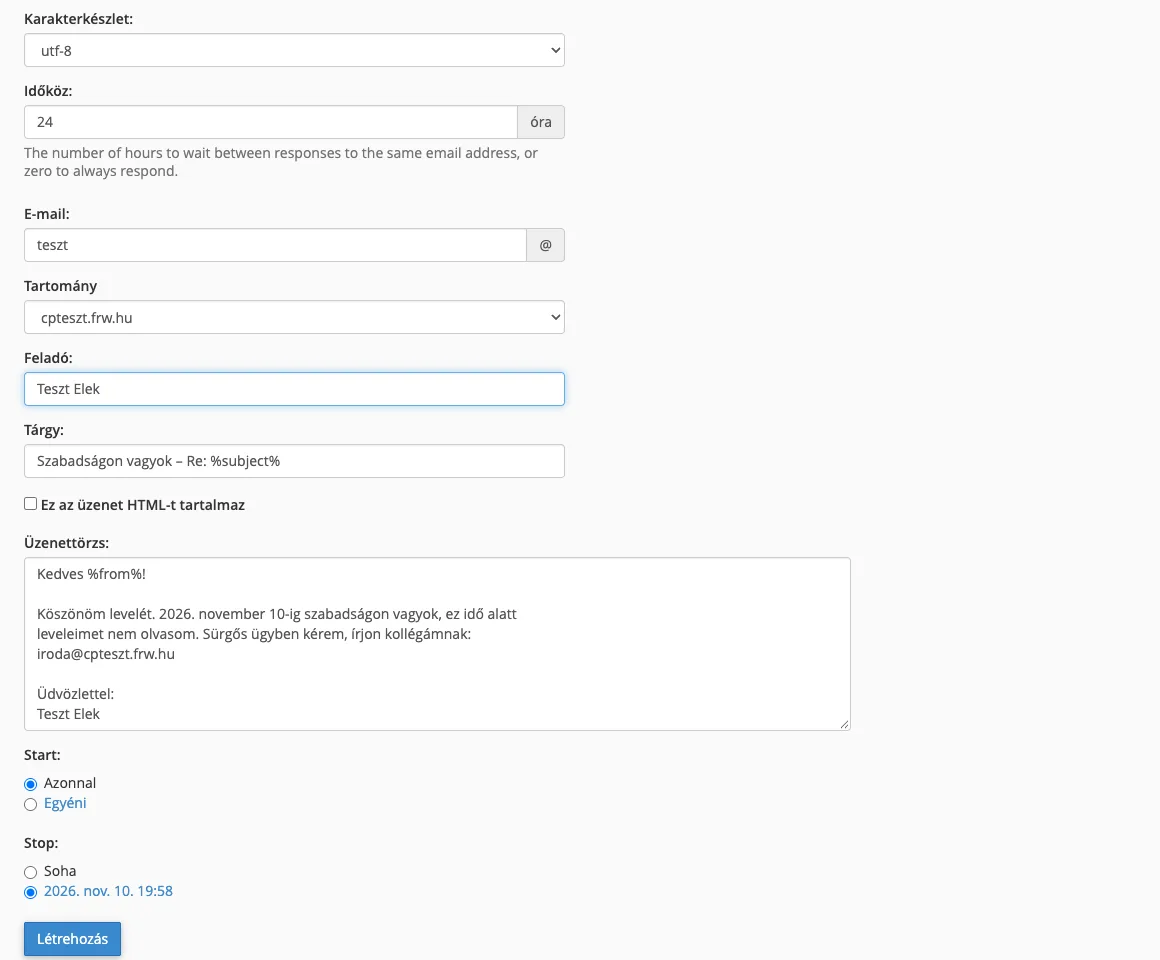
In the subject line and body of the text, you can use the placeholders %subject% (the subject of the received email), %from% (the sender’s name; if no name is provided in the email, then their address) and %email% (the sender’s email address), so that your reply is more personalised, for example: “Re: %subject%”.
Set up via webmail
The mailbox owner does not need full cPanel access to do this; they can set the reply directly within webmail in two ways:
- On the Webmail** home page, the **‘Autoresponders’ tile opens the same form as described above.
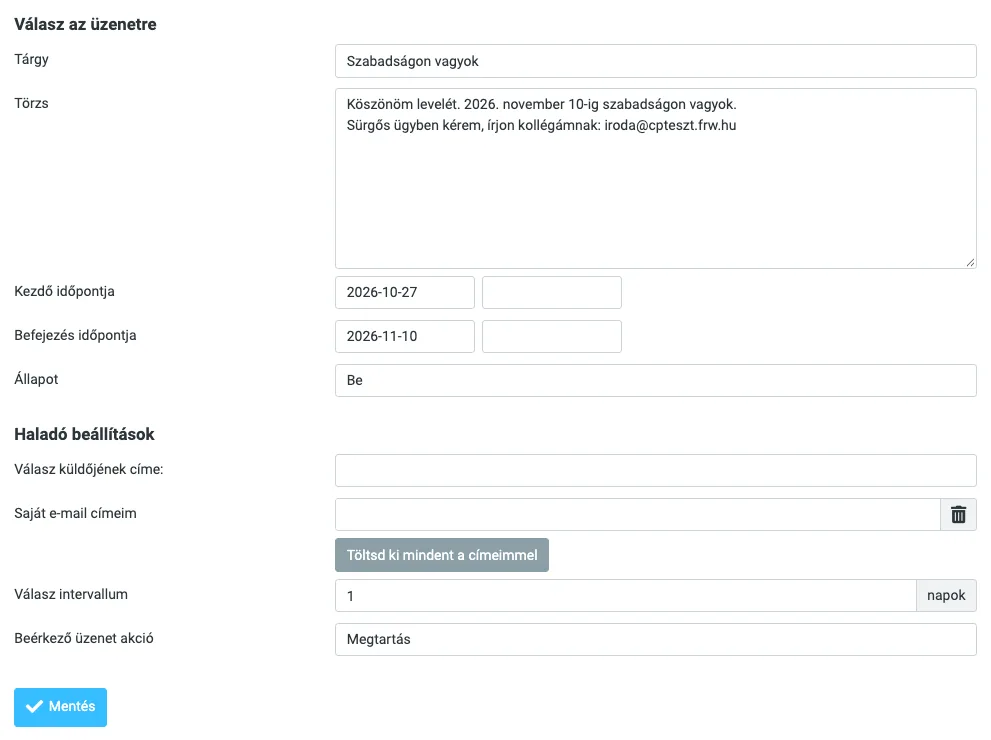
- In Roundcube, on the Settings > Out of Office page, enter the Subject and Body fields, set the Start Date and End **Date, set the **Status to On, then click the Save button. The Reply Interval here is specified in days.
Only use one of the two: if both are enabled for the same address, the sender will receive two automatic replies.
Sample text
Tisztelt Partnerünk!

Köszönöm levelét. 2026. november 10-ig szabadságon vagyok, ez idő alatt
leveleimet nem olvasom. Sürgős ügyben kérem, írjon kollégámnak:
iroda@pelda.hu

Üdvözlettel:
Kovács Anna
Important information
- Incoming emails are delivered to your inbox alongside the automatic reply; nothing gets lost.
- If you set up an automatic reply for an address that does not have a mailbox or forwarding rule associated with it, the system will reply to the emails but then delete them.
- Please do not include any unnecessary personal details in your reply (such as the purpose or exact dates of your trip): the automated reply will also reveal to spammers that the email address is active.
- Always specify an end date so that no further automatic replies are sent after you return.
- If the address also has a forwarder, the responder and the forwarding function work alongside each other.
If your reply emails end up in the recipients’ spam folders, please check the domain’s SPF and DKIM records. The auto-reply feature is available in all our email hosting and cPanel hosting plans.