 English
 Magyar


If unsolicited traffic is regularly received from an IP address or range of addresses (spam comments, form spam, password guessing, aggressive downloading), you can easily block it from your website. Our web hosting plans run on the Apache web server, and .htaccess rules can also be used on cPanel hosting, so the block can be set up with just a few lines in a text file. The block applies only to the website; it does not affect email or FTP.
Which IP address should you block?
You can find suspicious IP addresses in the web server access log: on the KeyHelp interface in the domain’s web server logs, and in cPanel under the ‘Raw Access’ menu item in the ‘Metrics’ group. Look for IP addresses from which a large number of requests are being made to the same page within a short period of time (for example, wp-login.php or a form).
Blocking specific IP addresses
Copy the following to the top of the .htaccess file in your website’s root directory:
<RequireAll>
    Require all granted
    Require not ip 203.0.113.25
    Require not ip 198.51.100.7
</RequireAll>
Require all granted allows everyone access, whilst the Require not ip lines make exceptions for the listed addresses. Replace the addresses in the example with those you wish to block.
Blocking an IP range
You can specify a range using CIDR notation, the beginning of the address or an IPv6 prefix:
<RequireAll>
    Require all granted
    Require not ip 203.0.113.0/24
    Require not ip 198.51
    Require not ip 2001:db8::/32
</RequireAll>
/24 refers to the range 203.0.113.0–203.0.113.255, 198.51 refers to every address beginning with 198.51, and the third line refers to an IPv6 network.
Disabling data transmission only
If visitors coming from this address can view the page but cannot submit forms or comments, place the rule within a <Limit POST> block:
<Limit POST>
    <RequireAll>
        Require all granted
        Require not ip 203.0.113.25
    </RequireAll>
</Limit>
Blocking on the cPanel interface
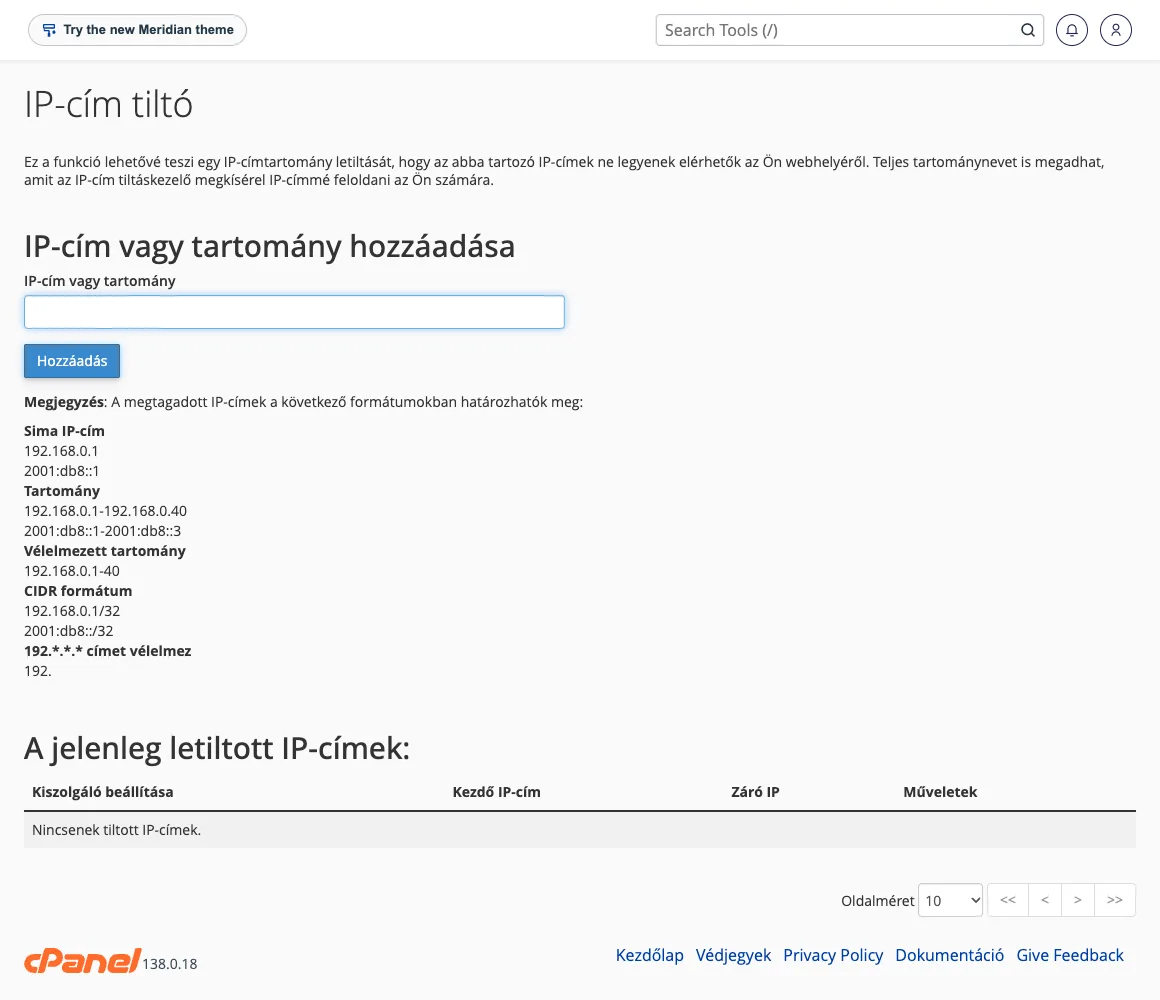
On cPanel hosting, you can block IP addresses without any coding using the IP Blocker tool in the Security section: enter the address (e.g. 203.0.113.25), the range (203.0.113.10-203.0.113.40) or the CIDR block in the IP address or range field, then click the Add button. The tool will also write the rule to the .htaccess file, and you will see the blocks listed at the bottom of the page, in the ‘List of** currently blocked IP addresses**’.
How do you check this?
The website returns a 403 Forbidden error when accessed from the blocked IP address. Try opening the page from a different network (such as a mobile network): it should load as normal there.
Common errors
- Typo in the file: if there is an incorrect line, the entire page returns a 500 Internal Server Error. In this case, correct or delete the lines you entered most recently (steps to take in the event of a 500 error).
- Mixing old and new syntax: do not use Apache 2.2
Order,AllowandDenydirectives alongsideRequiredirectives, as mixing the two produces unpredictable results. - Blocking your own IP address: the IP address of a home or office internet connection may change, and blocking a domain may also block other users.
- If the server is behind Cloudflare or another proxy, it will see the proxy’s address instead of the visitor’s. In this case, configure the block via the proxy’s interface (in Cloudflare, this would be via the WAF rules).
- Nginx runs on static hosting, which does not read the
.htaccessfile, so this method does not work there.