 English
 Magyar


If the media library displays the following message when uploading an image: “The uploaded file could not be moved to wp-content/uploads/2026/10.”, the file has arrived on the server; only the final step has failed. PHP first saves the upload to a temporary folder, and WordPress would then move it from there to the relevant month’s folder under uploads. On cPanel hosting, PHP runs under your user account, so this error means that your user account is currently unable to write to that folder.
The three most common causes are: the folder’s permissions or owner are incorrect (usually following a migration or restore), the storage space has been used up or the limit on the number of files has been reached, or WordPress is attempting to write to an incorrect path, such as one pointing to the old hosting account.
Which error message corresponds to which step?
- “I couldn’t copy the uploaded file …”: the folder for that month exists, but the move failed. That is what this article is about.
- “… unable to create directory. Can the parent directory be written to by the server?” (“Unable to create directory …”): it was unable to create even the ‘month’ folder. The same steps will help, just one level higher, in the
uploadsfolder. - “Missing working directory” or “Error writing to disk”: the first, temporary backup has failed. This is a server-side error; please contact our support team.
- “The uploaded file exceeds the upload_max_filesize directive in php.ini.” (this is the message displayed by WordPress in English): the file is too large. This article discusses this upload limit.
WordPress suppresses migration errors, so there is usually no trace of them in the PHP log. You can find the cause more quickly by trying the following.
1. Try writing to the folder
The cPanel Terminal (Advanced group) or SSH runs as your own user, just like PHP. Enter the directory specified in the error message:
touch ~/public_html/wp-content/uploads/2026/10/.irasteszt && echo IRAS OK
Possible answers:
IRAS OK: the folder is writable; the problem lies elsewhere (see steps 4 and 5). Delete the test file:rm ~/public_html/wp-content/uploads/2026/10/.irasteszt.Permission denied: authorisation error; please proceed to step 2.Disk quota exceeded: your storage space is full; see step 3.No such file or directory: WordPress is writing to a different location than you expect; see step 4.
On our test website, with a write-protected (555) monthly folder, we received exactly this error message, and after resetting it to 755, the upload worked immediately.
2. Authorisation and ownership
View all folders in this path:
cd ~/public_html
stat -c '%U:%G %a %n' wp-content wp-content/uploads wp-content/uploads/2026 wp-content/uploads/2026/10
Correct result:
felhasznalonev:felhasznalonev 755 wp-content
felhasznalonev:felhasznalonev 755 wp-content/uploads
felhasznalonev:felhasznalonev 755 wp-content/uploads/2026
felhasznalonev:felhasznalonev 755 wp-content/uploads/2026/10
If the owner is your user but the permissions are not set to 755 (for example, 555 or 500), reset the folders to 755 and the files to 644:
find ~/public_html/wp-content/uploads -type d -exec chmod 755 {} +
find ~/public_html/wp-content/uploads -type f -exec chmod 644 {} +
Without SSH, you can do the same in the cPanel File Manager: select the folder and use the Permissions button to set the value to 755. The chmod and chown article provides further details on permissions.
If the owner is not your user (for example, root), you cannot change the permissions; the chmod command will return the Operation not permitted error. This usually occurs after a manual migration carried out by an administrator. Please contact our support team and send us the output of the stat command: we will restore the folders to your user account. Please also count the affected files so that we know the extent of the problem:
find ~/public_html/wp-content/uploads ! -user "$(whoami)" | wc -l
Do not use the 777 permission as a ‘workaround’: it would allow other processes running on the server to write to your folder and would mask the real cause of the problem.
3. The hosting or file limit has been reached
If your storage space is full, the folder for that month exists, but the system will not allow any further writes, and WordPress will display the same error. On the right-hand side of the cPanel homepage, in the Statistics panel, the ‘Disk Usage’ and ‘File Usage’ rows show how close you are to your plan’s limit.
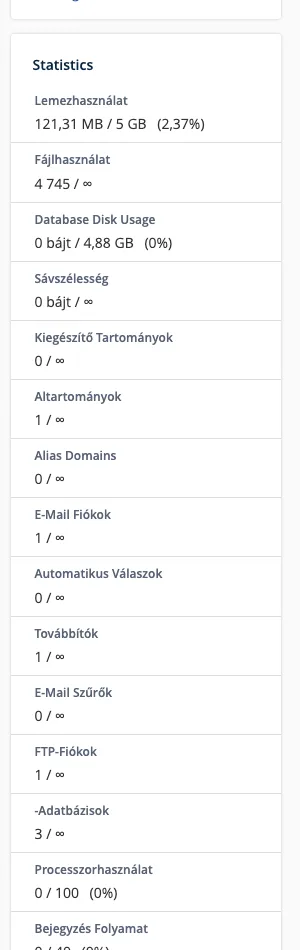
A typical sign is when small images are still uploading, but large ones are not. Free up some space (old backups, cache folders, large email accounts); you can find large folders in the Disk Usage interface. The article on inodes explains the limit on the number of files. If your website has outgrown your plan, upgrade to a larger one.
4. Where does WordPress actually write to?
WordPress calculates the upload directory from the upload_path setting, the UPLOADS file’s wp-config.php constant and plugin filters. After a migration, the absolute path of the old hosting location often remains in place. Ask WordPress:
cd ~/public_html
wp option get upload_path
wp config get UPLOADS
wp eval 'print_r( wp_upload_dir() );'
On a website that is working correctly, upload_path is empty, UPLOADS is not specified (the command reports this as an error, which is normal), and wp_upload_dir() points to its own directory:
[path] => /home/felhasznalonev/public_html/wp-content/uploads/2026/10
[basedir] => /home/felhasznalonev/public_html/wp-content/uploads
If the basedir is the path to another user’s directory or an old directory, redirect the website back to your own directory:
wp option update upload_path ""
wp option update upload_url_path ""
If the wp config get UPLOADS path has been entered, delete it: wp config delete UPLOADS. Without SSH, you can also find the upload_path setting on the /wp-admin/options.php page (in the list of hidden settings); clear the field there.
5. Extension or multi-site network
A plugin (such as a media organiser or membership plugin) may redirect the upload folder to a different location. Compare the path with and without plugins:
wp eval 'echo wp_upload_dir()["path"], PHP_EOL;'
wp eval 'echo wp_upload_dir()["path"], PHP_EOL;' --skip-plugins
If the two lines differ, the plugin folder must also exist and must belong to your user account. In a multi-site installation, each sub-site writes to the wp-content/uploads/sites/<azonosító>/ folder; you can query the folder for the sub-site causing the error as follows: wp --url=bolt.pelda.hu eval 'echo wp_upload_dir()["path"], PHP_EOL;'.
Verification
- In the admin interface, on the Media › Media Library page, upload a small image; the thumbnail should appear without any error messages.
- Or via the command line:
cd ~/public_html
wp media import ~/proba.jpg --title="Feltöltési teszt" --porcelain
The response is the ID of the new attachment; the image and its thumbnails will appear in the folder. Delete the test image afterwards using: wp post delete <azonosító> --force.
If the error recurs after every reset or synchronisation, the file-copying process is creating folders with the wrong owner; in this case, please contact us and we will work with you to identify the cause.