 English
 Magyar


WordPress’s debug mode is controlled by three constants in the wp-config.php file. WP_DEBUG is the main switch; WP_DEBUG_LOG writes errors to a file, whilst WP_DEBUG_DISPLAY displays them on the page. As long as WP_DEBUG is disabled, the other two have no effect.
One key setting causes the most surprises: the value of WP_DEBUG_DISPLAY is set to true by default. If you only enable the WP_DEBUG constant, PHP warnings will be visible to visitors, along with the server’s path information. On a live website, this is the secure configuration: WP_DEBUG enabled, WP_DEBUG_DISPLAY disabled, and WP_DEBUG_LOG writing to a file that is not accessible via the web.
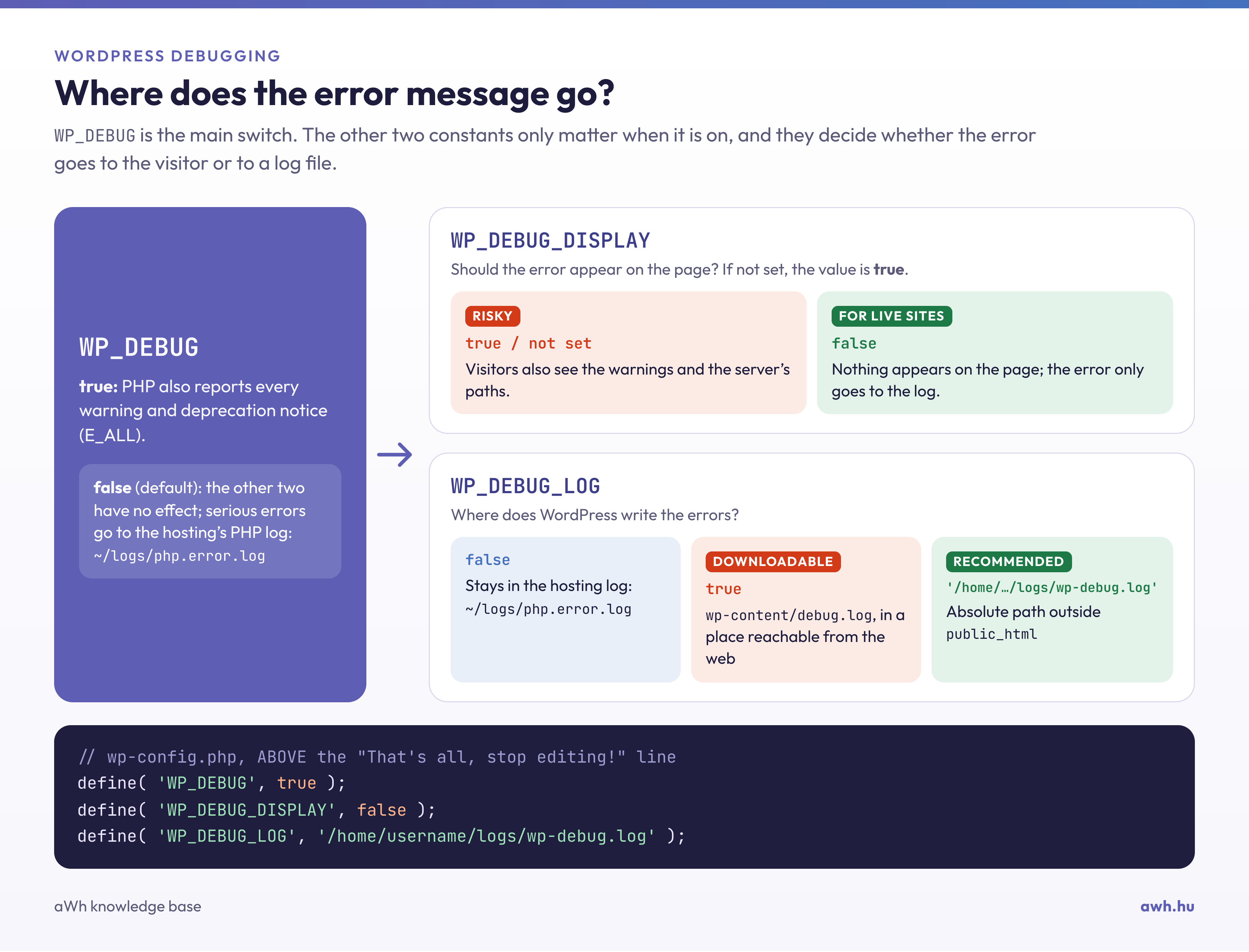
What does each constant do?
WP_DEBUG. If set to true, PHP will report all warnings, notices and deprecation notices, and WordPress will also report the use of deprecated functions as errors. If set to false (the default value), only critical errors will be logged.
WP_DEBUG_DISPLAY. If set to true or not specified, the error is displayed in the page’s HTML. If set to false, it is not displayed. For REST API, AJAX and XML-RPC requests, WordPress always disables this display so that the error message does not corrupt the JSON response; if you see the error on the page but not in the REST response, this is therefore intentional.
WP_DEBUG_LOG. If set to true, errors are logged to the wp-content/debug.log file. This file can be downloaded from the web; anyone who works out its address can open it, and it contains full server paths and, in some cases, database details. If you specify an absolute path instead of true, WordPress will write to that location, allowing you to place the log outside the public_html folder. If set to false, WordPress will not alter the logging behaviour, and errors will be recorded in the hosting provider’s own PHP log.
SCRIPT_DEBUG. This does not relate to PHP errors: WordPress loads the uncompressed versions of its own JavaScript and CSS files, so the error points to a line that can be read in the browser console. It generally has no effect on the plugins’ own compressed files.
What are the issues with aWh’s cPanel hosting?
On cPanel hosting plans, PHP logs to the logs/php.error.log file in the home directory by default, so you can still find serious errors even if WordPress’s debug mode is disabled. An error_log file may also be created in the website’s root directory. You can open both of these in File Manager or Terminal:
tail -n 20 ~/logs/php.error.log
If there is nothing in the log, or if you would like to see the warnings, enable debug mode. Our blog post explains in detail how to interpret the log entries.
Enabling debug mode
In the WP Toolkit
In the cPanel WordPress Management interface, open the website’s card and, under the Tools section, toggle the Troubleshooting switch on. Once you have finished, toggle it off.
Using WP-CLI
First, perform a backup of the wp-config.php file, as a single typo will bring the entire website down:
cd ~/public_html
cp -p wp-config.php ~/wp-config.php.bak-$(date +%F)
wp config set WP_DEBUG true --raw
wp config set WP_DEBUG_DISPLAY false --raw
wp config set WP_DEBUG_LOG /home/felhasznalonev/logs/wp-debug.log
The --raw switch enters the logical value without quotation marks; omit it from the path, as that must be enclosed in quotation marks. Replace felhasznalonev with your cPanel username (the whoami command will display this). WP-CLI inserts the new constants into the appropriate places and, if there is already a WP_DEBUG line in the file (found on sites installed via WP Toolkit), it modifies it. The basics of WP-CLI are described in the article on using WP-CLI.
Manually, in File Manager
Open the wp-config.php file for editing, locate the existing WP_DEBUG line, and replace it with these three lines:
define( 'WP_DEBUG', true );
define( 'WP_DEBUG_DISPLAY', false );
define( 'WP_DEBUG_LOG', '/home/felhasznalonev/logs/wp-debug.log' );
The lines must appear above the comment /* That's all, stop editing! Happy publishing. */. Anything placed below the line require_once ABSPATH . 'wp-settings.php'; at the end of the file will be executed too late and will have no effect. Only define a constant once: if it appears twice in the file, PHP will issue a warning and the first definition will take precedence.
Verification
wp eval 'var_dump( WP_DEBUG, WP_DEBUG_LOG, WP_DEBUG_DISPLAY, ini_get( "error_log" ) );'
The answer can be found on our test website:
bool(true)
string(38) "/home/felhasznalonev/logs/wp-debug.log"
bool(false)
string(38) "/home/felhasznalonev/logs/wp-debug.log"
The last line confirms that WordPress has actually applied the setting. Next, load the page showing the error and check the log:
tail -n 20 ~/logs/wp-debug.log
Finally, check that nothing is displayed on the page:
curl -s https://pelda.hu/ | grep -icE "Warning:|Notice:|Deprecated:|Fatal error:"
The correct answer is 0. If the number is higher, something will re-enable the display of errors later; usually a plugin. You can search for it like this: grep -rn "display_errors" ~/public_html/wp-content/plugins/.
If the log remains empty
- The constants are in the wrong place. Compare the line numbers:
grep -n "wp-settings\|WP_DEBUG" wp-config.php. The lines containingWP_DEBUGshould have lower line numbers. - There is a typo in the path. Even a misspelt path is valid; WordPress sets it, but PHP cannot write to that location without raising an error. Please check that the folder exists.
- Something is overriding this setting. If
ini_get( "error_log" )does not return your path, a plugin or a must-use plugin (wp-content/mu-plugins) is modifying it. - The process halted before reaching PHP. If the page is blank and returns a 500 error, and there is nothing in any of the logs, the request did not reach PHP’s error handling. In such cases, it is worth checking the Errors page in the cPanel Dashboard section and the CloudLinux resource limits.
Don’t leave it switched on unnecessarily
WordPress and PHP do not generate the log file. A plugin that displays the same ‘out of date’ message every time a page is loaded creates a file several gigabytes in size within days, which also consumes storage space and file numbers (inodes). After identifying the error:
- Disable the
WP_DEBUGconstant (wp config set WP_DEBUG false --raw) or the WP Toolkit Troubleshooting toggle; - Do not delete the contents of the log; instead, flush it
: > ~/logs/wp-debug.log. Then, once you no longer need it, delete the file; - If the log is full of the same warning, that plugin or template must be fixed or replaced; hiding the messages merely masks the symptom.
Debug mode only displays PHP errors: it does not show slow database queries or when the memory limit is nearly reached. If your website is slow, the articles on speeding up WordPress and on the memory limit will help; a separate article explains how to troubleshoot the white screen of death.