 English
 Magyar


If your WordPress site is moving to a new domain, or you are switching a staging site to live, the old address isn’t just listed on the Settings page: it appears in the text of your posts, in image filenames, in widgets, and in the settings of your themes and plugins. The WP-CLI command wp search-replace replaces all these in a single step and, most importantly, does not corrupt serialised data.
If the website is managed via WP Toolkit, in simpler cases, the ‘Updated website URL’ option in the ⋮ menu for the website’s row will also carry out the URL change. This article explains the command-line method, which provides full visibility and allows you to verify everything. On cPanel hosting plans, WP-CLI is available in plans with SSH access; the basics are covered in the article on using WP-CLI.
Why isn’t a simple SQL replacement a good idea?
WordPress and its plugins store many settings in a serialised PHP format, which prepends the length in bytes to the start of every string: s:22:"https://regi-domain.hu". If an SQL REPLACE() or a text editor replaces the domain in the SQL file, the text changes but the length does not. In such cases, PHP is unable to read the value back; WordPress uses the default value, and the widgets or plugin settings will be empty without any error message.
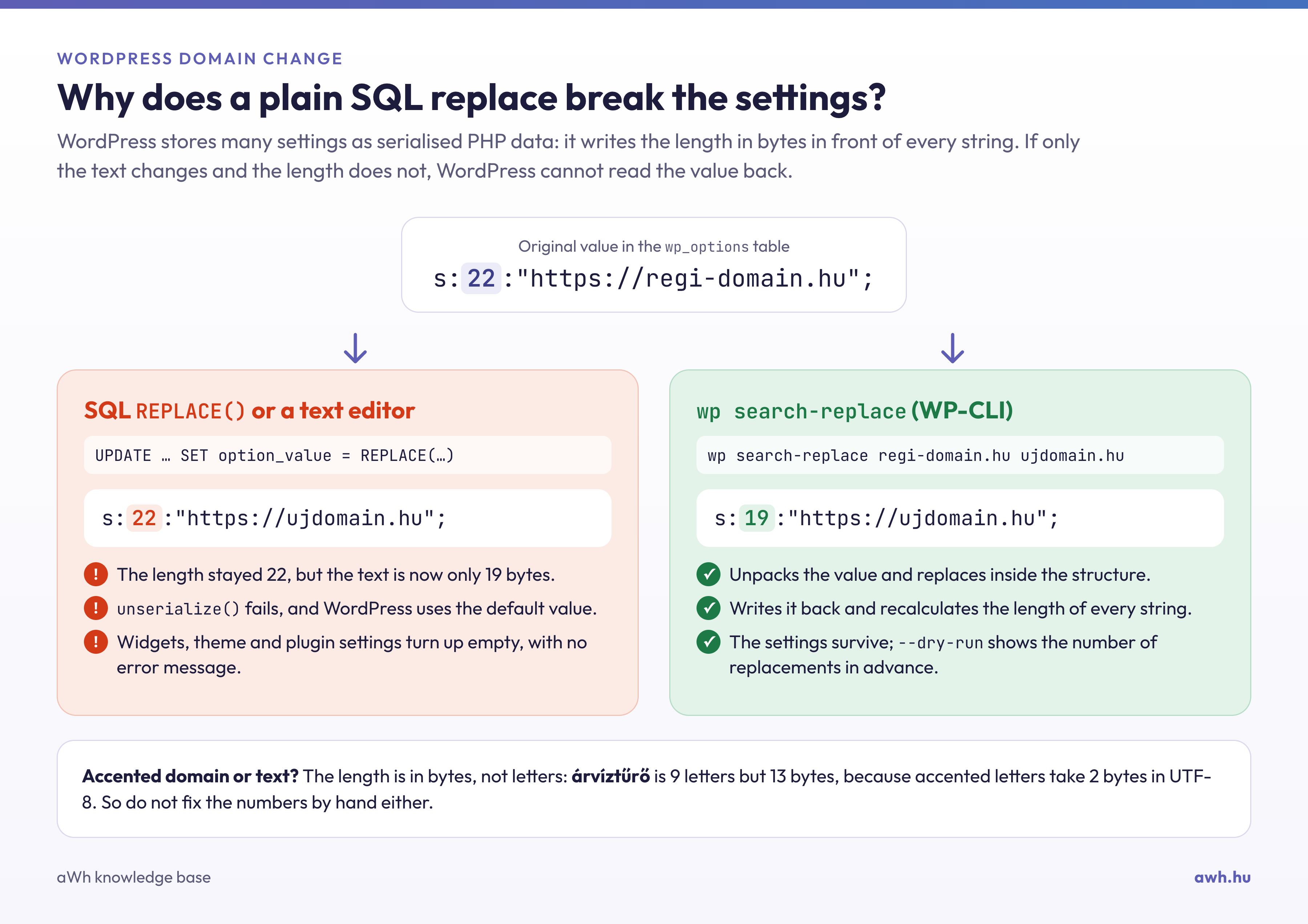
One tricky detail: if the old and new domains happen to be the same length, the simple swap appears to work, and the error only becomes apparent during the next migration. For text containing accented characters, the length is measured in bytes; an accented character takes up 2 bytes, so it is not even worth trying to correct this manually.
wp search-replace deserialises the serialised value, replaces the content within the structure, then writes it back and recalculates the lengths.
1. Backup
Save the database before making any changes. The wp db export command cannot be used on aWh’s cPanel servers (the PHP function proc_open is disabled), so use the mysqldump command directly. The article on using WP-CLI explains how to create the ~/.my.cnf file containing the database password.
cd ~/public_html
mysqldump --single-transaction --no-tablespaces "$(wp config get DB_NAME)" > ~/domainvaltas-elott.sql
tail -1 ~/domainvaltas-elott.sql
The last line should read -- Dump completed on … If something goes wrong, the recovery procedure is:
mysql "$(wp config get DB_NAME)" < ~/domainvaltas-elott.sql
The WP Toolkit’s Backup/Restore function and the daily JetBackup are both adequate (backup options), but you can restore your site in a matter of minutes from a recent SQL file.
2. Work out what you’re going to replace
Search for the bare domain name, without the protocol. The block editor and many plugins store the address in JSON format as https:\/\/regi-domain.hu; a search for https://regi-domain.hu will not find these, but a search for regi-domain.hu will.
wp db search 'regi-domain.hu' --all-tables --stats
The number of results is shown at the end of the output, for example: Success: Found 7 matches.
3. Test run
wp search-replace 'regi-domain.hu' 'uj-domain.hu' --all-tables --skip-columns=guid --precise --report-changed-only --dry-run
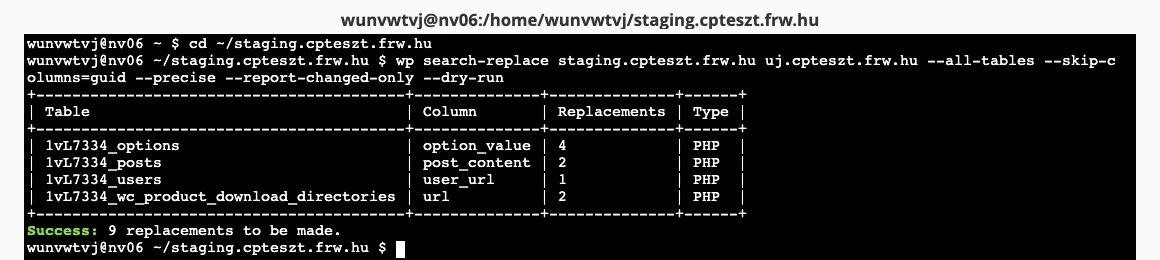
The switches:
--dry-run: does not write anything to the database; it simply shows how many replacements would be made in which columns of which tables.--all-tables: this option also scans the plugins’ own tables (for example, the image shows a WooCommerce table). If your database contains tables for multiple websites, use the--all-tables-with-prefixswitch instead to ensure that only tables with your own prefix are accessed.--skip-columns=guid: theguidfield in posts is a permanent identifier, not a title; if you change it, news readers will treat all old posts as new.--precise: processes every line using PHP; it is slower, but more reliable when dealing with complex data from website builders.--report-changed-only: only lists those tables where a change will actually take place.
Compare the result with the number from step 2. If there are significantly more matches, the search term is also part of another name (for example, pelda.hu also appears in the address masikpelda.hu); in this case, use the longer, more precise form. If there are significantly fewer matches, it is likely in the wrong website folder.
4. The replacement
Run the same command without the --dry-run, so that exactly what you have checked is executed:
wp search-replace 'regi-domain.hu' 'uj-domain.hu' --all-tables --skip-columns=guid --precise --report-changed-only
The last line reads Success: Made N replacements., where N corresponds to the number of test runs. For a multisite installation, add the --network switch; otherwise, only the main site’s address will change.
5. Switching from HTTP to HTTPS in a separate step
Do not combine the domain and protocol changes into a single search. First change the domain, then change the protocol on the new domain:
wp search-replace 'http://uj-domain.hu' 'https://uj-domain.hu' --all-tables --skip-columns=guid --precise --report-changed-only
wp option update siteurl 'https://uj-domain.hu'
wp option update home 'https://uj-domain.hu'
If you are simply switching to HTTPS without changing your domain, this step covers the entire process. The article on mixed content will help you identify any missing http:// links.
6. Clearing caches
Whilst a cache is serving the old content, the result of the change is not visible:
wp cache flush
wp transient delete --all
wp rewrite flush
Next, clear the cache of your caching plugin (e.g. AccelerateWP, LiteSpeed Cache, WP Rocket) from within the plugin’s interface, and if you are using a CDN, clear the cache there as well.
7. What is not in the database
search-replace only rewrites the database. Please also check the files:
grep -n "WP_HOME\|WP_SITEURL\|DOMAIN_CURRENT_SITE" ~/public_html/wp-config.php
grep -rn "regi-domain\.hu" ~/public_html/.htaccess ~/public_html/wp-content/themes/
If the WP_HOME or WP_SITEURL entries in the wp-config.php file contain the old address, this will overwrite the database: the change will be successful, yet the old address will still be displayed, and the fields on the Settings page will be greyed out. Please correct or delete these lines. In addition, check the URLs hard-coded into the template, the redirects in the .htaccess file, the settings for the CDN, SMTP and statistics plugins, as well as the callback addresses registered with external services (payment gateways, APIs).
Elementor stores its content in double-encoded JSON, and its compiled CSS files also contain absolute URLs. Use the ‘Replace URL’ function on the ‘Tools’ page in the Elementor menu, then regenerate the CSS:
wp elementor flush-css
Other page builders (Divi, Beaver Builder, WPBakery) also maintain their own CSS caches; clear these before concluding that the replacement has failed.
Verification
wp option get siteurl && wp option get home
wp db search 'regi-domain.hu' --all-tables --stats
curl -sI https://uj-domain.hu/ | head -5
curl -s https://uj-domain.hu/ | grep -c 'regi-domain\.hu'
siteurl and home should display the new address; wp db search should find a match in the guid column at most; the response to curl -sI should be 200, and should not redirect back to the old domain; and the last command should output 0. If it is not zero, the old address has been left in one of the locations listed in step 7.
Next, open the pages in the admin interface that store serialised settings: Appearance › Widgets, the Customiser, WooCommerce shipping zones and page builder templates. If any of these are empty where settings previously existed, restore the backup and run the migration again using the --precise switch.
Common errors
No replacement, even though the old domain is still there everywhere. It was running in the wrong folder (check: wp option get siteurl), or the address is stored differently from how you searched for it. Try searching for a shorter form: wp db search 'regi-domain' --all-tables --stats.
The change has been successful, but the page is still redirecting to the old address. The most common causes, in order, are: WP_HOME/WP_SITEURL in the wp-config.php file, a cache that has not been cleared, a CDN serving the old address, or a redirect in the .htaccess file.
The subpages of the multi-site network have remained at the old address. Either the --network switch was omitted, or the DOMAIN_CURRENT_SITE constant wp-config.php still contains the old domain. Correct this, run the command again with the --network switch, and check: wp site list --field=url.
Live online shop. For online shops, suspend orders for the duration of the changeover (for example, by switching to maintenance mode), check that everything is working correctly, and only then reopen the shop. If the domain change involves moving your hosting, the article on WordPress migration describes the entire process.