 English
 Magyar


If your WordPress admin interface is getting slower month by month, even though you haven’t installed any new plugins, it’s worth checking the wp_options table. At the very start of every request, even before the theme and plugins are loaded, WordPress loads all the automatically loaded (autoload) settings with a single query and keeps them in memory. This happens with every page load, every admin page, every AJAX request and every cron job.
This was originally designed for small amounts of data: the website address, the active template and the time zone. However, many plugins store their cache, logs or even a large block of settings here, and the settings of removed plugins also remain here. Just one or two megabytes of autoload data is enough to noticeably slow down every request. Our blog post covers general database maintenance (revisions, temporary data, and cleaning plugins).
How much does your website cost?
Since WordPress 6.6, Site Health (Tools menu) has been issuing a warning if the automatically loaded settings are too large: “Automatically loaded options may affect performance”. You can retrieve the exact figure using WP-CLI:
cd ~/public_html
wp option list --autoload=on --format=total_bytes
On our test website, this is 40,775 bytes, or approximately 40 KB, which is typical for a new website. A few hundred KB is still fine; anything over 1 MB is worth investigating, and if it’s several MB, you’re bound to find something. The number of lines also matters: even several thousand small settings can slow things down.
What takes up space?
The main tasks using WP-CLI:
wp option list --autoload=on --fields=option_name,size_bytes --format=csv | sort -t, -k2 -n -r | head -20
Or in phpMyAdmin (under the ‘Databases’ section in cPanel), on the ‘SQL’ tab of the database. Replace the table prefix (1vL7334_ in the example) with your own; the command wp db prefix will display it, and you can also see it in the list on the left-hand side of phpMyAdmin:
SELECT option_name, autoload, ROUND(LENGTH(option_value) / 1024, 1) AS kb
FROM 1vL7334_options
WHERE autoload IN ('yes', 'on', 'auto-on', 'auto')
ORDER BY LENGTH(option_value) DESC
LIMIT 20;
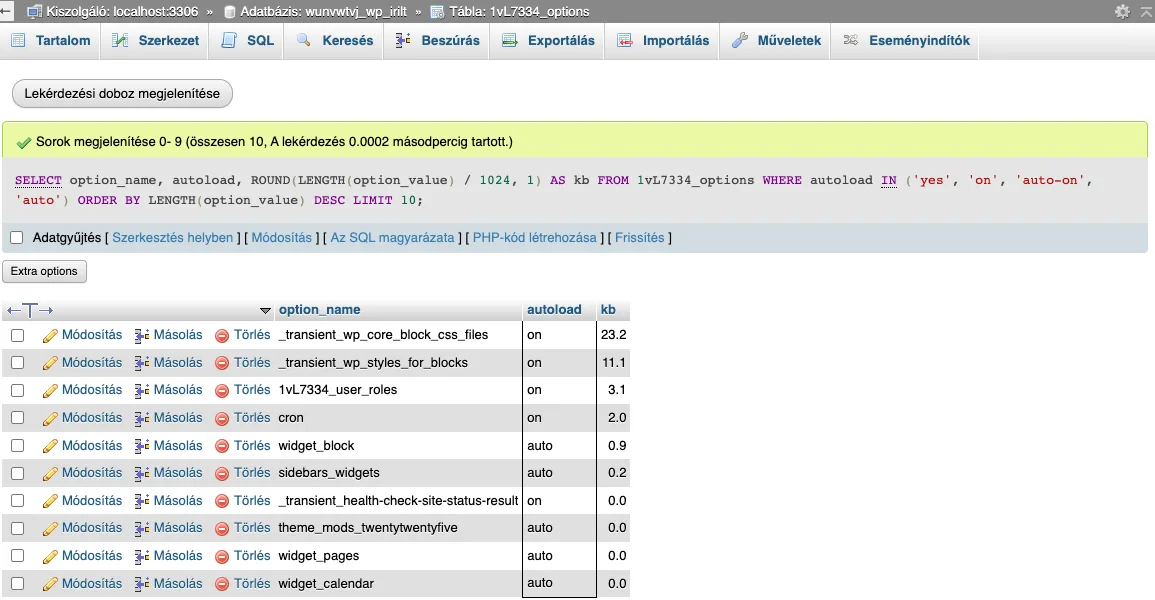
Since WordPress 6.6, the autoload column can contain more than just yes and no: on and auto-on are mandatory; auto means automatic loading left to WordPress’s discretion; whilst off and auto-off mean non-automatic loading. Consequently, the WHERE autoload = 'yes' condition found in older guides now omits the majority of entries.
Names often reveal a lot about their owners: wf_ stands for Wordfence, rocket_ for WP Rocket, elementor_ for Elementor, _transient_ and _site_transient_ refer to transient data (cache), whilst cron refers to WP-Cron’s own scheduling (which, for a busy online shop, can itself exceed 1 MB). Here’s how you can view the beginning of a large value without having to type several megabytes into the terminal:
wp option get rocket_cache_files --format=json | head -c 500
A summary by extension (by prefix) in SQL:
SELECT SUBSTRING_INDEX(option_name, '_', 2) AS elotag,
       COUNT(*) AS db,
       ROUND(SUM(LENGTH(option_value)) / 1024) AS kb
FROM 1vL7334_options
WHERE autoload IN ('yes', 'on', 'auto-on', 'auto')
GROUP BY elotag
ORDER BY kb DESC
LIMIT 20;
Correction
Please perform a backup of the database beforehand. The wp db export command does not work on aWh’s cPanel servers, so please use the mysqldump command (WP-CLI article) or the ‘Export’ tab in phpMyAdmin.
1. Disable auto-refresh where it is not required
A setting should only be loaded automatically if it is required for almost every page load. Anything that is only needed on a settings page or for a rare task can still be accessed by the extension even if it is not pre-loaded, simply by making a separate request:
wp option set-autoload rocket_cache_files off
wp cache flush
If the plugin writes the data back with autoload on its next save, this is a fault with the plugin; please report it to the developer.
2. Delete expired temporary data
WordPress only deletes expired temporary data if someone tries to read it, or if it is caught up in the daily clean-up. Anything that is no longer needed can remain there:
wp transient list --format=count
wp transient delete --expired
A complete purge (wp transient delete --all) is safe; the plugins will rebuild whatever they use, though initial page loads may be slower as a result.
3. Delete the settings for the removed extensions
If you are certain you no longer use a plugin and it is not on the list (wp plugin list), you can delete its settings. One by one:
wp option list --search="regibovitmeny_*" --fields=option_name,size_bytes
wp option delete regibovitmeny_settings regibovitmeny_cache
In SQL, the underscore must be escaped, because in a LIKE, the _ represents any character:
DELETE FROM 1vL7334_options WHERE option_name LIKE 'regibovitmeny\_%';
Only delete based on a prefix if the prefix clearly belongs to a specific extension; a pattern that is too short may also affect the settings for other extensions.
4. Compress the table
After deletion, the table’s size on the disk does not decrease. In phpMyAdmin, select the wp_options table and choose the ‘Optimise Table’ operation, or use the following command in the command line: mysql "$(wp config get DB_NAME)" -e "OPTIMIZE TABLE $(wp db prefix)options".
Monitoring and prevention
Measure it again (wp option list --autoload=on --format=total_bytes) and check the Site Health page. The page load time of the admin interface is also visible in the Network tab of the browser’s developer tools; the change can be measured even with a reduction of a few hundred KB.
The best way to prevent this is to keep the number of plugins under control and to delete (not just deactivate) any plugins you’re not using. Check the size of the autoload directory every six months; further tips on speeding up your site can be found in the article on speeding up WordPress, whilst the articles on wp_postmeta and Action Scheduler cover other tables that tend to become bloated. In our cPanel hosting plans, AccelerateWP can also help to speed up your site.