 English
 Magyar


An online shop’s database can double in size over the course of a few months, even though ‘nothing has changed’ and the front end of the site is fast. In such cases, the Action Scheduler tables are often to blame: hundreds of thousands of failed or pending tasks from a plugin that was removed long ago, which the system keeps trying to run over and over again.
WordPress has two background task systems running side by side, and if something goes wrong, it’s worth checking both:
- WP-Cron: WordPress’s built-in scheduler. It does not synchronise with the server’s clock, but rather with visitor activity: every time a page is loaded, it checks whether there are any tasks due.
- Action Scheduler: a task queue included with WooCommerce, which is also used by many other plugins (such as Yoast SEO, MailPoet, and subscription and email-sending plugins). Its tasks are stored in the
actionscheduler_actionstable, its log is stored in theactionscheduler_logstable, and it is run by WP-Cron by default.
We ran the following commands on a test website installed with WooCommerce, using the cPanel hosting Terminal; the basics of WP-CLI are described in the article on using WP-CLI.
Action Scheduler status
You can also view this on the WordPress admin interface without using SSH: on the WooCommerce › Status page, under the Scheduled Actions tab, you can filter by status (pending, failed, completed) and by task name (hook). It’s quicker from the command line:
cd ~/public_html
wp action-scheduler status
Data store: ActionScheduler_HybridStore
Runner: ActionScheduler_QueueRunner
Version: 4.1.0
status    count  oldest                      newest
complete  1      2026-10-27 19:56:51 +0000   2026-10-27 19:56:51 +0000
pending   2      2026-10-27 19:57:51 +0000   2026-10-28 03:00:00 +0000
On a healthy website, the number of pending tasks is small, and even the oldest has only been waiting for a few minutes; the number of failed tasks is low, and their causes are known. If pending tasks have been waiting for hours, the process has stalled; if there are several thousand failed tasks, a plugin is repeatedly failing.
How many instances of each task are pending or have failed?
wp action-scheduler action list --status=pending --fields=id,hook,group,scheduled_date --per_page=20
wp action-scheduler action list --status=failed --format=count
wp action-scheduler action logs 1234
The last command displays a task log, including the cause of the error. For larger datasets, aggregating by task name is faster in SQL. The wp db query command does not work on aWh’s cPanel servers, so use the mysql command (the configuration of ~/.my.cnf, which contains the password, is described in the WP-CLI article), or run the query in phpMyAdmin using your own table prefix:
P=$(wp db prefix)
mysql "$(wp config get DB_NAME)" -e "SELECT hook, status, COUNT(*) AS db FROM ${P}actionscheduler_actions GROUP BY hook, status ORDER BY db DESC LIMIT 20"
WP-Cron status
wp cron event list --fields=hook,next_run_relative,recurrence
wp cron event list --due-now
If there are many tasks due now (--due-now) but they are not running, WP-Cron is not starting correctly: for example, because there are too few visitors, or because DISABLE_WP_CRON is enabled but there is no server-side scheduling in its place.
Orphaned WP-Cron tasks (which belong to a removed plugin and whose hooks are no longer being listened to):
wp eval 'foreach ( _get_cron_array() as $ts => $events ) { foreach ( $events as $hook => $x ) { if ( ! has_action( $hook ) ) echo "gazdátlan: $hook\n"; } }'
You can delete such a task as follows: wp cron event delete <hook>.
Cleaning
Before doing so, please perform a backup of the database (using mysqldump; see the WP-CLI article), as deletion cannot be undone.
1. Deleting orphaned tasks
Find any pending or failed tasks that no longer have an extension associated with them:
wp eval 'global $wpdb; foreach ( $wpdb->get_col( "SELECT DISTINCT hook FROM {$wpdb->prefix}actionscheduler_actions WHERE status IN (\"pending\",\"failed\")" ) as $h ) { if ( ! has_action( $h ) ) echo $h, "\n"; }' > ~/gazdatlan-feladatok.txt
cat ~/gazdatlan-feladatok.txt
Go through the list; if a name looks familiar and you still need the extension, do not delete it. You can cancel pending tasks by their name:
while IFS= read -r hook; do wp action-scheduler action cancel "$hook" --all; done < ~/gazdatlan-feladatok.txt
canceled tasks and old failed tasks are cleared by the next step.
2. Deleting old tasks and logs
By default, Action Scheduler deletes completed and cancelled tasks after approximately one month. It does not delete failed tasks, and if the clean-up process does not run for any reason, everything is retained. Manually, in small batches:
wp action-scheduler clean --status=complete,failed,canceled --before='14 days ago' --batch-size=500 --pause=1
Thanks to the pause between runs (--pause), the clean-up does not overload the database, and the website remains fast throughout. You can shorten the retention period using a ‘must-use’ plugin (wp-content/mu-plugins/action-scheduler-megorzes.php):
<?php
/**
 * Plugin Name: Action Scheduler: 14 napos megőrzés
 */
add_filter( 'action_scheduler_retention_period', function () {
    return 14 * DAY_IN_SECONDS;
} );
3. Compressing the table
Deleting data frees up rows, but the table remains the same size on the disk. After a major clean-up, run this in phpMyAdmin (selecting the tables, then ‘Optimise Table’), or:
mysql "$(wp config get DB_NAME)" -e "OPTIMIZE TABLE ${P}actionscheduler_actions, ${P}actionscheduler_logs"
Ensuring reliable operation
WP-Cront is triggered by visitor traffic, so on a low-traffic online shop overnight, tasks may be delayed by hours, whilst at peak times, a resource-intensive task can slow down a visitor’s page load. Let the server handle the execution:
- If your website is managed via WP Toolkit, enable the** ‘Fetch wp-cron.php’** option in the ‘Performance’ section of your website’s card.
- Manually: disable WP-Cron in the
wp-config.phpfile (define( 'DISABLE_WP_CRON', true );) and set up a cron job in cPanel instead. The steps are described in the article on replacing WP-Cron.
For high-traffic online shops, you can also run the Action Scheduler queue as a separate cron job, in limited batches, so that it does not tie up all PHP processes. On the cPanel cron jobs interface (Advanced group), for example, every five minutes:
/usr/local/bin/wp --path=/home/felhasznalonev/public_html action-scheduler run --batch-size=25 --batches=4 > /dev/null 2>&1
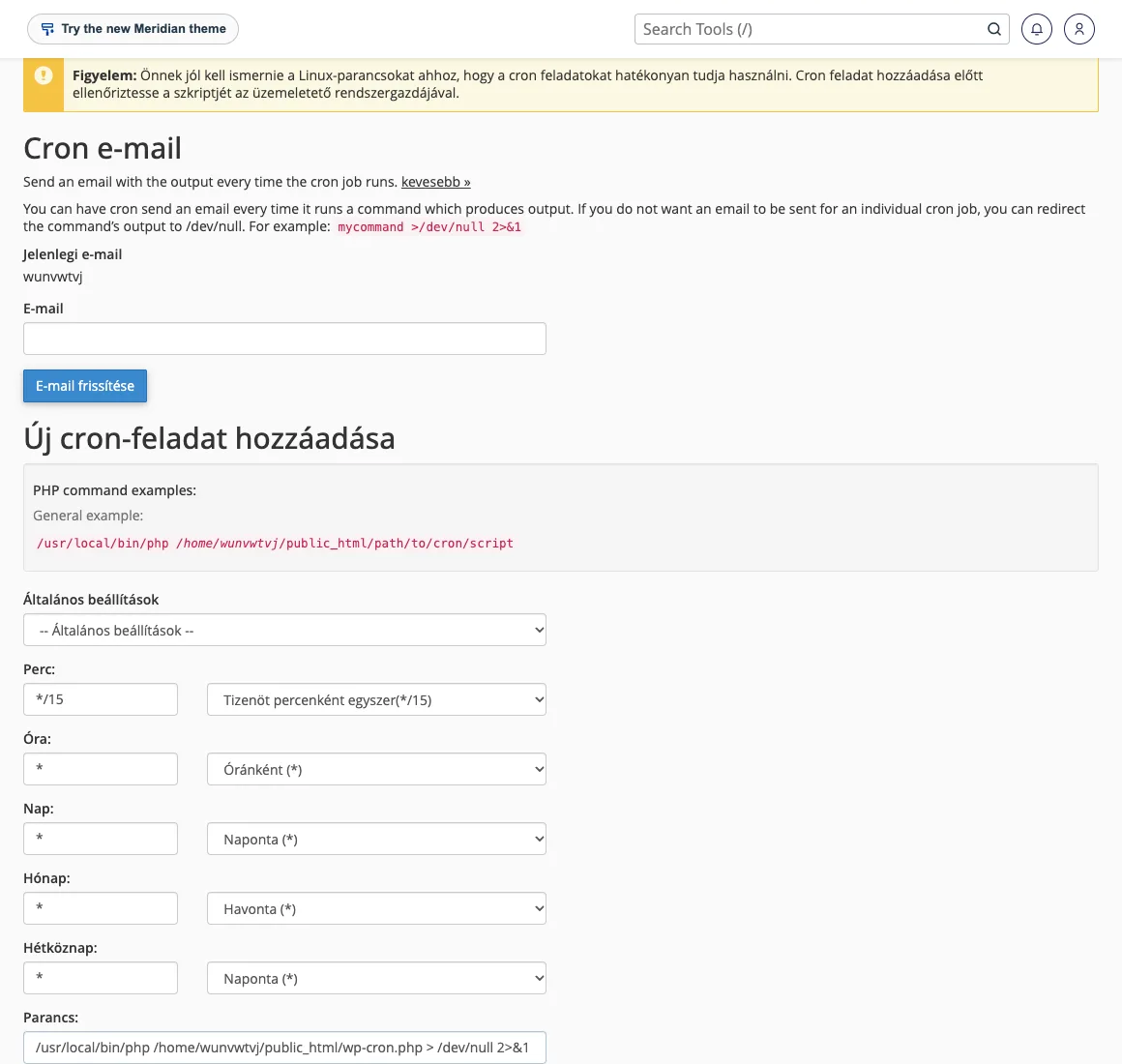
A background task that runs for more than a minute and gets stuck at the same point every time is performing an infinite loop: this must be fixed by the plugin’s developer. A large number of orders arriving suddenly (for example, during a promotion) can also schedule several thousand tasks at once; if the website slows down at such times, CloudLinux’s resource usage will show which limit the account is hitting.
Regular checks
Check the output of the wp action-scheduler status command monthly. If the number of pending tasks consistently runs into the thousands, or if failed tasks are piling up, this is a sign of a plugin error, and it is better to spot this within a few weeks than a year later, when the database has grown to gigabytes in size. The other tables in the database are covered in the article on cleaning the wp_options and wp_postmeta tables.