English
 Magyar


There may be occasions when you need to install WordPress manually on your web hosting account. This may be because a WordPress installer is not available, or simply because you prefer to do it this way.
This is not usually necessary on aWh’s web hosting: with the KeyHelp application installer, WordPress can be installed in just a few clicks (see: KeyHelp control panel: first steps). This article is intended for those who are curious about the background or wish to install WordPress with custom settings. The article ‘Manual installation of WordPress on cPanel hosting’ describes the steps.
The installation essentially consists of four main steps: you need to download the WordPress installer, create a database for WordPress, upload the WordPress files to your web hosting account, and finally finalise the settings in the WordPress wizard (via your browser).
Download WordPress
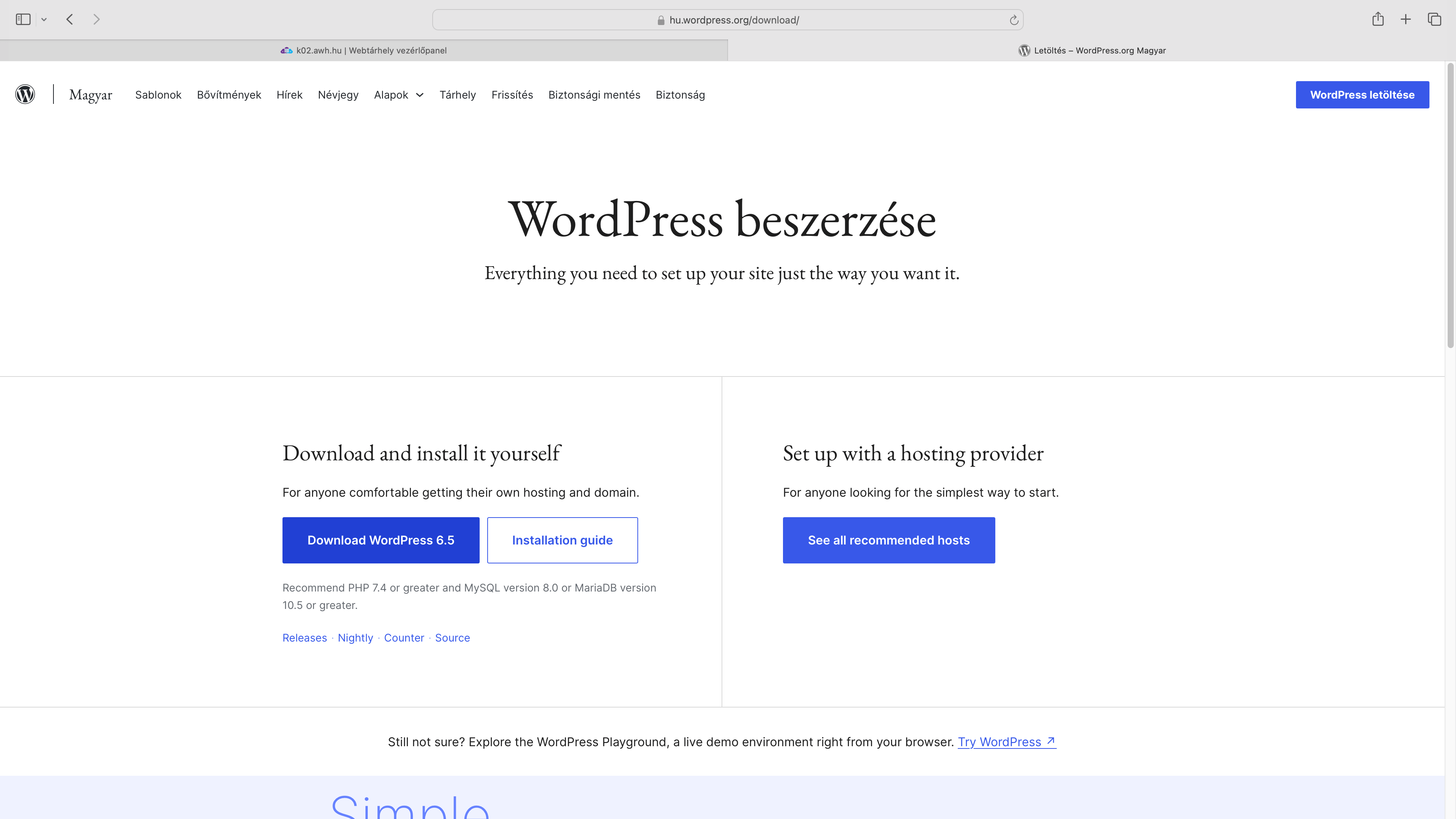
Open the hu.wordpress.org website in your favourite browser, click on the blue ‘Get WordPress’ button in the top right-hand corner, and finally click on the ‘Download WordPress 6.5’ button in the middle of the page.
As a result, we download the WordPress installation files, packed into a ZIP file.
Creating a database
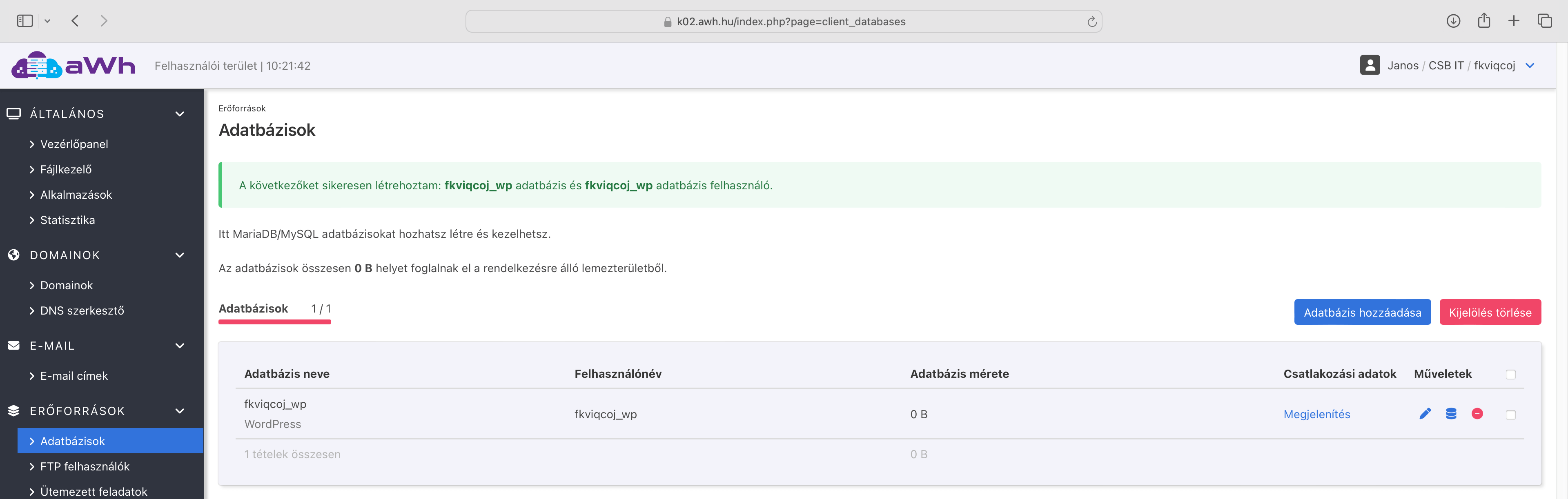
Next, we’ll create the database and the user account that our WordPress website will be able to use. To do this, simply click on the ‘Databases’ menu item in the web hosting control panel.
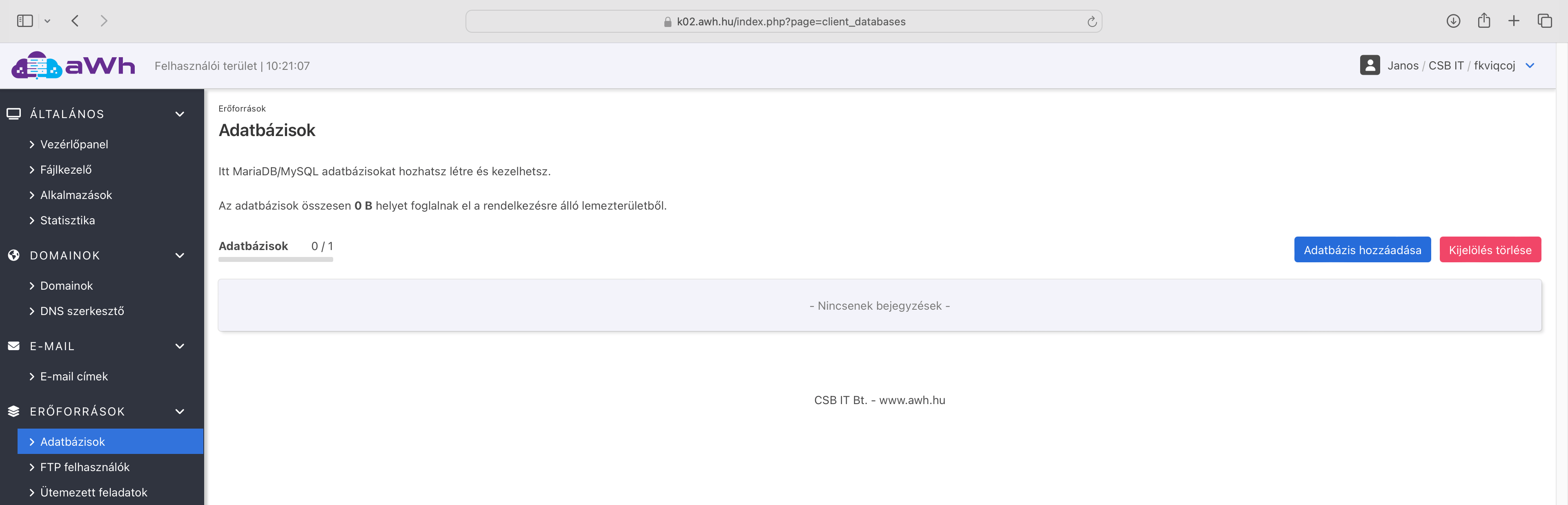
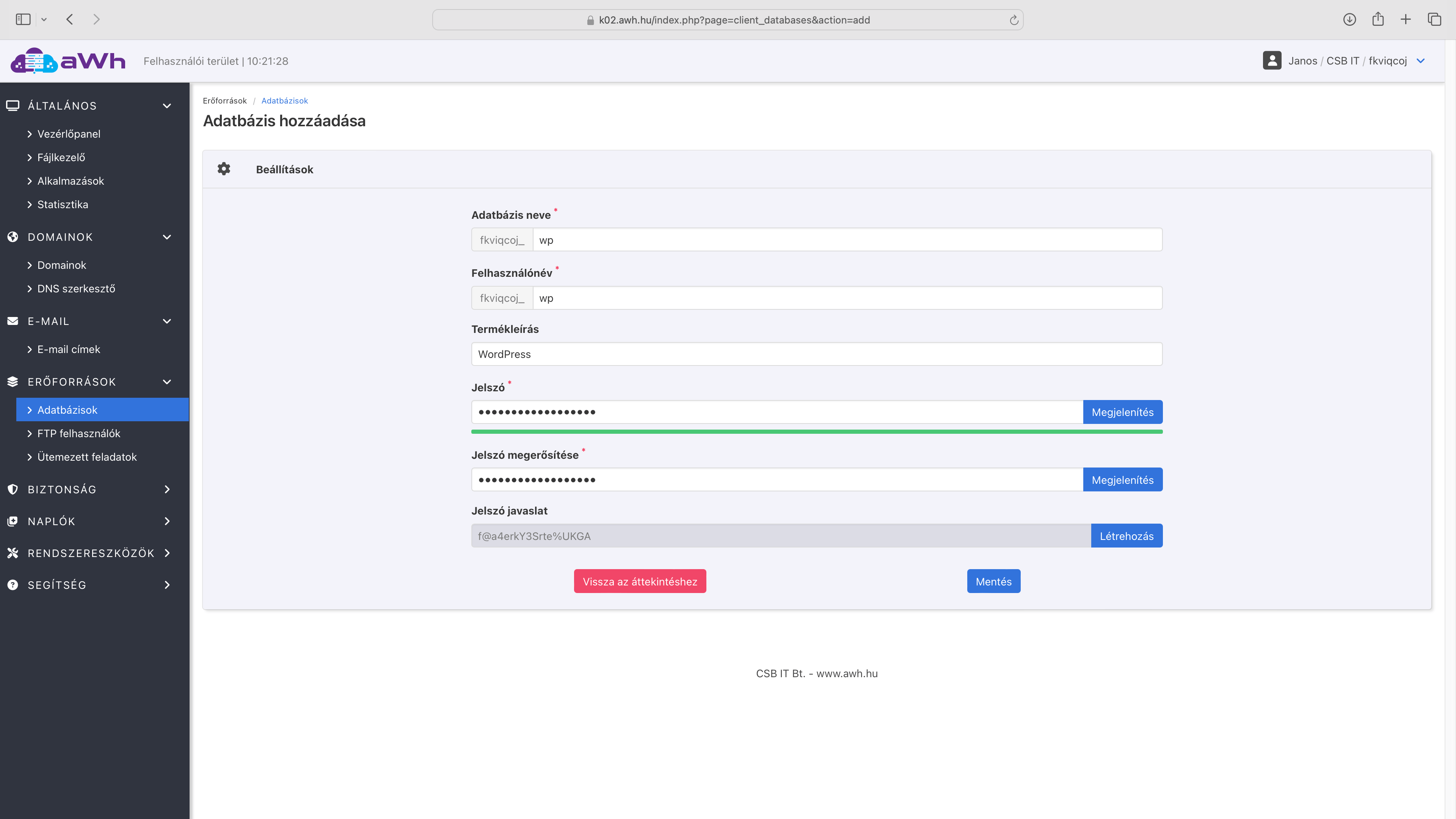
Then click on the ‘Add Database’ button. On this page, you can enter the database name, username and the corresponding password. It is important to make a note of these details, as you will need them later!
Once saved, the newly created database will appear in the list.
Uploading WordPress files
There are two ways to upload WordPress files. You can either upload them via an FTP connection or use the built-in file manager in the hosting control panel.
For both solutions, the first step is to determine which folder the website is set up in, so that we can upload the files there.
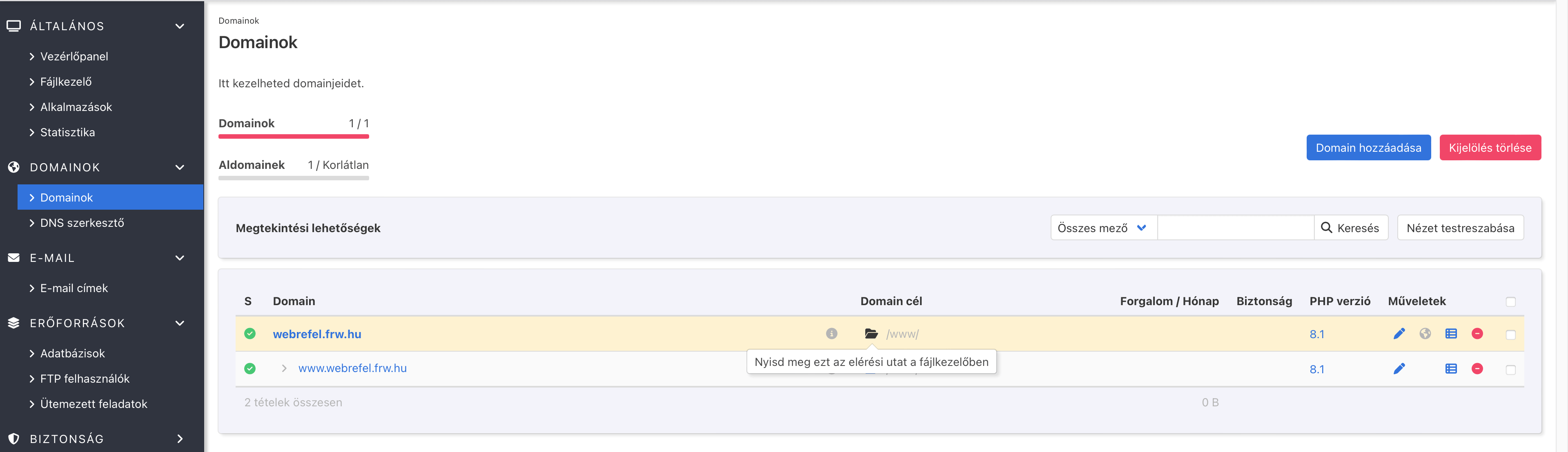
To do this, simply click on the ‘Domains’ option in the left-hand menu bar, where you can see which domain names are registered to your hosting account, as well as which folder they are set to point to. In this example, it is set to the www/ folder.
If you wish to upload the files via FTP, unzip the downloaded ZIP file, connect to your hosting account via FTP, and then upload the contents of the previously unzipped ‘wordpress/’ folder to the ‘Domain’ folder (i.e. not the ‘wordpress’ folder itself, but the files and folders contained within it).
If you wish to upload files using the File Manager, simply click on the folder icon, which will open the File Manager straight away and take you to the relevant folder.
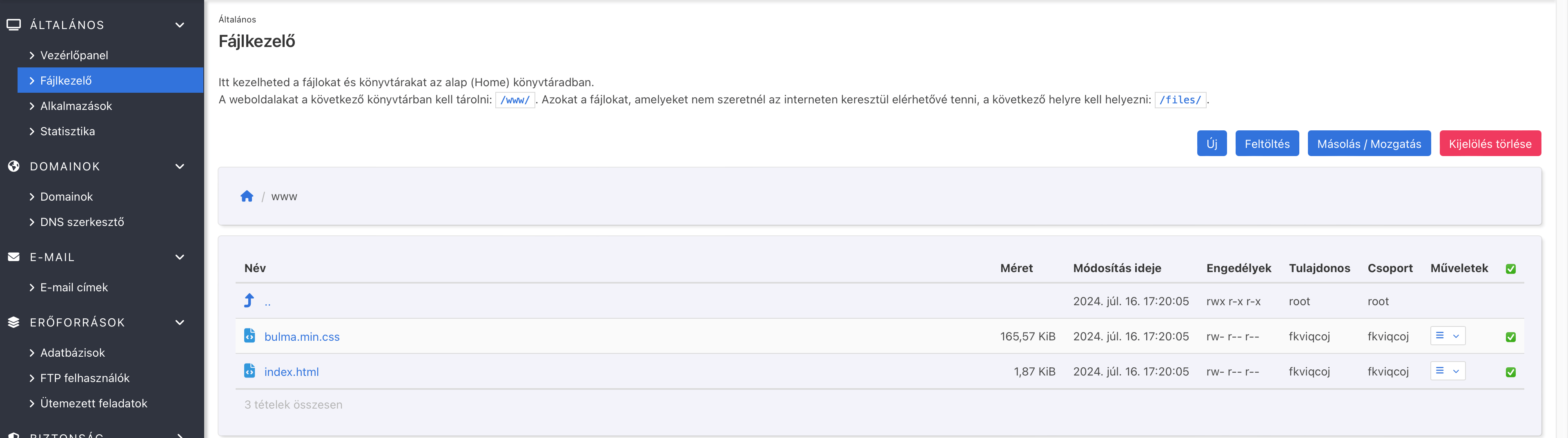
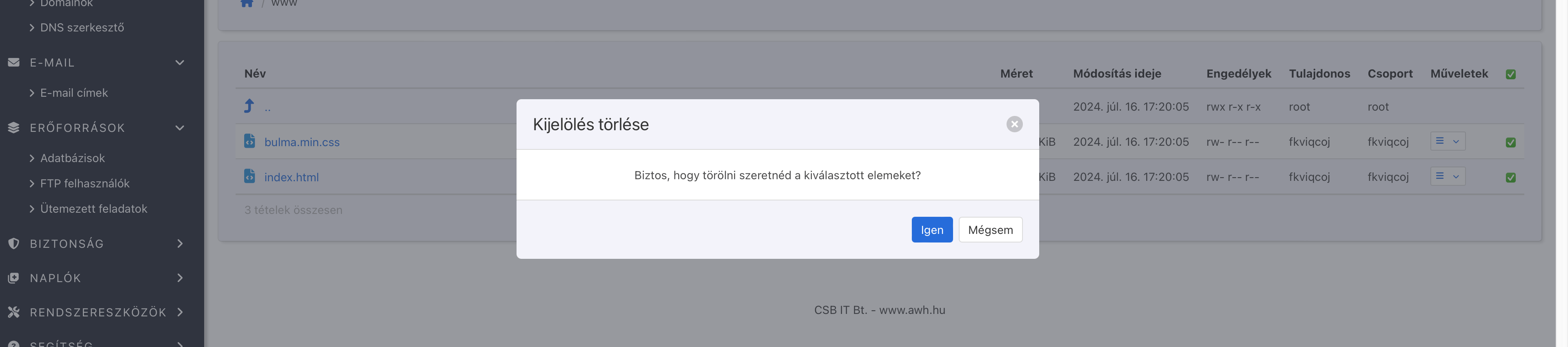
Before uploading WordPress, you must delete all files and folders (if any) in this folder. To do this, simply select the files and click the red ‘Delete Selection’ button.
Please confirm the deletion.
Once deleted, you can upload the WordPress installer ZIP file. All you need to do is click on the blue ‘Upload’ button, browse for the file, and then upload it. Depending on your internet speed, this may take a few minutes. Once the upload is complete, the file will appear in the File Manager. Click on the hamburger menu next to the file name and select ‘Extract Archive’ to unzip the ZIP file.
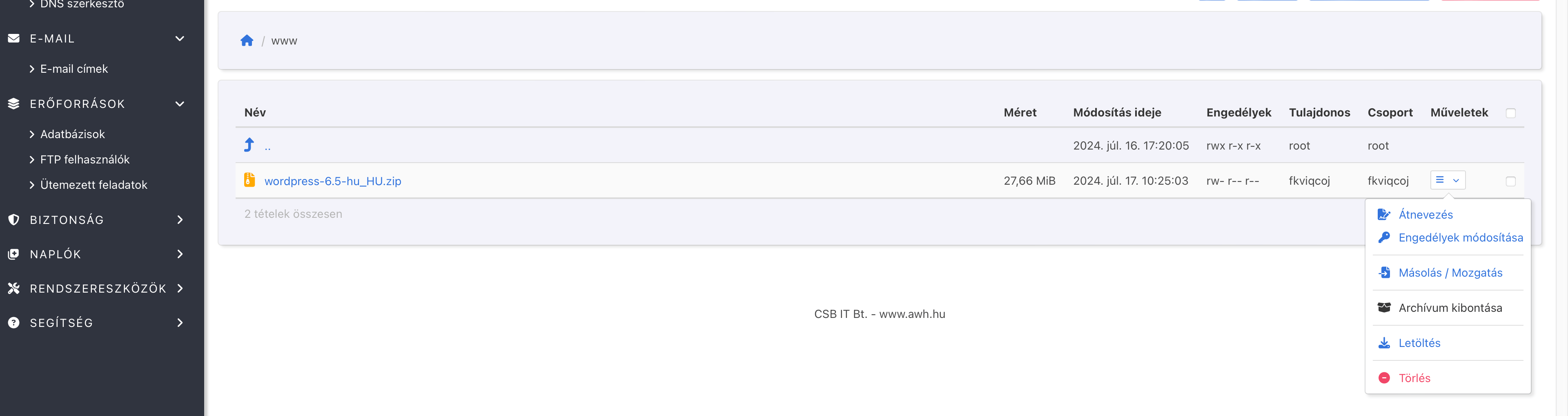
Once extracted, a WordPress folder will appear. Once this is in place, delete the ZIP file, as you will no longer need it:
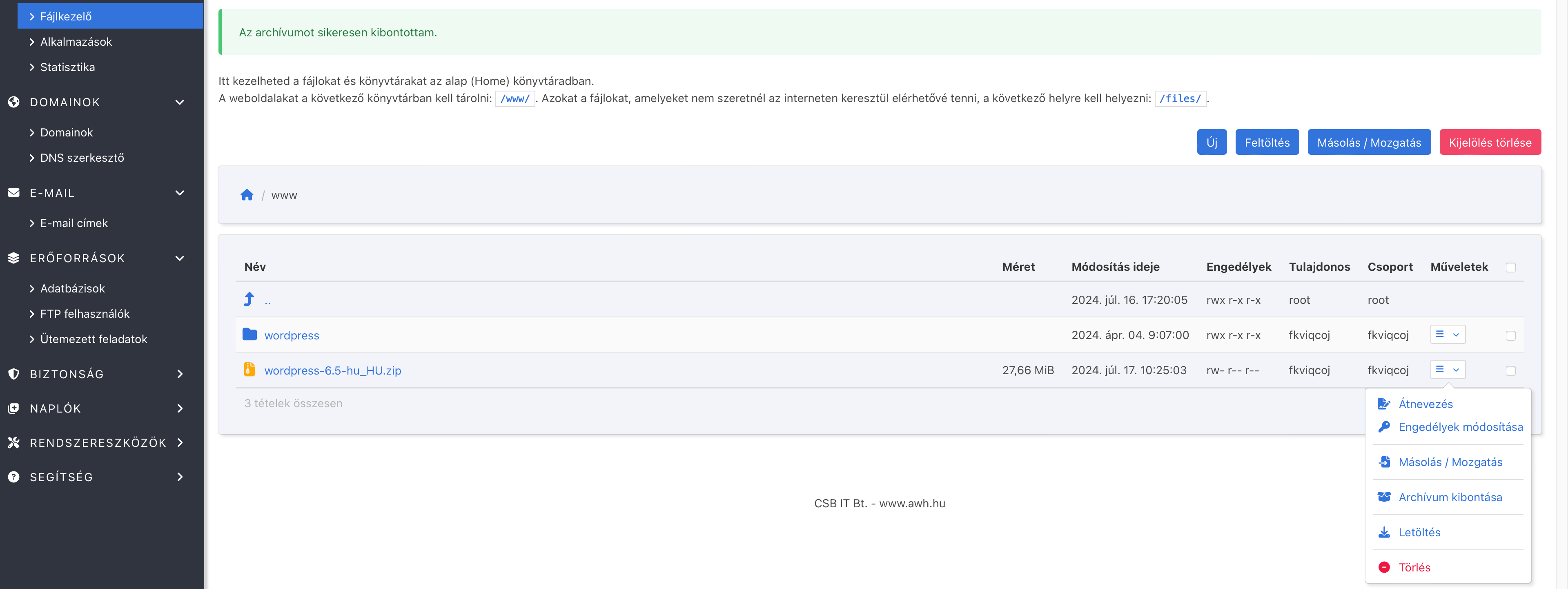
Of course, you must confirm the deletion:

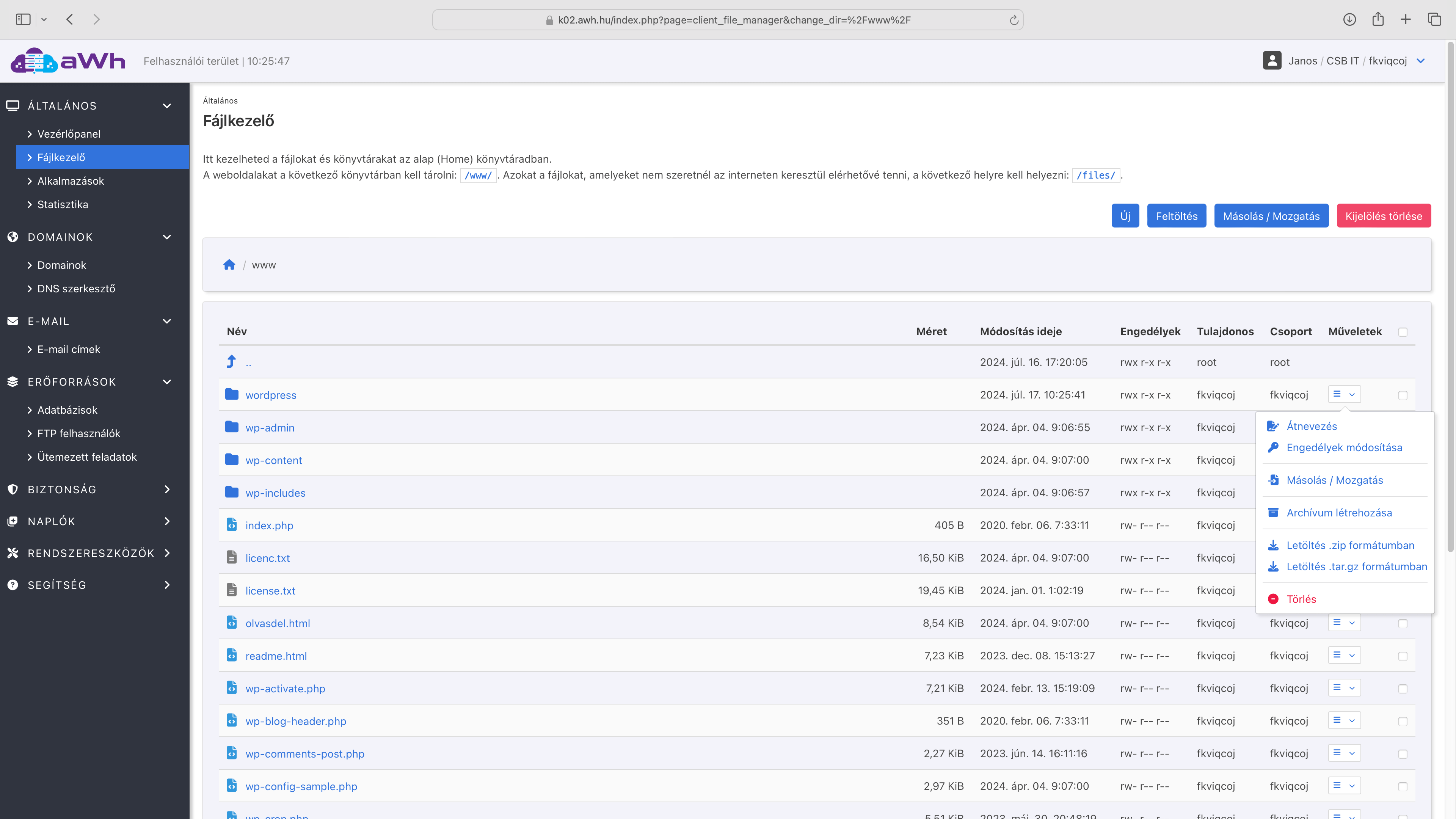
Next, navigate to the WordPress folder and select all the files and folders.
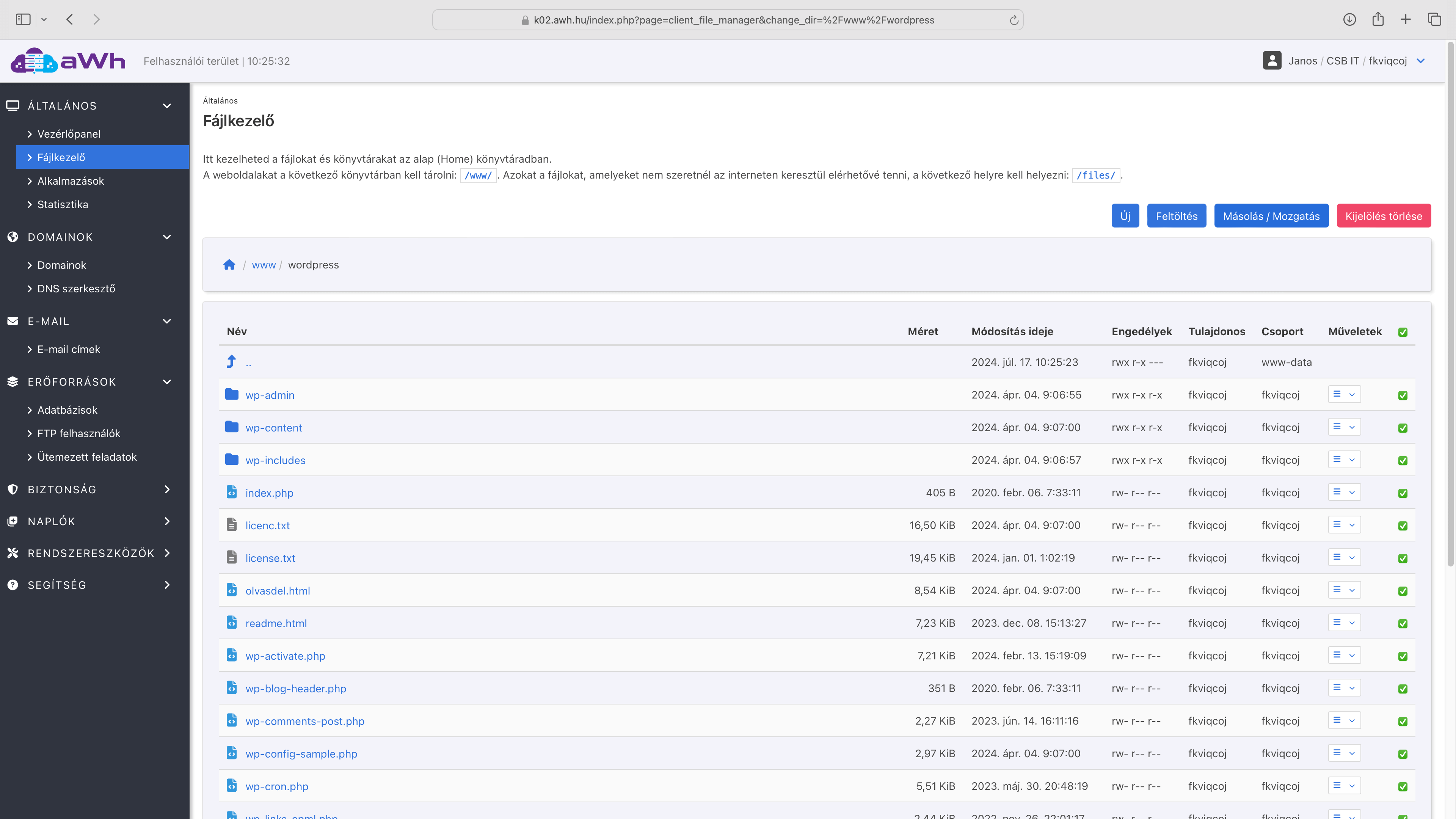
Then click on the Copy / Move button. In the small pop-up window, select Move as the File operation option, and set the Destination directory to the folder that is the root directory of the domain name; by default, this will be the www/ folder.
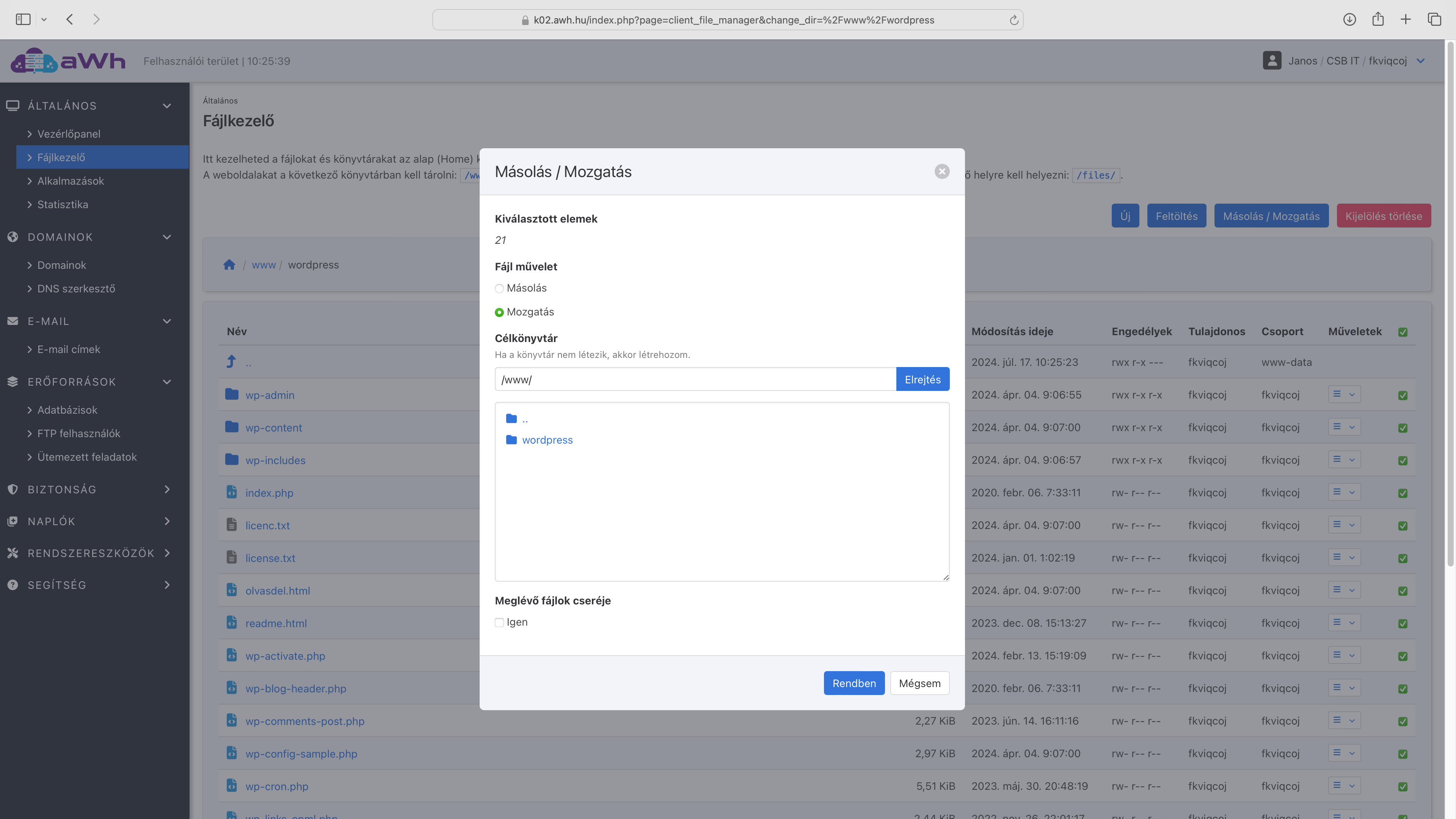
Once we have moved the WordPress files to the correct location, we can delete the WordPress folder itself.
Setting up WordPress
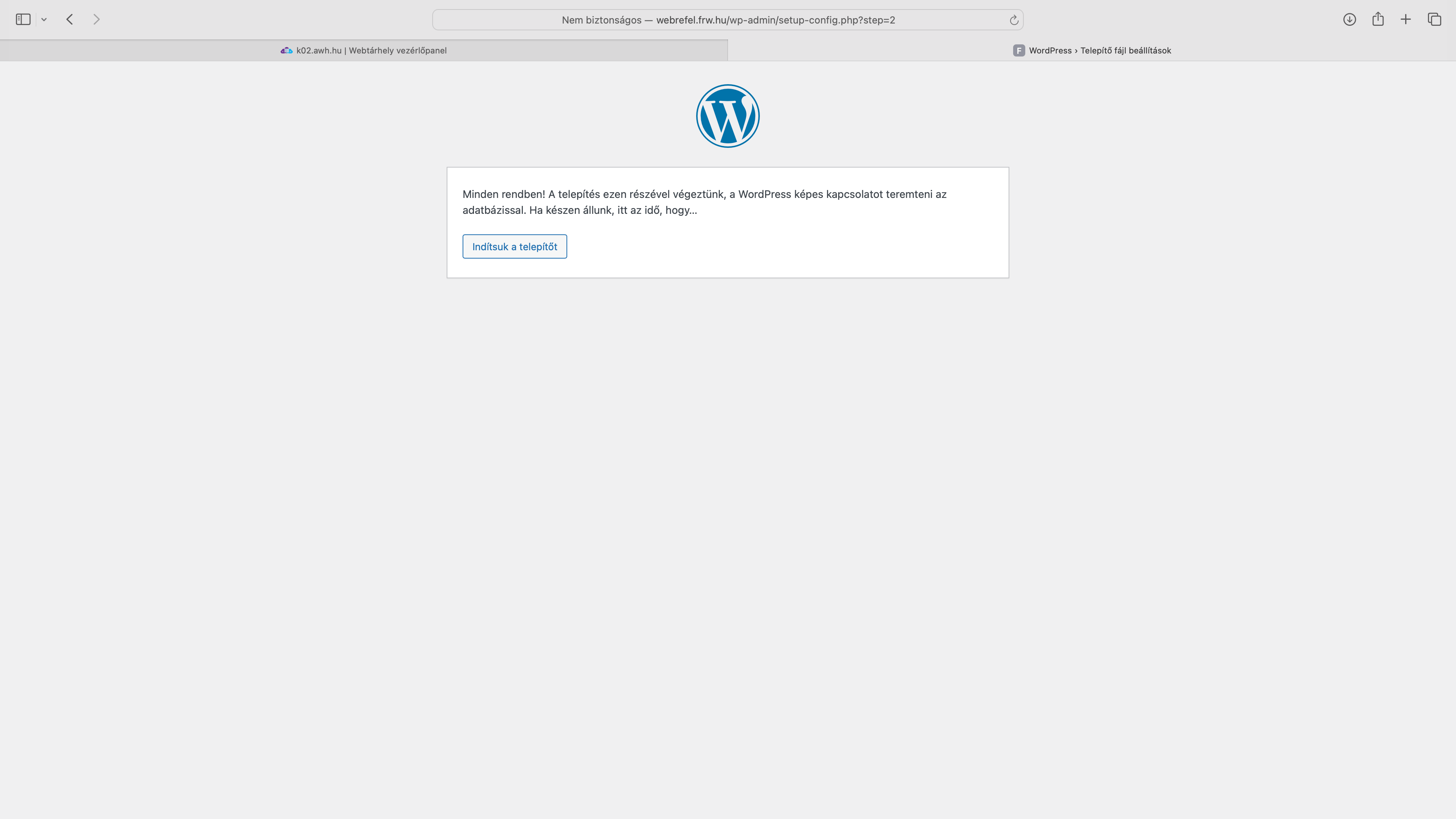
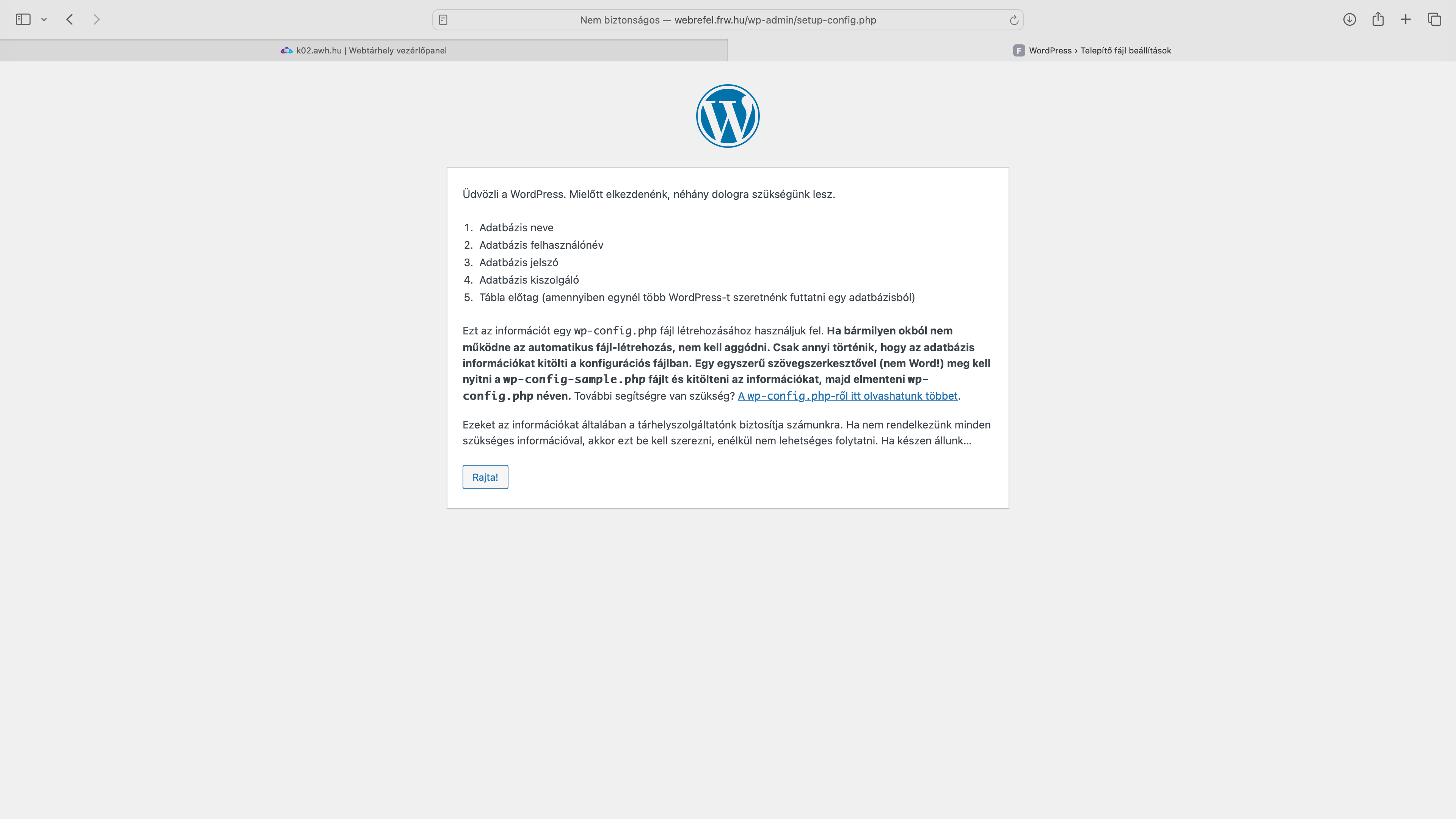
Finally, open our website in your browser, where the WordPress setup wizard will launch straight away.
First, you need to enter the details of the database you created earlier: the database name, the username and the password.
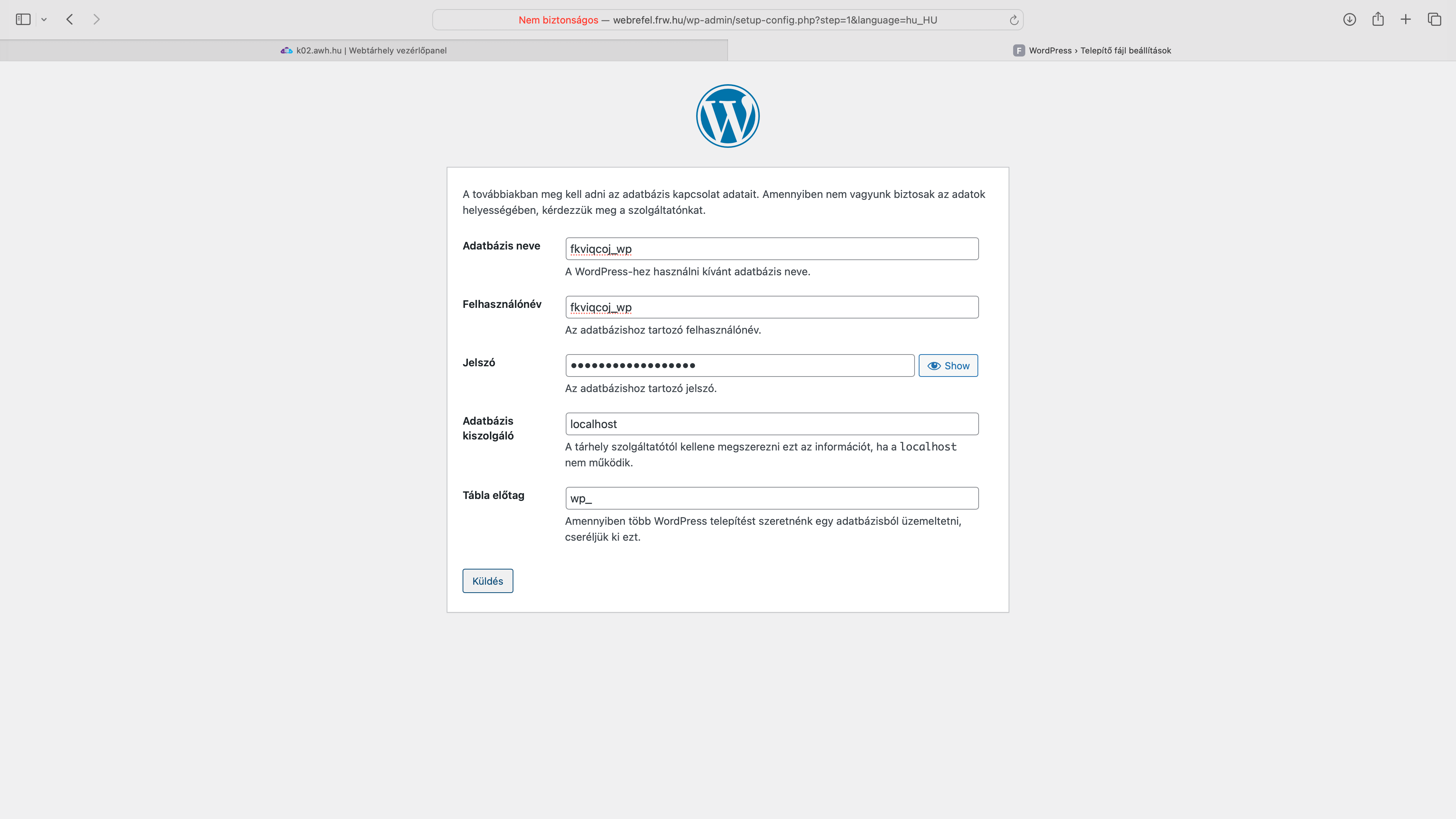
The setup wizard checks the details, and if everything is correct, we can launch the installer, where we can enter the details for our website.