 English
 Magyar


The cPanel WP Toolkit interface (WordPress Management) only manages those WordPress websites that appear in its list. If you have uploaded a website manually or using another tool, you can add it using the Search function; if you no longer wish to manage a website using the WP Toolkit, you can unlink it; and if you no longer need it, you can delete it permanently. The video demonstrates all three operations.
A WordPress entry is missing from the list: Search
WP Toolkit automatically detects its own installations, but does not always recognise websites installed in other ways. Examples include manually uploaded WordPress installations, sites transferred via a file manager or FTP, or a website restored from a backup.
- Open the WordPress Management interface in cPanel.
- Click the ‘Search’ button above the list. WP Toolkit will scan the folders on your hosting account and add any WordPress sites it finds.
The search usually takes a few seconds; once complete, the websites found will appear in the list, and you can manage them in the same way as those installed with WP Toolkit. If a website still does not appear, check that the wp-config.php file is present and that the website works in your browser.
After migration, it is worth checking the security measures on the data sheet of the imported website: WP Toolkit applies critical measures during installation, but these may be missing from a website imported from elsewhere (in which case a red ‘Apply critical measures’ link will appear on the data sheet); this is covered in the article on WP Toolkit’s default settings.
Disconnection: the website will remain online
Unlinking simply removes the website from the WP Toolkit list: its files and database remain unaffected, and the site continues to function as normal. This is useful if you manage the website using a different tool, or if, for example, a developer requests that WP Toolkit should not update it automatically.
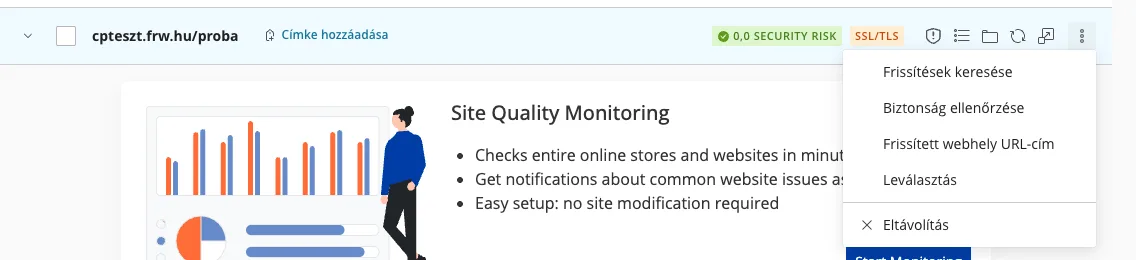
- At the end of a website’s row, click the ⋮ icon and select ‘Disconnect’. You can disconnect multiple websites at once: tick them in the list and click the ‘Disconnect’ button above the list.
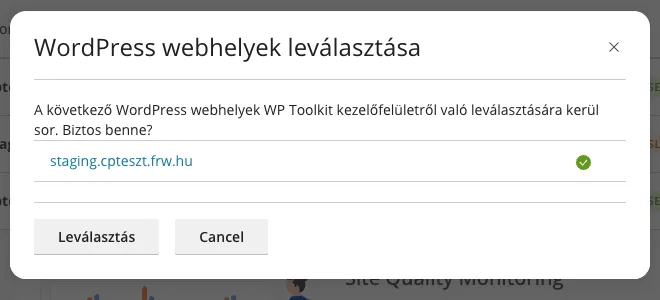
- In the** ‘Disconnect WordPress websites’** window, confirm by clicking the ‘Disconnect’ button.
The Search function will not re-index a deactivated website because WP Toolkit places a file named .wp-toolkit-ignore in its folder. If you do wish to manage it using WP Toolkit at a later date:
- Open your website folder in the cPanel File Manager menu. Files beginning with a dot are hidden: use the Settings button in the top right-hand corner to enable the ‘Show hidden files (dotfiles)’ option (see the article on file management for details).
- Select the
.wp-toolkit-ignorefile, click the Delete button, then click the Confirm button. - In the WP Toolkit, click the Search button again: the website will reappear in the list.
Deletion: the website will be permanently deleted
Uninstallation will delete your WordPress files and database. Please make a backup beforehand, as WP Toolkit cannot restore a deleted website.
- At the end of the website’s row, click on the ⋮ icon and select ‘Remove’.
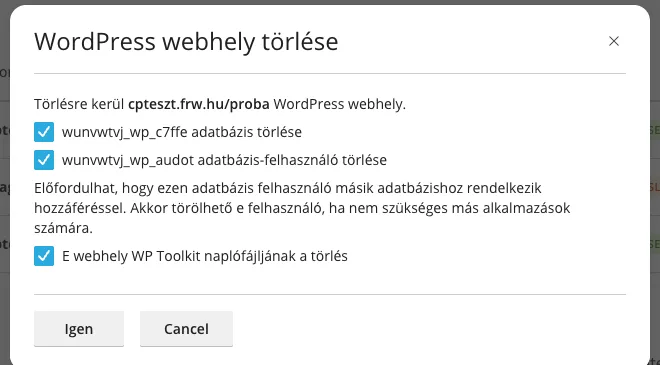
- In the** ‘Delete WordPress site’** window, you can see which database and database user will be deleted along with the site, and whether the WP Toolkit log file will also be deleted. If the database user is also used by another application, uncheck the box next to it.
- Click the ‘Yes’ button.
The removal process only deletes files belonging to WordPress. Anything that is not part of WordPress (such as folders belonging to other applications or your own files) remains in the website folder, as does the folder itself, even if it is empty. Neither the domain nor the subdomain will be deleted: if you no longer need them, you can delete them via the Domains menu in cPanel (see: managing domains and subdomains). If you wish to install a new instance of WordPress in its place, the article on installing WP Toolkit sets out the steps.