 English
 Magyar


If your WordPress core files (the wp-admin and wp-includes folders, as well as the PHP files in the root directory) have been corrupted, or if you wish to replace them with a fresh copy due to suspected malware, you can reinstall them with just a few commands using the WP-CLI command-line tool. The wp-content folder (containing themes, plugins and uploaded images), the wp-config.php file and the database remain unaffected.
WP-CLI is pre-installed on cPanel hosting plans and is available on plans that include SSH access (cP Premium, cP Pro, cP Pro 100). If you do not have SSH access, you can also update WordPress using the Updates feature in WP Toolkit (WP Toolkit).
Opening the terminal
You have two options:
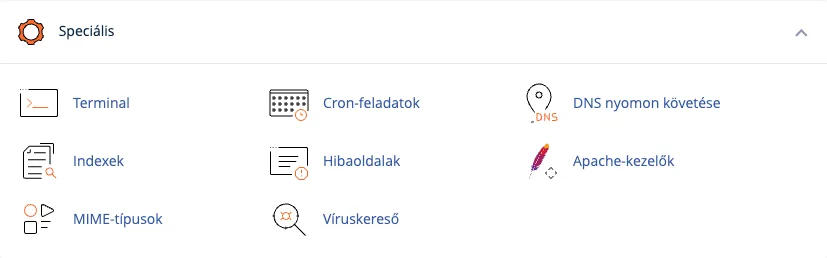
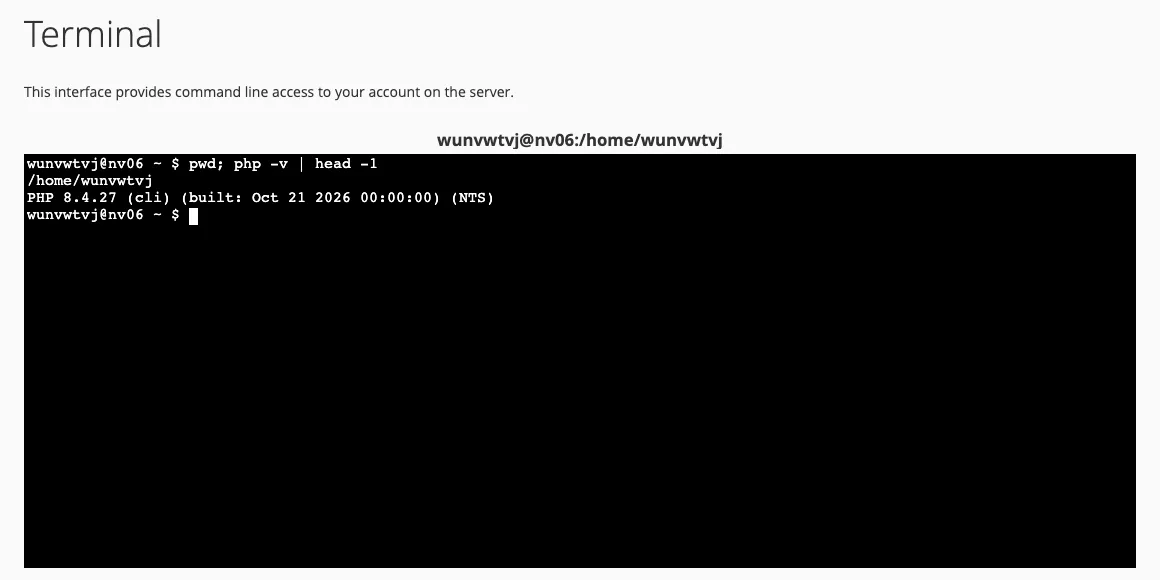
- cPanel Terminal: log in to cPanel and, in the Advanced group, click on the Terminal icon. The first time you open it, confirm the warning (I understand and want to proceed.). The command line that opens in your browser is the same as an SSH connection. A separate article summarises the general use of WP-CLI and common commands.
- SSH: log in from your own computer via port 4231 using an SSH key (setting up an SSH key).
Searching the WordPress directory
Once logged in, you will be in the root directory of your hosting account (/home/felhasznalonev). The main domain’s WordPress installation is usually in the public_html folder, whilst an additional domain or subdomain will be in its own folder (you can see the document root directory on the Domains page). Navigate to the folder and check that it does indeed contain WordPress:
cd ~/public_html
ls -la
wp core version
The wp core version displays the version number of the installed WordPress. If you receive an error, it is not located in the WordPress folder.
Checking the core files
The following command compares the core files against the official checksums from WordPress.org and lists which files have been modified, are missing or do not belong to WordPress:
wp core verify-checksums
If the response is Success: WordPress installation verifies against checksums., the core files are intact.
Reinstallation
Before you begin, make a backup of your files and database (WordPress backup).
To the same version (this is the safest option, as nothing changes in terms of plugins and the theme):
wp core download --force --skip-content --version=$(wp core version)
To update to the latest version:
wp core download --force --skip-content
The --force option overwrites existing files, whilst --skip-content skips the wp-content folder. At the end of the command, the message Success: WordPress downloaded. should appear. Once you have installed the latest version, run the database update as well: wp core update-db.
In the event of a malware infection: deleting old folders
If you have found any unauthorised files in the wp-admin or wp-includes folders, please delete both folders before downloading to ensure that the infected files are not left alongside the updated files:
rm -rf wp-admin wp-includes
wp core download --force --skip-content --version=VERZIÓ
Replace VERZIÓ with the version number previously displayed by wp core version (the command will no longer be able to read this after the folders have been deleted). The rm -rf command does not prompt for confirmation before deletion, and the deleted files are not moved to the recycle bin, so please ensure you are in the correct folder.
After reinstallation, run the wp core verify-checksums command again. In the event of an infection, you should also check the wp-content folder (particularly the PHP files in the uploads folder) and change all passwords. If you need help with this, please contact our support team.