 English
 Magyar


Among the cPanel hosting plans, the cP Premium, cP Pro and cP Pro 100 plans allow you to access your hosting via SSH and SFTP. For security reasons, access is only possible via an SSH key, not a password: the server will reject any attempts without a key with the message Permission denied (publickey). This article explains how to create or upload a key in cPanel, and how to log in using it.
The SSH access menu item
Log in to cPanel, then in the Security section, click on the SSH Access icon, followed by the Manage SSH Keys button.
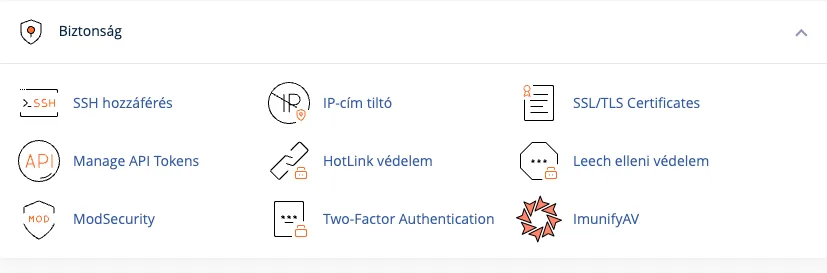
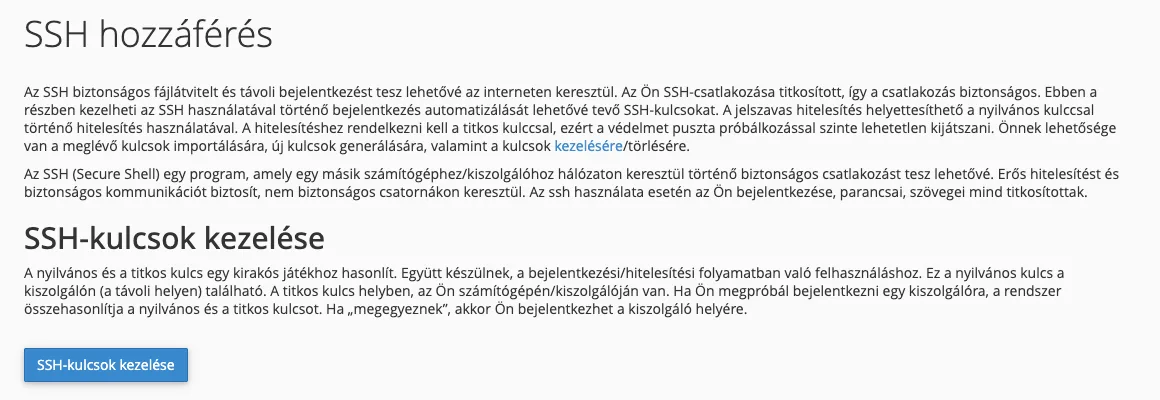
There are two ways to add a key: you can generate a new key pair in cPanel, or import the public key generated on your own computer. If you already have a key on your computer, or are generating one now, the second method is recommended: this ensures that the private key never leaves your computer.
Option 1: Generate a key on your own computer and import it
Creating a key
Linux, macOS and Windows 10/11 (PowerShell): open a terminal and run:
ssh-keygen -t ed25519 -C "cpanel"
Accept the default location (Press Enter) and enter a passphrase to protect the key. The private key is saved as id_ed25519, whilst the public key is saved as id_ed25519.pub in the .ssh directory of your user folder. You can view the public key as follows:
cat ~/.ssh/id_ed25519.pub
The Ed25519 key is shorter and faster than RSA, and just as secure. You can also generate an RSA key for older programs: ssh-keygen -t rsa -b 4096.
PuTTYgen (Windows): select the EdDSA (Ed25519) or RSA (4096-bit) type, click the Generate button, and move the mouse around the window. Enter a passphrase, save the private key (Save private key, .ppk file), then copy the public key from the top field (the line beginning with ssh-ed25519 ... or ssh-rsa ...).
Importing a public key
On the SSH Keys Management page, click the Import Key button.
- Give the key a name (for example, the name of your computer) so that you can recognise it later.
- Leave the ‘Secret Key’ and ‘Access Code’ fields blank.
- Copy the public key (the entire
ssh-ed25519 ...orssh-rsa ...string) into the field below: ‘Paste the public key into the following text field’. - Click the ‘Import’ button.
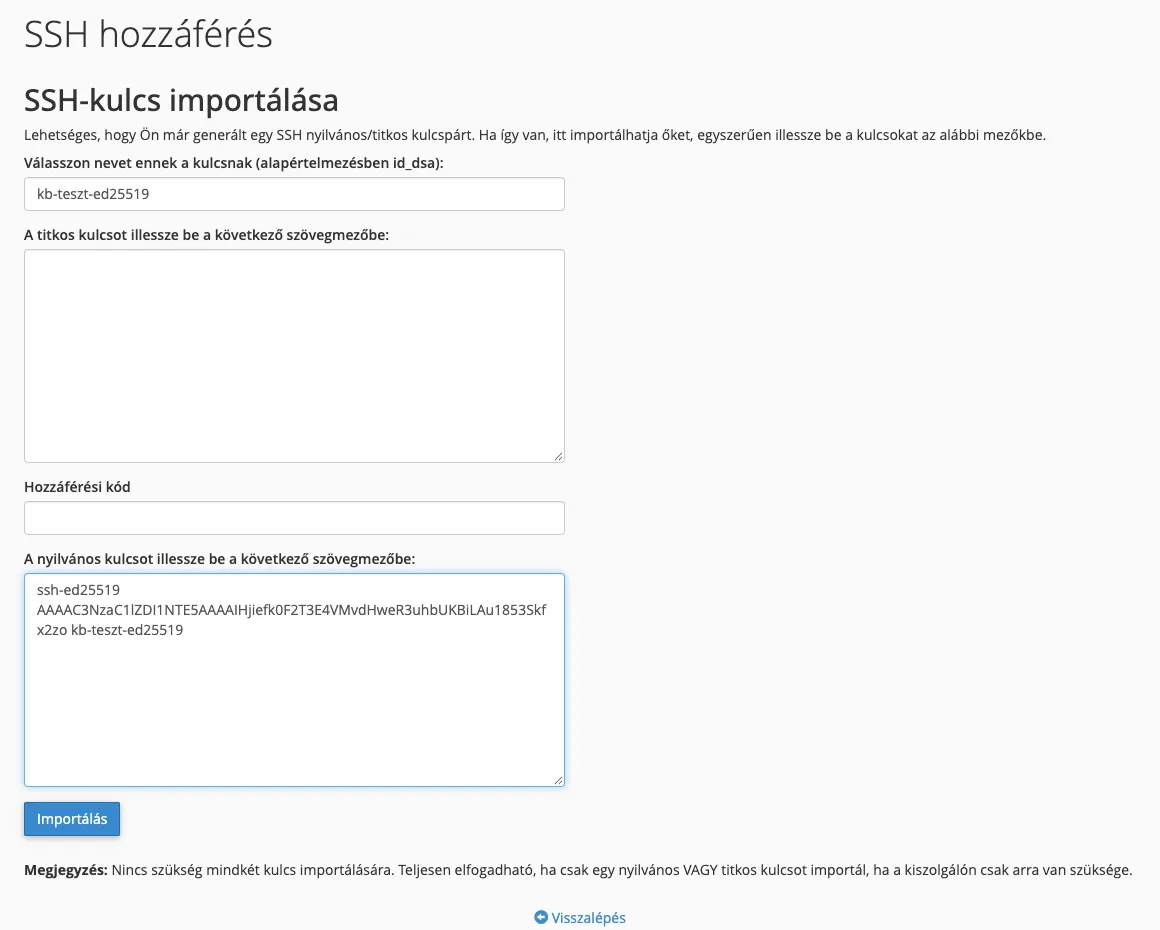
Do not upload the private key: to log in, it is sufficient for the public key to be on the server, whilst the private key remains only on your computer.
After importing, you will still need to activate the key (see below).
Option 2: Generating a key in cPanel
If you are unable to generate a key on your computer, cPanel can also generate a key pair for you. On the SSH Keys Management page, click the ‘Generate New Key’ button and fill in the form:
- Key Name: the name of the key (
id_rsaby default). If a key with this name already exists, please enter a different one. - Passphrase and Re-enter passphrase: the passphrase that protects your secret key. Do not leave this blank: if your secret key falls into the wrong hands, it cannot be used without the passphrase. You can use the Password Generator button to generate a strong passphrase; save it in your password manager.
- Key type: select the RSA type. DSA keys are not accepted by modern SSH programs or by the server.
- Key size: select 4096 bits.
Click on the ‘Generate Key’ button.
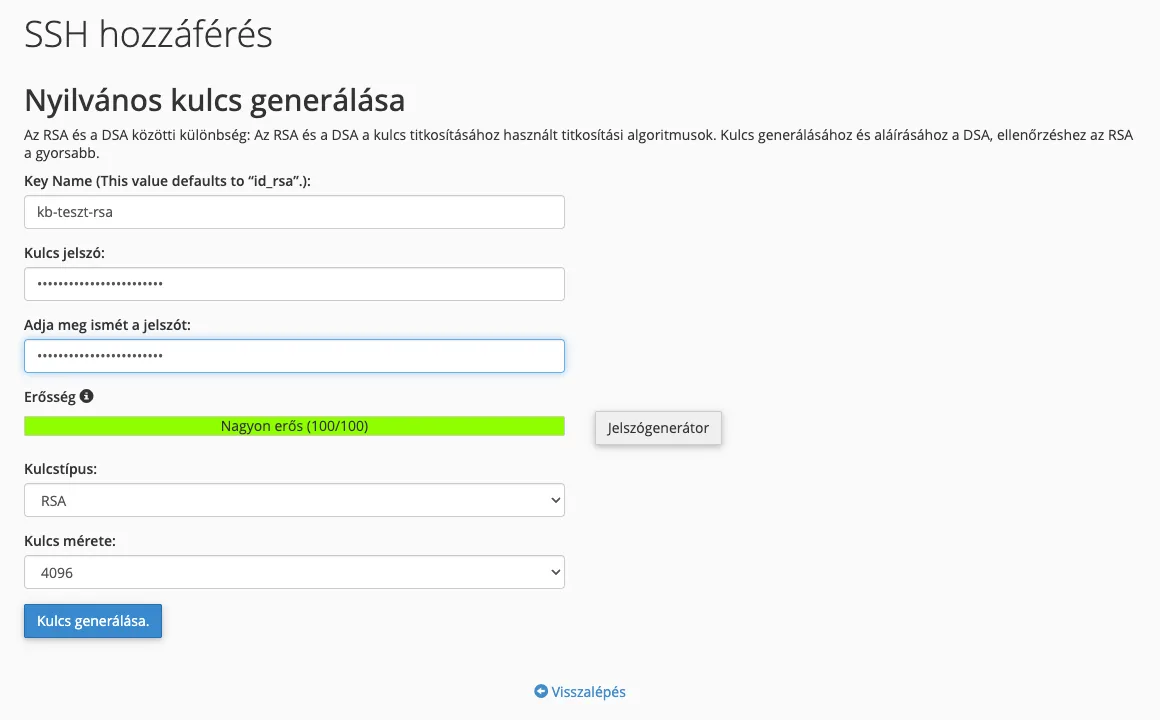
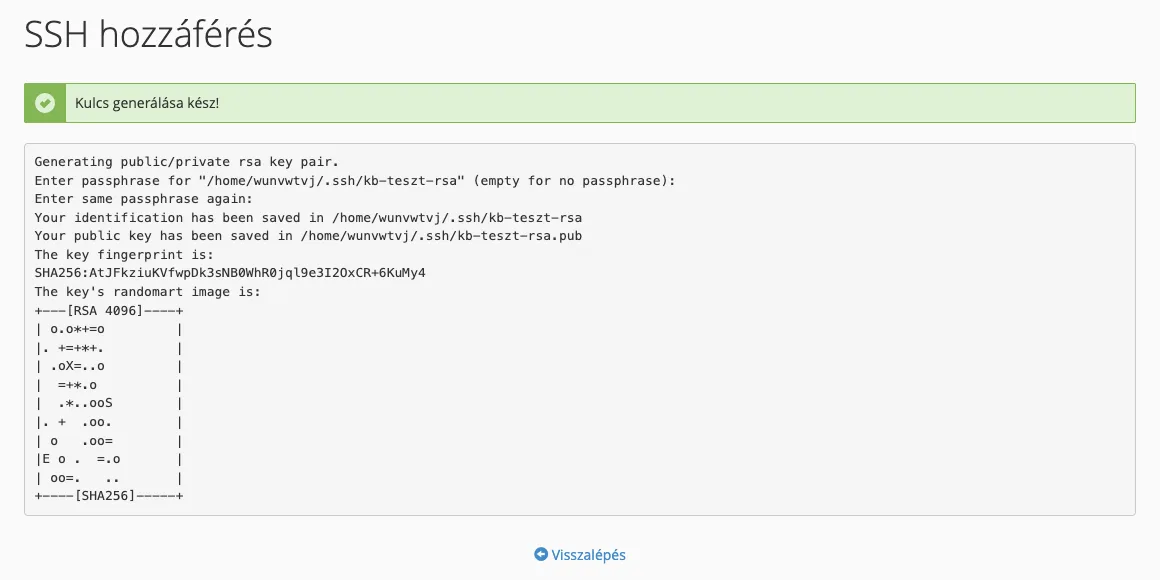
In a few seconds, the message ‘Key generation complete!’ will appear, along with the key’s fingerprint. Click the ‘Back’ link to return to the list of keys.
Downloading the secret key
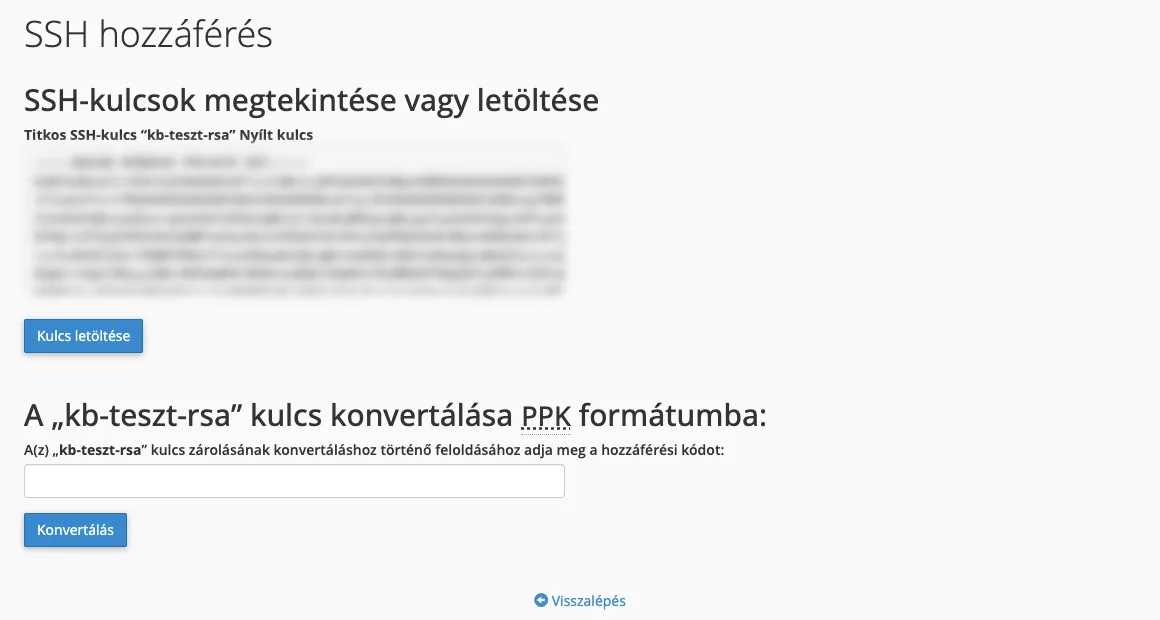
You must download the private part of the generated key to your computer. In the Private Keys table, click the View/Download link next to the key, then click the Download Key button. The downloaded file is in OpenSSH format; this can be used directly by the built-in ssh command on Linux, macOS and Windows, as well as by FileZilla.
PuTTY and WinSCP require a key in PPK format. To do this, on the same page, in the ‘Converting the key to PPK format’ section, enter the key’s password, click the ‘Convert’ button, and on the next page, download the PPK file using the** ‘Download key’** button.
After downloading, you can remove the private key from the server using the ‘Delete’ link in the ‘Private Keys’ table; only the public key needs to remain there for access.
Activating the key
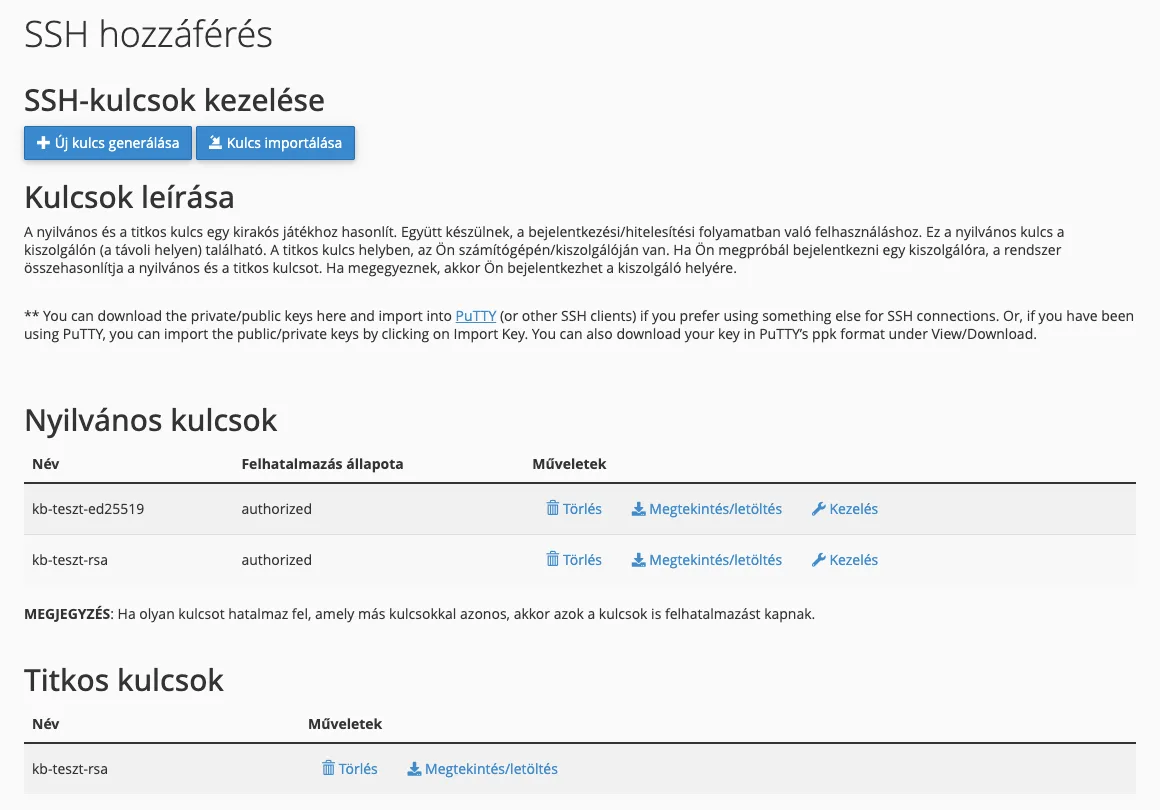
An imported or generated key cannot be used to log in until it has been activated. The ‘Authorisation status’ column in the Public Keys table shows which keys are active (authorized) and which are not authorized.
- Click on the ‘Manage’ link next to the key.
- Click on the ‘Authorise’ button.

The key’s status will then change to authorized. You can deactivate a key here using the ‘Deauthorize’ button; you can also permanently remove it using the ‘Delete’ link, for example if you have replaced an old computer.
Logging in via SSH and SFTP
On our cPanel servers, SSH runs on port 4231 rather than the standard port 22. The username is your cPanel username, and the server is either your domain (if it already points to the hosting) or the name of the hosting server.
ssh -p 4231 -i ~/.ssh/id_ed25519 felhasznalonev@pelda.hu
If the key is in the default location, the -i switch can be omitted. After logging in, you will be taken to the home directory of your hosting account (/home/felhasznalonev). For more information on how SSH works and the commands available, see our article on Linux Secure Shell (SSH).
SFTP (e.g. FileZilla): in the File » Server Manager window, create a new server:
- Protocol: SFTP – SSH File Transfer Protocol
- Server: your domain name or server name, Port:
4231 - Login type: Key file
- Username: your cPanel username
- Key file: the private key (OpenSSH or PPK format)
SFTP works with the main cPanel user; additional FTP accounts created in cPanel can only be accessed via FTP (FTP accounts).
Common errors
- Permission denied (public key): the key is
not authorized, you have not entered the correct private key, or the username is incorrect. Please check the ‘Authorisation status’ column. - ‘Connection refused’ or ‘timeout’: the program is attempting to connect to port 22; please specify the
-p 4231switch or set the program to use port 4231. - Your key password is not working: the passphrase protects the secret key, not your cPanel password. If you have forgotten it, create a new key.