 English
 Magyar


If you are developing your own WordPress theme or plugin and upload the files via FTP after every change, cPanel’s Git™ Version Control tool can replace this process. cPanel maintains a Git repository on your hosting account, and if there is a .cpanel.yml file in the root of the repository, it will run the commands listed in that file during installation as your user. These commands copy the theme folder to your website.
We tested the process using a test theme on our cPanel hosting test account; this article shows the settings used there.
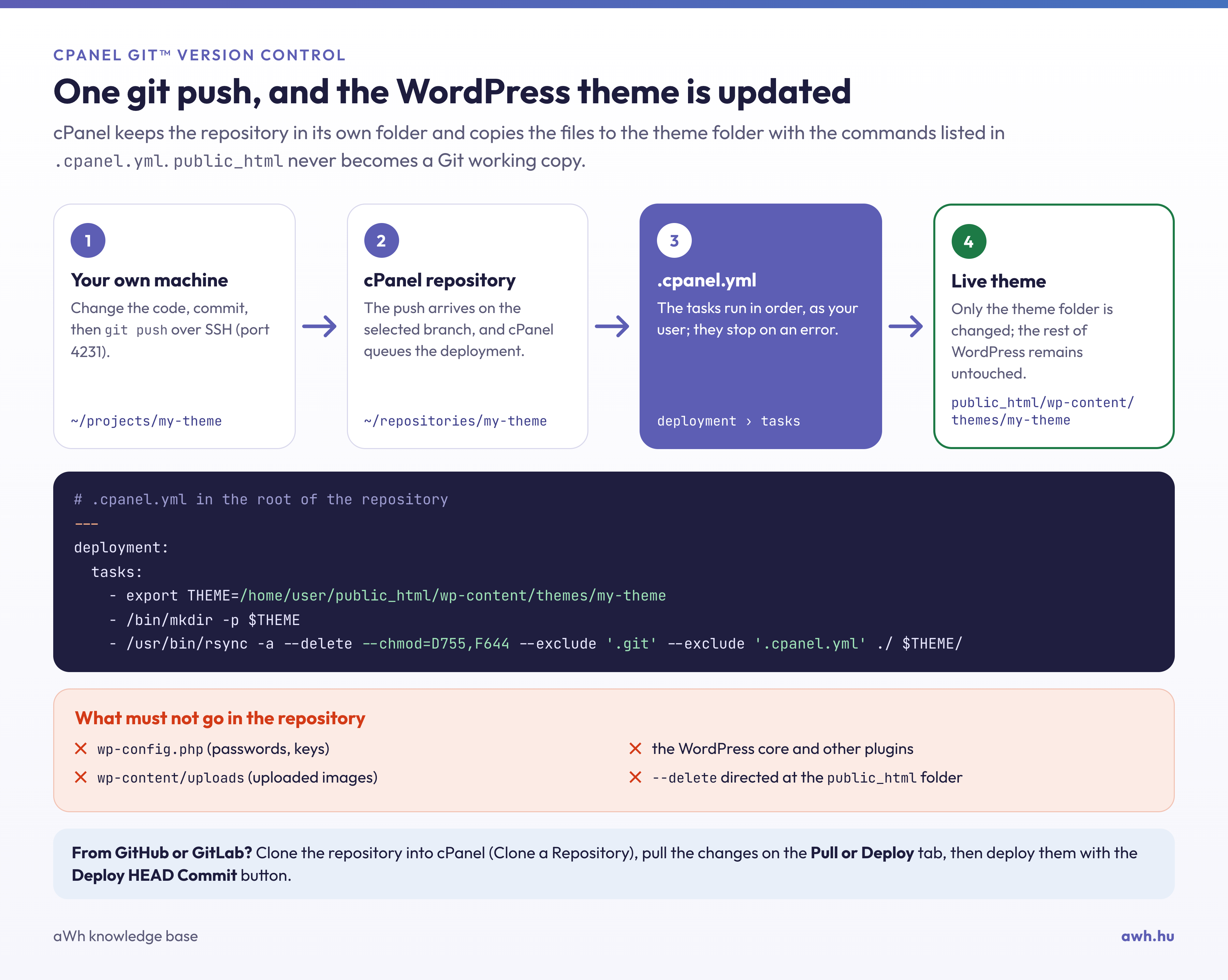
What will you need?
- SSH access. SSH is required for managing the storage and performing push operations; it is available in the cP Premium, cP Pro and cP Pro 100 plans. On our servers, SSH operates on port 4231 and requires a key (setting up an SSH key).
- Git on your own computer. Git is installed on the server.
- A repository for a theme or a plugin where the
style.cssfile (or, in the case of a plugin, the main PHP file) is located in the root directory, rather than within thewp-content/themes/…structure. This decision will save you a lot of trouble later on.
Two configurations
- cPanel uses remote hosting (push to hosting). It creates an empty storage space in cPanel, and you push changes directly to it from your own computer. cPanel automatically installs the changes after the push. We’ll explain this in detail.
- GitHub or GitLab is the source (cloning). cPanel clones the repository, and you apply the changes via the cPanel interface before deploying them. This will be discussed at the end of this article.
1. Creating a storage space
- Log in to cPanel, then in the ‘Files’ section, click on the Git™ Version Control icon and then the ‘Create’ button.
- Toggle the ‘Clone the Repository’ switch off (this creates a new, empty repository).
- In the ‘Repository Path’ field, enter the location of the repository within your home directory, for example,
repositories/sajat-tema. This is located alongsidepublic_htmland is not accessible via the web. - The ‘Repository Name’ is simply a display name.
- Click the ‘Create’ button.
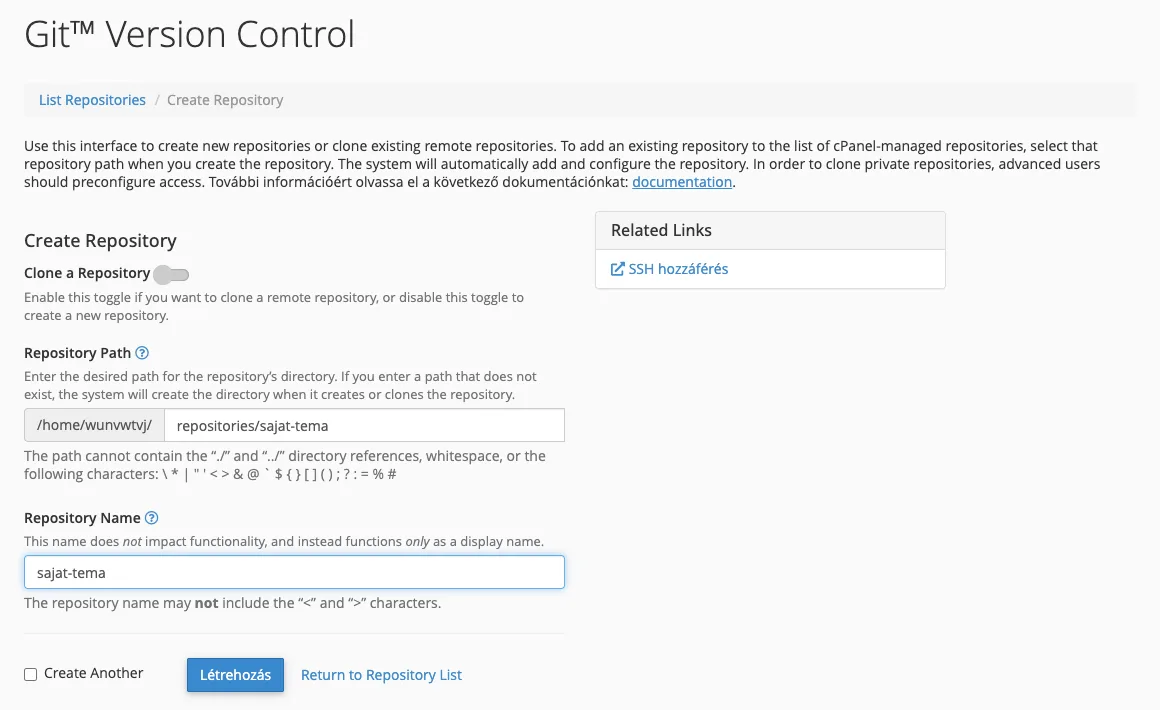
cPanel will then display the repository’s SSH address, for example ssh://felhasznalonev@pelda.hu:4231/home/felhasznalonev/repositories/sajat-tema, and also indicate that the new repository’s branch is master.
2. The .cpanel.yml file
On your own machine, create the .cpanel.yml file in the root of your theme’s directory (next to style.css):
---
deployment:
  tasks:
    - export THEME=/home/felhasznalonev/public_html/wp-content/themes/sajat-tema
    - /bin/mkdir -p $THEME
    - /usr/bin/rsync -a --delete --chmod=D755,F644 --exclude '.git' --exclude '.cpanel.yml' ./ $THEME/
Replace felhasznalonev with your cPanel username, and sajat-tema with the name of your theme folder. If your website is running on an additional domain or subdomain, enter the folder for that domain instead of public_html (you can find this in the ‘Document Root’ column on the ‘Domains’ page).
Things to bear in mind, as these are the reasons why it usually doesn’t work:
- The file is named exactly
.cpanel.ymland is located in the root of the storage directory, not in a subfolder. - The file must be located in the branch that cPanel installs. If you have placed it only in the
developbranch, themasterinstallation will do nothing. - Use a space for indentation, not a tab.
- Enter the commands with the full path (
/bin/mkdir,/usr/bin/rsync), as the environment is minimal at the time of installation. - Do not omit the
--chmod=D755,F644switch. In our test, without it, thersync -acommand applied the700permissions of the storage folder to the theme folder as well, and the web server returned a403error for thestyle.cssfile. With this switch, folders are given755permissions and files644permissions. - The
rsync --deletecommand deletes files that have been deleted from Git from the website as well. This is only safe because the destination is a single theme folder. Never direct the--deletecommand at thepublic_htmlfolder.
3. What should be stored in the repository?
Only the theme or plugin source code. Do not include it, and ensure the installation does not overwrite it:
- the
wp-config.phpfile (passwords, keys), - the
wp-content/uploadsfolder (the uploaded images), - the WordPress core and other plugins.
These are the website’s data, not its code. If the theme requires a build step (Sass, npm build), please carry this out on your own machine or within a CI system, and place the built files in the repository: the installation merely runs the specified commands; it is not a build system.
4. Push and installation
On your own computer, in the theme folder:
git init -b master
git add .
git commit -m "Első verzió"
git remote add origin ssh://felhasznalonev@pelda.hu:4231/home/felhasznalonev/repositories/sajat-tema
git push -u origin master
Immediately after the push, cPanel queues the installation; you will see the following in the response:
remote: Recieved update on checked-out branch, queueing deployment.
remote:     deploy_id: 1
...
 * [new branch]      master -> master
In our test, the theme appeared in the wp-content/themes folder a few seconds after the push, and WordPress listed it amongst the themes. You can then activate the theme on the Appearance › Themes page. To make further changes, simply perform a git commit and a git push.
5. Verification
In cPanel, open the repository (Manage) and click on the ‘Pull or Deploy’ tab. The ‘Last Deployment Information’ section shows the time of the last deployment and the commit that was deployed; you can also redeploy manually using the ‘Deploy HEAD Commit’ button.
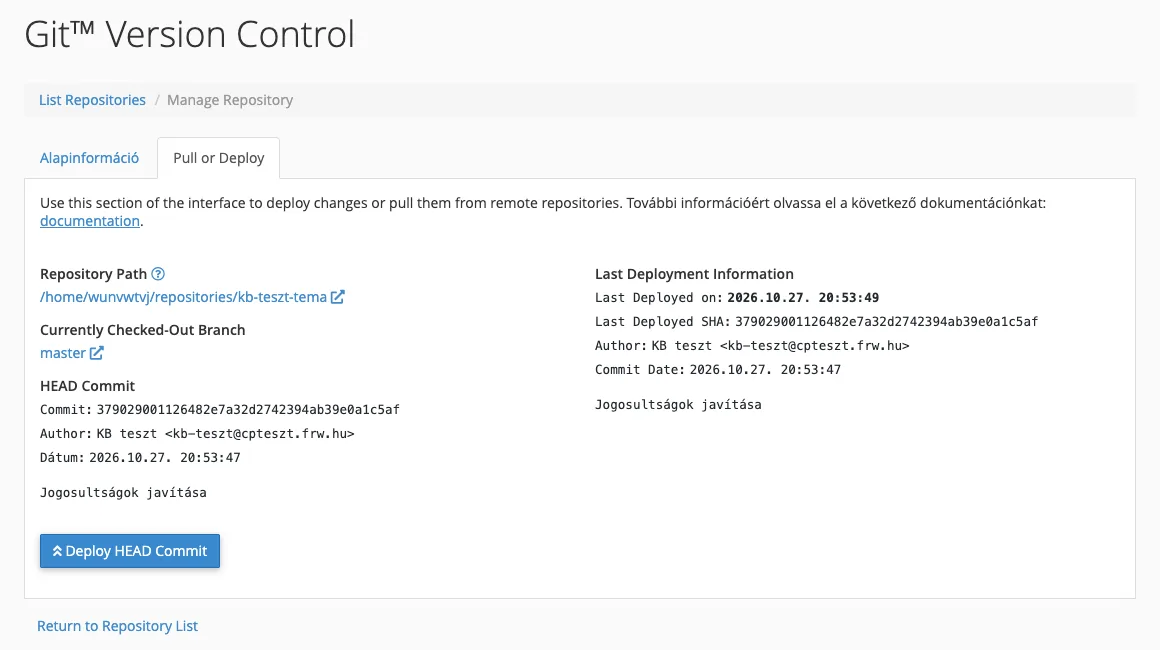
From the command line (Terminal or SSH):
git -C ~/repositories/sajat-tema log --oneline -1
grep -m1 "Version:" ~/public_html/wp-content/themes/sajat-tema/style.css
ls -ld ~/public_html/wp-content/themes/sajat-tema
test -d ~/public_html/wp-content/themes/sajat-tema/.git && echo "HIBA: .git a webhelyen" || echo rendben
curl -s -o /dev/null -w "%{http_code}\n" https://pelda.hu/wp-content/themes/sajat-tema/style.css
Expected result: the latest commit, the new version number of the theme, drwxr-xr-x permissions, rendben and 200. The deployment log is located in the ~/.cpanel/logs/ folder (vc_…_git_deploy.log), with the exit code listed for each command.
Roll back to a previous version
Do not switch to an older commit on the server (git checkout <commit>): this will put the repository into a ‘detached HEAD’ state, and cPanel will be unable to install. The correct way to revert is to create a new commit that reverses the faulty one:
git revert --no-edit <hibas-commit>
git push
Following the push, cPanel installs the updated version, just as it does with any other update.
Cloned from GitHub or GitLab
If the source is GitHub or GitLab, the cPanel repository will be a copy of the remote repository:
- For a public repository, the HTTPS address is sufficient. For a private repository, generate a key via the cPanel Terminal interface (
ssh-keygen -t ed25519 -f ~/.ssh/telepito_kulcs -N "") and add the public half (cat ~/.ssh/telepito_kulcs.pub) to the repository as a read-only deployment key (on GitHub: Deploy keys). Next, in the~/.ssh/configfile, associate the key with the provider and accept the machine key once:ssh -T git@github.com. - On the Git™ Version Control › Create page, leave the ‘Clone the Repository’ switch enabled and enter the repository address in the ‘Clone URL’ field.
- The
.cpanel.ymlfile is the same as above, located in the root of the remote storage. - After making changes, pull them down on the ‘Pull or Deploy’ tab, then deploy them using the ‘Deploy HEAD Commit’ button.
When is this not the right tool?
Git Version Control installs files. It does not migrate databases or synchronise content. If you wish to go live with a complete, tested website (including content and settings), the WP Toolkit’s staging function is designed for this purpose. The two work well together: the theme code comes from Git, whilst the content comes from staging. If you install the website from Git, do not update the theme or your own plugins via WP Toolkit or the admin interface, as the next installation will overwrite them (update methods).