 English
 Magyar


You can also run Node.js applications on our cPanel hosting plans. Applications are managed by the CloudLinux Node.js Selector, which is available in cPanel under ‘Setup Node.js App’. Here you can select the Node.js version, and start, stop and restart the application. The application is run by Phusion Passenger, so you do not need to open a separate port or use a process manager (such as pm2).
You can find a general overview of hosting Node.js applications in this blog post.
Creating the application
- Log in to cPanel and, in the Software section, click on the ‘Setup Node.js App’ icon. The Node.js page that opens displays a list of WEB APPLICATIONS, showing the applications that have already been created.
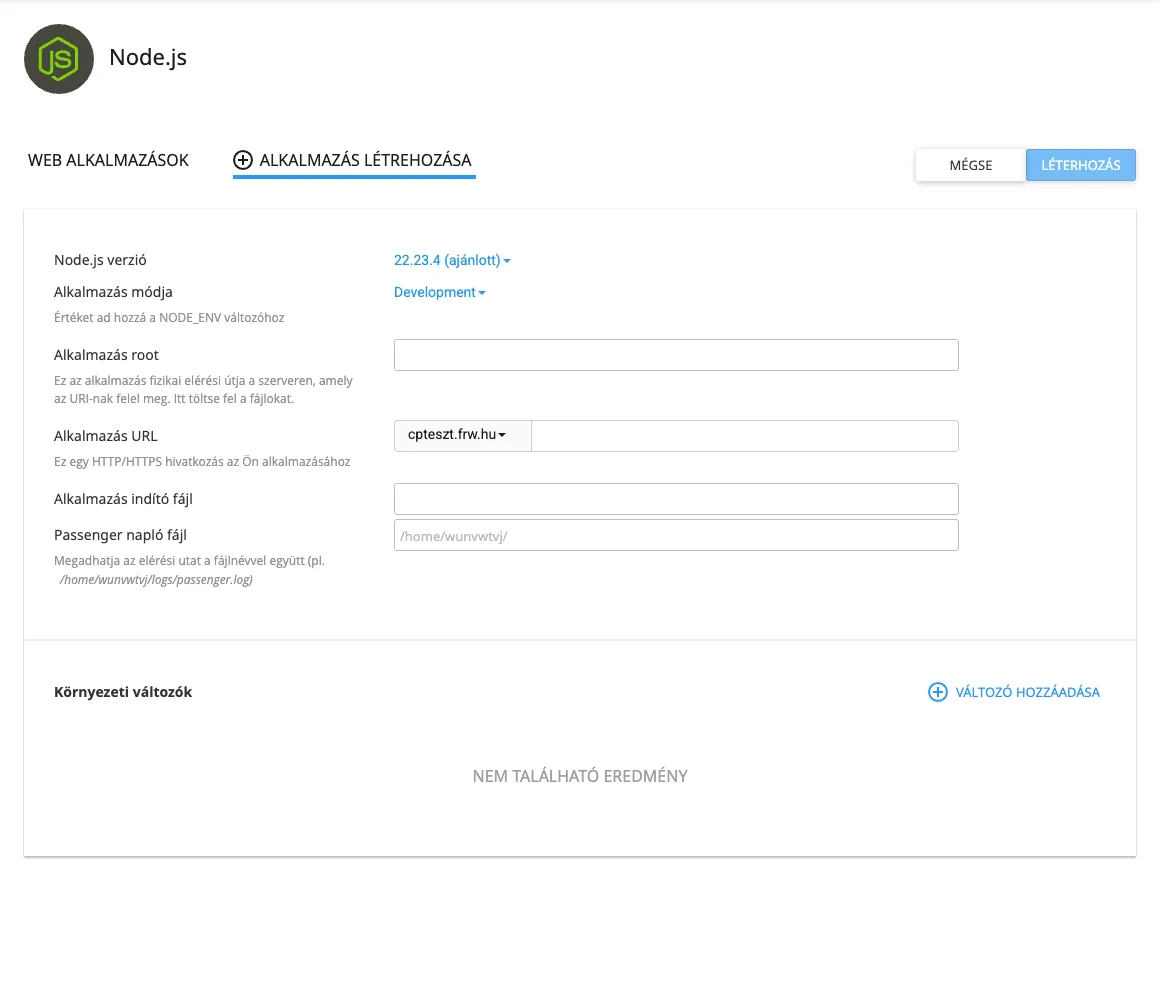
- Click on the CREATE APPLICATION button.
- Please fill in the fields:
- Node.js version: the version of Node.js you wish to use. Select the version for which you developed your application.
- Usage:
ProductionorDevelopmentmode. This will be the value of theNODE_ENVenvironment variable. - Application root: the application directory on the hosting server, relative to your home directory (
/home/felhasznalo), for examplenodeapp. Do not specify thepublic_htmldirectory, as this would make the source code publicly downloadable. - Application URL: the domain and path where the application will be accessible, for example
pelda.huorpelda.hu/api. - Application entry file: the entry file for the application, for example
app.js. - Passenger log file: if you specify a file, for example
/home/felhasznalo/logs/nodeapp.log, the application’s output and error messages will be written to this file.
- Click on the ‘CREATE’ button in the top right-hand corner (the interface displays it as written).
cPanel creates the directory and, if the index file does not yet exist, places a simple ‘It works!’ sample application in it. You can check whether it is working by visiting the Application URL.
Uploading the application
Upload the application files to the application root directory using the File Manager or via FTP. A basic Express application looks like this:
const express = require('express');
const app = express();

app.get('/', (req, res) => {
  res.send('Helló a Node.js alkalmazásból!');
});

app.listen(process.env.PORT || 3000);
You do not need to configure the port: Passenger intercepts the application’s listen() call and forwards incoming requests to the application.
Important: Passenger can only directly load CommonJS modules (require). If your application uses ES modules (import), create an app_wrapper.cjs file with the following content and specify this as the entry point:
(() => import('./app.js'))();
Installing packages
You can install the dependencies based on the package.json file in the application directory:
- Upload the
package.jsonfile to the application’s root directory. - On the ‘Setup Node.js App’ interface, click the edit (pencil) icon next to the application.
- The ‘Detected configuration files’ section displays the
package.jsonfile. Click the ‘Run NPM installer’ button.
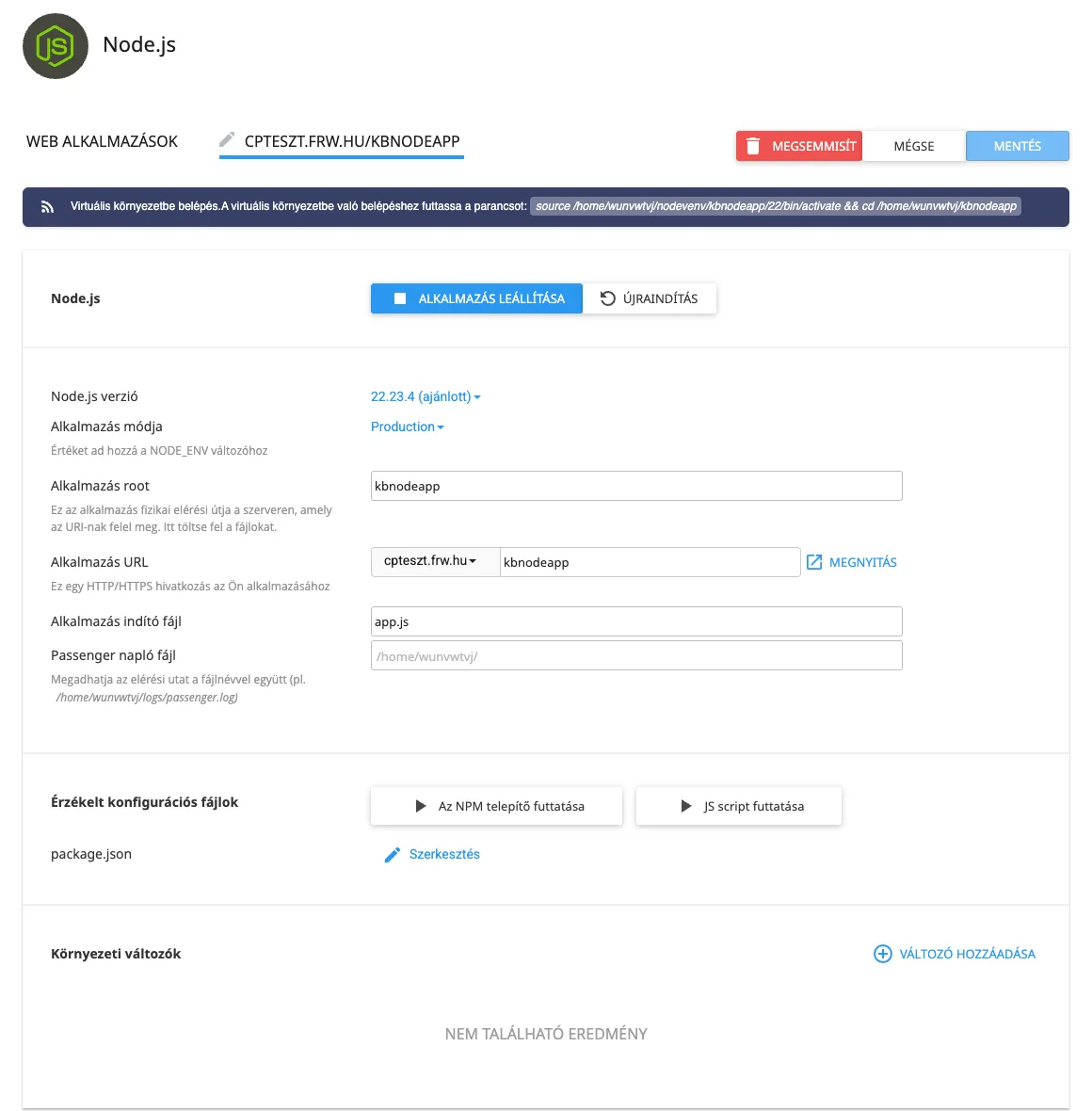
Important: The Node.js Selector stores the packages outside the application directory, in a separate virtual environment, and places only a symbolic link named node_modules in the application directory. Therefore, do not upload your own node_modules directory. If such a directory or file exists in the application’s root directory, the installation will fail. Delete it and install the packages as described above.
By clicking the ‘Run JS script’ button, you can execute the commands (such as build) specified in the scripts section of the package.json file.
Environment variables
On the application’s edit page, you can specify environment variables, such as database access details or an API key, using the ‘ADD VARIABLE’ button. The application accesses these via the process.env object, so you do not need to write passwords into the source code. After saving, restart the application.
Restarting after making changes
Passenger continues to run the application once it has been loaded; therefore, the application must be restarted after any changes have been made to the files. To do this, click the RESTART button at the top of the editor page, or click the restart icon in the Actions column of the application list. You can stop the application using the STOP APPLICATION button, and delete it using the DELETE button (or the bin icon in the list).
Command-line usage (SSH)
In plans with SSH access (cP Premium, cP Pro and cP Pro 100), you can also access the application’s virtual environment via the terminal. The exact command is displayed at the top of the application’s edit page in the ‘Setup Node.js App’ interface, and looks like this:
source /home/felhasznalo/nodevenv/nodeapp/20/bin/activate && cd /home/felhasznalo/nodeapp
The node and npm commands will then run using the selected version, so you can, for example, use npm install. SSH access is described in the article on setting up SSH keys in cPanel.
Command-line automation (using cloudlinux-selector)
For plans with SSH access, the steps in the ‘Setup Node.js App’ interface can also be carried out using the cloudlinux-selector command, meaning that the creation and updating of the application can be automated via a script or a CI/CD pipeline. The command runs under your own user account; root privileges are not required. There is no documented web API for the Node.js Selector, and cPanel UAPI does not manage these applications either; therefore, an SSH connection is required for automation.
Here’s how to create the application:
A="--json --interpreter nodejs"
R="--app-root nodeapp"

cloudlinux-selector create $A --domain pelda.hu $R --app-uri api --version 22 \
  --app-mode production --startup-file app.js \
  --env-vars '{"KULCS":"ertek"}' \
  --passenger-log-file=/home/felhasznalo/logs/nodeapp.log
The --interpreter nodejs switch must be specified with every command, as the default is PHP. The --app-root is the path relative to your own directory; the --domain and --app-uri together form the application URL (in this case, pelda.hu/api); the value of --app-mode is either production or development.
Next, upload the files to the application’s root directory, for example via SFTP or using the rsync command, then install the packages, run the necessary script and restart the application:
cloudlinux-selector install-modules $A $R
cloudlinux-selector run-script $A $R --script-name build
cloudlinux-selector restart $A $R
The other operations can be accessed in the same way:
cloudlinux-selector get $A                          # alkalmazások és verziók listája
cloudlinux-selector set $A $R --env-vars '{"KULCS":"uj-ertek"}' --new-version 24
cloudlinux-selector set $A $R --app-mode development
cloudlinux-selector stop $A $R
cloudlinux-selector start $A $R
cloudlinux-selector destroy $A $R
In the script, please pay attention to the following:
- Following a successful command, the value of the
resultfield in the JSON output issuccess. Please check this in the script. - The
run-scriptfunction returns the script’s output and return code, base64-encoded, in thedatafield. You can decode it using thebase64 -dcommand. - If you change the Node.js version or an environment variable using the
setcommand, the application may continue to respond with the previous values for a few seconds after restarting. After changing the version, check which version the application is actually running (process.version). There was no need to reinstall the packages after the version change. - The address of the deactivated application returns a 403 error.
- The
destroycommand deletes the virtual environment, but not the source code. You must manually delete the application’s root directory, the log file and the folder created in the domain’s root directory for the path (for example,public_html/api, containing an empty.htaccessfile), because as long as this folder exists, the URL will return a 403 error.
Debugging
- If the application does not start, check the log file specified in the ‘Passenger log file’ field.
- Whilst Development is in progress,
Developmentmode displays more detailed error messages. Do not leave this enabled on a live site. - The application runs within the resource limits of your hosting account. If it stops due to a lack of memory, please check your resource usage.