 English
 Magyar


On our cPanel hosting plans, you can also run Python web applications, such as those based on Flask or Django. The applications are managed by CloudLinux Python Selector, which is available in cPanel under the name ‘Setup Python App’. Each application is assigned its own virtual environment (virtualenv) with the selected Python version, and the application is run by Phusion Passenger.
Passenger runs WSGI applications. This is suitable for Flask, Django and most traditional Python web frameworks. For ASGI-based frameworks (such as FastAPI), a WSGI adapter is required.
Creating the application
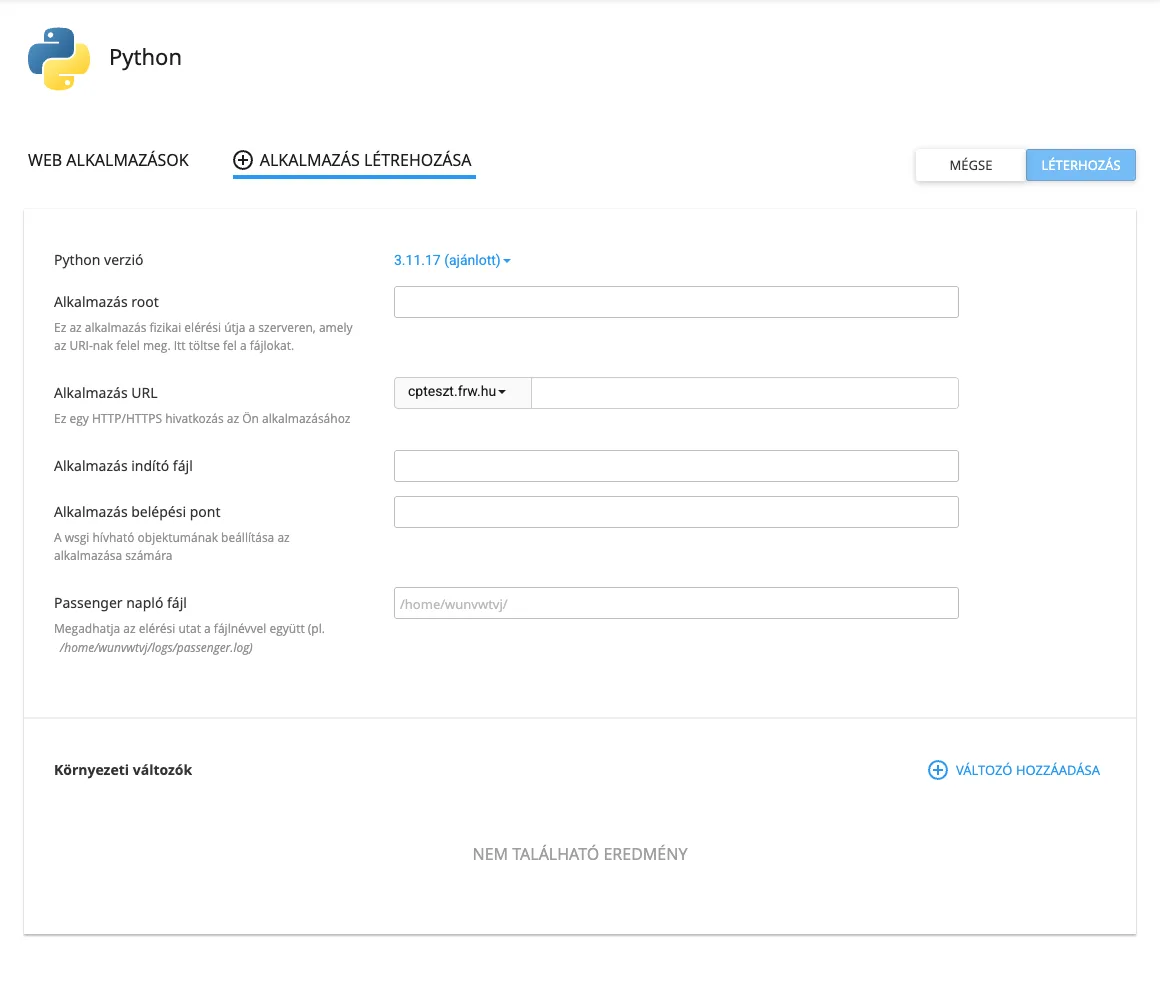
- Log in to cPanel and, in the Software group, click on the ‘Setup Python App’ icon. The Python page that opens displays a list of WEB APPLICATIONS, showing the applications that have already been created.
- Click on the CREATE APPLICATION button.
- Please fill in the fields:
- Python version: the version of Python you wish to use.
- Application root: the application directory relative to its own directory (
/home/felhasznalo), for examplepyapp. Do not specify thepublic_htmldirectory. - Application URL: the domain and path where the application will be available.
- Application entry point: the entry file. By default, this is
passenger_wsgi.py. - application entry point: the name of the WSGI object in the entry file. By default, this is
application. - Passenger log file: this is where the application’s error messages are stored, for example
/home/felhasznalo/logs/pyapp.log.
- Click on the ‘CREATE’ button in the top right-hand corner (the interface displays it as written).
Important: do not name the application directory python37, python38, python311 or anything similar, as this will cause an error.
cPanel creates the directory, the virtual environment and a sample passenger_wsgi.py file, which displays a simple “It works!” page. You can check whether it is working by visiting the Application URL.
Installing packages
- Upload the application files and the
requirements.txtfile to the application’s root directory. - On the Setup Python App interface, click the edit (pencil) icon next to the application.
- In the ‘Configuration files’ section, enter
requirements.txtin the ‘Add another file, then press Enter’ field and press Enter (or click the ‘Add’ button). - Click the ‘Run Pip installation’ button and select the
requirements.txtfile from the drop-down list. The installation will take anywhere from a few seconds to a few minutes, depending on the file size. - Restart the application using the RESTART button.
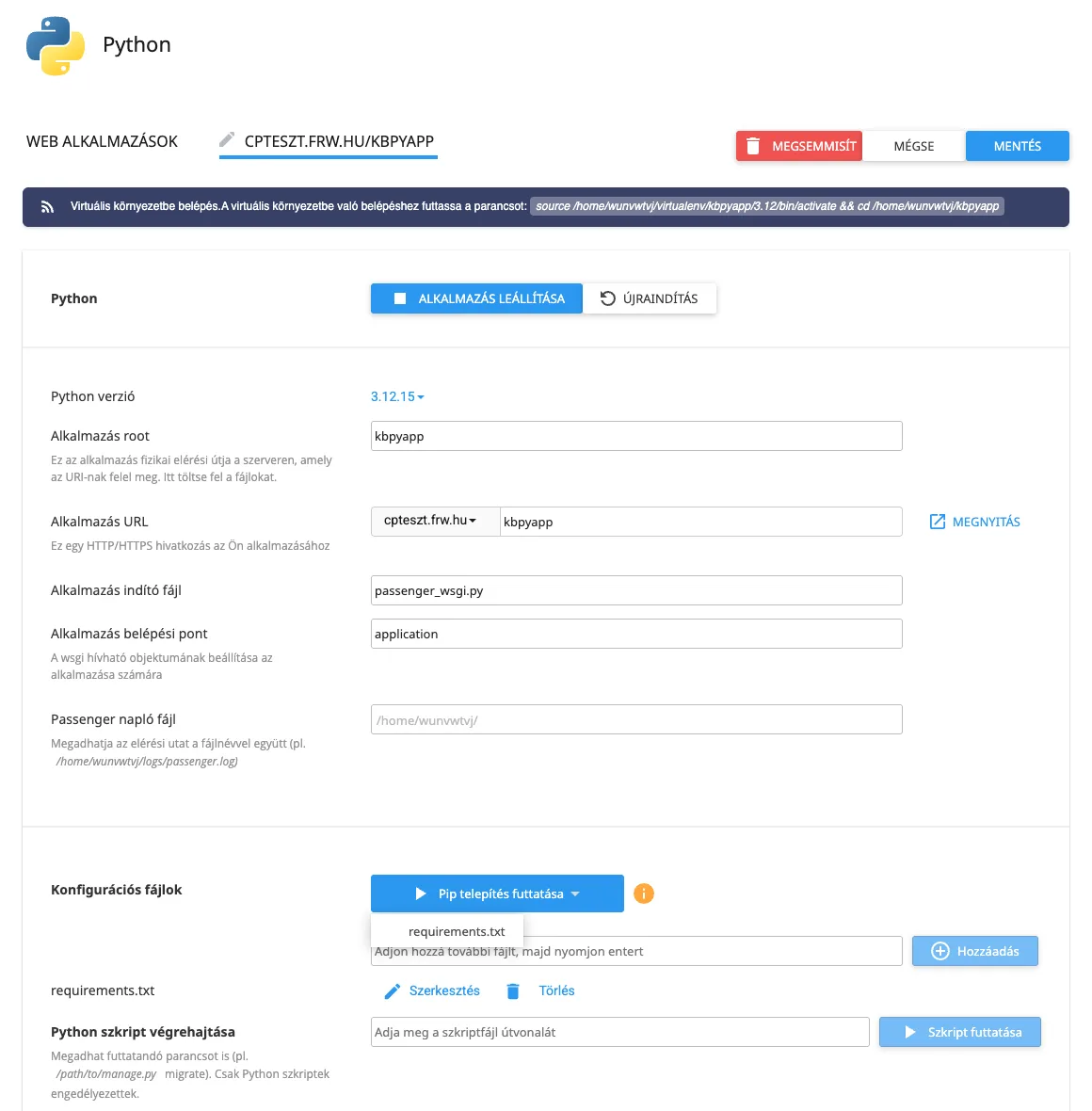
In the** ‘Execute Python script’** field, you can run a Python script within the application environment (for example, manage.py migrate) by clicking the** ‘Run script’** button.
Flask application
If the Flask application is in the app.py file and the object is called app:
# app.py
from flask import Flask

app = Flask(__name__)

@app.route("/")
def index():
    return "Helló a Flask alkalmazásból!"
The contents of passenger_wsgi.py should be as follows:
from app import app as application
Add the flask line to the requirements.txt file, then install the packages as described above.
Django application
In Django, passenger_wsgi.py loads the project’s WSGI application. If the project is called myproject:
import os
import sys

sys.path.insert(0, os.path.dirname(__file__))
os.environ.setdefault("DJANGO_SETTINGS_MODULE", "myproject.settings")

from django.core.wsgi import get_wsgi_application
application = get_wsgi_application()
When configuring your settings, please remember:
- In the
settings.pyfile, add the domain to theALLOWED_HOSTSlist; - On the live site, the value of
DEBUGshould beFalse; - Copy the static files to a public directory (for example, a subdirectory of
public_html) using thepython manage.py collectstaticcommand, and setSTATIC_ROOTto point to this directory; - Create the database in cPanel; see: Creating MySQL databases and users.
Environment variables
On the application’s edit page, you can use the** ‘ADD VARIABLE’** button to specify environment variables, such as the Django SECRET_KEY value or the database password. The application reads these using os.environ. After saving, restart the application.
Restarting after making changes
After modifying the code, you must restart the application: click the RESTART button at the top of the editor page, or click the restart icon in the Actions column of the application list. You can stop the application using the STOP APPLICATION **button, or delete it using the **DELETE button.
Command-line usage (SSH)
In plans with SSH access (cP Premium, cP Pro and cP Pro 100), you can also access the application’s virtual environment from the terminal, for example to run Django’s manage.py commands. The exact command is displayed at the top of the application’s edit page in the ‘Setup Python App’ interface, and looks like this:
source /home/felhasznalo/virtualenv/pyapp/3.12/bin/activate && cd /home/felhasznalo/pyapp
The python and pip commands then run within the application environment:
pip install -r requirements.txt
python manage.py migrate
Debugging
- If the page displays an error, check the log file specified in the ‘Passenger log file’ field.
- Check that the name of the application entry point matches the name of the object in the
passenger_wsgi.pyfile. - The application runs within the resource limits of your hosting account. If you experience a memory shortage, please check your resource usage.