 English
 Magyar


In the majority of hacked WordPress sites, attackers gain access via a known security flaw in an outdated plugin. The cPanel WP Toolkit (WordPress Management) therefore continuously compares the version of WordPress, plugins and themes running on your website against vulnerability databases, and alerts you if any are affected. This WP Toolkit Deluxe is included in our cPanel hosting and WordPress hosting plans. The video demonstrates a real-life scenario: the detection of an outdated Contact Form 7 plugin and its resolution via an update.
Where can I see the notification?
In the WP Toolkit list, each website’s row displays a ‘Security Risk’ label showing the site’s risk score, ranging from 0 to 10. A green 0.0 indicates no known serious vulnerabilities; if the number increases and the label’s colour changes, one of the components is affected. Some long-standing, low-severity issues in the WordPress core are also present in unpatched WordPress versions; these do not increase the score.
Click on the ‘Security Risk’ tab (or on the** ‘Reduce security vulnerability risks’** link on the website’s details page): the ‘Security Status’ window will open.
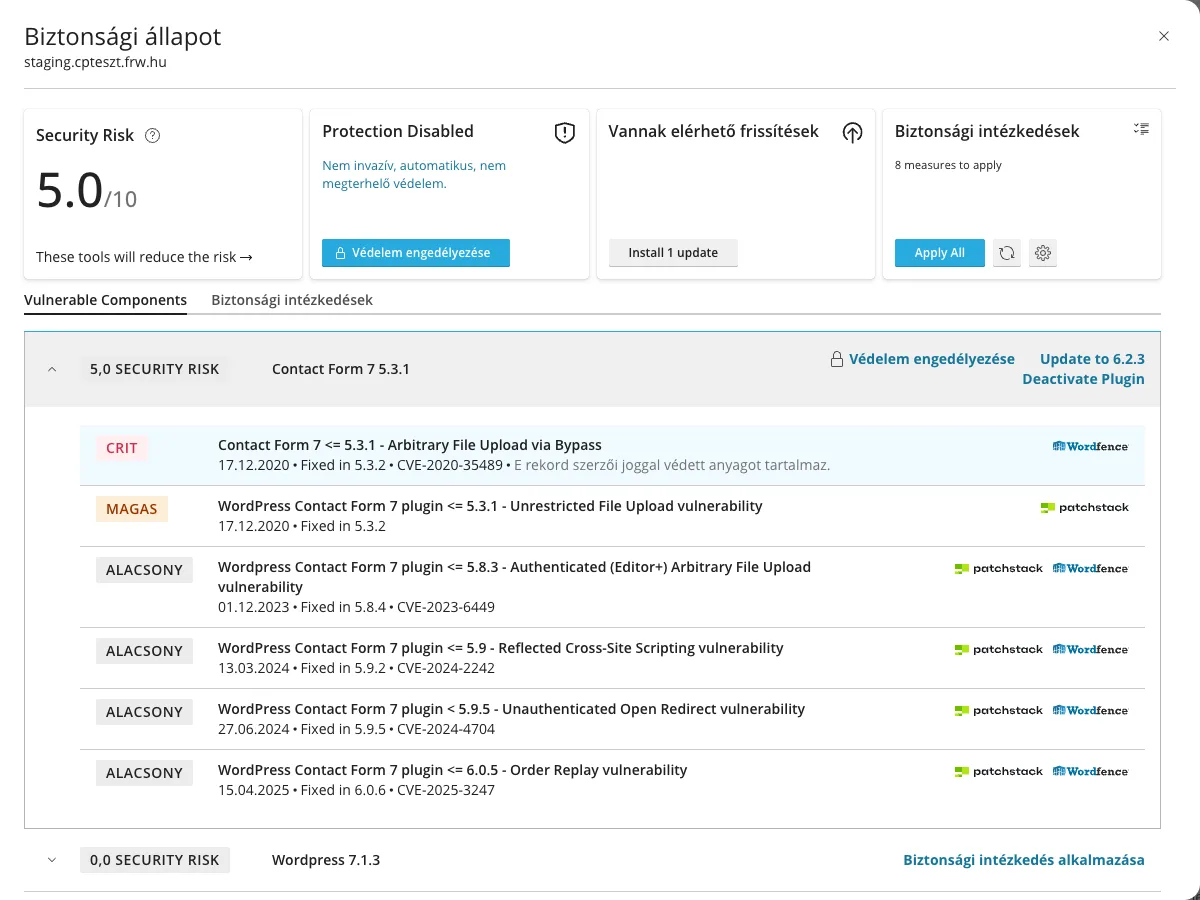
List of vulnerabilities
On the ‘Vulnerable Components’ tab, you can view the vulnerabilities found, grouped by component (plugin, theme, WordPress core). Each row contains:
- Severity: ranging from the most severe (CRIT) through high (HIGH) to low (LOW);
- Description: what type of vulnerability it is (e.g. unauthorised file upload or XSS) and which versions are affected;
- The fixed version: the number after ‘Fixed in’ indicates which version the fix was included in; if your plugin is a newer version than this, the bug does not affect you;
- The CVE identifier, which you can use to look up the details online.
WP Toolkit only lists active plugins and themes: an old plugin that has been deactivated but left on the hosting server will not appear in the list, even though its files are still there. Therefore, you should not only deactivate unused plugins, but also delete them.
What should you do?
On the right-hand side of the component row, WP Toolkit suggests possible solutions:
- Update to …: the best solution. Click on it, then click the ‘Update’ button when prompted for confirmation. After the update, the risk score will be recalculated and the patched extension will disappear from the list. The ‘Install 1 update’ button (or similar, if there are multiple updates) in the Security Status window will install all available updates.
- Deactivate Plugin: if, for any reason, an update is not possible (for example, the fixed version has not yet been released, or the update would cause the site to malfunction), deactivate the plugin until a solution is found. If the plugin is no longer being developed, look for an alternative.
- Enabling protection: WP Guardian’s virtual patches protect the vulnerable plugin with firewall rules until you update it. This is a separately purchasable licence and is not included in the hosting plan; updating or disabling the plugin will resolve the issue even without it.
Before updating, make a backup; for an online shop, it is advisable to test major version updates on a staging site first. The ‘Smart Update’ function in WP Toolkit does this automatically: it tests the update on a copy of the website first.
If the vulnerability has been present for days or weeks, you should also check whether any malware has found its way onto your hosting account; the steps to take are outlined in the article on ImunifyAV malware removal.
Prevention: automatic security updates
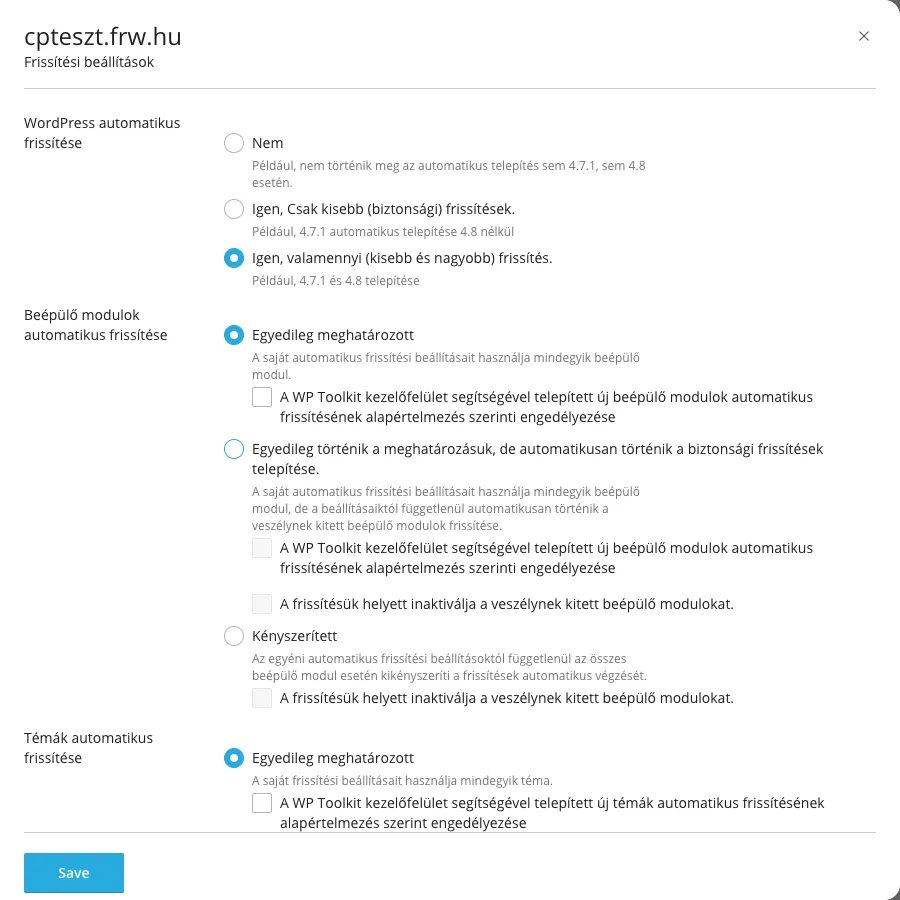
On the website’s details page, click the ‘Automatic update settings’ link to specify how WP Toolkit should handle vulnerable plugins and themes. Under the **‘Automatic updates for plugins’ **section:
- Customised: each plugin follows its own settings.
- Whilst the settings are configured on a case-by-case basis, security updates are installed automatically: you still decide on other plugin updates, but if a plugin is vulnerable and a patched version is available, WP Toolkit will update it automatically. We recommend this for most websites.
- Forced: all updates for all plugins are installed automatically.
For the latter two, you can also tick the option ‘Deactivate vulnerable plugins instead of updating them’: in this case, WP Toolkit will deactivate the vulnerable plugin. This is safer, but deactivating an important plugin may also affect the functioning of the site. Save the setting by clicking the ‘Save’ button.
For more information on configuring updates, see the article on automatic updates; for information on managing plugins, see the article on managing plugins with WP Toolkit.