 English
 Magyar


You can manage the content, appearance and plugins of your WordPress site via the WordPress control panel (admin panel). The address for this is /wp-admin following the domain name, for example https://pelda.hu/wp-admin; if WordPress is located in a subdirectory, then https://pelda.hu/blog/wp-admin. With our WordPress hosting and cPanel hosting plans, you can log in via the cPanel WP Toolkit interface without needing a password.
Where can I find my login details?
WordPress has its own user accounts, which are independent of the login details for the client portal and cPanel.
- When you order WordPress hosting, we send you two emails. The ‘Your new WordPress hosting is ready’ email contains your hosting details (cPanel and FTP), whilst the ‘WordPress installation complete’ email contains your website address, the admin panel address, and your WordPress username and password. Please change this password after logging in for the first time.
- If you installed WordPress using WP Toolkit, you can log in using the username and password you provided during installation; the installation process is described in the article on installing WordPress with WP Toolkit.
- A WordPress.org account is different. On the WordPress.org site (for example, to rate plugins), a separate registration is required; your own website’s administrator account cannot be used there, and vice versa.
Log in without a password from WP Toolkit
- Log in to cPanel and click on **‘WordPress **Management’ in the left-hand menu.
- Click the arrow at the start of the row to open the website’s details page.
- Click on the ‘Log in’ button. The WordPress control panel will open in a new tab, with you logged in as an administrator.
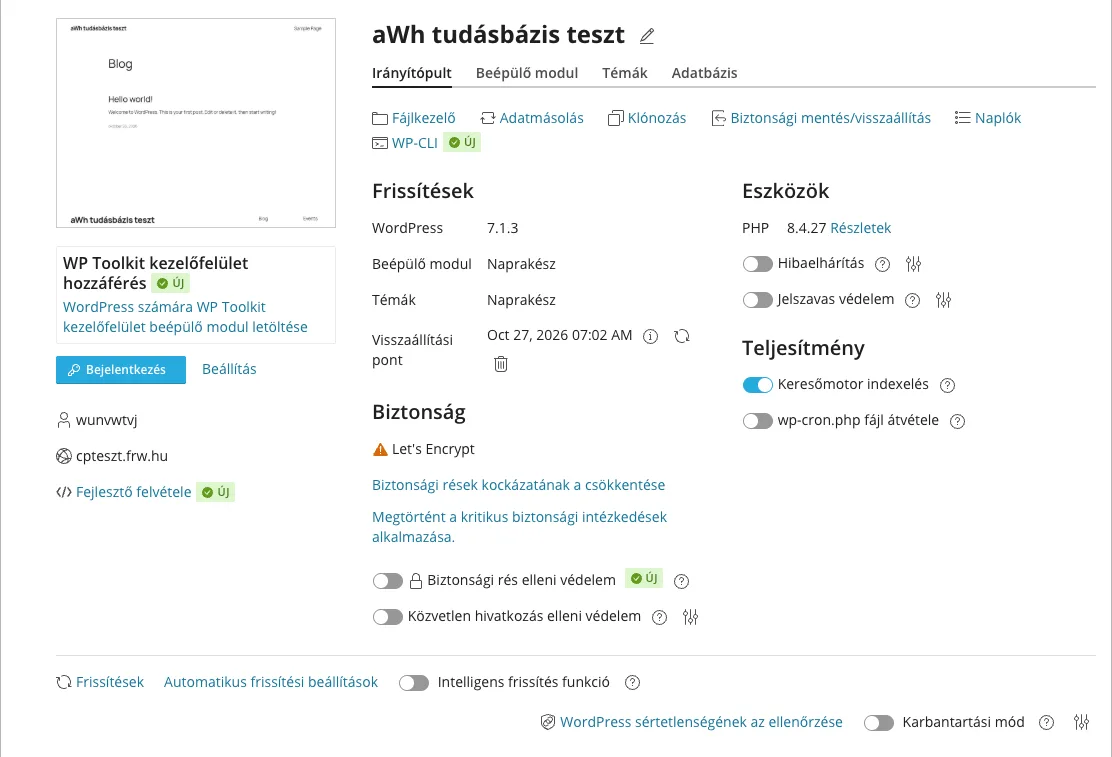
This works even if you don’t know your WordPress password, so it’s the quickest way to recover your account if you’ve forgotten it.
Set a new password
In WordPress: in the left-hand menu of the control panel, select Users › Profile. In the ‘Manage User Account’ section, click the ‘Set New Password’ button; WordPress will suggest a strong password, which you can overwrite. Save the password in your password manager, then click the** ‘Update Profile’** button at the bottom of the page.
In the WP Toolkit: on the website’s details page, in the ‘Settings’ window next to the ‘Log in’ button, you will see the login address and the administrator’s username. Enter a password in the ‘New password’ field (or use the ‘Generate’ button to request one), and click the ‘Update’ button. You can also change the administrator’s email address here; this is where WordPress notifications and password reset emails are sent.
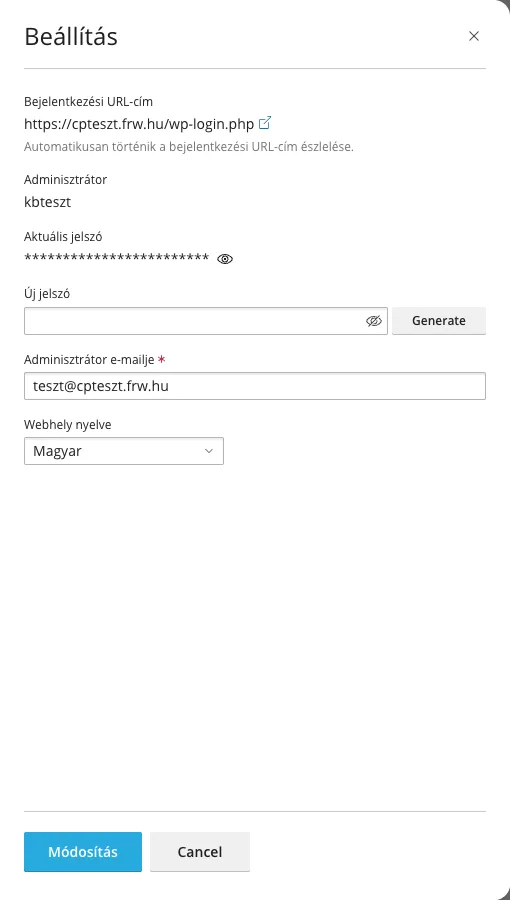
Further options (email recovery, phpMyAdmin, WP-CLI) are summarised in the article on forgotten WordPress passwords.
The page or wp-admin is not loading
- The domain is not yet pointing to the hosting account. When setting up a new hosting account or after a migration, the domain’s nameservers or A records must be configured to point to the hosting account; until this is done, the address will lead to the old location or nowhere at all. The article ‘A record or nameserver change’ explains the difference between the two solutions. For a newly registered domain, the registration process must also be completed (for example, by confirming the domain holder’s email address).
- Too many redirects (ERR_TOO_MANY_REDIRECTS). Often, the website’s address does not match the one on which the page is actually hosted (for example,
httpandhttps, or the old address of a page migrated from another server). In WP Toolkit, you can fix this by selecting the ‘Updated website URL’ option from the ⋮ menu at the end of the website’s row. If the redirect has appeared suddenly, it may be caused by a malware infection; this is discussed in the article on ImunifyAV malware removal. - Other issues: a step-by-step checklist covering the causes of website downtime will help you troubleshoot the problem.
Use a strong, unique password for the admin panel and enable two-factor authentication; the steps to follow are summarised in the article on WordPress security settings to prevent hacking. If others are working on your website, do not give them your login details: the article on developer access provides guidance on this.