 English
 Magyar


On cPanel hosting, every email account comes with a calendar and address book. On Android, these cannot be set up by default because the system does not directly support the CalDAV and CardDAV protocols; therefore, an app is required. The most widely used app for this is the open-source DAVx⁵: it synchronises with the phone’s own Calendar and Contacts apps, in both directions.
We tested these steps in October 2026 on Android 17, using version 4.5.21 of DAVx⁵ with a cPanel hosting email account. As the email accounts on this web hosting service do not include a server-side calendar or address book, this guide applies only to cPanel hosting.
Installing DAVx⁵
The app is available to purchase on Google Play, but can be downloaded free of charge from the F-Droid store and the developer’s GitHub page. Its features are the same across all three platforms.
Settings
- Open the DAVx⁵ application and scroll using the arrow in the bottom right-hand corner. You can skip the ‘Task Support’ page.
- On the Permissions page, switch on all the toggles listed below, and when the pop-up prompts appear, tap the ‘Allow’ button (calendar, contacts, nearby devices, notifications). Continue to the next page by tapping the tick on the last page.
-
Tap the ‘Add Account’ button, select the ‘Log in with email address’ option, then tap the ‘Continue’ button.
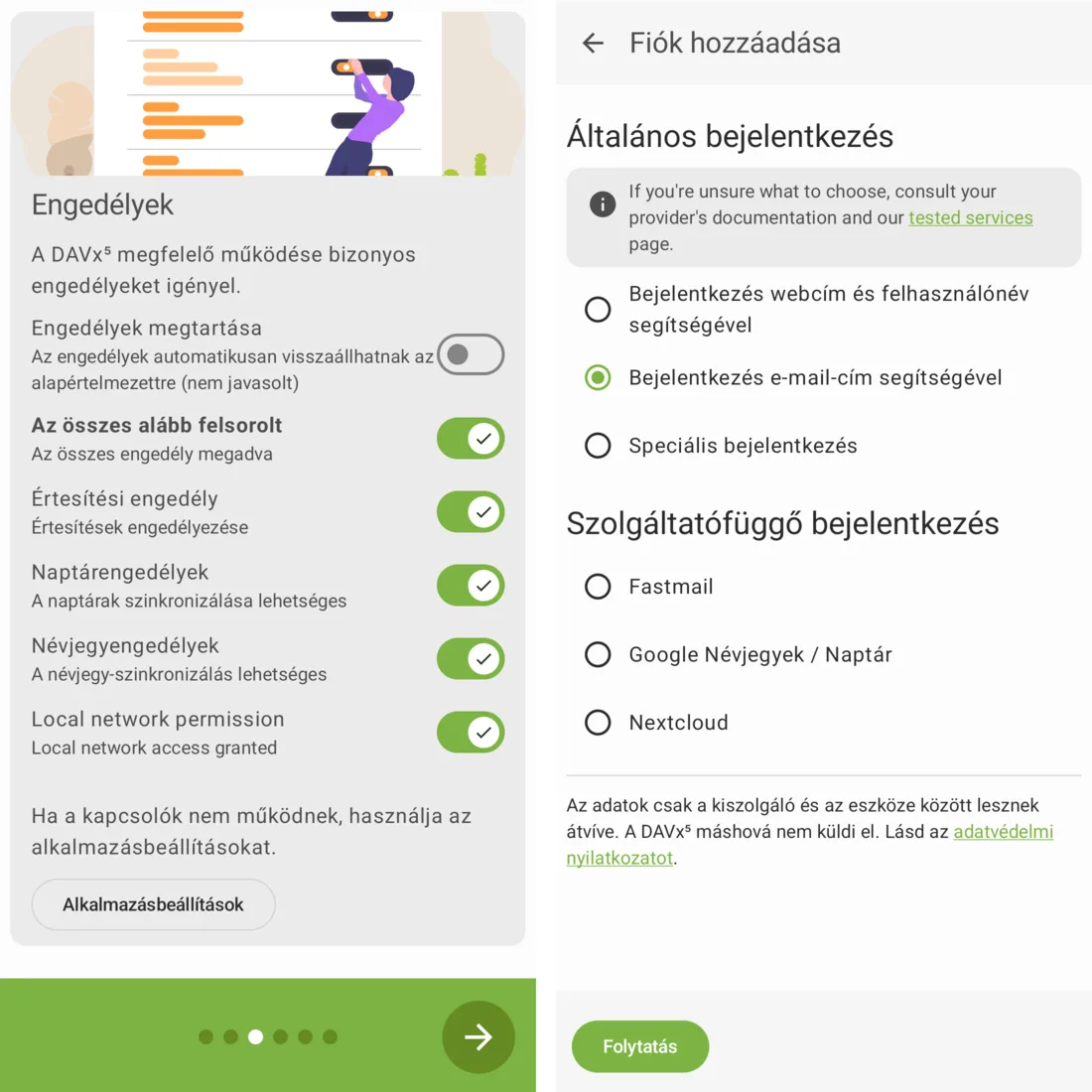
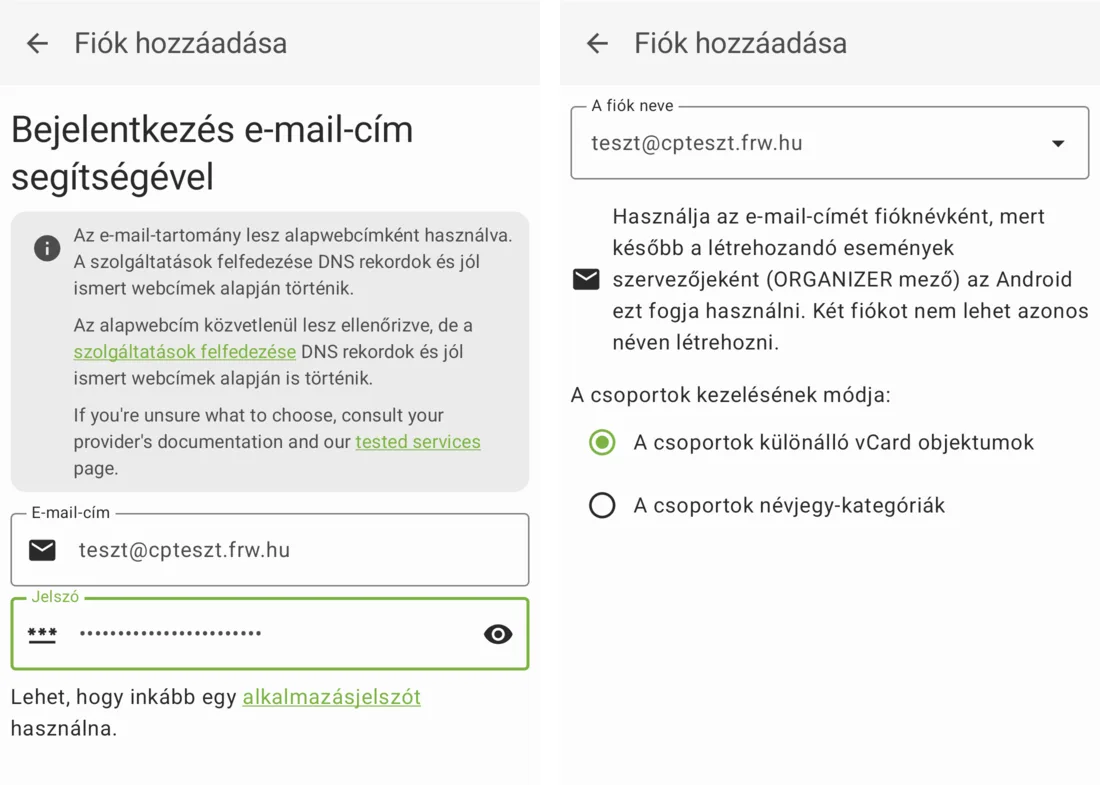
- Enter your full email address and your account password, then tap the ‘Log in’ button.
-
Keep the account name as your email address, leave the default settings when managing groups, and tap the ‘Finish’ button.
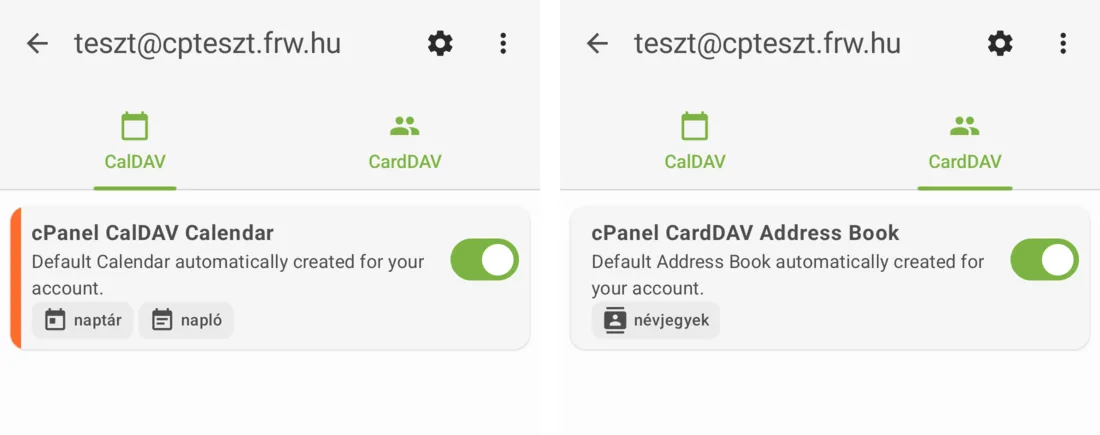
- On the account page, under the CalDAV tab, toggle the switch next to ‘cPanel CalDAV Calendar’; under the CardDAV tab, toggle the switch next to ‘cPanel CardDAV Address Book’. If the list is empty, click the ‘Refresh list’ button.
-
Tap the ‘Synchronise now’ button.
If you are unable to log in
Logging in via email address locates the server using the domain’s DNS records, so this method only works if the domain uses the hosting provider’s name servers. If your DNS is managed elsewhere, in step 3, select the ‘Log in using web address and username’ option and enter the following:
| Field | Value |
|---|---|
| Base web address | mail.<az Ön domainje>:2080 |
| Username | the full email address |
| Password | the email account password |
In the test, it was able to locate the calendar and address book using this data. You can also check the addresses on the cPanel Calendars and Contacts Configuration page (see: the article on the cPanel calendar).
Usage
When creating a new contact in the Contacts app, select the DAVx⁵ address book as the backup location; otherwise, the contact will only be stored on your phone.
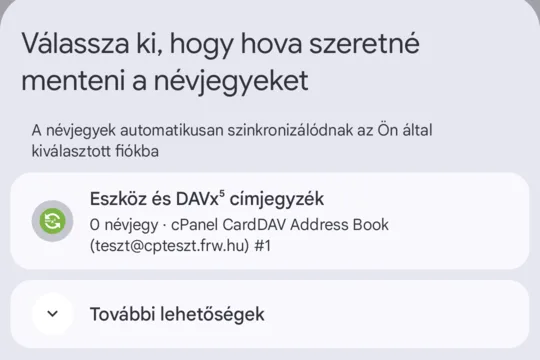
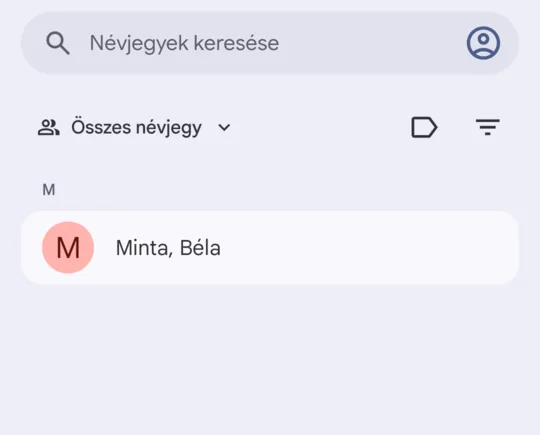
In the test, it worked both ways: the event and contact created on the server appeared on the phone, and the contact created on the phone was uploaded to the server.
DAVx⁵ synchronises automatically from time to time; for an immediate update, open the app and tap the ‘Synchronise now’ button. If your email account password changes, you will need to update it in DAVx⁵ as well.
The email settings for your mailbox must be configured separately; see: Setting up email on Android using the Gmail app.