 English
 Magyar


cPanel hosting plans include a calendar and address book for email, which you can use in webmail (Roundcube) and, once synchronised, on your mobile phone or in a desktop application. If you add attendees to an event, the system sends them an invitation; this article explains what to do if the invitation does not arrive.
How does the calendar work?
cPanel previously used the separately installable Calendar and Contacts Server (CCS) extension, which, due to a known bug, did not send invitations automatically. From version 120 of cPanel onwards, CCS has been discontinued; the calendar and address book are now managed by cPanel’s own cpdavd service, and webmail displays the same calendar. The calendar is stored in one place, so the same events are visible in webmail, on your phone and on your computer.
If you do not receive the invitation
-
Check the participants: in webmail, open the event using the ‘Edit’ button and, on the ‘Participants’ tab, check that the participants are listed with the correct email addresses. The switch in the ‘Envelope’ column for each participant’s row must be switched on: this determines whether they will receive an invitation. Once saved, the message ‘Notification sent to participants’ will appear in the bottom right-hand corner of the webmail interface.
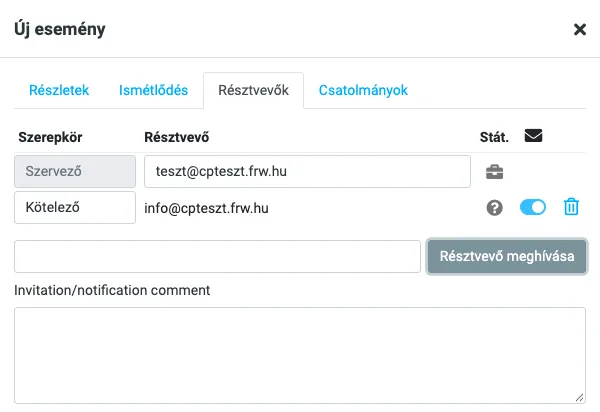
- Please ask the recipient to check their spam folder: some filters may flag emails containing a calendar file (
.ics) as suspicious. - For mobile or desktop calendars: some programs will only send an invitation if the sender’s email address is set up in your account. Try creating the same event via webmail as well.
Sending an invitation manually via webmail
If you do not receive the automatic invitation, you can send it manually:
- Log in to webmail and open the Calendar view.
- Click on the event you have created, then select ‘Send’ from the ‘Options’ menu at the bottom of the window that appears.
- The Roundcube email client opens, with the event calendar file (
.ics) attached. - Enter the recipients, write a message if you wish, and send the email.
Recipients can accept or decline the invitation in the email; most email programs (Outlook, Gmail, Apple Mail) automatically display the .ics attachment as an invitation.
Synchronising your calendar with your phone and computer
The calendar is accessible via the CalDAV protocol and the address book via the CardDAV protocol, so they can be synchronised with most devices:
- iPhone, iPad, Mac: in the cPanel Email Accounts menu, click the ‘Connect Devices’ button next to the account; the configuration profile available for download there will also set up your calendar and contacts.
- Android: a separate app is required for CalDAV and CardDAV (for example, DAVx⁵, see: Synchronising calendars and contacts on Android); you can find the server address and port on the ‘Connect Devices’ page or in the ‘Calendars and Contacts Configuration’ section of the ‘E-mail’ group (server:
mail.az-on-domainje.hu, port 2080).
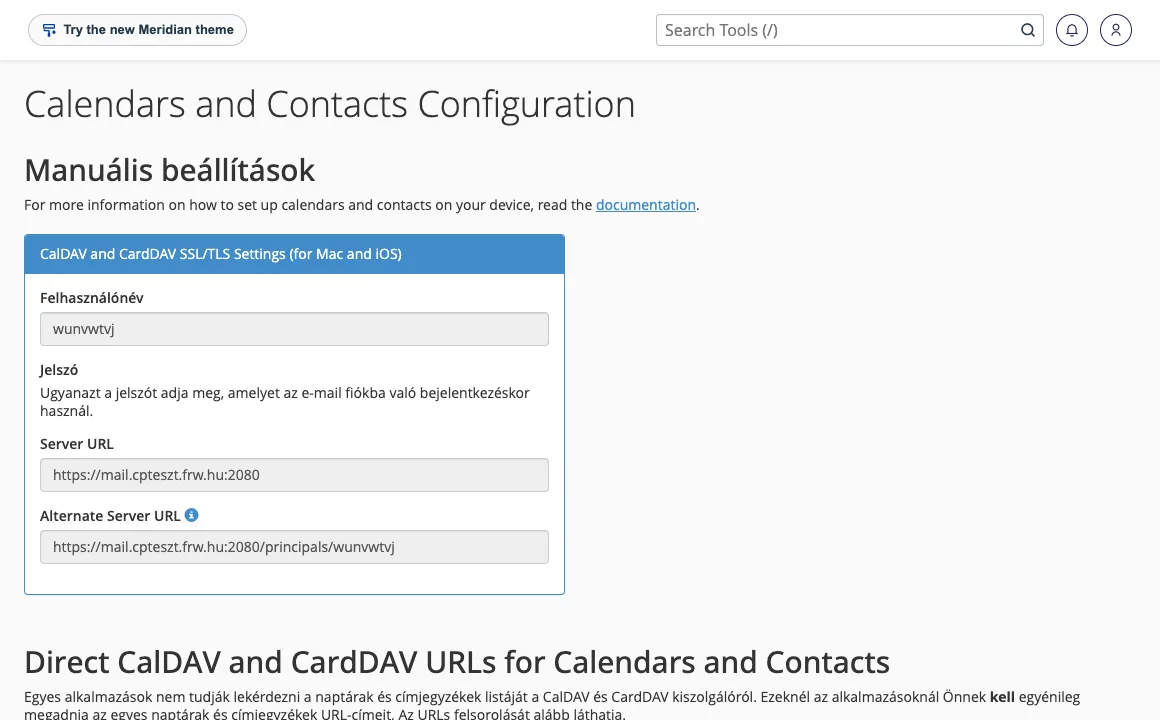
- Thunderbird: the built-in calendar adds the calendar as a CalDAV account.
The username is always your full email address, and the password is the password for your email account. If synchronisation is not working, check that your network (for example, a company firewall) is not blocking the specified port.
If you’re also experiencing issues with your email
If the manually sent invitation does not arrive either, the problem is likely to be with the email delivery rather than the calendar. Check whether standard emails sent from the domain are arriving; for information on delivery errors and emails ending up in the spam folder, see the relevant article, and for server bounce messages, see the article explaining 550 email errors.