 English
 Magyar


htop is an interactive, colourful monitor for running processes: it displays CPU core and memory usage, average load and processes on a single screen, and allows you to search, filter, sort or stop a process using keyboard shortcuts. This article explains how to install it on AlmaLinux and walks you through its use. A brief comparison of top and htop can be found in the article ‘Monitoring processes with the top and htop commands’.
We tested the instructions on AlmaLinux 10.2 and 9.8 systems; the screenshots were taken from the console of an AlmaLinux 10 virtual machine.
Installation
htop is not included in AlmaLinux’s own repositories; it can be installed from the EPEL repository. If EPEL is not yet configured, enable it first (for details, see: Installing the EPEL repository on AlmaLinux):
sudo dnf install epel-release
sudo dnf install htop
Check:
htop --version
htop 3.3.0 was installed on both systems for the test.
Getting started
htop
As a standard user, htop displays all processes, but you can only stop and reorder your own. If you need to manage processes belonging to other users (such as apache or mysql) or wish to view disk usage, run the command sudo htop.
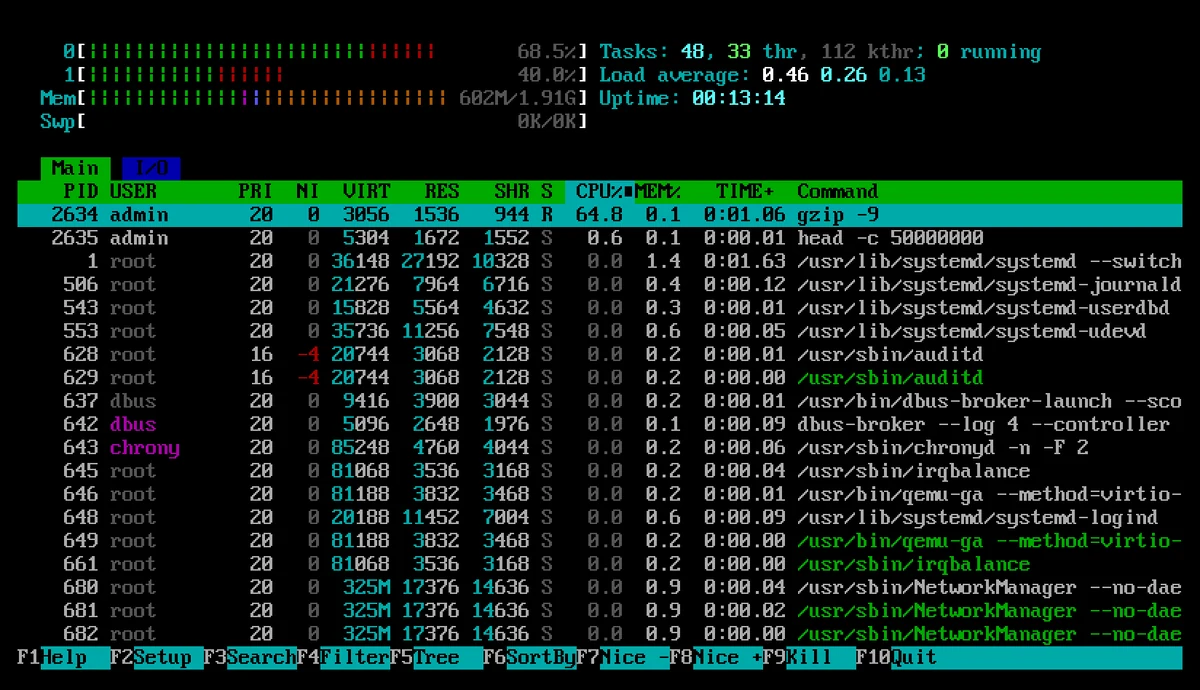
The top part of the screen
- 0, 1, 2…: one bar per processor core. The colours indicate the type of time used: green for normal user programs, red for the kernel, and blue for low-priority (nice) processes. In the detailed CPU view (Detailed CPU time) under F2 › Display options, disk wait time and, on VPS systems, wait time resulting from virtualisation (steal) are also assigned separate colours.
- Mem: memory. The green section represents the memory actually used by programs, whilst the other colours (purple, blue, orange) indicate shared memory, buffers and the cache, which the system frees up when necessary. The number next to the bar (
602M/1.91Gin the image above) shows the memory actually in use. - Swp: swap. If it is constantly filling up, there is not enough memory (see: Out of memory: OOM killer and swap file).
- Tasks: the number of processes and threads, as well as those currently
running. - Load average: the 1-, 5- and 15-minute load averages; see: What does ‘load’ mean on Linux systems?
- Uptime: how long the system has been running.
The columns in the process list
| Column | Report |
|---|---|
PID |
process ID |
USER |
process owner |
PRI, NI |
priority and nice value (a negative nice value indicates higher priority) |
VIRT |
the amount of virtual memory allocated; this can be deceptively large |
RES |
the physical memory actually in use – it’s worth keeping an eye on this |
SHR |
The portion of the RES shared with other processes |
S |
Status: R: running, S: sleeping, D: waiting for disk, Z: zombie |
CPU%, MEM% |
CPU and memory usage; 100% corresponds to one full core |
TIME+ |
Total processor time used to date |
Command |
The full command line |
The lines in green are threads of a program (for example, several lines of NetworkManager in the image). You can hide these using the H key, so that each program appears only once. The kernel’s own threads are toggled using the K key.
Keyboard shortcuts
In addition to the function keys visible at the bottom of the screen, there are also single-letter commands:
| Key | What does it do? |
|---|---|
F1 or h |
help |
F2 or S |
settings (columns, rows, colours) |
F3 or / |
Search in the command line; pressing F3 jumps to the next result |
F4 or \ |
Filter: only processes containing the specified text remain |
F5 or t |
Overview |
F6 |
Select sort column |
P, M, T |
Sort by processor, memory or runtime |
u |
A user’s processes |
Szóköz |
Select a process (you can select more than one; the actions apply to all of them) |
F7, F8 |
Increasing or decreasing priority (nice); priority can only be increased by the root user |
F9 or k |
Sending a notification, i.e. suspension |
Tab |
Switching between the Main and I/O tabs |
q or F10 |
log out |
Which process is using up memory?
Press the M key: the list will be sorted by the MEM% column, with the process using the most memory at the top. To revert to sorting by processor, press P.
Filter by program
After pressing F4, enter, for example: php. The list will then show only the PHP-FPM processes, whilst the header information will still apply to the entire system. Pressing Esc clears the filter.
Top view
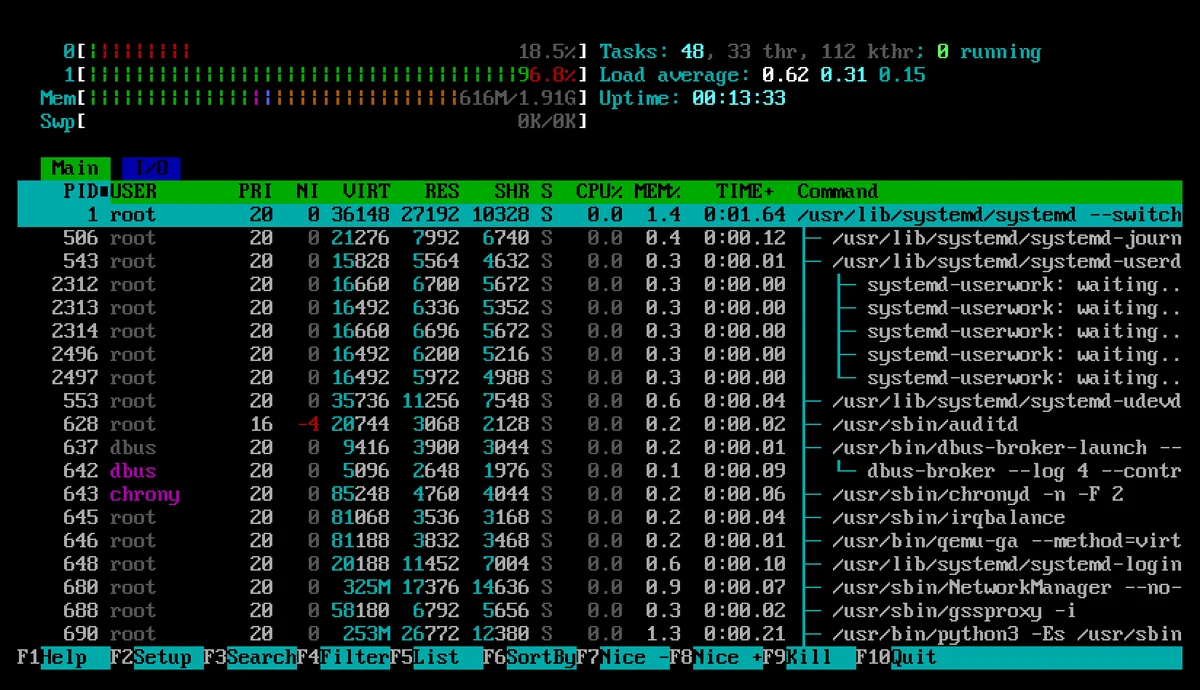
In the F5 view, child processes appear indented beneath their parent. This makes it possible, for example, to see which main process the PHP-FPM threads belong to, or which service launched a suspicious script.
Stopping a process
Select the process using the arrow keys, then press the F9 key. A list of signals will appear on the left-hand side, with 15 SIGTERM selected by default. Press Enter to send the signal.
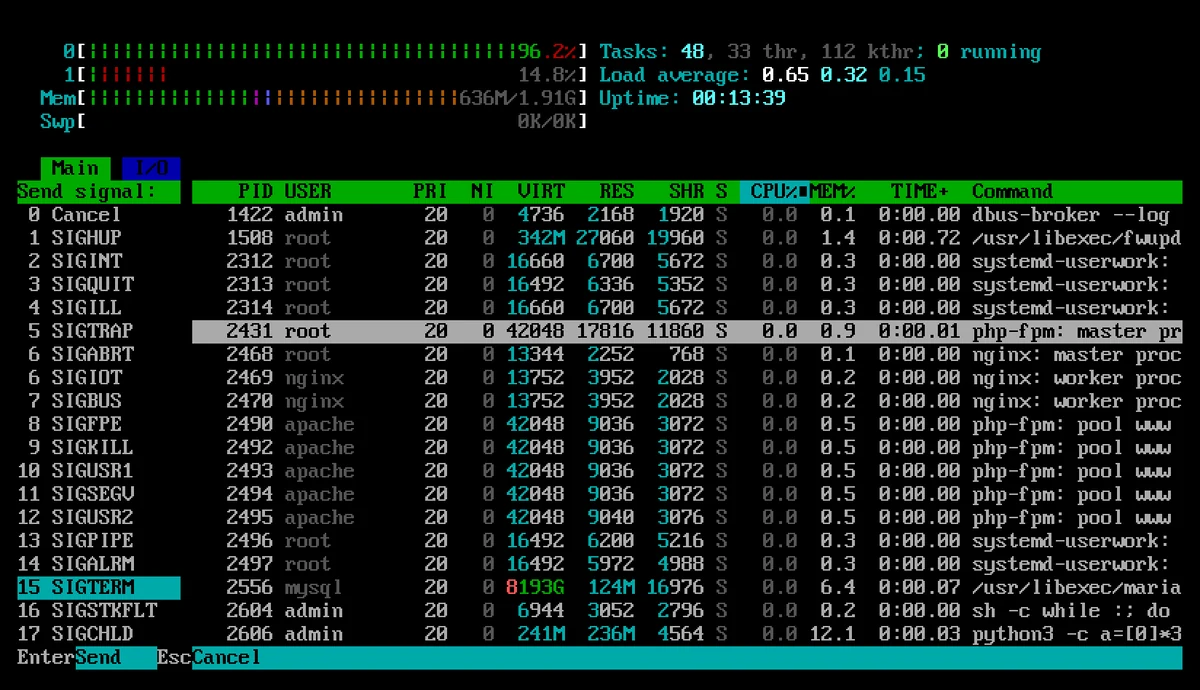
SIGTERM(15) instructs the program to terminate normally. Always start with this.SIGKILL(9) terminates the process immediately, without backup or cleaning up. Only use it if the program does not respond toSIGTERM-re.
Do not stop system services (web server, database, PHP-FPM) via htop, as systemd may either restart them or leave them in an incomplete state, depending on the configuration. Manage these using the systemctl command.
The I/O tab
The I/O Tab, accessible via the Tab key, shows disk reads and writes (DISK READ, DISK WRITE) on a per-process basis. These values are only displayed when using sudo htop; as a standard user, the columns showed N/A during the test. If the server is slow and the CPU load shown in the header is low, yet the average load is still high, check here to see which process is accessing the disk.
Start-up switches
htop -u apache            # csak az apache felhasználó folyamatai
htop -p 1234,5678         # csak a megadott PID-ek
htop -t                   # fanézetben indul
htop -s PERCENT_MEM       # memória szerint rendezve
htop -d 50                # frissítés 5 másodpercenként (tizedmásodpercben megadva)
htop --readonly           # leállítás és átrangsorolás letiltva
htop -C                   # színek nélkül (--no-color), ha a terminál színei olvashatatlanok
htop -M                   # egér nélkül (--no-mouse)
The names of the sortable columns are listed by the command htop --sort-key=help. The --readonly switch is useful if a colleague simply wants to monitor the system and does not want to accidentally shut anything down.
Save settings
Any settings changed in the F2 menu (displayed columns, tabs, hidden threads, sorting) are saved by htop to the ~/.config/htop/htoprc file upon exit, and are read from there the next time the program is launched. The root user (sudo htop) has a separate configuration file in the /root/.config/htop/ directory, so the settings must be reconfigured there.
Updates and removal
htop, installed from EPEL, is updated along with the system (sudo dnf upgrade). EPEL does not always contain the latest release: you can compile the latest version from source, available on the developers’ GitHub page, but you will then have to manage the updates yourself; for this reason, we recommend using the EPEL package on the server. Removal:
sudo dnf remove htop
The settings in ~/.config/htop/ will be retained in this case; if you no longer need them, you can delete the directory.
When do you need a larger server?
If htop consistently shows high CPU usage or memory nearing capacity, and this increases in line with traffic, the machine has outgrown its resources. You can also switch between our KVM VPS plans; the steps are described in the article ‘How can I upgrade the resources of my VPS plan?’. For longer-term monitoring, you’ll need a tool that measures and plots graphs rather than htop; our blog post on VPS performance monitoring discusses these.