 English
 Magyar


The load (load average) is one of the most closely monitored metrics on Linux systems. It shows, on average, how many processes were attempting to run simultaneously: how many were currently running on the processor or waiting for their turn (runable state), and how many were waiting in an uninterruptible state, typically for disk or network I/O (the so-called D state). Load is therefore not a percentage, and it does not directly measure CPU utilisation, but rather the ‘demand’ placed on the system.
The three numbers
The load value is described by three numbers, for example:
load average: 1.20, 0.85, 0.60
These are the exponentially smoothed averages for the last 1, 5 and 15 minutes. Comparing them reveals the trend: if the first figure is the highest, the load is currently rising; if it is the lowest, a previous peak is already on the wane.
How can I access it?
uptime
cat /proc/loadavg
nproc
Both the uptime and the first line of top display these three values. nproc indicates the number of processor cores (or vCPUs on a VPS), without which the load cannot be interpreted. Our article on monitoring processes covers the use of top and htop.
When is the load high?
Always compare the load to the number of cores:
- On a 4 vCPU server, a load of 4 roughly corresponds to full utilisation: something is running on every core, but there is little waiting time.
- If the load remains consistently higher than the number of cores, processes will be queued and the server will respond more slowly.
- A brief, one-minute spike (for example, during a cron job or a backup) is not a problem in itself; the 15-minute figure is more indicative.
What can cause high load?
As the load metric also includes processes waiting for I/O, the CPU may be virtually idle even when the load is high. You should therefore always check what is running in the background:
- CPU load: in the
topoutput, the%Cpu(s)line shows highusandsyvalues; one or more processes are using a lot of CPU (for example, a runaway PHP script or a website overloaded by bot traffic). - Disk wait: a high
wa(iowait) value indicates that the disk is the bottleneck. This may be caused by a large backup, a poorly indexed database query, or the system running out of memory and using swap space. - Virtualised environment: On a VPS, the
st(steal) value indicates how long the virtual machine has been waiting for the physical processor.
The vmstat 1 command displays the number of running (r) and blocked (b) processes every second, as well as the distribution of CPU time, which helps to determine which scenario applies. On a 2 vCPU AlmaLinux 10 test machine, with a process loading three processors and continuous disk writing:
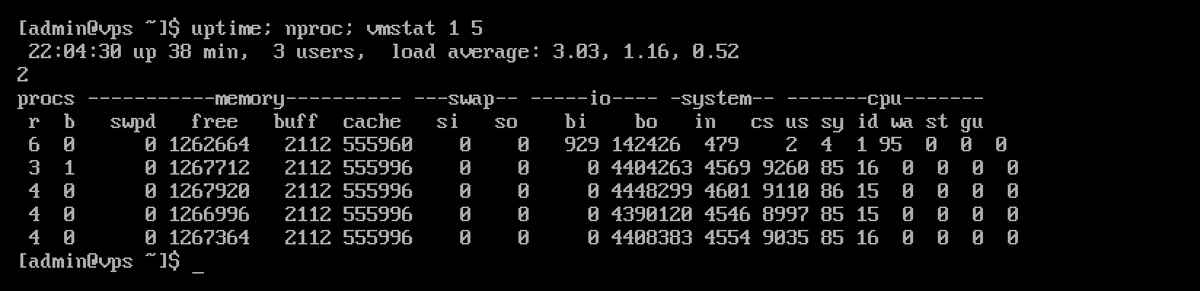
A load of 3.03 across 2 cores means that, on average, one process was always waiting. In the r column, 3–6 processes were queued for the 2 cores, and the idle time (id) was 0: this indicates a CPU bottleneck. The first line of the vmstat output shows the average since system boot (still showing 95% idle time here); the actual picture is revealed from the second line onwards.
What should you do if it remains consistently high?
First, identify and optimise the process causing the load: by using caching, optimising database queries or reducing the frequency of unnecessary cron jobs. If the load is proportional to traffic and the server is simply too small for the task, you can choose a larger KVM VPS plan with more vCPUs from our range.