 English
 Magyar


On cPanel hosting, the web server logs every request, and within the cPanel ‘Statistics’ section, you can access various views of your website’s traffic based on these logs. Detailed, graph-based traffic analysis tools (such as AWStats or Webalizer) are not available on our cPanel hosting plans. The original author has ceased development of AWStats (the final release, version 8.0, was published in December 2024, and it has not received any security patches since then), and the cPanel developers have declared AWStats, Webalizer and Analog Stats to be obsolete in version 140, and will be removing them from version 142. For detailed analysis, it is advisable to integrate a web analytics tool into your website (see below).
Available tools
Log in to cPanel and scroll down to the ‘Pointer’ group.
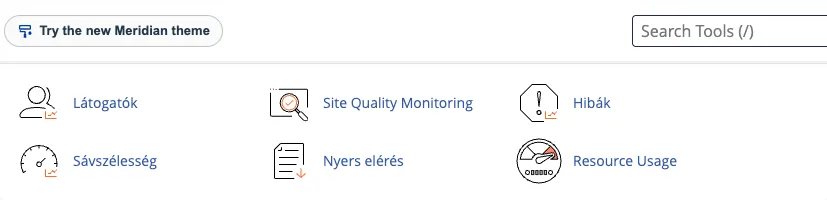
Visitors
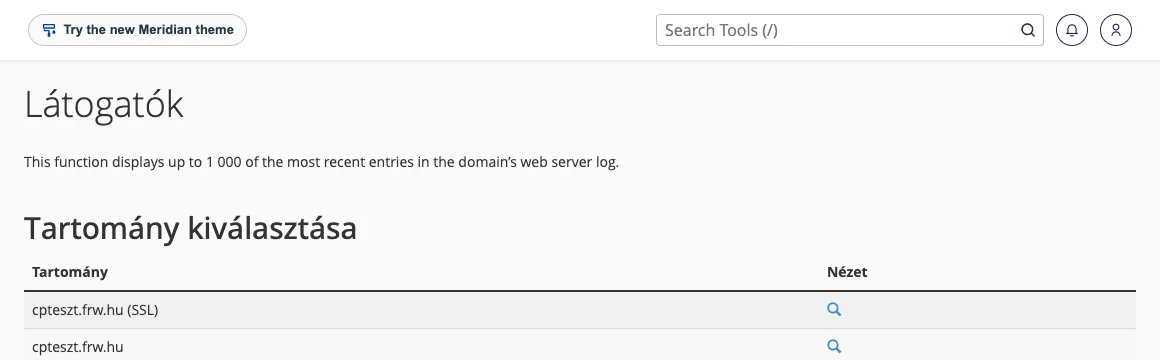
The Visitors page displays the most recent 1,000 entries from the domain’s web server log: the visitor’s IP address, the time, the URL accessed, the status code, the referring page and the browser. Select the domain (there is a separate row for HTTPS traffic, marked ‘SSL’), then click on the magnifying glass icon. This view is particularly useful for quickly locating a recent event (such as an error or a suspicious request).
Bandwidth
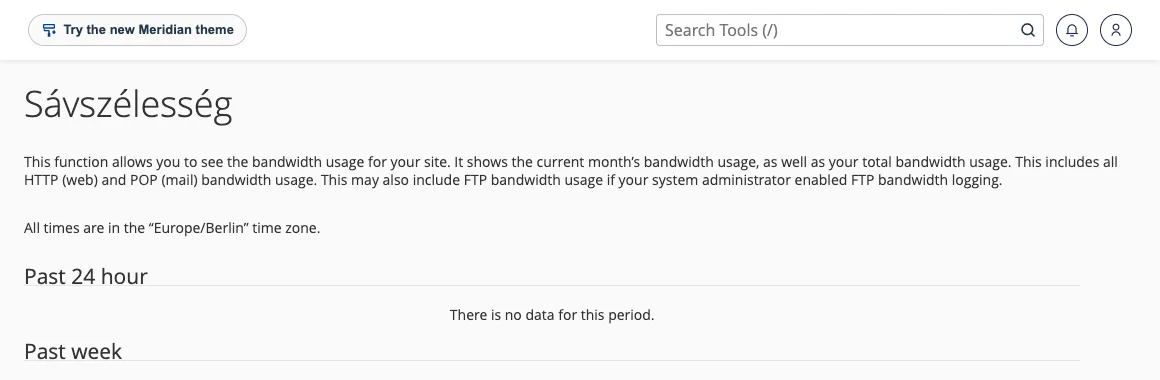
The Bandwidth page displays traffic for the website (HTTP) and email (POP/IMAP), broken down by the past day, week and year. If traffic suddenly spikes, this helps you determine whether it is due to genuine visitors or, for example, an aggressive bot.
Raw access
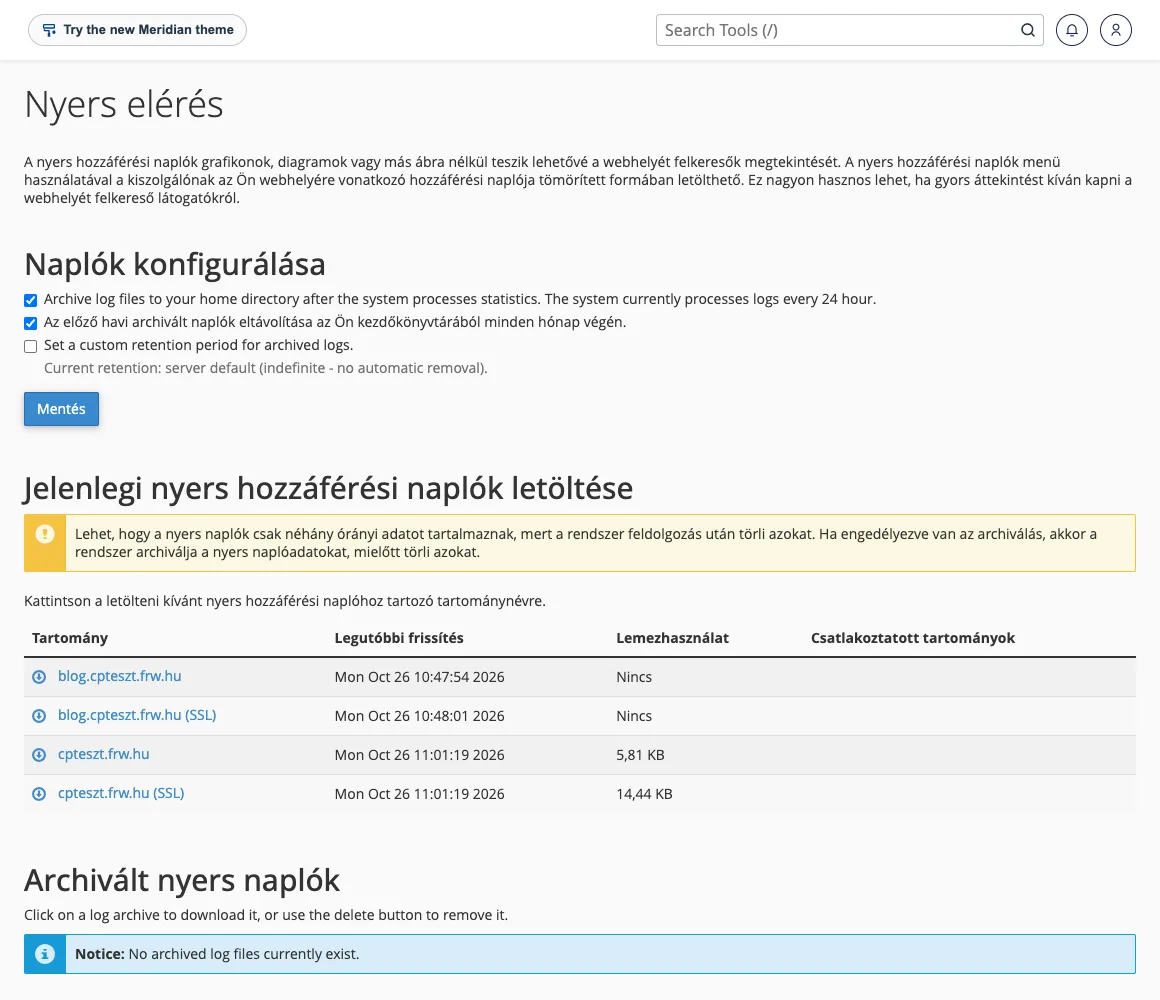
On the Raw Access page, you can download the web server’s complete, unprocessed access logs for each domain (as a.gz-compressed file). You can process these using your own analysis software (such as GoAccess) or a spreadsheet program. In the ‘Log Configuration’ section, you can set the system to archive the logs in its home directory after processing and to delete old archives on a monthly basis.
Errors
The Errors page displays the most recent entries from the web server’s error log, in reverse chronological order. Here, for example, you can see requests for non-existent files or restricted directories, which is useful for identifying the cause of a broken link or a 403 or 500 error.
Resource Usage
The Resource Usage page does not show visitor numbers, but rather the hosting resource usage (CPU, memory, processes, I/O); this is covered in the article on monitoring LVE resource usage.
Detailed visitor statistics
If you’d like to know how many people visit your site, where they come from, which pages they view and how long they stay, integrate a web analytics tool:
- Google Analytics: free and detailed, but it requires visitors’ consent (cookies), and the data is sent to Google.
- Matomo: open-source software that can even be run on your own hosting, so your data remains with you.
- Cloudflare Web Analytics and other cookie-free solutions: they are simpler and typically do not require consent.
Log-based figures (Visitors, Bandwidth) and data from web analytics tools differ: the log records every request, including those from bots, whereas JavaScript-based analytics only counts genuine browsers and does not detect some ad blockers.
What counts as a ‘visit’?
- Request (hit): every single file downloaded (page, image, CSS, JavaScript) counts as one request. Opening a single page can generate as many as several dozen requests.
- Page view: the opening of a complete page.
- Visitor: typically an IP address and a browser within a given period.
Consequently, the raw log always contains far more requests than the number of people who actually viewed the page.