 English
 Magyar


An alias is a custom shortcut for a longer command. If you type sudo dnf upgrade --refresh or ss -tulpn several times a day, once you’ve set up an alias, simply typing frissites or ports will suffice. Aliases are handled by Bash, the default command-line interpreter on most Linux systems.
We tested the examples on an AlmaLinux 10.2 (Bash 5.2) system; they work in exactly the same way on AlmaLinux 9 (Bash 5.1), Rocky Linux, Ubuntu and Debian, with the differences indicated in sections 2 and 3.
1. Creating an alias
alias ll='ls -lh'
There must be no spaces around the equals sign, and the command must be written within single quotes. From this point onwards, typing ll will run the ls -lh command, with any additional parameters appended to the end: ll /var/log is actually ls -lh /var/log.
The apostrophe and quotation marks are not the same here. When enclosed in quotation marks, Bash substitutes the variables when the alias is created; when enclosed in apostrophes, it only substitutes them at runtime. In the test, the alias p1="echo $PWD" alias defined in the /home/admin directory continued to output /home/admin even after changing to the /tmp directory (the content of the alias became echo /home/admin), whilst the alias p2='echo $PWD' alias correctly output /tmp.
Query:
alias              # az összes alias
alias ll           # egy alias tartalma
type ll            # mi fut valójában egy név mögött
ll is aliased to `ls -lh'
To remove: unalias ll; to remove all aliases from the current shell: unalias -a.
The alias created in this way only exists in the current terminal: it disappears after you log out or establish a new SSH connection. Section 3 describes how to create a permanent backup of it.
2. Default aliases
On AlmaLinux, the system already creates a few aliases. For standard users, these enable colouring for grep and similar commands (grep='grep --color=auto'), whilst in the terminal, ls, ll and l. are also aliases (ls --color=auto, ls -l --color=auto, ls -d .* --color=auto). These are created by scripts in the /etc/profile.d/ directory.
In addition to these, the root user has three more in the /root/.bashrc file:
alias cp='cp -i'
alias mv='mv -i'
alias rm='rm -i'
Due to the -i option, the root user receives a confirmation prompt before any overwriting or deletion (rm: remove regular file ...?). This is merely a reminder, not a safeguard: rm -f overrides the -i option (in the test, it deleted without prompting even with the rm -i alias), and in scripts, the alias does not apply at all. For standard users, these were not configured in the test; in that case, rm deletes without prompting. On Ubuntu and Debian, the default aliases are different (on Ubuntu, for example, ll='ls -alF'); these are listed in your own ~/.bashrc file.
3. Long-term backup
It writes its own aliases to a file in its own directory, which Bash reads at every interactive start-up.
AlmaLinux, Rocky Linux: ~/.bashrc.d
The default ~/.bashrc file in AlmaLinux 9 and 10 reads all files in the ~/.bashrc.d/ directory. This is the cleanest approach, as it avoids the need to modify .bashrc:
mkdir -p ~/.bashrc.d
nano ~/.bashrc.d/aliases
For example:
alias ll='ls -lh'
alias la='ls -lAh'
alias ..='cd ..'
alias ports='ss -tulpn'
alias naplo='sudo journalctl -f'
alias frissites='sudo dnf upgrade --refresh'
alias meret='du -sh * | sort -h'
On other systems: ~/.bashrc
If ~/.bashrc.d is not included in the path (Ubuntu, Debian), add the aliases to the end of the ~/.bashrc file. On Ubuntu, ~/.bashrc also includes the ~/.bash_aliases file, if it exists.
Loading new aliases
The change will take effect in new terminals. If you already have one open, please reload it:
source ~/.bashrc
Before loading it, check the file: bash -n ~/.bashrc.d/aliases does not execute anything, it simply checks the syntax. In the test, an unclosed single quote was flagged as follows: unexpected EOF while looking for matching `"'. To check whether a new shell actually loads the alias, run bash -ic 'alias ll'. When logging in via SSH, Bash reads the ~/.bash_profile file, but on AlmaLinux it also reads ~/.bashrc, so the aliases are present there too.
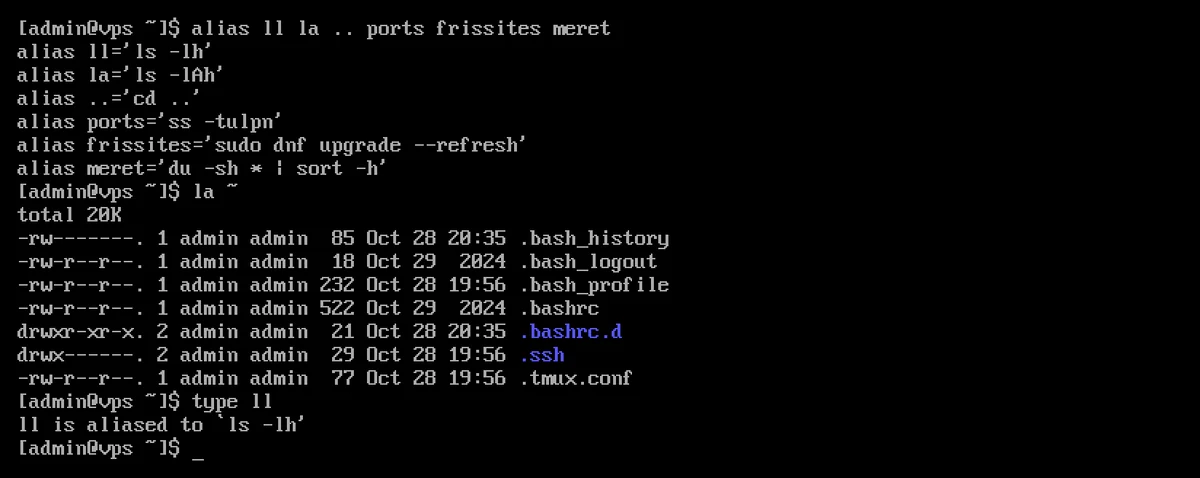
In the screenshot, the output of la is in colour, even though the alias does not contain --color: Bash also checks the first word of the alias, and since ls is itself an alias (ls --color=auto), it expands that as well.
For all users
If you wish to set up an alias for all users on the server, create a file in the /etc/profile.d/ directory with a ..sh extension (for example, sudo nano /etc/profile.d/sajat-aliasok.sh). This will take effect the next time you log in.
4. Bypassing the alias
If you ever need the original command, without the alias:
\rm fajl.txt          # visszaperjellel
command rm fajl.txt   # a command paranccsal
/usr/bin/rm fajl.txt  # teljes útvonallal
In the test, alongside the alias ls='ls -F', the output of ls -d /tmp was /tmp/ (the -F flag indicates the directory with a trailing backslash), whilst the output of \ls -d /tmp and the command ls -d /tmp was /tmp. The backslash only bypasses the alias; if there is also a function with the same name, the command bypasses that as well. To see what lies behind a name (alias, function, program), use the type -a ls command.
5. When does the alias not work?
In scripts
Bash only resolves aliases in an interactive shell. In a script, an alias specified in .bashrc does not exist:
/tmp/s.sh: line 2: ll: command not found
Write the full command into a script, or use a function. (The shopt -s expand_aliases command enables alias expansion, but the script will still not read the aliases from .bashrc; you would need to specify them there again.)
In the same line
Bash resolves the alias before reading the entire line. If you create and use it on the same line (e.g. alias x='...'; x), the second command will still run with the old meaning. In our test, an alias defined and called on the same line returned a ‘command not found’ error. Always enter it on a separate line.
After ‘sudo’
sudo ll
Bash does not recognise the word following sudo as an alias, so it returns a ‘command not found’ error. Solution: make sudo an alias too, with a space at the end:
alias sudo='sudo '
The trailing space tells Bash to expand the next word as an alias too. In the test, this allowed the command sudo ll -d /root to run successfully.
6. Parameters: a function is required
The alias only replaces text; it cannot insert a parameter in the middle of a line. The $1 in the alias remains empty, and the parameter is placed at the end of the line:
alias keres='grep -rn $1 /etc/hostname'
keres vps
grep: vps: No such file or directory
In this case, write a function (in the same file as the aliases):
keres() {
    grep -rn "$1" "${2:-.}"
}
keres vps /etc searches in the /etc directory, whilst keres vps searches in the current directory. With functions, parameters can be placed anywhere, and multiple commands can be written one after the other.
Useful tips for servers
alias ports='ss -tulpn'                         # figyelő portok
alias naplo='sudo journalctl -f'                # rendszernapló élőben
alias hibak='sudo journalctl -p err -b'         # hibák a legutóbbi indítás óta
alias meret='du -sh * | sort -h'                # mappák mérete (a rejtetteket kihagyja)
alias lemez='df -h -x tmpfs -x devtmpfs'        # szabad hely
alias frissites='sudo dnf upgrade --refresh'    # rendszerfrissítés
Be careful when overwriting existing commands (for example, alias rm='rm -rf'): on another machine where the alias does not exist, the same familiar command will do something completely different. The articles ‘Basic Linux Commands for Beginners’ covers basic commands, ‘The du Command in Detail’ covers the du command, and ‘journalctl’ covers logs.
You can set up your own aliases on any server where you have SSH access: on KVM VPS servers with full root access, and on cPanel hosting plans that include SSH, in the ~/.bashrc file in your own account.