 English
 Magyar


The du (disk usage) command shows how much space a file or directory takes up on the disk. For a quick guide, alongside the df command, see the article ‘How can I check disk usage on a Linux server?’. This article explores the du command’s options and quirks: why it displays different results to ls, how it handles hard links and sparse files, and how you can filter its output.
We ran the examples on an AlmaLinux 10.2 system using the du command from GNU coreutils 9.5 on a sample directory (/var/www/pelda.hu), which contained logs, an uploaded video, a backup, a hard link to that backup and a 2 GB sparse disk image.
Basics
du -sh /var/www/pelda.hu      # egy könyvtár összesen
du -h /var/www/pelda.hu       # minden alkönyvtár, rekurzívan
-s(summarise): only the total, excluding subdirectories;-h(human-readable): K, M and G units instead of block numbers.
du, when running as a standard user, cannot view other users’ directories and reports this as an error (du: cannot read directory '/var/log/chrony': Permission denied). In such cases, it still outputs a total, but this is lower than the actual figure: in the test, du -sh /root, when run as a standard user, output 0 alongside the error message and exited with exit code 1. Measure the system directories using sudo, and do not suppress the error messages (2>/dev/null) until you know what du has omitted.
The * substitution does not include (hidden) files and directories beginning with a full stop. The du -sh * command may therefore show a lower total than the du -sh . command; in the test, a 5 MB .rejtett-nagy file was omitted from the list. The du -h -d 1 . command lists all items, including hidden ones.
Depth and sorting
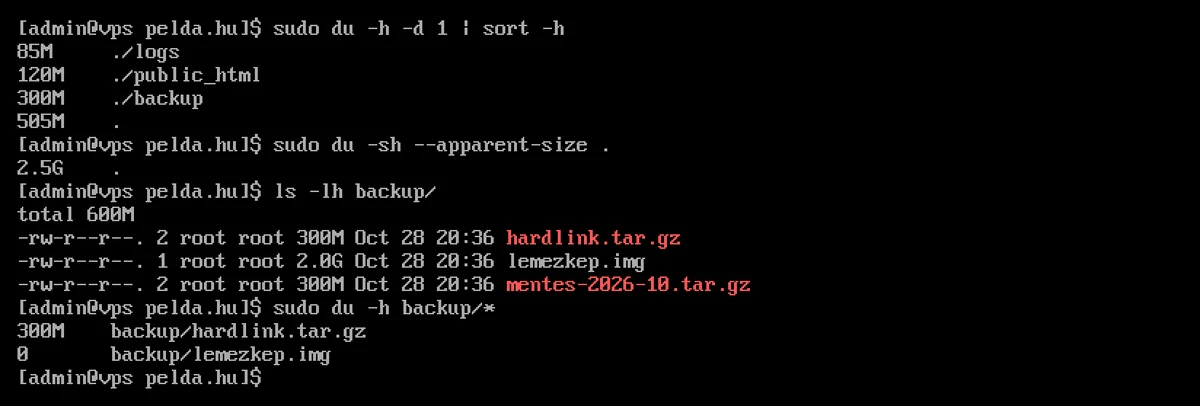
sudo du -h -d 1 /var/www/pelda.hu | sort -h
85M     /var/www/pelda.hu/logs
120M    /var/www/pelda.hu/public_html
300M    /var/www/pelda.hu/backup
505M    /var/www/pelda.hu
The -d 1 (long form: --max-depth=1) option lists only the immediate subdirectories. The sort -h option sorts the human-readable sizes (K, M, G) correctly; the sort -rh option sorts them in reverse order, starting with the largest; and the | head option retains only the first few lines.
Files too, not just directories
sudo du -ah /var/www/pelda.hu | sort -rh | head -5
The -a (all) option also lists the files. In the test, the list began with the entire directory, the 300 MB backup and the 120 MB video.
Aggregation across multiple items: -c
sudo du -ch /var/www/pelda.hu/logs/*.log*
15M     logs/access.log.1
15M     logs/access.log.2
15M     logs/access.log.3
40M     logs/error.log
85M     total
The -c option appends a totall sum at the end. This is useful if you want to know the combined size of files matching a pattern (for example, all log files).
Exclusion and threshold
sudo du -sh --exclude='*.log*' /var/www/pelda.hu   # naplók nélkül: 420M
sudo du -h -t 100M -d 3 /var/www/pelda.hu          # csak a 100 MB fölöttiek
The --exclude option excludes files and directories matching the pattern (can be specified multiple times). Enclose the pattern in single quotes; otherwise, the shell will expand it before du. The -t (--threshold) option hides items smaller than the specified value, so that even in a deep directory structure, only the large items remain. It works in reverse with a negative value: -t -100M displays only items up to 100 MB in size (in the test, the logs directory). With a positive threshold:
120M    ./public_html/wp-content/uploads
120M    ./public_html/wp-content
120M    ./public_html
300M    ./backup
505M    .
Within a single file system: -x
When measuring the root directory, the du option by default also includes other mounted file systems (such as the separate /boot partition or a network drive). The -x option prevents this:
sudo du -h -d 1 -x / | sort -h | tail
In the test, the du -shx / command ran without any error messages, showing 1.3 GB, whilst du -sh / showed 1.4 GB; meanwhile, /proc was displaying errors due to files that were in the process of disappearing (du: cannot access '/proc/1210/fd/4': No such file or directory). The difference lies in /boot and /boot/efi, which are on a separate partition, and /run, which is in memory. The mounted file systems are listed by the df -h command.
The -d 1 option only limits the number of lines printed: du still traverses the entire directory tree to calculate the totals. On a large file system, therefore, the depth limit does not speed up the measurement, it merely shortens the output. 2>/dev/null redirects error messages from /proc and similar directories to the null device.
Other units of measurement: -B, -k, -m
du -s -BM logs      # megabájtban: 85M
du -sk logs         # kilobájtban, egység nélkül, szkriptekhez
du -sb logs         # bájtban (látszólagos méret)
In scripts, -k or -b is better than -h because the output can be processed as a number.
Why does it show something different from ls?
Used space and apparent size
The ls -l command shows the apparent size of the file (how many bytes it contains), whilst du shows the actual space it occupies on the disk. The two figures are usually close to each other, but in two cases they differ significantly.
Sparse files
Virtual disk images, database files and certain log files may be sparse: whilst the file is large, the parts containing zeros do not take up any space. In the test, a disk image created using the command truncate -s 2G:
ls -lh backup/lemezkep.img                  # 2.0G
du -h backup/lemezkep.img                   # 0
du -h --apparent-size backup/lemezkep.img   # 2.0G
The --apparent-size option returns the apparent size, just like the ls command. The entire sample directory thus appeared to be 2.5 GB instead of 505 MB. If you copy such a file using a tool that does not handle sparse files, the copy may take up the full size (cp handles this by default; for rsync, the --sparse switch is required).
Hard links
If a file has two names (hard links), it only takes up space on the disk once. The ls -l command shows in the second column how many names a file has, and counts both in the total line; the du command counts it only once:
-rw-r--r--. 2 root root 300M Oct 28 20:36 hardlink.tar.gz
-rw-r--r--. 1 root root 2.0G Oct 28 20:36 lemezkep.img
-rw-r--r--. 2 root root 300M Oct 28 20:36 mentes-2026-10.tar.gz
In the test, according to ls -lh backup/, the folder was 600M, whilst according to du it was 300M. du -h backup/* did not list the second name at all, as it had already counted it with the first. If you do wish to count each file name separately, use the -l (--count-links) option: the sample directory was then 805 MB. Hard links are used, for example, by some backup programs (shared files across consecutive backups only take up space once), so the size of a backup directory measured with du-val may be considerably smaller than the sum of the file sizes.
Symbolic links
du, by default, measures the link itself, not what it points to. In the test, a link pointing to the backup directory measured du -sh as 0, whilst with the -H switch it was 300M:
sudo du -sh /tmp/mentes-link     # 0
sudo du -shH /tmp/mentes-link    # 300M
-H only follows links specified on the command line; it does not follow those in the directory tree. -L follows all links, so the measurement may extend to locations outside the directory being examined; use this only where justified.
Number of files: –inodes
sudo du --inodes -s /usr /var
--inodes returns the number of files and directories rather than the number of bytes. This is useful if, according to df -i, the disk is full due to inodes (many small cache or session files); this reveals which directory contains the most files. The article ‘What is an inode?’ explains what inodes are.
Last modified: –time
sudo du -h --time -d 1 /var/www/pelda.hu
It displays the modification time of the most recently modified file in the relevant directory next to each line. This shows which folder is currently being written to (for example, by a runaway log file).
Interactive view: ncdu
ncdu is a variant of the du menu: it scans the directory once, after which you can navigate through it using the arrow keys, sort it, and delete items using the d key. On AlmaLinux, it is available in the EPEL repository (see: Installing the EPEL repository on AlmaLinux):
sudo dnf install ncdu
sudo ncdu /var/www/pelda.hu
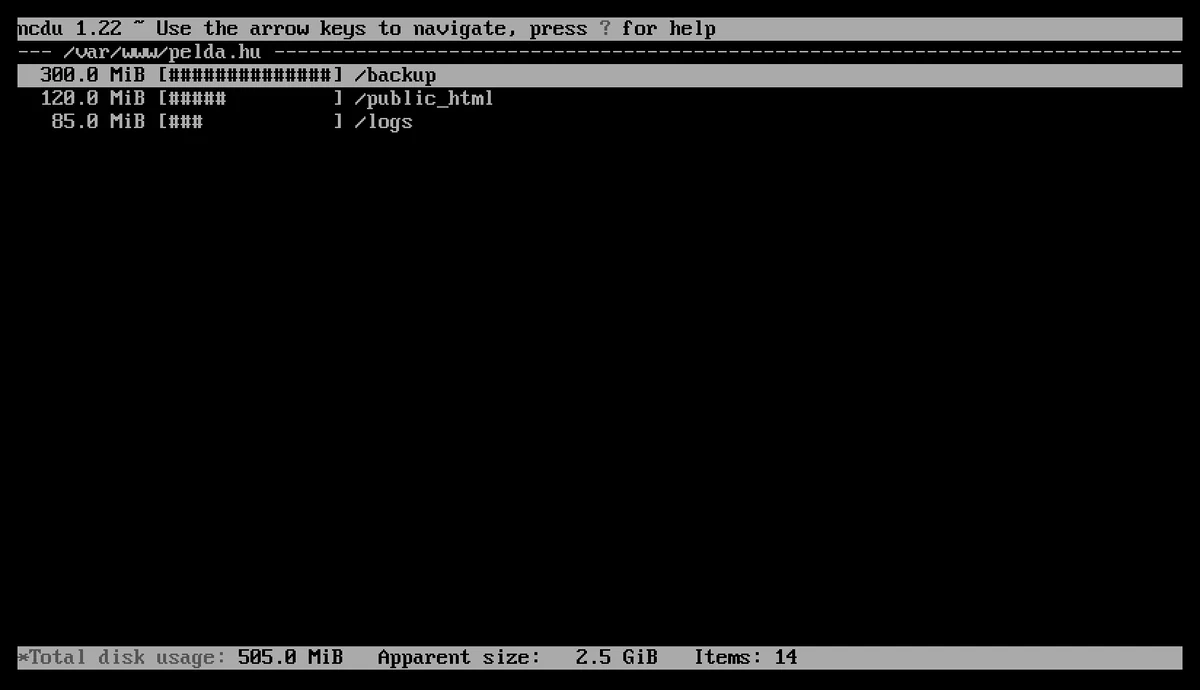
The bottom line shows both the actual (Total disk usage) and the apparent size (Apparent size), just like the du and du --apparent-size commands. In ncdu, the ? key brings up the help menu, whilst the q key exits the program. For large directories, the -x switch also restricts the view to a single filesystem here (sudo ncdu -x /).
If du shows a smaller value than df
If df reports that the disk is full, but the du output shows a much smaller size, it is likely that a running program is still holding a file that has already been deleted; this is described in the article ‘The disk is full, but du does not show it’. The article on finding large error_log files discusses how to manage large log files.
If you’re still short of space after clearing up, you can switch to a KVM VPS plan with more hosting; for cPanel hosting, the article ‘Checking disk usage in cPanel’ shows you where to view this information graphically.