 English
 Magyar


Sometimes, according to the df -h command, the disk appears to be full (or nearly full), yet the total directory sizes calculated using the du command show a much lower figure, and it is not clear what is taking up the missing space. The article ‘How to check disk usage on a Linux server (du and df commands)’ discusses the use of these two commands. There are a few typical reasons for this discrepancy; it is worth going through them one by one.
1. Deleted but still open files
The most common cause: a large file (typically a log file) has been deleted, but a running program (web server, database, PHP process) is still keeping it open. On Linux, the file’s contents are not released until the program closes it: the file is no longer visible in the directory, so the du command does not count it, but according to df, it continues to occupy space.
A list of deleted but open files on a given file system (in this case, the root directory):
sudo lsof -a +L1 /
+L1 selects files that have already been deleted (or are orphaned), / selects the root filesystem, and -a ensures that both conditions are met. Without the -a, the two conditions are treated as an ‘or’ relationship, and lsof lists all open files in the root directory. The simple sudo lsof +L1 command also works, but in the test it also listed files held in system memory (/memfd:…), which do not occupy disk space.
or, if lsof is not installed (sudo dnf install lsof / sudo apt install lsof):
sudo find /proc/*/fd -ls 2>/dev/null | grep '(deleted)'
On an AlmaLinux 10 test machine, we deleted a 600 MB Apache error_log file whilst the service was running. According to df, the space used did not decrease (it remained at 2.0 GB); according to du, the log directory became empty; and lsof showed which processes were still keeping it open:
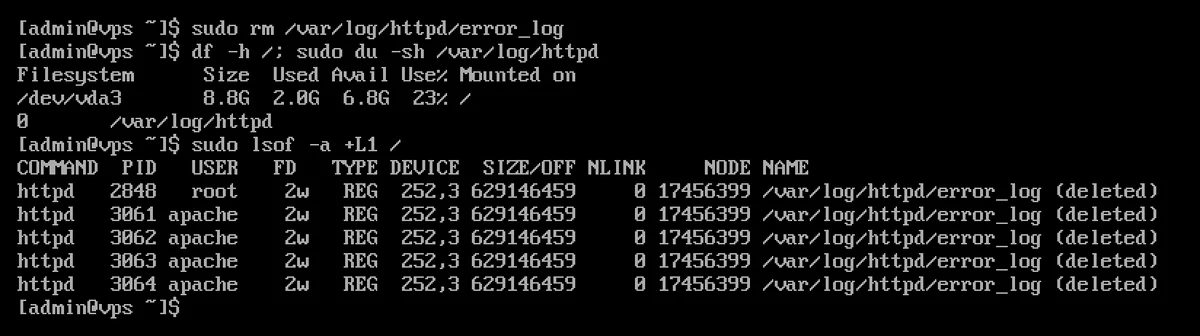
The COMMAND column shows the program, whilst SIZE/OFF shows the file size in bytes (here 629,146,459 bytes, or 600 MB). The same file is being held open by both the web server’s main process (root) and its worker processes (apache). To free up space, restart the relevant service:
sudo systemctl restart httpd
If the service cannot be restarted, the contents of the file can also be cleared via the process’s file descriptor. From the numbers in the PID and FD columns (without the letters; 2848 and 2 in the image above):
sudo truncate -s 0 /proc/2848/fd/2
In the test, this immediately freed up the 600 MB (df dropped from 2.0 GB to 1005 MB), and after restarting the service, the deleted file also disappeared from the lsof list. If several processes are keeping the same file open, it is sufficient to clear it via just one of them, as it is the same file.
How can you avoid this next time?
Do not delete (rm) a log file that is currently in use; instead, clear it:
sudo truncate -s 0 /var/log/httpd/error_log
This allows the program to continue writing, and the space is freed up immediately. On finding large log files: How to find and remove large error_log files on Linux.
2. We have run out of inodes
If, despite the ‘No space left on device’ error, df -h shows that there is free space, the number of files on the file system may have reached the limit. This is indicated by the -i switch:
df -i
In a test on a small ext4 filesystem, once the inodes had run out, the touch command stopped with the following error: touch: cannot touch '/mnt/kis/f94': No space left on device, whilst df -h showed 88 MB free and df -i showed IUse% at 100%.
If the IUse% column is close to 100%, there are a large number of small files on the disk, typically sessions files, cache files or undelivered emails. To find out which directory contains the most files:
sudo du --inodes -x / 2>/dev/null | sort -n | tail -n 20
You can read about the concept of an inode in the article ‘What is an inode?’.
3. The space reserved for the root partition (ext4)
By default, the ext4 file system reserves 5 per cent of the disk space for the root user to ensure that the system remains operational even if users have filled the disk. Consequently, the sum of Used and Avail as shown by the df command is less than the Size value, and a normal user will see the disk as ‘full’ even when the root user can still write to it.
On a data drive (not the system drive), the reserved space can be reduced, for example to 1 per cent:
sudo tune2fs -m 1 /dev/vdb1
The current value is shown by the command sudo tune2fs -l /dev/vdb1 | grep -i 'reserved block count'; in the test, 5,120 (5%) of the 102,400 blocks in a freshly formatted ext4 filesystem were reserved, and after running tune2fs -m 1, this figure was 1,024.
The XFS file system (the default for AlmaLinux and Rocky Linux) does not reserve such space.
4. Files hidden under a mount point
If you have mounted another disk into a directory (for example, /mnt/data or /home), the files that were previously in that directory will be overwritten by the mounted disk: the du command will not see them, but they will still take up space on the system disk. This typically occurs if the second disk was not remounted after a reboot, whilst programs were writing to the system disk in the meantime.
You can view the hidden files by mounting the root filesystem to another location:
sudo mkdir /mnt/rootfs
sudo mount --bind / /mnt/rootfs
sudo du -sh /mnt/rootfs/mnt/data
In the test, we wrote a 50 MB file to the /mnt/data directory before mounting another disk there: the command du -sh /mnt/data showed 15 KB, whilst du -sh /mnt/rootfs/mnt/data showed 50 MB. If you find any data here, move it to the mounted disk, then unmount the volume:
sudo umount /mnt/rootfs
5. Other reasons
- The systemd log: this can be checked using the
journalctl --disk-usagecommand and reduced using thejournalctl --vacuum-size=500Mcommand (see: Reading log files on Linux). - Old kernels and the package manager’s cache:
sudo dnf clean allorsudo apt cleanandsudo apt autoremove. - Docker: unused images and containers in the
/var/lib/dockerdirectory can take up a lot of space; thedocker system dfcommand shows this, whilst thedocker system prunecommand cleans them up. - Database binary logs: MariaDB/MySQL replication logs (
binlogs) can grow indefinitely if no expiry time is set.
If you are consistently running out of space, the disk can be expanded (see: How can I expand the resources of my VPS plan? and How can I expand the file system after expanding the VPS disk?).