 English
 Magyar


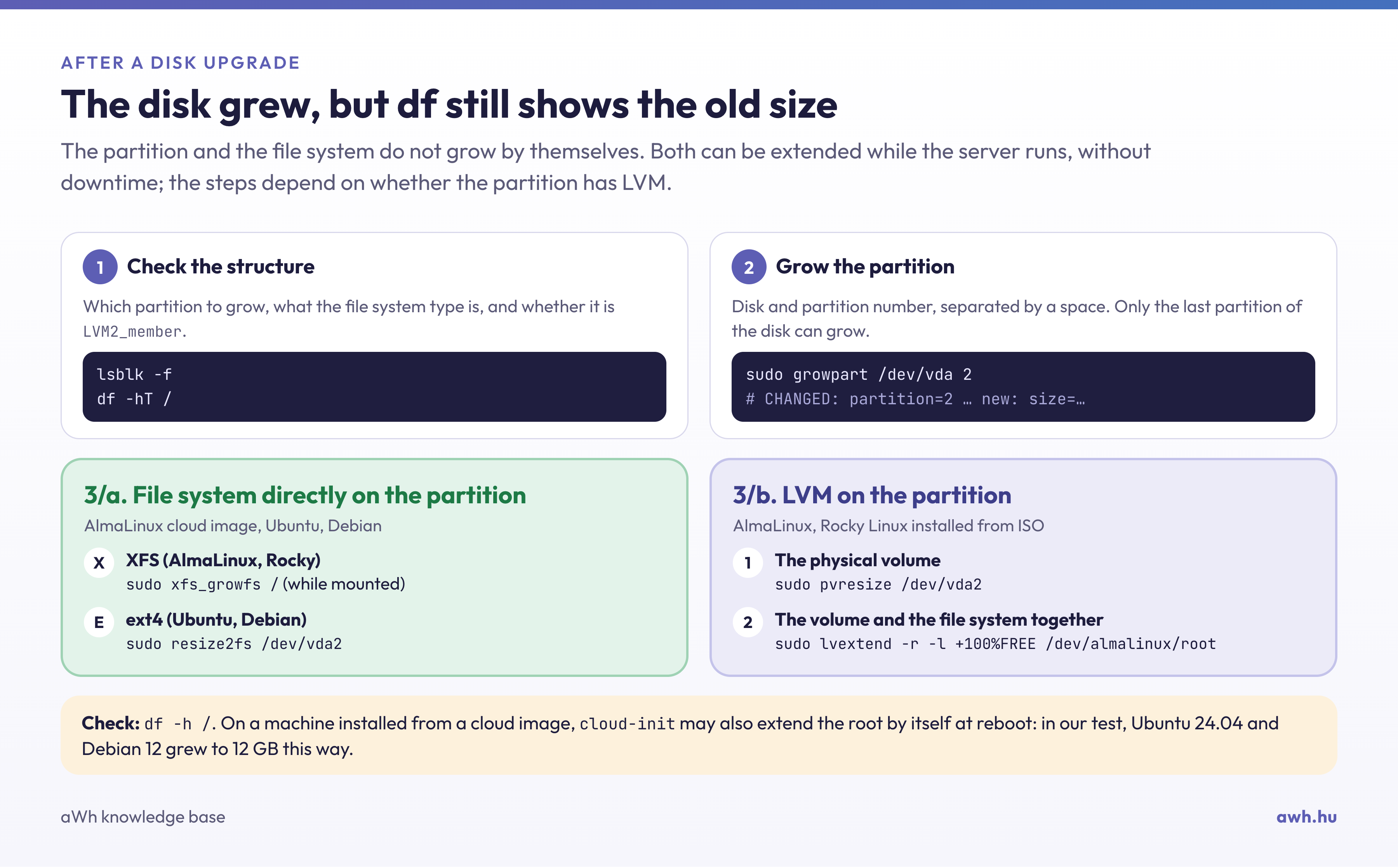
If you upgrade to a plan with more storage (see: How can I increase the resources of my VPS plan?), the size of the virtual disk will increase, but the df -h command will still show the old size. This is because the partition on the disk and the file system on it do not expand automatically: these must be extended manually. This operation can be carried out whilst the server is running, without the need for a reboot.
Before you begin
- Take a snapshot or make a backup. Modifying the partition table rarely causes problems, but a mistyped device name could result in data loss.
- Run the commands as the root user or using
sudo.
1. Check the size of the disk and partitions
lsblk -f
df -hT /
The disk for a KVM VPS is typically /dev/vda or /dev/sda. A typical output:
NAME                FSTYPE      SIZE MOUNTPOINT
vda                              80G
├─vda1              xfs           1G /boot
└─vda2              LVM2_member  39G
  ├─almalinux-root  xfs          35G /
  └─almalinux-swap  swap          4G [SWAP]
Here, the disk (vda) is already 80 GB, but the partition (vda2) is still only 39 GB. Please note:
- the name of the disk (
vda) and the number of the partition to be extended (2), - whether the partition contains a file system directly, or an LVM (
LVM2_member), - the file system type (
xfsorext4).
If the disk size (the vda line) still shows the old value, the system has not yet detected the change. In this case, restart the server and then continue.
On servers installed from a cloud image, cloud-init can automatically expand the root partition and the file system at boot time. In our test, an Ubuntu 24.04 and a Debian 12 machine both displayed the full size (df -h /) on their first boot after the disk had been expanded to 12 GB, without any manual intervention. After a reboot, you should therefore first check the output of df -h; if it already shows the new size, no further action is required.
2. Increase the partition size
The growpart command extends the partition to the end of the disk. Installation:
# AlmaLinux, Rocky Linux
sudo dnf install cloud-utils-growpart

# Ubuntu, Debian
sudo apt install cloud-guest-utils
Next, enter the disk and partition number (separated by a space, not in the format vda2):
sudo growpart /dev/vda 2
If the increase is successful, the output will be CHANGED: partition=2 start=… old: size=… new: size=….
The growpart command can only extend the last partition on the disk. If there is another partition (such as a swap partition) following the partition you wish to extend, the operation cannot be carried out easily; in this case, please contact our support team for assistance.
3/a. Extending a file system without LVM
If the file system is located directly on the partition, depending on the file system type:
# XFS (AlmaLinux, Rocky Linux alapértelmezése): a csatolási pontot kell megadni
sudo xfs_growfs /

# ext4 (Ubuntu, Debian alapértelmezése): az eszközt kell megadni
sudo resize2fs /dev/vda2
After xfs_growfs has run successfully, it also displays the increase, for example: data blocks changed from 523776 to 786171.
3/b. Extending a file system using LVM
With LVM, after resizing the partition, you must also increase the size of the physical volume (PV) and then the logical volume (LV). You can read about how LVM works in the article ‘What is LVM?’.
sudo pvresize /dev/vda2
sudo lvs
The output of the lvs command reveals the names of the volume group (VG) and the logical volume (LV), which in the example above are almalinux and root. Next:
sudo lvextend -r -l +100%FREE /dev/almalinux/root
The -r switch, when used with a logical volume, also expands the file system on it, regardless of type, so there is no need for separate xfs_growfs or resize2fs commands. In the test (with an LVM volume built on a single partition), following the execution of growpart, pvresize and lvextend -r, the output was Extended file system xfs on data/adat. and Logical volume data/adat successfully resized., and the file system grew from 4 to 6 GB.
4. Verification
df -h /
If the output now shows the new size, the upgrade is complete.
Common errors
NOCHANGE: partition 2 is size ... it cannot be grown: the partition already extends to the end of the disk, or the system does not yet recognise the larger disk. Check the output oflsblkand, if necessary, restart the server. In the test, the second run ofgrowpartalso displayed this message, meaning that running the command again will not cause any damage.xfs_growfs: /dev/vda2 is not a mounted XFS filesystem: XFS can only be expanded whilst mounted. During testing (AlmaLinux 9 and 10),xfs_growfsaccepted the device name (/dev/vdc1) for a mounted filesystem; this error appeared after unmounting. Specifying the mount point (xfs_growfs /) always works.resize2fs: Bad magic number in super-block while trying to open /dev/…: the file system is not ext4, but XFS (or there is LVM on the partition). Check the type again in the output oflsblk -f.- The XFS file system cannot be reduced in size; it can only be expanded. Please contact our support team before switching to a smaller plan.