 English
 Magyar


How many processor cores are there on the server, how much memory is available, which drives are visible, and what hardware is the system running on? You can get quick answers to these questions from the terminal, even without a graphical interface. All the data can be found in the /proc and /sys directories, but in a format that is difficult to read; the seven commands below present the same information as a clear summary.
We tested the commands in October 2026 on AlmaLinux 10.2, on one x86_64 and one aarch64 virtual machine. They work in exactly the same way on Debian and Ubuntu; the only difference is how the packages are installed (apt install instead of dnf install).
| Command | What it shows | Package | Pre-installed (AlmaLinux 10 cloud image) |
|---|---|---|---|
lscpu |
processor | util-linux |
Yes |
lsblk |
disks, partitions | util-linux |
Yes |
free |
memory, swap | procps-ng |
Yes |
lspci |
PCI devices | pciutils |
Yes |
lsusb |
USB devices | usbutils |
no |
dmidecode |
memory modules, firmware, hardware specifications | dmidecode |
Yes |
lshw |
The complete hardware list | lshw |
Yes |
1. Processor: lscpu
lscpu
lscpu displays the processor architecture, the number of cores and threads, the size of the caches and the supported instruction sets (Flags). In the test, the relevant lines on the x86_64 machine are:
Architecture:                            x86_64
CPU(s):                                  4
Vendor ID:                               AuthenticAMD
Model name:                              QEMU TCG CPU version 2.5+
Thread(s) per core:                      1
Core(s) per socket:                      4
Socket(s):                               1
L2 cache:                                2 MiB (4 instances)
L3 cache:                                64 MiB (4 instances)
CPU(s) refers to the number of processors (vCPUs) recognised by the system; on a VPS, this is the number of vCPUs included in the plan. The Model name depends on the virtual machine: on a test machine, the name of an emulated processor is displayed; on a KVM VPS, the processor model passed through by the host machine appears here. The number of processors is also displayed by nproc itself; this is useful for interpreting the load – see: What does ‘load’ mean on Linux systems?
For scripts, the output can also be requested in a machine-readable format: lscpu -J returns JSON, whilst lscpu -p=CPU,CORE,ONLINE returns a comma-separated list with the specified fields.
2. Disks and partitions: lsblk
lsblk -f
The lsblk command displays the disks, their partitions and volumes in a tree structure. With the -f switch, the file system type, UUID, free space and mount point are also displayed. In the test (together with the output of free -h):
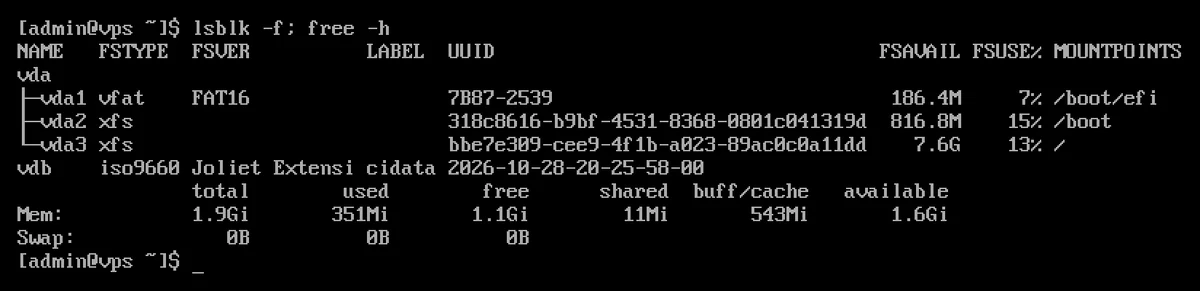
vda is the VPS’s virtual disk, whilst vda1–vda3 are its partitions. vdb here is a small disk image containing the cloud-init settings; this may not necessarily be visible on a live server. JSON output: lsblk -J. For a more detailed examination of used and free space, see: Checking disk usage with the du and df commands; our guide on mounting a new disk covers the process of mounting a new disk.
3. Memory: free
free -h
The free column shows total, used and free memory, as well as swap usage. The -h option provides readable units of measurement (Gi, Mi). The most important column is available: this is the amount of memory that programs can still access. The free column is usually small because Linux uses free memory as a disk cache (buff/cache) and reclaims it immediately when necessary.
The totall is slightly less than the amount of memory in the machine, as the kernel reserves a portion of it at start-up; in the test, it was 1.9GiB on the 2 GB machine. If it is significantly less than this, check whether memory has been reserved for kdump: Recovering memory reserved for kdump. If you run out of memory, the OOM killer and swap file article will help.
4. PCI devices: lspci and 5. USB devices: lsusb
lspci
lsusb
lspci lists devices connected to the PCI bus (network cards, disk controllers, graphics cards). lsusb lists USB devices; this is not installed by default on AlmaLinux 10, but is included in the usbutils package:
sudo dnf install usbutils
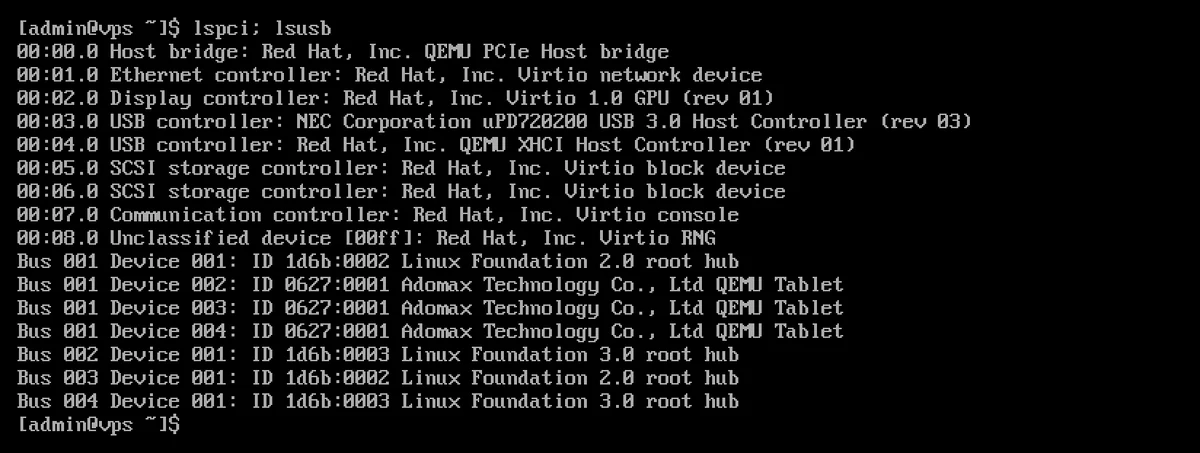
On a virtual machine, the list shows the virtual hardware: in the test, the network card and the disks appeared as Virtio devices; these are KVM’s high-performance devices designed for virtualisation. A VPS typically does not have any USB devices that you might need.
Useful links:
lspci -k: the kernel module managing each device (Kernel driver in use). In the test,virtio-pciis listed for the network card.lspci -v: detailed information;lspci -s 00:01.0 -k: only the device with the specified ID.lsusb -t: USB devices listed in tree format;lsusb -v: detailed information.
6. Memory modules, firmware and hardware specifications: dmidecode
dmidecode reads the SMBIOS data provided by the machine’s firmware (BIOS or UEFI): the manufacturer, model, serial number, firmware version and memory modules. It requires root privileges. The output is lengthy, so use the -t switch to select the information you are interested in:
sudo dmidecode -t system    # gyártó, típus, sorozatszám
sudo dmidecode -t bios      # a firmware gyártója, verziója, dátuma
sudo dmidecode -t memory    # memóriabővítő helyek és modulok
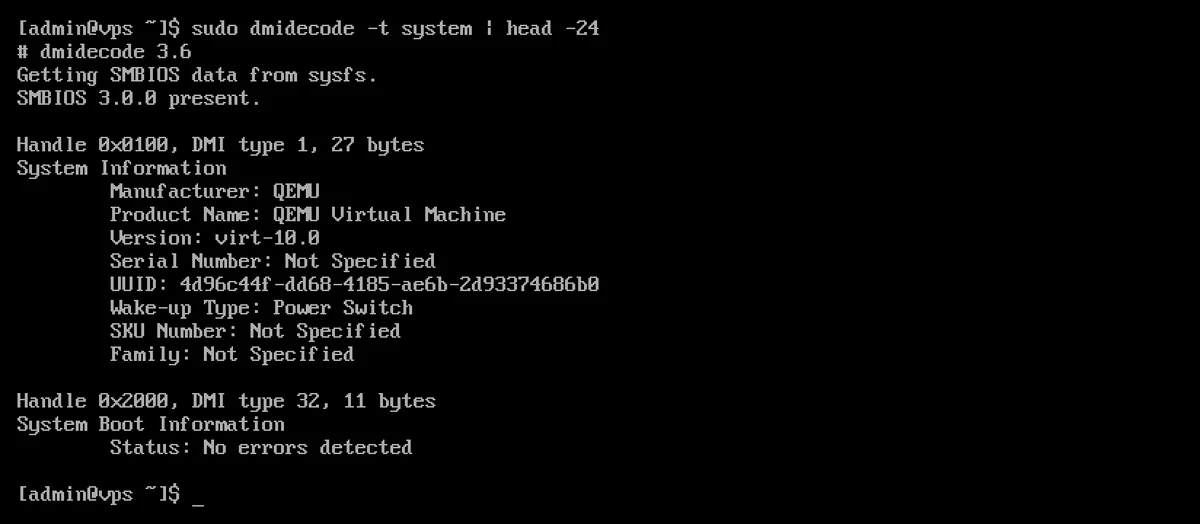
On a physical server, this data is required for warranty purposes, vendor support and planning firmware updates. On a virtual machine, the virtual hardware is described: in the test, the manufacturer was QEMU, the serial number was Not Specified, and the -t bios field showed the virtual machine’s UEFI firmware (EFI Development Kit II / OVMF, dated 2015). This is not the BIOS of the physical host machine, so there is no firmware on a VPS that you need to update. The -t memory command showed a single module here, corresponding to the amount of memory allocated to the machine (Size: 2 GiB).
If you only want to see a single value, the -s switch displays a single field; for example, sudo dmidecode -s system-product-name.
7. The complete hardware list: lshw
sudo lshw -short
lshw collects the above data into a single list: system, motherboard, processor, memory, buses, network and storage devices. With the -short switch, each device is listed on a separate line. The beginning of the output on the aarch64 machine in the test is:
H/W path      Device     Class          Description
===================================================
                         system         QEMU Virtual Machine
/0                       bus            Motherboard
/0/400                   processor      CPU
/0/1000                  memory         2GiB System Memory
/0/1000/0                memory         2GiB DIMM RAM
/0/100                   bridge         QEMU PCIe Host bridge
/0/100/1                 network        Virtio network device
It runs without root privileges, but the output is incomplete in that case (and it warns you about this). You can filter by individual classes: sudo lshw -class network, sudo lshw -class disk. HTML or JSON output: -html, -json.
A quick overview with a single command: hostnamectl
If you simply want to know which operating system is running and on which machine, hostnamectl displays this information on a single screen:
      Virtualization: qemu
    Operating System: AlmaLinux 10.2 (Lavender Lion)
              Kernel: Linux 6.12.0-211.64.1.el10_2.aarch64
     Hardware Vendor: QEMU
      Hardware Model: QEMU Virtual Machine
The Virtualization column also indicates whether the system is running on a virtual machine. For real-time monitoring of running processes and resource usage, see: Monitoring processes with the top and htop commands.