 English
 Magyar


LVM (Logical Volume Manager) is a layer in Linux that sits between the disks and the file systems. With traditional partitioning, the file system resides directly on a partition, the size and location of which on the disk are fixed. With LVM, disk space is pooled into a common storage pool, from which ‘virtual partitions’ – logical volumes – of any size are created. These can be resized later and may even span multiple disks, whilst the file system remains unaware that there are multiple physical devices underneath it.
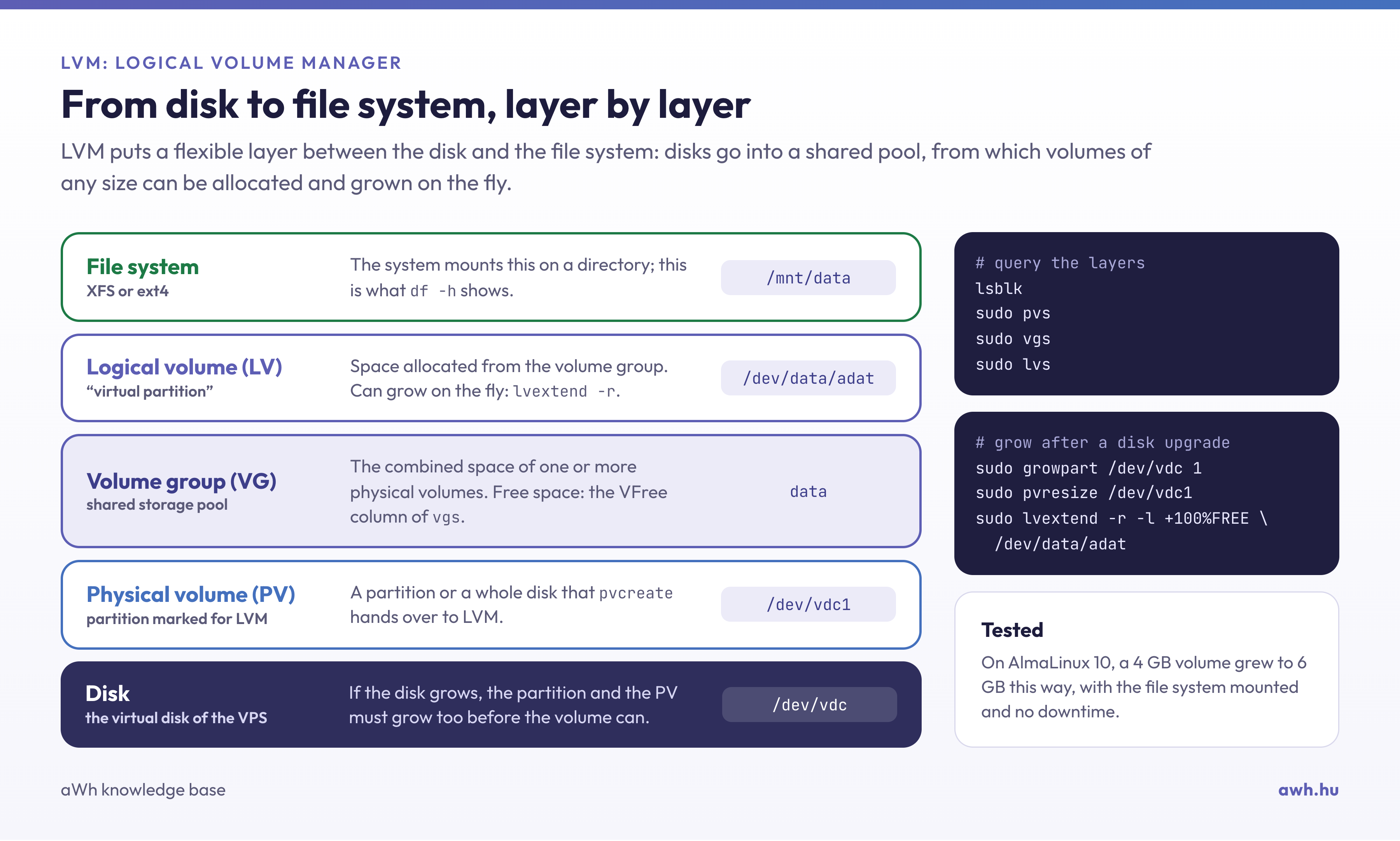
The three levels of LVM
- Physical volume (PV): a disk or partition designated for use with LVM, for example
/dev/vda2or/dev/sdb. - Volume group (VG): the combined storage space of one or more physical volumes. This is the shared pool from which logical volumes are allocated space.
- Logical volume (LV): a portion of space allocated from a volume group, on which a file system (such as XFS or ext4) or swap is located. The system recognises this as
/dev/kotetcsoport/kotetor/dev/mapper/kotetcsoport-kotet.
What is LVM used for?
- Flexible scaling: a logical volume can be expanded whilst the system is running, without any downtime, provided there is free space in the volume group.
- Disk merging: a new disk can be added to the volume group, and existing volumes can be expanded from this space without the need for reinstallation or data copying.
- Snapshots: the copy can be created that captures the current state of a logical volume, for example, before a risky update or to create a consistent backup. The snapshot is located on the same disk as the original, so it does not replace a backup stored on an external location.
Many distributions, such as AlmaLinux and Rocky Linux, use LVM by default, so you will often encounter it even if you have not set it up yourself.
Checking LVM on the server
lsblk              # lemezek, partíciók és a rajtuk lévő LVM kötetek fában
sudo pvs           # fizikai kötetek
sudo vgs           # kötetcsoportok és a bennük lévő szabad hely (VFree)
sudo lvs           # logikai kötetek és méretük
If the output of lsblk shows lvm-type devices, the system is using LVM. On an AlmaLinux 10 test machine, where a 6 GB data disk has a single partition (vdc1) containing a volume group named data and a logical volume named adat within it:
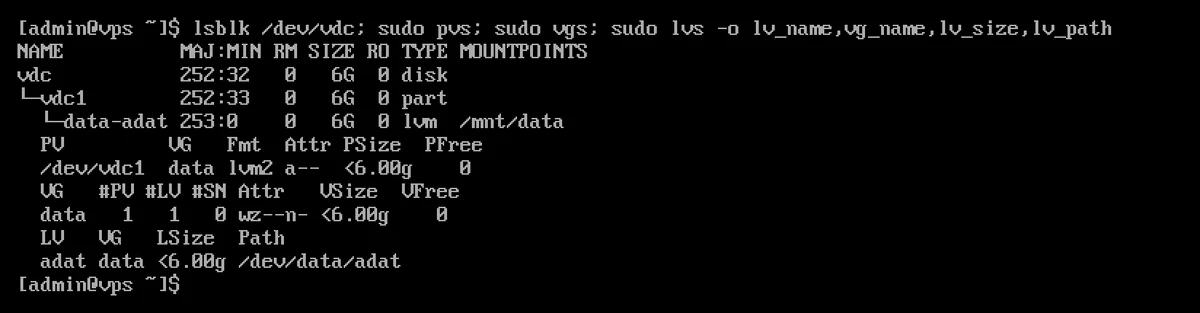
The logical volume is accessible under two names: /dev/data/adat and /dev/mapper/data-adat, both of which point to the same device.
From AlmaLinux and Rocky Linux 9 onwards, LVM only manages the disks listed in the /etc/lvm/devices/system.devices file. The first pvcreate command creates this file (“Creating devices file”) and automatically adds any newly added disks. If a disk is not listed in the file, LVM cannot see it: during testing, when one of the disks in a volume group was removed from the file, the pvs command displayed the following messages: WARNING: Couldn't find device with uuid … and VG proba is missing PV …. In such cases, or if you are attaching a disk that already contains an LVM volume from another machine, you can add it using the command sudo lvmdevices --adddev /dev/vdX; the sudo lvmdevices command lists the added disks.
Increasing the logical volume
If there is free space in the volume group, a logical volume and its file system can be expanded with a single command:
sudo lvextend -r -L +10G /dev/almalinux/root
The -r switch also resizes the file system. To allocate all available free space: sudo lvextend -r -l +100%FREE /dev/almalinux/root. In the test, the data/adat volume mentioned above was first increased by -L +1G and then by -l +100%FREE, in both cases together with the mounted XFS file system, without any downtime. If the free space was created following a disk expansion, both the partition and the physical volume must first be enlarged; the full procedure for this is described in our article on expanding the file system. Our guide on mounting, partitioning and formatting a new disk covers the process of attaching a new disk.
What should you look out for?
- Shrinking the volume is risky. The XFS file system cannot be shrunk at all, whilst ext4 can only be shrunk whilst unmounted. Always make a backup before shrinking a logical volume.
- More disks, more risk. If a volume group spans multiple physical disks without redundancy (RAID), a failure on any one disk puts the data on the entire logical volume at risk.
- On a virtual server, the disk can also be expanded within the virtualisation layer; therefore, on a KVM VPS, LVM primarily provides flexibility in partitioning within volumes.