 English
 Magyar


sudo (superuser do) allows a user to run a single command on behalf of another user, usually the root user. This enables you to work on the server using your own user account with restricted privileges, and only elevate your privileges for those actions where it is actually necessary. Every command run via sudo is logged, so it is possible to find out retrospectively who did what.
The article ‘Creating a user and granting sudo rights on Linux’ explains how to create a user and grant them sudo rights. This article demonstrates how to use the command. We tested the examples on an AlmaLinux 10.2 system, using sudo version 1.9.17, with a user named fejleszto who belongs to the wheel group. From Ubuntu 26.04 onwards, the sudo command is powered by sudo-rs, which has been rewritten in Rust (the first line of sudo -V is: sudo-rs …); the basic usage described here remains the same, but some rarely used switches and sudoers settings may be missing.
First-time use
sudo whoami
The first time you run sudo, it displays a brief warning and then asks for your own password (not the root password):
We trust you have received the usual lecture from the local System
Administrator. It usually boils down to these three things:

    #1) Respect the privacy of others.
    #2) Think before you type.
    #3) With great power comes great responsibility.

For security reasons, the password you type will not be visible.

[sudo] password for fejleszto:
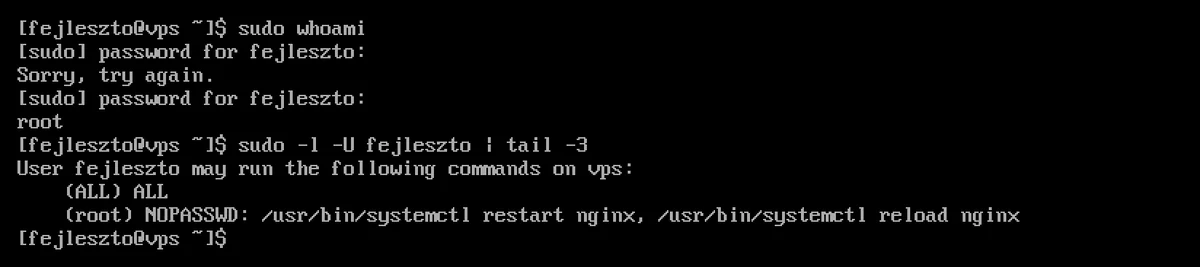
The password does not appear whilst you are typing, nor do any asterisks. If you make a mistake, sudo will prompt you again with the message ‘Sorry, try again’; after three failed attempts, it will log you out. If the password is correct, the command will run and the output will be root.
The password cache
Once you have successfully entered your password, sudo will not ask for it again for five minutes in the same terminal (Authentication timestamp timeout: 5.0 minutes). You can manage this by:
sudo -v     # jelszó megadása előre, vagy az öt perc meghosszabbítása
sudo -k     # a gyorsítótár azonnali törlése: a következő sudo újra jelszót kér
sudo -K     # ugyanez az összes terminálra
With the -n (non-interactive) switch, sudo does not prompt for a password but exits with an error if one is required: “sudo: a password is required”. In a script, this prevents the process from halting at a password prompt.
In a script, it is also worth checking in advance whether the user is permitted to run a particular command. To do this, use sudo -n -l, specifying the full path to the command:
sudo -n -l /usr/bin/systemctl restart nginx && sudo -n /usr/bin/systemctl restart nginx
The -l option does not actually execute anything here: if the rule permits the command, it displays the output and exits with a return value of 0; if not, it exits with a return value of 1. In the test, for a user authorised only to restart Nginx, the command sudo -n -l … restart nginx returned 0, whilst … stop nginx returned 1; however, the commonly seen sudo -n true test returned an error, even though restarting was permitted. The reverse can also occur: the -l flag only checks the rule, so it returns 0 even for a command authorised by a password, whilst actually running sudo -n would still prompt for a password.
Do not pass your password to sudo via a pipe (echo jelszo | sudo -S …): it may end up in the command history and the process list. For automation, use a concise, password-free rule (see below).
The most common switches
| Command | What does it do? |
|---|---|
sudo parancs |
The command runs as root |
sudo -u apache parancs |
The command runs as the apache user |
sudo -i |
root login shell: starts in the root environment, in the /root directory |
sudo -s |
root shell, but it remains in the current directory |
sudo -l |
What you can run using sudo |
sudo -l -U fejleszto |
another user’s rules (as root, or if they have the necessary permissions) |
sudoedit /etc/fajl or sudo -e |
Editing system files using the in-house editor |
sudo -k, sudo -v, sudo -n |
Managing the password cache (see above) |
In the test, the output of sudo -i pwd was /root, whilst the output of sudo -s pwd, run from the /tmp directory, was /tmp. Running a command on behalf of a service is useful, for example, if you want to check whether the web server is reading the file: sudo -u apache cat /var/www/html/index.php.
On AlmaLinux, $HOME always refers to the target user’s directory when running sudo (due to the always_set_home setting in the sudoers file; in the test, the output of sudo sh -c 'echo $HOME' was /root), so there is no need to include the -H switch here, even if you see it mentioned in other guides.
The sudo -i command is handy when you need to carry out a series of administrative tasks in quick succession, but whilst the root shell is open, every command will run without restriction. When you have finished, exit from it.
Editing files: sudoedit
sudoedit /etc/nginx/nginx.conf
sudoedit creates a temporary copy of the file, opens it with its own editor and under its own permissions, and only writes it back as root when you save. This means that the editor does not run as root, and neither the file’s owner nor its permissions are altered; in our test, a file with permissions set to 600-as and owned by root remained exactly the same after editing. You can specify the editor using the SUDO_EDITOR or EDITOR environment variable, for example export EDITOR=nano (on editors: nano and vim basics).
Common pitfalls
The redirect is not running as root
sudo echo "teszt" > /etc/teszt.conf
bash: line 1: /etc/teszt.conf: Permission denied
The > redirection is still carried out by your shell, using its own privileges, before sudo is executed. Write the following to a system file:
echo "teszt" | sudo tee /etc/teszt.conf          # felülírás
echo "teszt" | sudo tee -a /etc/teszt.conf       # hozzáfűzés
The ‘sudo cd’ command does nothing
cd is a built-in command of the shell; sudo cannot apply it to its own shell. On AlmaLinux, sudo cd /root does not return an error (there is a /usr/bin/cd utility), but the directory does not change. If you need to work in a directory that is read-only for root, specify the full path (sudo ls /root), or run a short command in a root shell:
sudo sh -c 'cd /var/log/nginx && ls -lh > /root/naplok.txt'
Here, both the directory change and the redirection run as root, but only for the duration of this command; your own terminal remains in the same place. Pay attention to the quotation marks: whatever is inside them runs entirely as root.
The PATH is different
For security reasons, sudo uses its own search path (secure_path = /sbin:/bin:/usr/sbin:/usr/bin), so programs installed in your home directory (~/bin, ~/.local/bin) must be called with sudo using the full path.
Aliases do not work after ‘sudo’
The sudo ll command returns a ‘command not found’ error because the shell only resolves aliases for the first word on the command line. The solution can be found in the alias article: Creating and managing Bash aliases.
If you do not have sudo privileges
ugyfel is not in the sudoers file.
The user is not a member of the wheel group, and there is no specific rule for them. If they have just been added to the group, they should log out and log back in: group membership only takes effect upon the next login (the current groups are shown by the id -nG command). Older versions of sudo also added: “This incident will be reported.”; the attempt is still logged. Root privileges can be granted by the system administrator; see: Creating a user and granting sudo privileges.
The rules: sudoers
The sudo rules are located in the /etc/sudoers file and the /etc/sudoers.d/ directory. On AlmaLinux, the key line is this:
%wheel ALL=(ALL) ALL
In other words, members of the wheel group can run any command (ALL) on any machine (ALL) as any user (ALL), provided they have a password. The line #includedir /etc/sudoers.d at the end of the file is not a comment: this reads in the files from that directory. On machines installed from cloud images, for example, this is where the 90-cloud-init-users file is located, containing the rule for the user created during installation.
Restricted access without a password
If a user (or an installation script) only needs to run a few commands, define a narrow rule for this in a separate file:
sudo visudo -f /etc/sudoers.d/fejleszto-nginx
fejleszto ALL=(root) NOPASSWD: /usr/bin/systemctl restart nginx, /usr/bin/systemctl reload nginx
During the test, the fejleszto user was able to restart Nginx without a password, whilst the command sudo systemctl stop nginx continued to prompt for a password.
The names of files in the /etc/sudoers.d/ directory must not contain a full stop and must not end in a ~: sudo will ignore such files. In testing, a rule in a file named pont.teszt and another named tilde-teszt~ did not work, whilst the same rule in a file named pontteszt did work. visudo -c does not warn you about this either, as it does not check for omitted files. Always specify commands using the full path (command -v systemctl), and do not grant NOPASSWD privileges to an editor, a shell or any program from which a shell can be launched, as this would allow full root privileges to be obtained.
Always with Visudo
visudo checks the syntax before saving. If the sudoers file were incorrect, nobody would be able to use sudo-t, and the error could only be corrected using the root password or via the console. Checking all files:
sudo visudo -c
/etc/sudoers: parsed OK
/etc/sudoers.d/90-cloud-init-users: parsed OK
/etc/sudoers.d/fejleszto-nginx: parsed OK
visudo indicates a misspelt rule (in this case, the colon after NOPASSWD is missing) by specifying the row and column numbers:
/etc/sudoers.d/hibas:1:49: syntax error
fejleszto ALL=(root) NOPASSWD /usr/bin/systemctl
Log: who ran what?
On AlmaLinux, every sudo command is logged to the /var/log/secure file and the system log:
sudo grep 'sudo.*COMMAND' /var/log/secure | tail
sudo journalctl _COMM=sudo --since today
For example, an entry:
sudo[2772]: fejleszto : TTY=pts/0 ; PWD=/home/fejleszto ; USER=root ; COMMAND=/bin/whoami
Failed login attempts (incorrect password, insufficient permissions) are also displayed here. The article ‘Reading log files: journalctl and /var/log’ covers log management.
Best practice
- Work using your own user account and only run the necessary commands using
sudo. Once everything is working, you can also disable root SSH login; see: SSH server security settings. - Use a strong, unique password: this protects your root privileges even when logging in via SSH key.
- Only grant
wheelgroup membership to those who really need it; for everyone else, apply a strict, command-by-command rule.
The article ‘What is root access?’ explains the responsibilities associated with root access. Our KVM VPSs come with full root access, so you can set up the users and sudo rules yourself.