 English
 Magyar


Within minutes of a server being connected to the internet, the first automated login attempts will arrive at its SSH port. This article outlines the most important security measures and explains how you can check that your configuration is indeed secure. The basics of SSH are covered in the article ‘Linux Secure Shell (SSH)’.
We tested these steps on AlmaLinux 10.2, Ubuntu 24.04 and Debian 12 systems, on virtual machines installed from the distributions’ own cloud images. Run the commands as the root user or using sudo.
Before making any changes
- Leave an active SSH connection open until you have tested the new configuration in a new connection. Restarting sshd does not terminate existing connections, so if something goes wrong, you can rectify it from there.
- Check the syntax before every restart:
sudo sshd -t. If there is no output, the file is fine. - Find out how to access the server without SSH (via the control panel console on a VPS), in case you do happen to lock yourself out.
Where do you enter the settings?
The main configuration file is /etc/ssh/sshd_config, but on all three test systems there is a line at the start of this file reading Include /etc/ssh/sshd_config.d/*.conf. sshd takes the first occurrence of a setting into account, so the files in that directory override the main file.
This may come as a surprise: on machines installed from cloud images, cloud-init places a 50-cloud-init.conf file here, containing a line such as PasswordAuthentication no. In testing, the PasswordAuthentication yes setting added to the end of the main sshd_config file had no effect, as the drop-in file had already set it first.
You should therefore place your own settings in a separate file within the directory, with a filename that comes before the cloud-init file in the directory structure, for example:
sudo nano /etc/ssh/sshd_config.d/10-biztonsag.conf
You don’t need to work it out from the files to find out what’s actually in force: the sshd -T command displays the values that are actually in use.
sudo sshd -T | grep -E '^(port|permitrootlogin|passwordauthentication|pubkeyauthentication) '
In the test, the default settings on AlmaLinux 10 and Ubuntu 24.04 were: port 22, permitrootlogin without-password (root can only log in with a key), passwordauthentication no (this was set by cloud-init).
1. Key-based access, password deactivation
The most important step: log in using a key instead of a password, and disable password-based login. On your own computer:
ssh-keygen -t ed25519
ssh-copy-id felhasznalo@szervercime
Try logging in without a password in a new terminal. If this works, edit the 10-biztonsag.conf file on the server as follows:
PasswordAuthentication no
KbdInteractiveAuthentication no
Next:
sudo sshd -t && sudo systemctl restart sshd # Ubuntu, Debian: ssh
Following a password attempt, the server then responds with: Permission denied (publickey…). The VPS SSH connection guide also covers key management from Windows.
2. Disabling root access
First, create your own user with sudo privileges and try logging in with that account (see: Creating a user and granting sudo privileges). Then:
PermitRootLogin no
In the test, after adding a line to the 10-biztonsag.conf file, the sshd -T command showed the value permitrootlogin no. If, instead of disabling root login altogether, you only wish to prevent password-based root login, PermitRootLogin prohibit-password (also known as without-password) is the correct setting; this is also the default value on the test systems.
3. Changing the SSH port
Changing the port does not make a weak password any more secure, but there will be far fewer automated attempts in the logs. Enter the new port in the drop-in file, and until you have tested it, leave port 22 in place as well:
Port 22
Port 2255
The next steps vary depending on the distribution.
AlmaLinux, Rocky Linux: SELinux and firewalld
SELinux only allows sshd to listen on ports of type ssh_port_t. If you omit this, sshd will start but will not listen on the new port; the log will show Bind to port 2255 … failed: Permission denied. The semanage command is included in the policycoreutils-python-utils package, which was not installed on the cloud image:
sudo dnf install policycoreutils-python-utils
sudo semanage port -a -t ssh_port_t -p tcp 2255
sudo systemctl restart sshd
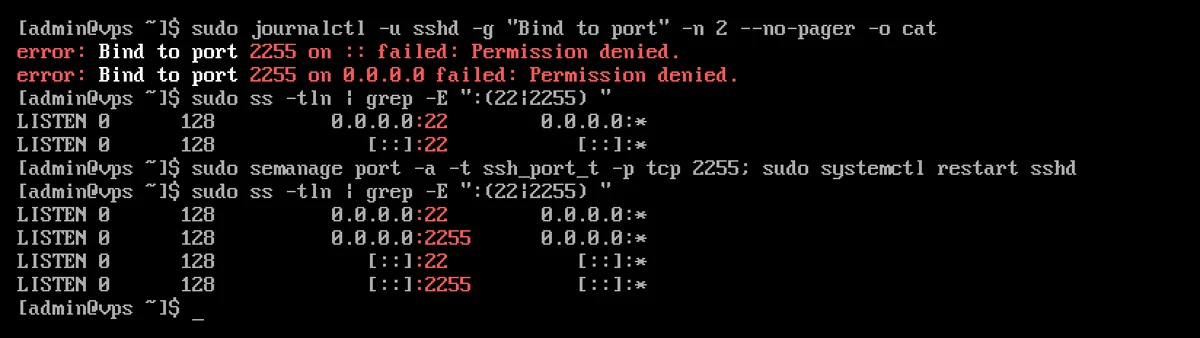
If firewalld is running (sudo firewall-cmd --state), enable the new port as well:
sudo firewall-cmd --permanent --add-port=2255/tcp
sudo firewall-cmd --reload
Ubuntu 24.04: socket activation
On Ubuntu 24.04, it is not the ssh service but ssh.socket that listens on port 22. During testing, after the port change, running systemctl restart ssh had no effect; only port 22 remained active. The port changes after running daemon-reload and restarting the socket:
sudo systemctl daemon-reload
sudo systemctl restart ssh.socket
If ufw is enabled (it wasn’t by default in the test), allow the port: sudo ufw allow 2255/tcp.
Debian
On Debian, simply restart the service: sudo systemctl restart ssh.
Verification
sudo ss -tlnp | grep sshd
Connect to the new port from a new terminal (ssh -p 2255 felhasznalo@szervercime). If this works, the Port 22 line can be deleted, and port 22 can also be closed on the firewall.
4. Limiting the number of attempts
Fail2ban monitors the logs and temporarily blocks IP addresses that send a large number of failed login attempts at the firewall. Its installation and potential pitfalls (for example, on AlmaLinux, firewalld must be running, otherwise the ban will be ineffective) are described in the article ‘Installing and configuring Fail2ban’. On cPanel servers, cPHulk and CSF/LFD perform the same function.
The number of attempts within a single connection is limited by the MaxAuthTries setting (the default value in the test was 6), for example MaxAuthTries 3.
5. Updates
OpenSSH security patches are delivered via system updates (in our tests, OpenSSH 9.9 was installed on AlmaLinux 10 and 9.6 on Ubuntu 24.04). Enable automatic security updates; see: System updates: dnf, apt and automatic updates.
aWh servers
On KVM VPS servers, you have full control over all of the above settings. On our cPanel hosting plans, SSH runs on port 4231 and can only be accessed with a key; for information on uploading the key, see the article ‘Creating or uploading an SSH key to a cPanel server’.