 English
 Magyar


The Nginx version in AlmaLinux’s own repository is stable, but not the latest: at the time of testing, AlmaLinux 10 contained version 1.26.3. The Nginx developers (nginx.org) maintain their own repository for Red Hat-based systems, with two branches:
- stable: the stable branch, which receives only bug fixes (version 1.30.6 at the time of testing);
- mainline: the development branch, where new features and bug fixes are first introduced (version 1.31.8 at the time of testing).
The Nginx developers themselves recommend the mainline branch for general use: it is updated regularly in small increments, and bug fixes are released there first. The stable branch is a good choice if you want changes as infrequently as possible.
We tested these steps in October 2026 on AlmaLinux 10.2; they work in exactly the same way on AlmaLinux 9. Run the commands as the root user or using sudo.
1. Setting up the storage
Create the file /etc/yum.repos.d/nginx.repo (for example, sudo nano /etc/yum.repos.d/nginx.repo) with the following content:
[nginx-stable]
name=nginx stable repo
baseurl=https://nginx.org/packages/centos/$releasever/$basearch/
gpgcheck=1
enabled=1
gpgkey=https://nginx.org/keys/nginx_signing.key
module_hotfixes=true

[nginx-mainline]
name=nginx mainline repo
baseurl=https://nginx.org/packages/mainline/centos/$releasever/$basearch/
gpgcheck=1
enabled=0
gpgkey=https://nginx.org/keys/nginx_signing.key
module_hotfixes=true
The centos in the URL is not a mistake: nginx.org provides packages for Red Hat-compatible systems under this name, and the $releasever on AlmaLinux indicates the major version (9 or 10). nginx.org’s own description specifies the http:// address; in our tests, the https:// also worked, and we recommend this one. Due to gpgcheck=1, dnf verifies the packages based on their signatures in both cases. module_hotfixes=true is important on AlmaLinux 9: if the system’s nginx module (dnf module list nginx) is enabled there, the module would otherwise mask the repository’s packages.
2. Enabling the mainline branch
sudo dnf config-manager --set-enabled nginx-mainline
This enables both branches, and dnf will select the higher version, i.e. the mainline. If you want the stable branch, skip this step.
Available versions:
dnf list --showduplicates nginx
3. Installation
sudo dnf install nginx
During the initial installation, dnf prompts you to import the nginx.org signing keys. During testing, it downloaded three keys from the https://nginx.org/keys/nginx_signing.key address, with the following fingerprints:
8540 A6F1 8833 A80E 9C16 53A4 2FD2 1310 B49F 6B46
573B FD6B 3D8F BC64 1079 A6AB ABF5 BD82 7BD9 BF62
9E9B E90E ACBC DE69 FE9B 204C BCDC D8A3 8D88 A2B3
Compare them with the fingerprints published on the nginx.org page about Linux packages, and if they match, accept them (y).
4. Start-up and testing
sudo systemctl enable --now nginx
nginx -v
curl -sI http://localhost | head -2
nginx version: nginx/1.31.8
HTTP/1.1 200 OK
Server: nginx/1.31.8
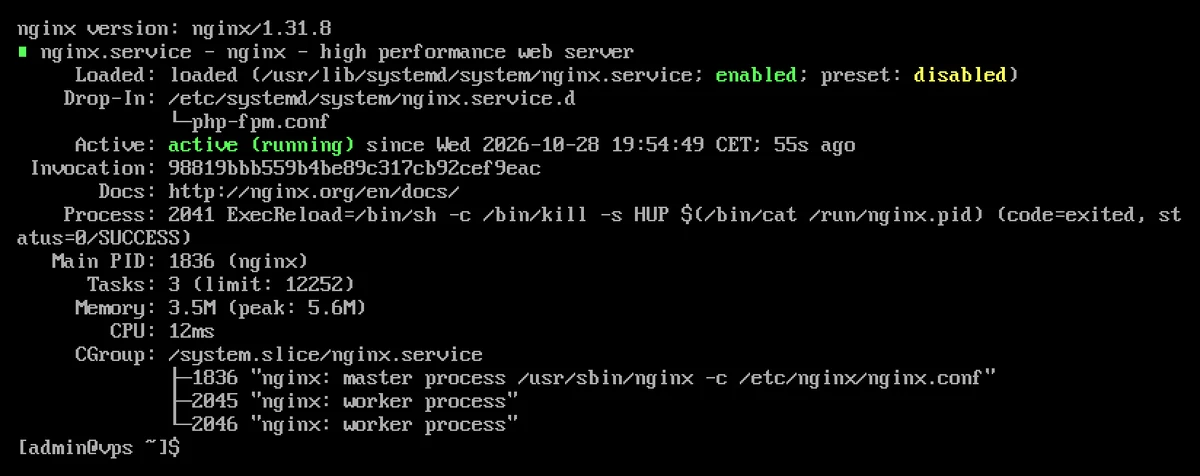
If firewalld is running on the server, open the web ports (sudo firewall-cmd --permanent --add-service=http --add-service=https, then sudo firewall-cmd --reload), see: How do I configure the firewall on my VPS?
The nginx.org package is built with support for HTTP/2 and HTTP/3 (QUIC); the compilation options are listed by the command nginx -V (--with-http_v2_module, --with-http_v3_module).
If Nginx is already installed on your AlmaLinux system
If Nginx installed from the AppStream repository is running on the server, the command dnf upgrade nginx will not update it even after the repository has been configured, but will instead terminate with an error:
Error: Transaction test error:
  file /etc/nginx/nginx.conf from install of nginx-2:1.31.8-1.el10.ngx.aarch64 conflicts with file from package nginx-core-2:1.26.3-6.el10_2.7.aarch64
The two packages have a different structure (AlmaLinux’s Nginx is split into the nginx and nginx-core packages), so the old one must be removed. The sequence is as follows:
sudo cp -a /etc/nginx /root/nginx-mentes
sudo dnf remove nginx nginx-core
sudo dnf install nginx
sudo systemctl enable --now nginx
The first line saves the entire configuration: the removal command deletes the unmodified configuration files (such as the default nginx.conf-ot) and replaces them with those from the nginx.org package. The custom .conf files in the conf.d directory remained in place during the test, but you should compare them with the backup before proceeding. The nginx-filesystem package remains on the machine; the PHP-FPM package depends on it.
Differences compared to AlmaLinux’s Nginx
- The location of the virtual hosts is the same: the
/etc/nginx/conf.d/directory’s*.conffiles. The hosting plan comes with adefault.conffile, which serves the default page namedlocalhost. - The service runs with an
nginxuser, and the number of worker processes is set toworker_processes auto;, i.e. one per CPU core. /etc/nginx/default.d/is not included in the configuration. The AlmaLinuxphp-fpmpackage places the PHP configuration (php.conf) here, but thenginx.conf-ja from nginx.org does not read from this directory; therefore, you must configure PHP yourself in eachserverblock (see below).- It works in conjunction with SELinux: it served files under
/var/wwwwithout any issues, and started automatically even after the server was rebooted (the label for/run/nginx.pidwashttpd_var_run_t, and no SELinux denial was logged). Some guides recommend a separatetmpfiles.dconfiguration for this; on AlmaLinux 10.2, this was not necessary. For other directories, see: SELinux: why am I getting a ‘Permission denied’ error?
Configuring PHP-FPM
The installation of PHP-FPM is described in the article ‘Installing PHP on AlmaLinux 9 and 10’. Configuring a domain, for example in the file /etc/nginx/conf.d/pelda.hu.conf:
server {
    listen 80;
    server_name pelda.hu www.pelda.hu;
    root /var/www/pelda.hu/public;
    index index.php index.html;

    location / {
        try_files $uri $uri/ /index.php?$args;
    }

    location ~ \.php$ {
        try_files $uri =404;
        fastcgi_pass unix:/run/php-fpm/www.sock;
        fastcgi_param SCRIPT_FILENAME $document_root$fastcgi_script_name;
        include fastcgi_params;
    }
}
The line try_files $uri $uri/ /index.php?$args; is required for the clean URLs used by WordPress and most PHP frameworks. The default PHP-FPM configuration (listen.acl_users = apache,nginx) allows the nginx user to connect to the socket, so there is no need to adjust the permissions.
Check and reload:
sudo nginx -t
sudo systemctl reload nginx
curl -s -H "Host: pelda.hu" http://localhost/
The test returned the PHP version and the fpm-fcgi execution mode via curl. To use HTTPS, request a Let’s Encrypt certificate: Requesting a Let’s Encrypt certificate with Certbot. The Certbot Nginx extension is available in EPEL (python3-certbot-nginx).
Update
Nginx from nginx.org is updated along with the rest of the system’s packages:
sudo dnf upgrade nginx
When the package is updated, it attempts to switch the running server to the new binary whilst it is still running, but this did not happen during testing: after the package update, nginx -v showed the new version, but the header of the running Server (curl -sI http://localhost) still showed the old one. Therefore, after updating, please check the configuration and restart the service:
sudo nginx -t && sudo systemctl restart nginx
Back to the stable branch
sudo dnf config-manager --set-disabled nginx-mainline
sudo dnf distro-sync nginx
During the test, distro-sync replaced the mainline version 1.31.8 with the stable version 1.30.6 (Downgrading); please restart the service here as well. If you wish to revert to AlmaLinux’s own Nginx, delete the nginx.repo file and reinstall the nginx package (before doing so, back up the /etc/nginx directory here as well).
If port 80 is in use
If Nginx fails to start and the log shows bind() to 0.0.0.0:80 failed (98: Address already in use), another program – typically Apache – is occupying the port. Check which one:
sudo ss -tlnp | grep ':80 '
If the users column shows httpd, stop and disable Apache (sudo systemctl disable --now httpd), or move one of the web servers to a different port.
Removal
sudo systemctl disable --now nginx
sudo dnf remove nginx
sudo rm /etc/yum.repos.d/nginx.repo
Any modified settings and your own virtual hosts may remain in the /etc/nginx directory; if you no longer need them, delete them after a backup.
Which server?
You can run a KVM VPS or dedicated server with your own Nginx; with root access, you can install any web server on these. If you’d prefer Apache to Nginx, this is covered in the article on installing Apache and PHP-FPM.