 English
 Magyar


The AlmaLinux kernel remains on the same major version throughout its entire lifecycle: 6.12 on AlmaLinux 10 and 5.14 on AlmaLinux 9. Red Hat continuously updates this, and some security and hardware support fixes are backported from newer kernels. For a server, this is the best choice: it is stable, tested, and the distribution updates it automatically.
There may occasionally be a need for the latest kernel, for example, due to a new file system, networking or hardware feature, or for the sake of a program that requires a newer kernel. The kernel-ml (mainline) package in the ELRepo repository provides this option: it is the current stable kernel from kernel.org, compiled for AlmaLinux. Before you get started, read the article ‘What is the Linux kernel?’ and our blog post on the advantages and disadvantages of a custom kernel.
We tested these steps in October 2026 on AlmaLinux 10.2 (x86_64) and AlmaLinux 9.8 systems, running in virtual machines. Run the commands as the root user or using sudo.
Before you install
- Make a backup – preferably a snapshot on a VPS. If the new kernel fails to start, you can restore from the snapshot in a matter of minutes.
- Separately compiled kernel modules (such as certain VPN, firewall or file system modules) may not work with the new kernel.
- The ELRepo kernel does not receive AlmaLinux support. Security updates are released by ELRepo, and you must install them yourself.
- The kernel-ml will not start with Secure Boot enabled. Check this using the
mokutil --sb-statecommand. According to the test run withpesign -S -i /boot/vmlinuz-…, the ELRepo kernel is not signed at all (“No signatures found”), whilst the AlmaLinux kernel is signed by the “AlmaLinux Secure Boot Signing” key. Registering the ELRepo Secure Boot key (/etc/pki/elrepo/SECURE-BOOT-KEY-elrepo.org.der) included with theelrepo-releasepackage does not help, as the kernel was not signed with it. If Secure Boot is enabled on your machine, stick with the factory kernel. It was not enabled on the test machine (“This system doesn’t support Secure Boot”). - In the case of managed VPS, please consult us first, as changing the kernel affects the server’s operation.
What is available?
kernel-ml (mainline) |
kernel-lt (long-term support) |
|
|---|---|---|
| AlmaLinux 10, x86_64 | Yes, 7.2.13 | None |
| AlmaLinux 10, aarch64 (ARM) | None | None |
| AlmaLinux 9 | Yes, 7.2.13 | Yes, 6.1.190 |
The versions listed are those valid at the time of testing. For AlmaLinux 10, ELRepo only provides a mainline kernel compiled for x86_64 processors; on ARM-based machines, the repository is empty.
1. Installing the ELRepo repository
Import the ELRepo signing key, then install the repository package.
AlmaLinux 10:
sudo rpm --import https://www.elrepo.org/RPM-GPG-KEY-v2-elrepo.org
sudo dnf install https://www.elrepo.org/elrepo-release-10.el10.elrepo.noarch.rpm
AlmaLinux 9:
sudo rpm --import https://www.elrepo.org/RPM-GPG-KEY-v2-elrepo.org
sudo dnf install https://www.elrepo.org/elrepo-release-9.el9.elrepo.noarch.rpm
Both systems use the RPM-GPG-KEY-v2-elrepo.org key. AlmaLinux 10 rejects ELRepo’s older key, named RPM-GPG-KEY-elrepo.org, because it was generated using SHA1: “Policy rejects 309BC305BAADAE52 … because SHA1 is not considered secure”, “key 1 import failed”.
The package creates four repositories: elrepo (drivers) is enabled, whilst elrepo-kernel, elrepo-testing and elrepo-extras are disabled. The kernels are located in the elrepo-kernel repository, which is only enabled during installation.
The available kernels are:
dnf --disablerepo='*' --enablerepo=elrepo-kernel list --available
2. Installing kernel-ml
sudo dnf --enablerepo=elrepo-kernel install kernel-ml
Three packages are installed: kernel-ml, kernel-ml-core and kernel-ml-modules. The old kernel remains on the machine, so you can revert to it at any time.
If you are using separately compiled kernel modules (drivers installed via DKMS), you will also need the development package for the new kernel; otherwise, the modules will not be loaded with it:
sudo dnf --enablerepo=elrepo-kernel install kernel-ml-devel
The new kernel will automatically become the default. Check:
sudo grubby --default-kernel
/boot/vmlinuz-7.2.13-1.el10.elrepo.x86_64
3. Restart and check
sudo systemctl reboot
After restarting:
uname -r
sudo grubby --info=ALL | grep -E '^(index|title)'
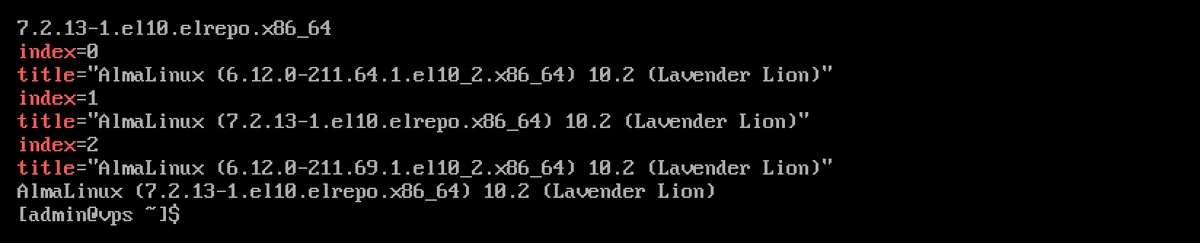
During the test, both systems booted without any issues using the new kernel; the network and services were functioning (the systemctl --failed output was empty). Please also check the log (sudo journalctl -b -p err); see: Reading log files.
Please note: the AlmaLinux kernel update reverts to the default settings
On AlmaLinux, due to the UPDATEDEFAULT=yes setting in the /etc/sysconfig/kernel file, every newly installed kernel becomes the default. In the test, after installing the ELRepo kernel, updating the system brought in a new AlmaLinux kernel (6.12.0-211.69.1), and afterwards the grubby --default-kernel command showed that the next reboot would have started with the default kernel.
Therefore, after every update, please check this and reset it if necessary:
sudo grubby --default-kernel
sudo grubby --set-default /boot/vmlinuz-7.2.13-1.el10.elrepo.x86_64
In the /etc/sysconfig/kernel file, the DEFAULTKERNEL=kernel-ml setting prevents updates to the AlmaLinux kernels from overwriting the default. However, in testing, even with this setting, the new kernel-ml versions did not automatically become the default, so you will need to set it manually even after updating kernel-ml. Whichever solution you choose, check the output of grubby --default-kernel after the update.
Updating kernel-ml
As the elrepo-kernel repository is disabled, dnf upgrade does not update kernel-ml. This must be requested separately:
sudo dnf --enablerepo=elrepo-kernel upgrade kernel-ml
If you would like the system update to automatically install the new mainline kernel as well, enable this permanently by running: sudo dnf config-manager --set-enabled elrepo-kernel. Mainline kernels frequently change major versions, so you should only do this if you check your machine after every update.
A maximum of three kernels can remain on the machine at any one time (installonly_limit=3 in the /etc/dnf/dnf.conf file); the oldest one is deleted when the fourth is installed.
Reverting to the default kernel
On VPS instances installed from cloud images, the GRUB menu often does not appear (GRUB_TIMEOUT=0 in the /etc/default/grub file; this was also the case in our test), so it is not possible to select a kernel at boot time. Recovery is still straightforward, provided the machine boots up:
sudo grubby --info=ALL | grep -E '^(index|kernel)'
sudo grubby --set-default /boot/vmlinuz-5.14.0-687.53.1.el9_8.aarch64
sudo systemctl reboot
After --set-default, specify the path to the factory kernel, as shown in the list. The example above is from test machine number 9. If the machine is currently running the kernel you wish to set as the default, the path can be replaced as follows: sudo grubby --set-default "/boot/vmlinuz-$(uname -r)". If the machine has booted with the factory kernel and you no longer require the ELRepo kernel:
sudo dnf remove 'kernel-ml*'
Do not remove the ELRepo kernel whilst it is running (elrepo should not appear in the output of uname -r). In the test, after removal, grubby only listed the factory kernel, which became the default. If the ELRepo repository is no longer required: sudo dnf remove elrepo-release.
If the machine fails to boot with the new kernel, please restore the VPS from the snapshot or contact our support team.
Instead of a system update
If you do not require a specific kernel feature but simply wish to upgrade to a newer system, it is better to switch to the next major version of AlmaLinux rather than replacing the kernel, as all packages have been tested together in that version. The steps for doing this are described in the article ‘Updating AlmaLinux and Rocky Linux with ELevate’. Our KVM VPSs provide full root access, so you can choose the kernel yourself.