 English
 Magyar


The major releases of AlmaLinux and Rocky Linux receive security updates for a long time (version 8 until 2029, version 9 until 2032), but newer software versions (PHP, databases, libraries) are always released for the latest major release. There is no need to reinstall the server: it can be updated in situ using the ELevate tool. ELevate is built on the Red Hat Leapp framework and replaces packages with those from the next major version. You can only move up one major version at a time: the path from version 8 to version 10 goes via version 9.
We carried out the AlmaLinux 9 → 10 update from start to finish in October 2026 on an AlmaLinux 9.8 virtual machine (on aarch64 architecture, with 2 GB of memory); the output shown in this article is taken from this test. We did not test the 8 → 9 steps; these follow the ELevate documentation.
This article is intended for those operating their own VPS or dedicated servers. For information on updating CloudLinux servers, as well as cPanel and Plesk servers, please refer to the article ‘Updating CloudLinux from 8 to 9 using ELevate’; on cPanel servers, you must use cPanel’s own elevate-cpanel script – do not follow the steps described here.
Before you begin
- Create a full backup or snapshot of the server. Following a failed update, restoring the server is the safest solution.
- Ensure you have access independent of SSH, such as via the VPS console. The server will reboot during the update, and if anything goes wrong, you will not be able to access it via SSH.
- Expect some downtime. In our test, package replacement after a restart took 3 minutes; on a server with a slower hard drive and a large number of packets, this could take between half an hour and an hour and a half.
- Ensure there is sufficient memory. Leapp prepares the target system’s packages in an isolated environment, which requires a lot of memory. During testing, with 2 GB of memory and no swap, the OOM killer terminated the process (
Out of memory: Killed process … (dnf) … anon-rss:1486780kB), and the report displayed the error ‘Unable to install target ‘almalinux’ 10 userspace packages’. After creating a 2 GB swap file, it ran without any errors; the process of creating this is described in the article ‘Out of memory: OOM killer and swap file’. - Check the external repositories (
dnf repolist). The EPEL packages are managed by ELevate; during testing, EPEL also switched to version 10. Remove packages from other external repositories (such as Remi, ELRepo, MariaDB and Docker) before the update, and reinstall them afterwards. -
Update the system and restart it to run the latest kernel:
sudo dnf update -y
sudo reboot
Run the commands in a tmux or screen session so that they are not interrupted if the SSH connection is lost (see: Running commands over an unstable SSH connection).
1. Installing ELevate
sudo dnf install -y http://repo.almalinux.org/elevate/elevate-release-latest-el$(rpm --eval %rhel).noarch.rpm
The command installs the repository corresponding to the current main version. It then installs the Leapp packages and the data package for the target distribution:
# AlmaLinux 9-re (8-ról) vagy AlmaLinux 10-re (9-ről)
sudo dnf install -y leapp-upgrade leapp-data-almalinux

# Rocky Linux 9-re (8-ról)
sudo dnf install -y leapp-upgrade leapp-data-rocky
During the test on AlmaLinux 9, leapp-upgrade installed the leapp-upgrade-el9toel10 package.
2. Preliminary check
sudo leapp preupgrade
This step does not make any changes to the system; it merely checks whether the update can be carried out. The first run almost always returns an error, which is to be expected. The result is written to the file /var/log/leapp/leapp-report.txt:
sudo less /var/log/leapp/leapp-report.txt
Items in the report marked as ‘Risk Factor: high (inhibitor)’ are preventing the update; you must resolve these. The report describes the recommended solution for each item. Run leapp preupgrade again until the summary shows Inhibitors: 0 and Errors: 0.
As indicated in the 9 → 10 test
-
Legacy network configuration found(inhibitor): the network configuration is in the oldifcfgformat (/etc/sysconfig/network-scripts/ifcfg-eth0), which version 10 no longer recognises. The command provided in the report converts it to NetworkManager’s own format:sudo nmcli connection migrate /etc/sysconfig/network-scripts/ifcfg-eth0In the test, this configuration was then added to the file
/etc/NetworkManager/system-connections/System eth0.nmconnection, and the network continued to work after the update. Packages not signed by the distribution vendor found on the system(high): a list of packages installed from external repositories (in the test: packages fromremi-release,elrepo-releaseand Remiphp84-*). We have removed these (sudo dnf remove 'php84-*' remi-release elrepo-release).- **
Berkeley DB (libdb) has been detected(medium): **libdbis no longer included in version 10. This only needs to be addressed if one of your own applications uses a Berkeley DB database. SElinux will be set to permissive mode(low): SELinux will be set to permissive mode for the duration of the update; it must be switched back afterwards (see point 4).
Common issues reported during the 8 → 9 update
- Root login with a password: by default, AlmaLinux 9 does not allow the root user to log in via SSH using a password. If you have been logging in this way, you will lock yourself out after the update. Create your own user (see: Creating a user and granting sudo privileges), or explicitly add the line
PermitRootLogin yesto your SSH configuration. -
Questions to be answered: when Leapp asks a question, it is saved to the file
/var/log/leapp/answerfile. You can provide the answer using theleapp answercommand, for example:sudo leapp answer --section check_vdo.confirm=True
3. The update
sudo leapp upgrade
sudo reboot
The first command downloads the packages for the new major version and prepares the upgrade (which took 4 minutes in the test). At the end, it displays the following message: “Reboot the system to continue with the upgrade. … Make sure you have console access to view the actual upgrade process.” The next boot will automatically use the ELevate-Upgrade-Initramfs entry (as shown by sudo grubby --default-title), and the packages will be replaced there, after which the server will reboot once more. Do not interrupt this; you can monitor the process via the console:
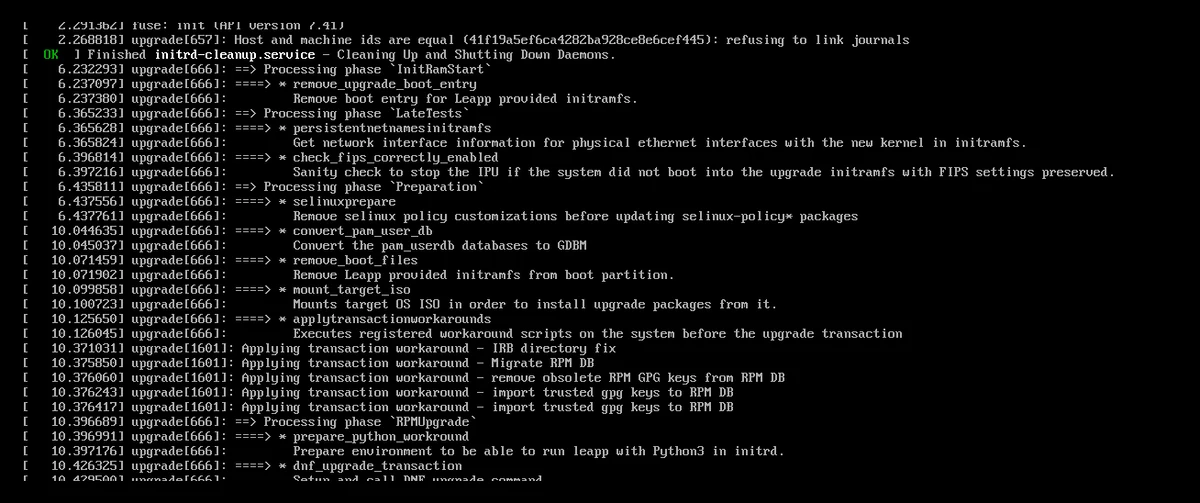
In the test, the server responded via SSH as AlmaLinux 10.2 just 185 seconds after restarting. If the server does not respond after two hours, the update has probably stalled; check the console or restore from a backup.
4. After the update
Check the version and services:
cat /etc/almalinux-release
uname -r
systemctl --failed
Tested on: AlmaLinux release 10.2 (Lavender Lion), 6.12.0-…el10_2; no service faults were encountered.
Re-enabling SELinux
After the update, SELinux remains in Permissive mode (SELINUX=permissive in the /etc/selinux/config file). Switch it back and restart the server:
sudo sed -i 's/^SELINUX=.*/SELINUX=enforcing/' /etc/selinux/config
sudo reboot
After a reboot, the output of getenforce is Enforcing; no SELinux denials were generated during the test (sudo ausearch -m avc -ts boot). If they are, the article ‘SELinux: why am I getting a “Permission denied” error?’ will help.
Cleaning
Of the packages from the old main version, the old kernels and the Leapp packages will remain:
rpm -qa | grep -E '\.el9'
dnf removes old kernels:
sudo dnf remove $(rpm -qa | grep -E '^kernel.*\.el9')
During the test, the Leapp and ELevate packages could not be removed due to a dependency conflict with dnf remove (“conflicting requests”, “problem with installed package python3-leapp”), but the simple rpm -e command was successful:
sudo rpm -e $(rpm -qa | grep -iE 'leapp|elevate')
If the command sudo grubby --info=ALL | grep ^title still lists an old kernel, delete the entry (sudo grubby --remove-kernel=/boot/vmlinuz-<régi verzió>). Finally, update the system and check the package database:
sudo dnf update
dnf check
Please reinstall any previously removed third-party packages (Remi, ELRepo, etc.) from the repositories for the new major version.
AlmaLinux 10 and older processors
The x86_64 version of AlmaLinux 10 requires a newer processor (x86-64-v3) by default; a separate x86-64-v2 version is available for older processors. Before upgrading from 9 to 10, check the AlmaLinux ELevate documentation to see which version and upgrade path applies to your server. The supported processor level can be checked on your current system using the command /lib64/ld-linux-x86-64.so.2 --help | grep supported.