 English
 Magyar
 Deutsch



find is the most important search command in Linux: it traverses a directory and all its subdirectories (recursively) and lists the files that match the specified criteria, such as name, size, modification time, owner or permissions. You can also perform actions on the files found straight away: you can delete them, change their permissions, or search within them.
The examples were run in November 2026 on an AlmaLinux 10.2 system, using the find command from GNU findutils 4.10 on a sample directory (/var/www/pelda.hu, a WordPress-like website with backups, logs and a cache); Ubuntu 26.04 uses the same version. The commands also work on a KVM VPS and via the Terminal interface of cPanel hosting, where they are executed in the user’s home directory.
The basic form
find WHERE CONDITIONS ACTION
find /var/www -name 'wp-config.php'
find . -type f -name '*.log'
WHERE: the folder from which the search starts (the.indicates the current directory). If omitted, thefindcommand searches the current directory.CONDITIONS: for example,-name,-type,-size. By default, there is an ‘AND’ relationship between multiple conditions.ACTION: if not specified, thefindcommand will display the routes found (-print).
Search by name
find . -name 'index.php'       # exact name
find . -name '*.php'           # every .php file
find . -iname 'readme.txt'     # case-insensitive
-iname found both the README.TXT and readme.txt files during the test, while -name found only the exact match.
Always enclose wildcard characters (*, ?) in quotation marks. Without quotation marks, the shell will substitute them with the filenames in the current directory before find even starts. If there is one .php file there, find will only search for that name; if there are several, it will stop with an error:
$ find . -name *.php
find: paths must precede expression: `index.php'
find: possible unquoted pattern after predicate `-name'?
The -name option only checks the file name, not the folder path. The -path option searches for path segments: find . -path '*/uploads/*.php' returns PHP files placed in the upload folders, which is a common sign of a compromised WordPress site.
You can search for multiple names using the -o (OR) operator, enclosed in brackets:
find . \( -name '*.jpg' -o -name '*.JPG' -o -name '*.png' \)
By type: -type
find . -type f -name '*.html'   # files only
find . -type d -name cache      # folders only
find . -type l                  # szimbolikus linkek
find . -xtype l                 # broken symbolic links
The article covers links and how to handle broken links, as well as deleting and renaming files.
Empty files and folders:
find . -empty
find . -type d -empty
By size: -size
find . -type f -size +100M     # larger than 100 MB
find . -type f -size -10k      # smaller than 10 kB
find . -type f -size +1G       # larger than 1 GB
Units of measurement: c (byte), k (KiB), M (MiB), G (GiB). A + indicates a larger value, - a smaller value; without a sign, it indicates an exact match.
A pitfall with small values: the find command rounds the size up to the specified unit. The -size -1k option therefore only returns files of 0 bytes: in the test, a 30-byte PHP file was calculated as being ‘1k’ in size and was omitted. To specify an exact limit, use -size -1024c. Similar rounding of the gigabyte limit is demonstrated in the article on searching for error_log files.
Finding the largest files
A list of large files, with their sizes, in a readable format:
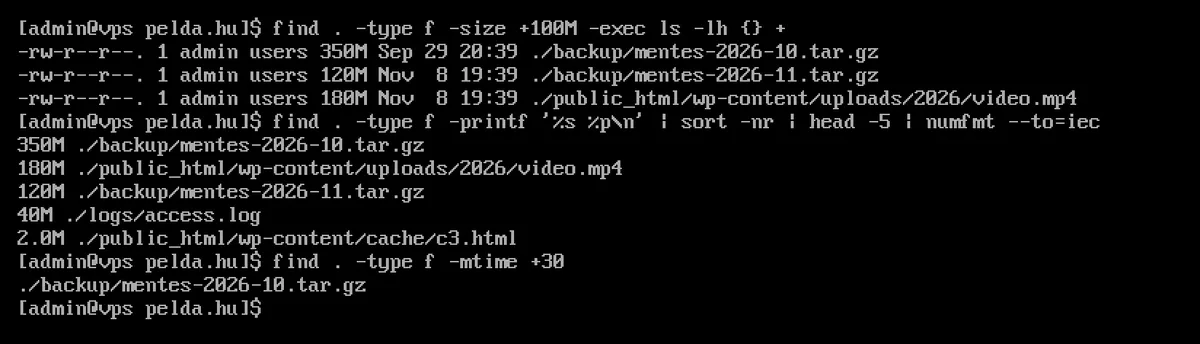
find . -type f -size +100M -exec ls -lh {} +
The five largest files, sorted by size:
find . -type f -printf '%s %p\n' | sort -nr | head -5 | numfmt --to=iec
The -printf command outputs the size (%s, in bytes) and the path (%p), the sort -nr command sorts the results in descending order, and the numfmt --to=iec command converts the value to a readable unit of measurement (350M).
If you’re interested in the size of folders rather than files, du is the better tool: see the examples of the du command.
By time: -mtime, -mmin, -newer
find . -type f -mtime +30      # changed more than 30 days ago
find . -type f -mtime -7       # changed in the last 7 days
find . -type f -mmin -60       # changed in the last 60 minutes
-mtime counts in 24-hour units and rounds down: -mtime 1 refers to files modified 24–48 hours ago, while -mtime +30 refers to those modified at least 31 days ago. With the -daystart switch, days are counted from midnight (find . -daystart -mtime 0 returns files modified today).
Newer than a particular file or date:
find . -newer referencia.txt
find . -type f -newermt '2026-11-01'
find . -type f ! -newermt '2026-11-01'    # older than that
In addition to -mtime, there are also -atime (last read) and -ctime (last status change, such as a permission change). -atime is unreliable: on both systems used in the test, the root filesystem was mounted with the relatime option, which only rarely updates the read time.
In the case of a hacked website, it is useful to have a list of PHP files that have been modified in recent days:
find /var/www -type f -name '*.php' -mtime -3
By owner and permissions
find . -user root              # files owned by root
find . ! -user www-data        # not owned by www-data
find . -group users
find . -nouser                 # files of a deleted user
By permission:
find . -perm 777               # pontosan 777
find . -type f -perm -o+w      # world-writable files
find . -type d -perm -0002     # world-writable folders
The unqualified -perm 644 returns files with exactly 644 permissions, while -perm -644 returns those with at least these permissions.
The most common use is to set permissions correctly; for example, on a website, folders are given 755 permissions and files 644:
find public_html -type d -exec chmod 755 {} +
find public_html -type f -exec chmod 644 {} +
The meaning of permissions is explained in the article introducing the chmod and chown commands.
Depth: -maxdepth, -mindepth
find . -maxdepth 1             # current folder only, without subfolders
find . -maxdepth 2 -name '*.log'
find . -mindepth 2 -maxdepth 2 -type d
-maxdepth and -mindepth apply to the entire search, regardless of their position in the query; for the sake of readability, it is customary to place these conditions at the beginning.
Excluding folders: -prune and -not -path
There are two ways to exclude a folder (such as the cache or backups):
# -prune: find does not even enter the folder
find . -path ./public_html/wp-content/cache -prune -o -type f -name '*.html' -print

# -not -path: descends, but filters out the matches
find . -type f -name '*.html' -not -path '*/cache/*'
The -prune option is faster because it does not traverse the excluded directory at all; this makes a significant difference with large caches or a node_modules directory. The -print option is mandatory at the end: without it, find also prints the name of the excluded directory (in the test, the line ./public_html/wp-content/cache also appeared).
After -prune, the value of -path must begin in the same way as the search location (. in the case of ./). You can exclude multiple folders by enclosing them in brackets:
find . \( -path ./backup -o -path ./public_html/wp-content/cache \) -prune -o -type f -size +10M -print
By name, anywhere in the tree: find . -name cache -prune -o -name '*.html' -print.
Actions on the files found
-exec: run a command
find . -name '*.php' -exec grep -l 'base64_decode' {} +
find . -name '*.log' -exec ls -lh {} \;
The files found will be placed in the {} location. The difference between the two closures is:
{} +: passes files in batches to a single (or a few) command calls:grep ... fajl1 fajl2 fajl3. This is much faster when dealing with a large number of files.{} \;: runs the command separately for each file. This is required if the command only accepts one file at a time, or if{}is not at the end of the line (for example,-exec cp {} {}.bak \;, which creates a copy of every file with the extension.bak).
The -ok command works in the same way as the -exec ... \; command, but it prompts the user before deleting each file (< rm ... ./logs/access.log > ?).
Searching the contents of files: find and grep
The ‘find’ command lists files, while grep searches their contents. This is how we find the suspicious PHP file placed in the sample directory during the test:
find . -name '*.php' -exec grep -l 'base64_decode' {} +
The -l option only lists filenames. If you do not need the other criteria of find, grep itself can perform a recursive search, filtering by file extension: grep -rl --include='*.php' base64_decode ... find is preferable if you also need to filter by size, date or owner; for example, to search only PHP files modified in the last three days. A separate article covers grep’s additional features (such as the lines before and after a match), while the search for malware is covered in the articles on ClamAV and Maldet.
xargs and the -print0 option
The output of find can also be piped to the xargs command, but for filenames containing spaces, this only works correctly with the -print0 and -0 options:
find . -name '*.log' -print0 | xargs -0 ls -l
Without the -print0 option, xargs splits the name at spaces:
$ find . -name '*.log' | xargs ls -l
ls: cannot access './public_html/szep': No such file or directory
ls: cannot access 'fajl.log': No such file or directory
In most cases, the -exec ... {} + syntax is simpler and just as fast.
Delete: -delete
# 1. First, only list what it would delete
find . -type f -name '*.html' -mtime +30 -print

# 2. If the list is right, delete
find . -type f -name '*.html' -mtime +30 -delete
The order of the options matters. The find command evaluates from left to right, and the -delete option is also a condition that applies to everything. In the test, the command find ~/cc -delete -name 'c3.html' did not delete the c3.html file, but rather the entire ~/cc directory, because the -delete option was applied to every item before the name was checked. The -delete option should always be placed at the end of the line.
-delete and -prune cannot be used together: -delete enables -depth mode, in which -prune has no effect, and find stopped with a warning during the test, deleting nothing. In this case, use the -not -path format.
Deleting empty folders (for example, after clearing a cache): find . -type d -empty -delete. Deletion is permanent; there is no recycle bin on Linux.
Regular cleaning using cron
Deleting old backups or cache files can be easily scheduled. This script deletes backups older than 14 days every night at 3.30 am:
30 3 * * * find /var/backups/pelda -type f -name '*.tar.gz' -mtime +14 -delete
The use of cron is described in the article explaining the crontab syntax.
Search the entire system
sudo find / -xdev -type f -size +100M 2>/dev/null
-xdev: does not traverse other file systems, so/proc,/sysand mounted disks are excluded. Without the-xdevoption, thefind /command in the test showed the/proc/kcorevirtual file as being larger than 100 MB, and reported errors regarding/procentries that disappeared while the command was running.2>/dev/null: suppresses error messages. As a standard user, runningfind /produces manyPermission deniedmessages (e.g.find: '/boot/grub2': Permission denied), making it difficult to spot the result you’re looking for.
By default, find does not follow symbolic links; with the -L switch, it also searches within the linked directories (in the test, the large files in the backup directory linked under public_html only appeared when -L was used).
Quick name search: locate and plocate
The locate command does not scan the disk but searches a pre-compiled database, which is why it is very fast. It was not installed on the AlmaLinux 10 and Ubuntu 26.04 cloud images; on current distributions, it is provided by the plocate package:
sudo dnf install plocate      # AlmaLinux, Rocky Linux
sudo apt install plocate      # Ubuntu, Debian

sudo updatedb                 # update the database
locate wp-config.php
locate -i readme.txt
The database is updated daily by a timer (plocate-updatedb.timer on AlmaLinux), which is why locate cannot find files created since the last update: in the test, it returned no results for a file that had just been created. It cannot filter by size, date or permissions; find must be used for these.
Summary
| Task | Command |
|---|---|
| By name | find . -name '*.php' |
| Case-insensitive | find . -iname 'readme*' |
| Folders only | find . -type d -name cache |
| Files larger than 100 MB | find . -type f -size +100M |
| The five largest files | find . -type f -printf '%s %p\n' | sort -nr | head -5 |
| Files older than 30 days | find . -type f -mtime +30 |
| Changes made in the last hour | find . -mmin -60 |
| Files that anyone can edit | find . -type f -perm -o+w |
| Exclude folder | find . -path ./cache -prune -o -name '*.html' -print |
| Search for text in files | find . -name '*.php' -exec grep -l 'text' {} + |
| Delete (at the end!) | find . -name '*.tmp' -mtime +7 -delete |
| The entire system, without any errors | sudo find / -xdev -name 'x' 2>/dev/null |