 English
 Magyar
 Deutsch



On Linux, you can delete files and folders using the rm and rmdir commands, rename or move them using the mv command, and create links (symlinks) to them using the ln command. The commands are simple, but there are a few pitfalls: deletion cannot be undone; if used without the mv option, the command will overwrite the target file; and when deleting a symbolic link, a slash in the wrong place can also clear the link’s target.
We tested the commands in this article in November 2026 on AlmaLinux 10.2 and Ubuntu 26.04 systems. They work in exactly the same way on a dedicated KVM VPS and via the cPanel Terminal interface. A brief overview of the basic commands is provided in the article introducing fundamental Linux commands.
Deleting a file: rm
rm fajl.txt
rm fajl1.txt fajl2.txt
rm *.log
There is no recycle bin on Linux: anything deleted by the rm command disappears immediately and cannot be restored from the command line. Make sure you back up important files beforehand (see: backing up and restoring data on Linux).
Useful links:
-i: prompts for confirmation before deleting each file (rm: remove regular file 'fajl.txt'?), ayresponse deletes the file, while anresponse keeps the file;-I: it only asks once when deleting more than three files or a folder recursively (rm: remove 4 arguments?); fewer prompts, but it still stops if there is a mistyped wildcard character;-v: displays what has been deleted (removed 'fajl.txt');-f: does not prompt for confirmation or report errors for non-existent files.
If a file is write-protected (for example, chmod 444), the rm command in the terminal will prompt: rm: remove write-protected regular empty file 'vedett.txt'?. The -f option suppresses this prompt as well. If the command receives input from outside the terminal (in a script or a cron job), it will delete the write-protected file without prompting.
On AlmaLinux, the line alias rm='rm -i' is included by default in the root user’s .bashrc file, so after sudo -i, rm prompts for confirmation for every file. sudo rm, however, does not use this alias and does not prompt for confirmation; on Ubuntu 26.04, the root user does not have such an alias either. The article on bash aliases explains how to create your own aliases.
Delete a directory and its contents: rm -r
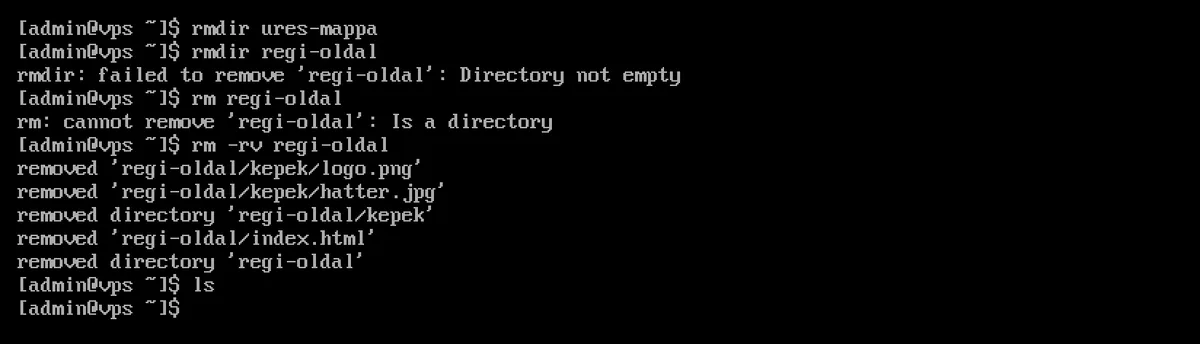
rmdir deletes an empty folder. If there is anything in the folder, it returns an error, and even a simple rm command will not delete the folder:
$ rmdir regi-oldal
rmdir: failed to remove 'regi-oldal': Directory not empty
$ rm regi-oldal
rm: cannot remove 'regi-oldal': Is a directory
The -r (recursive) switch deletes the folder along with its entire contents:
rm -r regi-oldal
rm -rv regi-oldal    # prints what it deleted
rm -rI regi-oldal    # asks once before
The dangers of ‘rm -rf’
The rm -rf command deletes everything in its path without prompting and suppresses any error messages. Most problems arise not from the command itself, but from the path it is given:
- A space in a path: the command
rm -rf /var/www/regi oldaltakes two paths – the/var/www/regidirectory and theoldalfile in the current directory. Enclose the name containing a space in quotation marks:rm -rf "/var/www/regi oldal". - An empty variable in a script: if
$FOLDERis empty, the commandrm -rf "$FOLDER"/*would delete the contents of the root directory. In a script, use the format${FOLDER:?}, which will halt the script with an error if the variable is empty (FOLDER: parameter null or not set):rm -rf "${FOLDER:?}"/*. - Relative path issued in the wrong directory: the
rm -rf *command always deletes files in the current directory. Before running it,pwdshows where you are, whilelsshows what would be deleted.
The GNU rm command does not, by default, delete the root directory recursively (rm: it is dangerous to operate recursively on '/'), but this only protects the / path; it does not protect the folders beneath it.
If you are unsure, instead of deleting the folder, first rename or move it (for example, mv regi-oldal regi-oldal.torolni), and only delete it after a few days.
Permission denied
rm: cannot remove '/srv/vedett/x': Permission denied
To delete a file, you must have write access to the folder containing the file; the file’s own permissions are irrelevant in this case. In such instances, even the -f option will not help. If the file really needs to be deleted and it is a system file or belongs to another user, you will need to use sudo rm. The behaviour of permissions is explained in the article covering the chmod and chown commands.
Files with strange names
Names beginning with a hyphen are interpreted as the rm switch:
$ rm -x.txt
rm: invalid option -- 'x'
Try 'rm ./-x.txt' to remove the file '-x.txt'.
There are two solutions: adding ./ before the name, or --, after which the command no longer treats anything as a switch:
rm ./-x.txt
rm -- -x.txt
If a name contains a space or a special character, enclose it in quotation marks (rm "szep fajl.txt"), or use the Tab key, which will automatically add the necessary escape characters to the name.
Will the space be freed up?
If a large file (such as a log file) is still being held open by a running program, the space will not be freed up after deletion until the program closes it. In this case, the df command will continue to show the disk as full. The article ‘The disk is full, but du doesn’t show it’ explains how to find such files and how to clear a log file without actually deleting it.
Secure deletion: shred
The contents of a deleted file may remain readable on the disk until they are overwritten. The shred command overwrites the file with random data before deleting it:
shred -u -v titkos.txt
According to the documentation for the shred, on journaling file systems, SSDs and virtual machines, it does not guarantee that every copy will be overwritten, as the storage system may write the data to other locations. For confidential data, full-disk encryption is therefore a more reliable solution.
Renaming and relocation: mv
There is no separate renaming command on Linux: renaming is also handled by the mv command.
mv regi-nev.txt uj-nev.txt        # rename
mv fajl.txt /var/www/html/        # move to another folder
mv fajl1.txt fajl2.txt mentes/    # several files into one folder
mv regi-mappa uj-mappa            # rename a folder
You can also rename a folder in this way, without the -r switch.
By default, the mv command overwrites the target file without prompting. If the file uj-nev.txt already exists, its contents will be lost. You can prevent this by using the following switches:
-i: prompts for confirmation of overwriting (mv: overwrite 'b.txt'?);-n: never overwrites an existing file;-b: before overwriting, retains the old target file with a name ending in~(b.txt~);-v: displays what it has done (renamed 'a.txt' -> 'c.txt').
If the destination is an existing folder, the mv command will place the source inside it: after running mv dir1 dir2, the folder will be located at dir2/dir1, not under the name dir2. A non-empty folder cannot be moved into a non-empty folder with the same name (mv: cannot overwrite 'e/a': Directory not empty); to merge the contents of two folders, use rsync or cp -a.
Moving to a different file system
Within the same file system, the mv command only renames the file: even moving a folder several gigabytes in size is instantaneous, and the files’ inodes remain unchanged. If the destination is on a different disk or partition (for example, on a separately mounted disk, or in the /tmp directory in memory on Ubuntu), mv actually copies the files and then deletes the source:
$ mv -v /dev/shm/z.txt ~/proba/
copied '/dev/shm/z.txt' -> '/home/admin/proba/z.txt'
removed '/dev/shm/z.txt'
With large amounts of data, this can take a long time, and if the process is interrupted, the destination may be left incomplete. With large folders, it is safer to copy them first (using rsync -a or cp -a), check the copy, and only then delete the source. The details of the copying process are described in the article on copying files.
The difference between cp -a and mv
mv (on the same file system) |
cp -a |
|
|---|---|---|
| Will the source remain? | no | Yes |
| Speed | immediate | It depends on the size |
| Do you need free space? | no | Yes, the full size |
| Rights, owner, dates | remain unchanged | retains (the owner only as root) |
| Symbolic links | remain unchanged | Copy as a link |
A standard cp (without the -a) copies the contents of the target rather than creating a symbolic link, and the files’ dates will be set to the time of copying.
SELinux (AlmaLinux, Rocky Linux): the mv command carries the file’s SELinux label with it, while the cp command assigns the label of the destination directory to the new file. In the test, a file moved from the home directory to the web server directory was assigned the user_home_t label, and nginx returned a 403 error for it; the copied file, however, worked. In such cases, running sudo restorecon -v fajl restores the label; this is described in detail in the article on fixing SELinux Permission denied errors.
Renaming multiple files at once
The mv command can only rename one file at a time. For multiple files, you can use the rename command or a short Bash script. There are two completely different versions of the rename command:
AlmaLinux, Rocky Linux: a rename of util-linux
On AlmaLinux, the rename command is part of util-linux and is installed by default. It performs a simple text replacement: rename FROM TO FILES.
rename -n -v .jpeg .jpg *.jpeg   # only shows what would happen
rename -v .jpeg .jpg *.jpeg
`kep1.jpeg' -> `kep1.jpg'
`kep2.jpeg' -> `kep2.jpg'
The -n test run: lists the changes but does not rename anything. It replaces only the first occurrence in each file (aa-aa.txt becomes ba-aa.txt); use the -a switch to replace all occurrences.
Ubuntu, Debian: the Perl rename command
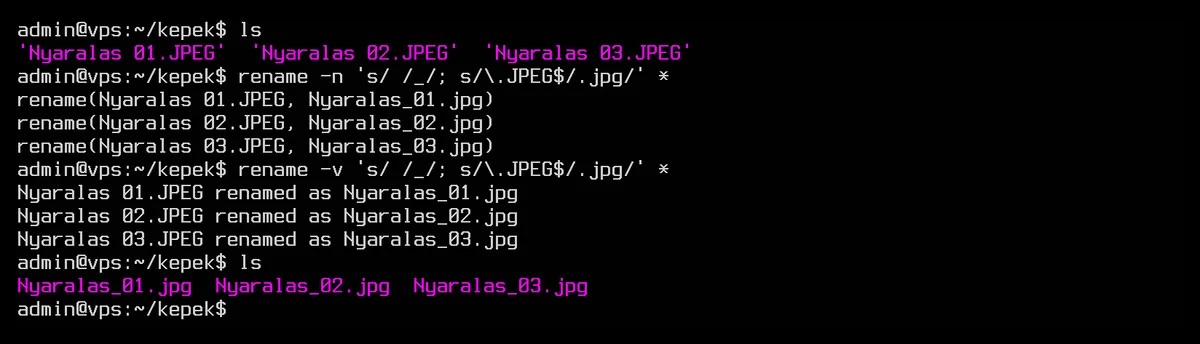
On Ubuntu and Debian, the rename command is included in the rename package (sudo apt install rename; it was not installed on the Ubuntu 26.04 cloud image). This version expects a Perl regular expression, making it much more flexible:
# Dry run: underscore instead of space, .jpg instead of .JPEG
rename -n 's/ /_/; s/\.JPEG$/.jpg/' *

# Execute
rename -v 's/ /_/; s/\.JPEG$/.jpg/' *

# Replace every space (g = global)
rename 's/ /_/g' *

# Convert to lowercase
rename 'y/A-Z/a-z/' *
If you specify the util-linux version on Ubuntu (rename .jpeg .jpg *.jpeg), the Perl version crashes with a syntax error at line 1 and does not rename anything. The util-linux version is available on Ubuntu as rename.ul. On AlmaLinux 10, we could not find the Perl version in either the base repositories or EPEL.
Bash loop: works everywhere
If you don’t know which rename is installed on your machine, a bash script will work on any distribution:
# Change the extension: .JPG -> .jpg
for f in *.JPG; do mv -v -- "$f" "${f%.JPG}.jpg"; done

# Lowercase file names
for f in *[A-Z]*; do mv -v -- "$f" "$(echo "$f" | tr 'A-Z' 'a-z')"; done
Thanks to the quotation marks around "$f", it also works with names containing spaces, while -- protects names beginning with a hyphen. Before running it in production, an echo command placed before mv shows what the loop would do.
Links: ln
A link is an alias pointing to a file or folder. There are two types.
Symbolic link (symlink): ln -s
A symbolic link is a small file that stores a path. It can point to a folder, a file on another file system, or even a non-existent destination.
ln -s TARGET LINKNAME
ln -s /var/www/pelda.hu/public_html ~/public_html
ln -s /etc/nginx/sites-available/pelda.hu /etc/nginx/sites-enabled/
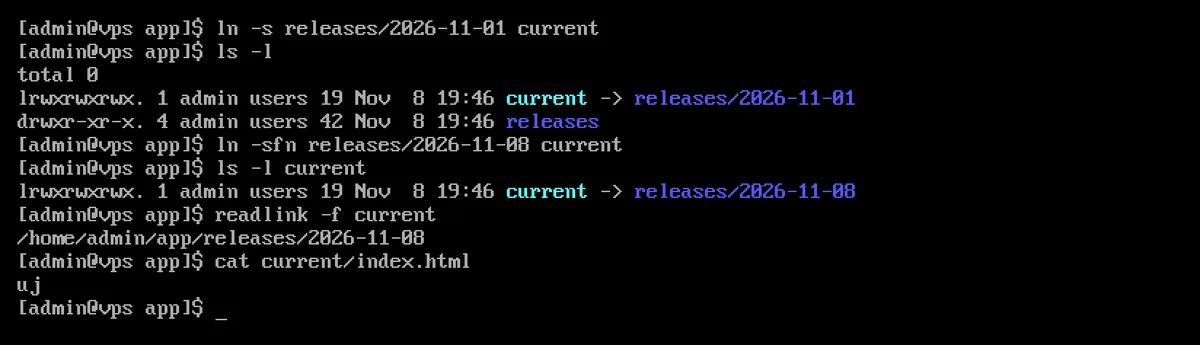
The ls -l command displays the link with the letter l and an arrow (current -> releases/2026-11-01).
With a relative link, the target is relative to the location of the link, not to the directory from which the command was issued. The command ln -s releases/v1 a/rossz creates a broken link pointing to a/releases/v1; the correct command is ln -s ../releases/v1 a/jo. The command ln -sr releases/v1 a/rel (relative) calculates the correct relative path itself (a/rel -> ../releases/v1). This problem does not occur with an absolute path (starting with /).
Link redirection: ln -sfn
Redirecting an existing link to a different destination is a common task, for example during installation (the current link points to the folder containing the current version). For a link pointing to a folder, simply running ln -sf does not do what you would expect: it creates a new link in the old link’s destination folder, while the current link remains unchanged. You need the -n switch, which does not follow the existing link but replaces it:
ln -sfn releases/2026-11-08 current
Where does a link lead to?
readlink current       # the stored path: releases/2026-11-08
readlink -f current    # the full, resolved path
ls -l current
Broken links (those whose destination no longer exists) can be finded using the find command:
find /var/www -xtype l
Further search options are outlined in the article demonstrating examples of the find command.
Delete link without deleting the target
Deleting the link does not affect the purpose:
rm current
unlink current
Do not add a slash after the link name. current/ already refers to the target directory, not the link itself. rm current/ returns an error (Is a directory), while rm -r current/ deleted the entire contents of the target directory in the test, leaving only the link itself (rm: cannot remove 'current/': Not a directory). rm -rf current/ also emptied the target directory, and due to the -f option, it did not even display an error message. In the test, the Tab key added a slash after the name of the link pointing to the folder (ls current/) on both systems, so always check the command line before deleting.
Hard link: ln without the -s switch
ln without the -s creates a hard link: a second name for the same file, with the same inode.
ln eredeti.txt masodik.txt
ls -li eredeti.txt masodik.txt
The contents of the file remain intact as long as at least one copy of it exists: after deleting eredeti.txt, masodik.txt remains readable. Hard links can only be created within the same file system, and not for directories (ln: releases: hard link not allowed for directory). In practice, symbolic links are more common; the impact of hard links on disk usage is described in the article on the du command.
Summary
| Task | Command |
|---|---|
| Delete file | rm fajl |
| Deleting an empty folder | rmdir mappa |
| Delete folder and its contents | rm -r mappa |
| Delete with confirmation | rm -ri mappa or rm -rI mappa |
| Deleting a file name beginning with a hyphen | rm -- -fajl |
| Renaming | mv regi uj |
| Renaming without overwriting | mv -n regi uj |
| Bulk renaming (Ubuntu, Debian) | rename 's/regi/uj/' * |
| Bulk renaming (AlmaLinux) | rename regi uj * |
| Symbolic link | ln -s cel link |
| Link redirection | ln -sfn ujcel link |
| Purpose of the link | readlink -f link |
| Delete link | rm link (without a slash) |