 English
 Magyar


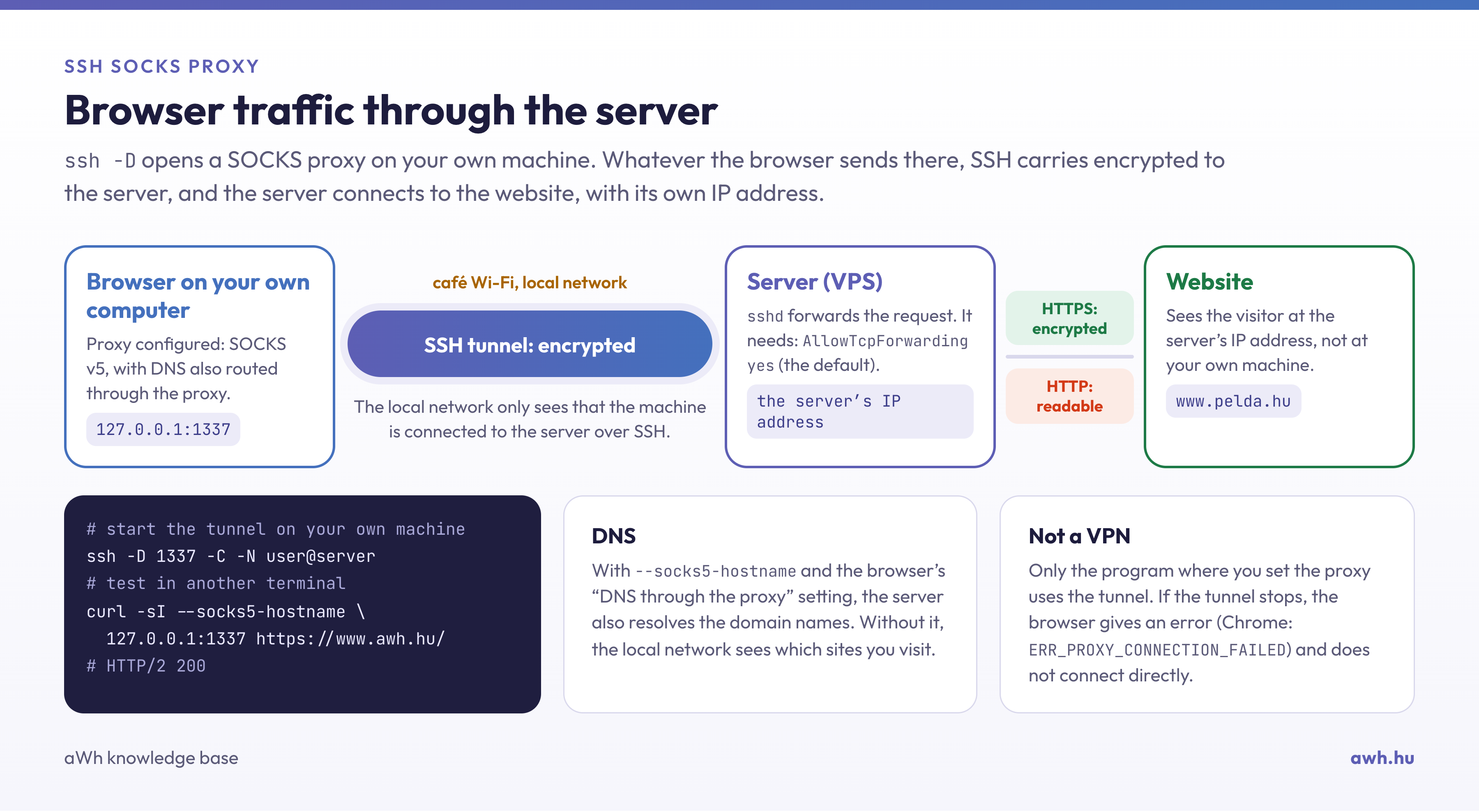
If you have SSH access to a server, you can start your own SOCKS5 proxy with a single command: your browser sends its traffic to a local port, SSH transmits it to the server in an encrypted form, and the server then connects to the websites using its own IP address. This is useful on public Wi-Fi (in cafés or hotels), on networks that filter certain sites, or if you need to access a service via the server’s IP address (for example, an admin interface that is only authorised from that address).
We tested these steps on macOS whilst connected to an AlmaLinux 10.2 server; they work in exactly the same way on Linux, and on Windows 10/11 using the built-in OpenSSH client (PowerShell).
1. Starting the tunnel
On your own computer, in a terminal:
ssh -D 1337 -C -N felhasznalo@szervercime
-D 1337: a SOCKS proxy opens on port 1337 on your own machine. The port can be any available port (above 1024); if it is already in use, choose another one.-C: compresses data in the tunnel (helpful on slow connections).-N: does not run any commands on the server; it simply maintains the tunnel.
If SSH is not running on port 22, specify the port using the -p switch (-p 2255). The command will run until you close the terminal or stop it by pressing Ctrl+C. If you wish to run it in the background, add the -f switch; in this case, to stop it, you will need to locate the process and terminate it (pkill -f "ssh -D 1337").
By default, the proxy is only accessible from your own computer (127.0.0.1); other computers on the network cannot use it; please do not change this setting.
2. Testing via the command line
Before configuring your browser, check that it is working:
curl -sI --socks5-hostname 127.0.0.1:1337 https://www.awh.hu/ | head -1
In the test, the response was HTTP/2 200. The --socks5-hostname option means that the domain name is resolved by the server, not by your own machine (see below, under DNS).
3. Configuring your browser
Firefox
Firefox has its own proxy settings, so only the browser’s traffic goes through the tunnel. In the settings, search for the word ‘proxy’, open the network settings, and select the manual proxy setting:
- SOCKS server:
127.0.0.1, port:1337, type: SOCKS v5; - Enable the routing of DNS queries via a proxy (in addition to SOCKS v5).
Chrome, Edge
These use the system’s proxy settings, which affect every program on the machine. It is simpler to launch the browser in a dedicated instance using a command-line switch; for example, on macOS:
"/Applications/Google Chrome.app/Contents/MacOS/Google Chrome" --proxy-server="socks5://127.0.0.1:1337" --user-data-dir=/tmp/chrome-proxy
On Windows, these same switches can be specified after chrome.exe. Thanks to the separate --user-data-dir option, this instance will not interfere with your usual profile.
Verification
Open a ‘What is my IP address?’ page before and after enabling the proxy: with the proxy enabled, the server’s IP address should be displayed. If the tunnel has stopped working, the browser will display an error and will not silently switch to a direct connection: in the test, Chrome failed to load the page after the tunnel stopped working, displaying the error ERR_PROXY_CONNECTION_FAILED.
What is encrypted and what isn’t?
- All traffic between your own device and the server is encrypted using SSH. The operator of the local network (for example, the café’s Wi-Fi) cannot see or modify this section.
- Traffic between the server and the website is only encrypted if the site uses HTTPS; with standard HTTP, the traffic is unencrypted during this part of the connection.
- DNS: if you enable DNS requests to be sent via the proxy in your browser (or using the
--socks5-hostnameswitch incurl), the server will also resolve the domain names. If not, your local network can see which pages you are visiting, even if the traffic itself is routed through the tunnel.
A SOCKS proxy is not a VPN: it is only used by the program in which you have configured it. Other programs, and browser sessions launched without the proxy, will continue to connect directly.
If it isn’t working
curl: (97) connection to proxy closed, connection error in the browser: forwarding may be disabled on the server. This is exactly what happened in the test with theAllowTcpForwarding nosetting. Check on the server:sudo sshd -T | grep allowtcpforwarding; the default value isyes.bind [127.0.0.1]:1337: Address already in use: the port is in use (often a tunnel previously started with the-foption). Please choose a different port or stop the existing one.- The network also blocks SSH: some corporate and public networks only allow web ports. In such cases, the SSH server can listen on an additional port, for example port 443, provided that no web server is running on that port. The process of adding the port (SELinux, firewall) is described in the article on SSH server security settings.
A small KVM VPS is sufficient for your own proxy; traffic originates from the data centre’s IP address.