 English
 Magyar

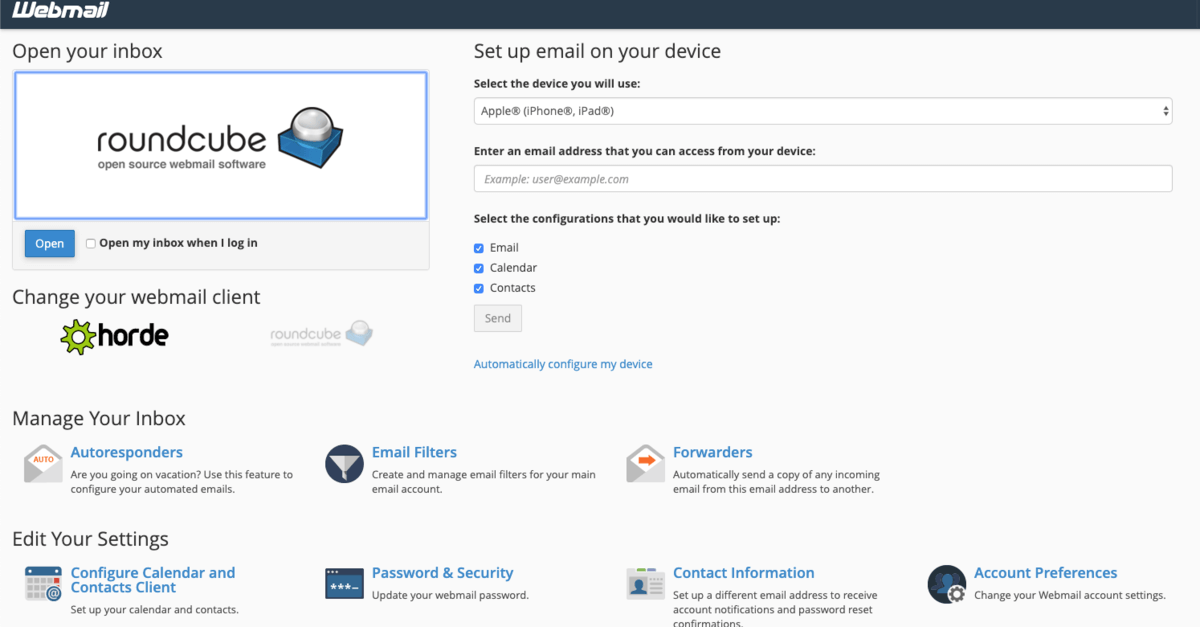
cPanel is extremely useful for managing a web hosting account because it not only makes it easier to carry out basic settings, but also provides access to useful extra features, such as setting up and managing email addresses.
An email address linked to your web hosting or domain name is now essential for every business, as it gives the company a much more professional image; and thanks to cPanel, it’s easy to set up even if you have no prior experience.
Let’s see what options we have when it comes to managing our email accounts!
Where shall we start?
cPanel features an intuitive graphical user interface, with a separate menu item dedicated to email accounts. Depending on your settings, this should appear immediately or after a few scrolls once you’ve logged in.
At first glance, there appear to be a great many settings and features – after all, we can manage email filters, spam filters, and even automatic replies and mailing lists here – but there’s no need to be daunted; the settings are simpler than you might think.
Let’s take a look at the main options!
Adding an email account
The first and most important feature we’ll need is the ability to add email accounts. Here, we can add – and, of course, delete – the email addresses we’ve set up, so depending on the size and capacity of the web hosting plan, we can even set up a separate account for every member of the business.
Simply click on the ‘Email Accounts’ menu item in cPanel, then click ‘Create’ to easily complete the initial setup. You can specify the exact address and which domain name it should be associated with – if you have more than one – set or generate a password, and also specify how much storage space this account should be allocated.
Email forwarding
As well as creating and deleting emails, it is particularly important for businesses to be able to redirect or forward emails, as there may be occasions when a particular message needs to be seen by all colleagues working in the same or similar roles.
Whatever the issue may be, you can configure the relevant settings within cPanel under the ‘Forwarders’ menu item. Here, you can configure everything in great detail, including which email address you want to forward messages from and exactly where to.
Connecting a device
Thanks to our fast-paced lives, we now write most of our emails on our phones. And, of course, the email addresses set up in cPanel can easily be linked to our phones, other devices and so on, so that we always receive important messages.
If you want to connect a device, all you need to do is go to the ‘Email Accounts’ tab – where you can also add and delete email addresses – click on ‘Connect Devices’ amongst the options next to the selected email address, and then follow the on-screen instructions.
Where can I view messages received in the email accounts set up in cPanel?
If you create an email address in cPanel, you’ll immediately receive a link at the address you provided during registration, which will take you to the webmail service. You can also find this directly within cPanel by clicking on the ‘Check Email’ option next to the selected email address on the ‘Email Accounts’ tab.