 English
 Magyar


In the case of shared hosting accounts, the same server and its resources are shared amongst the websites of several customers. To ensure that no single website uses up all the server resources and affects the performance of all other websites on the server, certain restrictions are in place. These limits take the form of maximum allocations for CPU, RAM, I/O, inodes and Entry Process resources for a given hosting account.
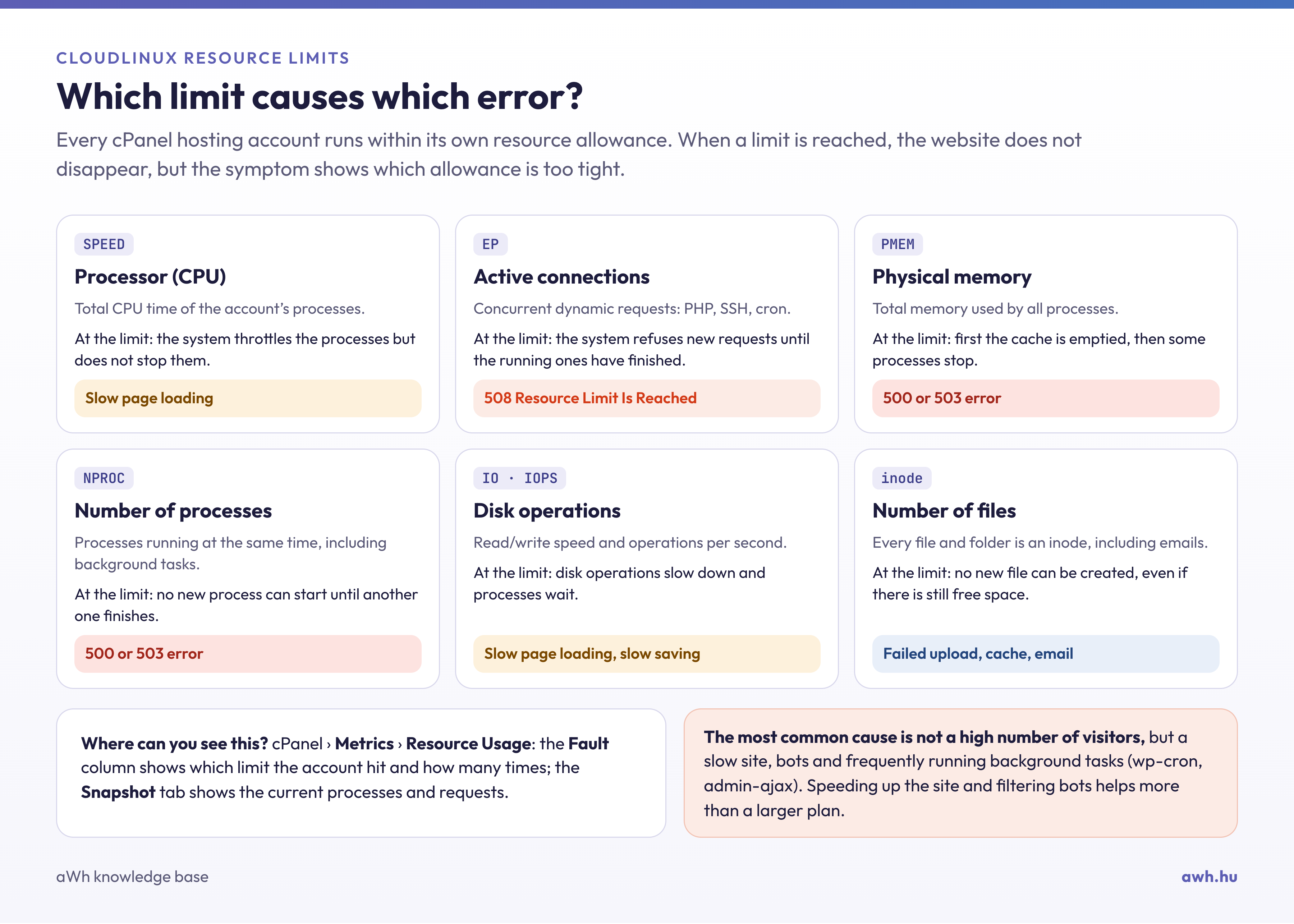
This knowledge base article explains how these resources affect your website and outlines some situations where it may be worth upgrading your account. The ‘Resource Usage’ module in cPanel will notify you if any of your account’s resource limits are reached.
CPU (Processor)
This represents the percentage of CPU available for queries on your account. These queries range from loading data into memory, through processing the scripts required to deliver content to website visitors, to writing to databases.
The CPU manages the account’s other resources. The availability of these resources is indicated as a percentage of kernel usage, where the kernel refers to the central processing unit (CPU), as the servers have multiple cores.
If your website uses a database or relies on scripts (such as PHP, which is required to run WordPress), increasing your account’s CPU allocation can significantly improve its performance. Increasing the CPU allocation is useful in the following situations:
- Your website has a high number of visitors
- Third-party add-ons use resource-intensive add-ons, such as themes and plugins
- Your website contains outdated or poorly written code
RAM (memory)
The web server’s RAM (the most important type of memory) serves several purposes. With more RAM, the processor needs to retrieve data from the hard drive less frequently. As retrieving data from the hard drive is a slower process than from RAM, website data loaded into RAM loads more quickly, which improves the website’s performance. Furthermore, scripts that write to memory (such as PHP) also take up more space, allowing them to run for longer.
Increasing the amount of RAM enables the web server to run faster and perform more complex tasks.
Increasing the RAM limit is generally a good idea if you want a faster website, as this improves the website’s overall performance.
However, you may be tempted to increase your account’s RAM if it exceeds the limits, which can cause 500 or 503 errors to appear. Increasing the RAM limit, however, is often a symptom of a problem with a poorly configured plugin or a faulty script. This misconfiguration can cause the memory to become saturated.
In this case, increasing the account’s RAM will alleviate the problem and may provide a temporary solution. However, as the website’s traffic increases, the problem may reoccur. It is therefore recommended that you find a solution to the problem on the website itself.
On the other hand, if the website is very busy and exceeds the current limits, increasing the RAM is the appropriate solution to the problem.
I/O
In a web hosting account, I/O refers to the data transfer rate between the hard drive and the RAM (or, in the case of a large file download, between the hard drive and the website visitor). An increase in I/O naturally speeds up the process, as it effectively means an increase in speed.
I/O differs from the resources mentioned earlier. Do not exceed the I/O limits, and no error message will appear. However, if there is insufficient I/O, the website will freeze until the data transfer from the hard drive to the RAM is complete.
To determine when increasing I/O will improve a website’s performance, you need to understand the website’s architecture. Websites that need to read and write large amounts of data (streaming sites, sites with many database records, etc.) benefit most from increased I/O.
This does not mean that increasing the I/O limit will solve every latency problem. To decide when this is the right course of action, you need to study website development.
Files, inodes
The number of inodes included in the calculation is determined using the file. However, inodes are not the same as files. They are data elements used by Linux-based systems as references to files and directories.
Put simply, the number of inodes is equal to the number of files and directories. In reality, however, several inodes may refer to the same file.
It is clear that if you simply need to store more files, directories and emails in your hosting account, increasing your file quota (by adding more inodes) will solve the problem.
If you have a plugin or script that creates a large number of files or directories in your account, increasing your file quota will not solve the problem. In this case, you will need to resolve the issue via the plugin or script itself.
Processes (Entry Process / EP)
This is simply the number of connections your account can handle at any one time.
However, these connections are not limited to visitors to your website. A connection may be:
- Data transmission via HTTP by the website
- Processing a ‘cron’ job
It is important to note that the connection is only counted whilst processing is in progress. Once processing is complete, it is no longer counted.
So, when a user visits the website, an HTTP connection is established whilst the home page is loading. Once the page has loaded, the user is no longer considered to be in a session until they perform another action on the website that establishes a new connection.