 English
 Magyar
 Deutsch



On a server, each network service listens on a specific port: SSH on port 22, the web server on ports 80 and 443, and MariaDB on port 3306. You can find out which ports are currently open and which programs are using them by running the ss command. This article also explains why it is not enough for a port to be listening on the server: it can only be accessed from outside if the firewall allows traffic through.
We tested the commands in November 2026 on an AlmaLinux 10.2 system running nginx, MariaDB, Valkey, a Node.js application and Docker 29.9, as well as on an Ubuntu 26.04 system running nginx. On your own KVM VPS, it is worth reviewing the list from time to time: every port left open unnecessarily is another potential attack vector.
Listening ports: ss -tulpn
ss is part of the iproute (iproute2 on Ubuntu and Debian) package and is installed on all modern distributions.
sudo ss -tulpn
The switches:
-t: TCP;-u: UDP;-l: listening sockets only, without established connections;-p: the name and PID (process ID) of the program occupying the port;-n: displays numbers, not service names (:22, not:ssh).
The -p option only displays programs run by other users (such as root or mysql) when used with sudo; without it, the Process column remains empty. If you are only interested in the ports, ss -tuln without sudo is sufficient, and it fits even in a narrow window:
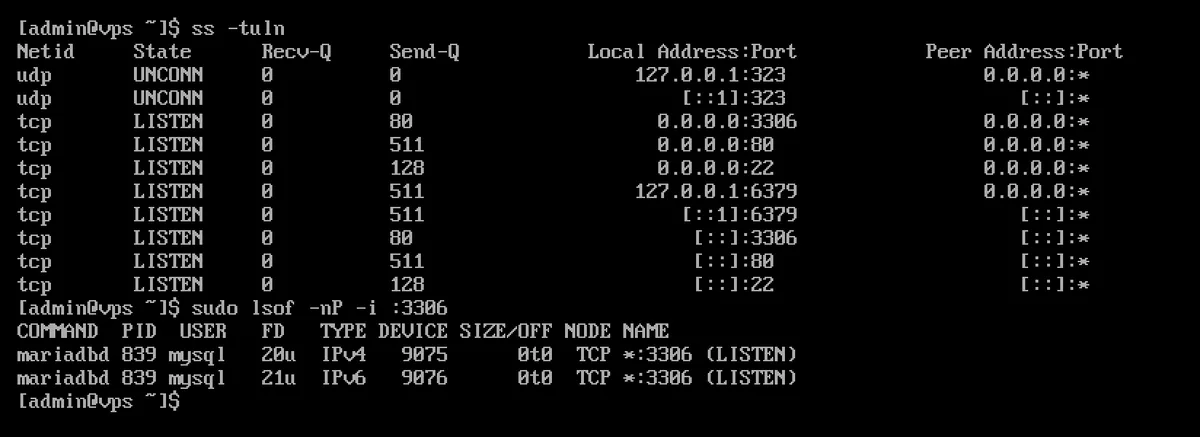
The output of the sudo ss -tulpn command in the test (abridged):
Netid State  Recv-Q Send-Q Local Address:Port Peer Address:Port Process
udp   UNCONN 0      0          127.0.0.1:323       0.0.0.0:*    users:(("chronyd",pid=642,fd=4))
tcp   LISTEN 0      80           0.0.0.0:3306      0.0.0.0:*    users:(("mariadbd",pid=839,fd=20))
tcp   LISTEN 0      511          0.0.0.0:80        0.0.0.0:*    users:(("nginx",pid=1217,fd=6),...)
tcp   LISTEN 0      128          0.0.0.0:22        0.0.0.0:*    users:(("sshd",pid=1188,fd=7))
tcp   LISTEN 0      511        127.0.0.1:6379      0.0.0.0:*    users:(("valkey-server",pid=1190,fd=8))
tcp   LISTEN 0      511             [::]:80           [::]:*    users:(("nginx",pid=1217,fd=7),...)
The columns in the output
| Column | Meaning |
|---|---|
Netid |
protocol: tcp or udp |
State |
For TCP, it is set to LISTEN; UDP has no connection, so it is set to UNCONN |
Recv-Q, Send-Q |
For a listening socket, the number of pending connections and the size of the queue; not important in everyday use |
Local Address:Port |
the address and port on which the program is listening |
Peer Address:Port |
* for a listening socket (can wait for a connection from anywhere) |
Process |
the program’s name, its PID and the socket’s file descriptor (fd); only with the -p switch |
What does the address before the port mean?
The Local Address field shows where the service can be accessed:
| Title | Meaning |
|---|---|
0.0.0.0:80 |
It listens on all IPv4 addresses and is accessible from outside the network (provided the firewall allows it) |
[::]:80 |
listens on all IPv6 addresses |
*:3000 |
on every IPv4 and IPv6 address, using a single socket (this is how a Node.js application appeared in the test) |
127.0.0.1:6379, [::1]:6379 |
accessible only from within the server (localhost) |
127.0.0.53%lo:53 |
only on the loopback interface; this is how systemd-resolveds local DNS resolver works on Ubuntu |
10.0.2.15:68 |
only on this one IP address |
In the test, Valkey was by default only listening on the address 127.0.0.1; it is therefore not accessible from outside even if the firewall is open. MariaDB, however, listened on the address 0.0.0.0:3306 by default with the AlmaLinux 10 package: if the database is only used by a website running on the server, you can restrict access to local connections by adding the line bind-address=127.0.0.1 in the [mysqld] section of the file /etc/my.cnf.d/mariadb-server.cnf and restarting the service (in the test, the ss then only showed the address 127.0.0.1:3306). The installation of MariaDB is described in a separate article.
Filtering by port
sudo ss -tlnp 'sport = :80'
sudo ss -tlnp | grep ':3306 '
The sport (source port) refers to the local port. With grep, due to the space following the port, :3306 does not match :33060, for example.
Established connections
Without the -l, when filtered by status, you can see the connections that are currently active, for example, who is connected via SSH:
sudo ss -tnp state established
The ss -s command provides a summary of the number of sockets per protocol; a large number of timewait or estab connections is normal on a busy web server, but may be cause for concern on a quiet server.
Which program is using the port? lsof and fuser
lsof, for example, lists open files, and on Linux, network sockets are also counted as files:
sudo lsof -nP -i :80
sudo lsof -nP -i -sTCP:LISTEN
COMMAND   PID  USER   FD   TYPE DEVICE SIZE/OFF NODE NAME
mariadbd  839  mysql  20u  IPv4   9075      0t0  TCP *:3306 (LISTEN)
mariadbd  839  mysql  21u  IPv6   9076      0t0  TCP *:3306 (LISTEN)
Leave the addresses as numbers -n and the ports as numbers -P (otherwise *:http will appear). lsof was not installed on the AlmaLinux 10 cloud image (sudo dnf install lsof), but it was on Ubuntu 26.04.
The fuser command (from the psmisc package, which was installed on both systems) only returns the PIDs:
sudo fuser -v 80/tcp
The command fuser -k 80/tcp will also terminate the programs occupying the port. For services, stop the service instead (see below), as systemd may restart the terminated service depending on its configuration.
netstat: the old command
netstat is part of the net-tools package, which was not installed on either the AlmaLinux 10 or the Ubuntu 26.04 cloud image. If you are used to it, you can install it (sudo dnf install net-tools or sudo apt install net-tools) and use it with the same options:
sudo netstat -tulpn
The output is similar, displaying IPv6 addresses in the format :::80. Without sudo, the PID/Program name column simply shows -. In the new scripts, ss is recommended, as it is installed everywhere.
Stopping a service that is using a port
The ss -tulpn command displays the name and PID of the program. To find out which systemd service started it, use ps or systemctl status:
ps -p 1217 -o pid,comm,unit
systemctl status 1217
You can then stop it and disable its automatic start-up:
sudo systemctl disable --now nginx
The article explaining the systemctl command describes how to manage these services in detail.
On Ubuntu 26.04, systemd (PID 1) also appears on port 22 alongside sshd: there, SSH is started via socket activation (ssh.socket), and systemd also keeps the port open. This article discusses SSH settings, including port re-routing and securing the SSH server.
Address already in use: port already in use
If a program attempts to open a port that is already in use by another program, it will not start. In the test, nginx did not start because another program was listening on port 80:
$ sudo journalctl -u nginx | grep bind
nginx: [emerg] bind() to 0.0.0.0:80 failed (98: Address already in use)
Other programs express the same thing in their own terms (in Python, for example, OSError: [Errno 98] Address already in use). What to do:
- Check which process is using the port:
sudo ss -tlnp 'sport = :80'orsudo lsof -nP -i :80. - If a service is old or no longer needed, disable it (
sudo systemctl disable --now apache2). It is common for Apache and nginx to both attempt to start on port 80 at the same time, or for a Docker container to be occupying the port. - If you need both, switch one of them to the other port.
Listening but not reachable? The firewall
The ss simply indicates that the program would accept a connection. Whether it is actually accessible from the outside is determined by the firewall. In the test, nginx was listening on port 0.0.0.0:80, yet it did not respond from the outside until firewalld allowed the http service; it then became accessible immediately.
Checking firewall rules:
# AlmaLinux, Rocky Linux (firewalld)
sudo firewall-cmd --list-all

# Ubuntu, Debian (ufw)
sudo ufw status verbose
On the AlmaLinux 10 cloud image, firewalld was not installed; on Ubuntu 26.04, ufw was installed but disabled (Status: inactive). Always check the default settings on your server. The article How do I set up a firewall on my VPS? explains how to configure the firewall.
Docker bypasses the firewall
Docker opens the published ports of containers (-p 8081:80) according to its own rules. In the test, an nginx container started with the -p 8081:80 switch was accessible from the outside, even though firewalld’s public zone only allowed SSH; at the same time, the nginx running directly on the machine was not accessible on port 80. In the ss output, this port is occupied by the docker-proxy program.
If you only wish to access a container locally (for example, behind a reverse proxy), connect it to the local address:
docker run -d -p 127.0.0.1:8082:80 nginx:alpine
At this point, the ss will display the address 127.0.0.1:8082. The installation and basics of Docker are described in the article on installing Docker.
External checks: nc and nmap
To check whether the port is actually accessible, please test it from another machine (for example, your own computer). Testing from within the server does not test the firewall.
nc -zv 203.0.113.10 80
nc -zv -w 3 203.0.113.10 3306
On Ubuntu, the nc command (netcat-openbsd) displays the message Connection to ... 443 port [tcp/https] succeeded! upon a successful connection, Connection refused if the port is closed, and a timed out error after -w 3 seconds for packets dropped by the firewall. On AlmaLinux, nc is included in the nmap-ncat package and displays the messages Ncat: Connected to ... or Ncat: Connection refused..
nmap scans multiple ports simultaneously:
nmap -Pn -p 22,80,443,3306 203.0.113.10
PORT     STATE    SERVICE
443/tcp  open     https
3306/tcp filtered mysql
open: the port is accessible; a program is listening for connections;closeds: the machine responds, but nothing is listening on the port;filtereds: no response received; the packets are likely being dropped by a firewall.
Only scan your own server in this way: port scanning of other people’s machines without permission may constitute misuse. Further network troubleshooting tools (ping, traceroute, curl) are described in the article on network troubleshooting.
Summary
| Task | Command |
|---|---|
| Monitoring ports with software | sudo ss -tulpn |
| Monitoring ports without sudo | ss -tuln |
| Checking a port | sudo ss -tlnp 'sport = :80' |
| Who is using the port? | sudo lsof -nP -i :80 |
| Live connections | sudo ss -tnp state established |
| Old format | sudo netstat -tulpn (net-tools) |
| Which service? | systemctl status PID |
| Firewall rules | sudo firewall-cmd --list-all or sudo ufw status verbose |
| Is it accessible from outside? | nc -zv IP PORT or nmap -Pn -p PORT IP (from another machine) |