 English
 Magyar
 Deutsch



Who has access to the server, who is currently logged in, and which users belong to which groups? These questions are essential when taking over a new server, carrying out a security audit or investigating a permissions error. This article explains how to list users and groups, how to add a user to a group, and what pitfalls to watch out for in the process.
We tested the commands in November 2026 on AlmaLinux 10.2, AlmaLinux 9.8, Ubuntu 24.04.5 and Debian 13.7 systems, on virtual machines installed from the distributions’ own cloud images; they work in exactly the same way on a KVM VPS. sudo is not required for listing, but is required for making changes. In the examples, the user’s name is janos and the group’s name is fejlesztok.
Listing users
The /etc/passwd file
Local users are listed in the /etc/passwd file, one per line, with fields separated by colons:
janos:x:1001:1001::/home/janos:/bin/bash
| Field | Example | Meaning |
|---|---|---|
| 1. | janos |
Username |
| 2. | x |
The location of the password; the password hash is actually stored in the /etc/shadow file |
| 3. | 1001 |
User ID (UID) |
| 4. | 1001 |
Primary group identifier (GID) |
| 5. | (empty) | Comment, e.g. full name |
| 6. | /home/janos |
Home directory |
| 7. | /bin/bash |
Shell that launches upon login |
The full list is provided by the getent passwd command. This displays the contents of /etc/passwd, but if the server also uses a central directory service (LDAP, Active Directory, SSSD), it will also include users from that service:
getent passwd

# Names only
getent passwd | cut -d: -f1

# Details of a user
getent passwd janos
Real users and system users
Most of the entries on the list are not users but system accounts: the services (sshd, nginx, mysql, polkitd and the like) run under their own accounts. The two are distinguished by their UIDs, and the boundaries are defined in /etc/login.defs:
| System | System users | Standard users |
|---|---|---|
| AlmaLinux 9 and 10 | 201–999 (and a few older accounts with numbers below 200) | 1000–60000 |
| Ubuntu 24.04, Debian 13 | 100–999 | 1,000–60,000 (the adduser command assigns up to 59,999) |
The roots UID is always 0. The list of standard users is defined in /etc/login.defs:
min=$(awk '/^UID_MIN/ {print $2}' /etc/login.defs)
max=$(awk '/^UID_MAX/ {print $2}' /etc/login.defs)
awk -F: -v min="$min" -v max="$max" '$3 >= min && $3 <= max {print $1}' /etc/passwd
In short, if the usual range of 1,000–60,000 is sufficient (the second command also shows users coming from the directory):
awk -F: '$3 >= 1000 && $3 < 60000 {print $1, $3, $7}' /etc/passwd
getent passwd {1000..60000}
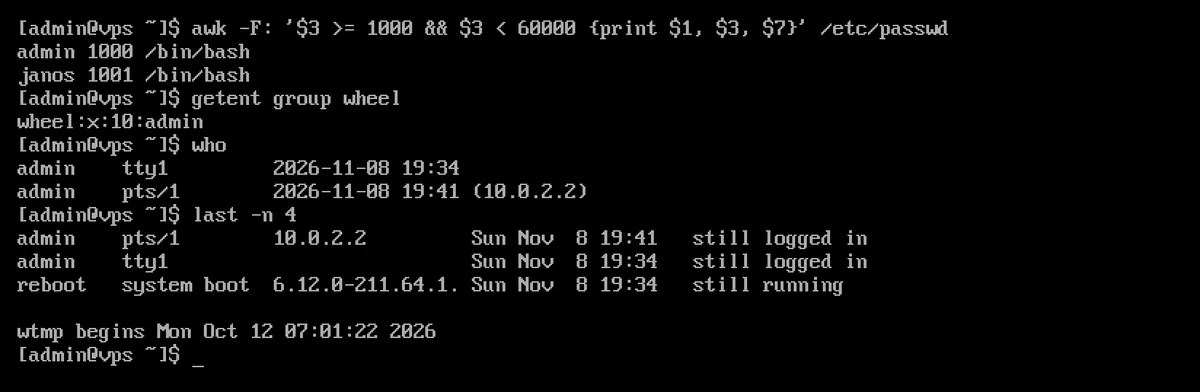
Who can log in?
The last field, ‘shell’, indicates whether the user has command-line access. For system users, this is set to /usr/sbin/nologin or /bin/false, so they cannot be used to log in. Accounts with a different shell are:
grep -Ev '(nologin|false)$' /etc/passwd | cut -d: -f1,7
In the test, in addition to the root and standard users, a few special accounts were also listed (sync, shutdown and halt on AlmaLinux): these run a single command and have no password. The list of valid shells is contained in the /etc/shells file.
The shell alone is not everything: no password is required for SSH key-based login, but one is required for password-based login. The status of the password is shown by the command passwd -S:
sudo passwd -S janos
L or LK in the second column indicates a locked (or not yet set) password, while P or PS indicates a set password. In the test, the passwords for all accounts on the machines installed from cloud images were locked; access was only possible via an SSH key.
Are you logged in?
# Users logged in now
who

# The same, with the running command and the load
w

# Names only, on one line
users

# Previous logins and reboots (the last 10)
last -n 10

# Failed login attempts
sudo lastb -n 10

# Last login of every user
lastlog
The who and last commands display users logged in via the terminal (TTY, pts/0) or SSH, along with the remote machine’s IP address. SSH connections that only run a single command without a terminal (such as scp, rsync or ssh szerver parancs commands) do not appear in the last list.
On Debian 13, the last, lastb and lastlog files are missing: according to the Debian 13 release notes, the old wtmp and lastlog file formats will overflow beyond the year 2038, so Debian has switched to new, SQLite-based tools, and these are not installed by default on the cloud image. Please install them:
sudo apt install wtmpdb libpam-wtmpdb lastlog2 libpam-lastlog2
The last command is now available again (from the wtmpdb package); use the lastlog2 command instead of lastlog. Instead of lastb, the release notes recommend the sudo lslogins --failed command. In our test, last began displaying data after the next reboot; previous logins were not included. On AlmaLinux 9 and 10, as well as Ubuntu 24.04, last, lastb and lastlog were available by default.
A more detailed log of logins can be found in the /var/log/secure (AlmaLinux) or /var/log/auth.log (Ubuntu, Debian) file, and in the output of journalctl -u sshd (-u ssh on Ubuntu and Debian); see: Reading log files on Linux.
Listing groups
The groups are listed in the /etc/group file:
fejlesztok:x:1000:janos,anna
The fields are: the group name, the password field (which is not actually used), the group ID (GID), and finally the members, separated by commas.
# All groups
getent group

# Details and members of a group
getent group fejlesztok

# Groups of a user
groups janos
id janos

# Your own groups
id
The id option is the most accurate: it displays the user’s UID, primary group (gid=) and all their groups along with their numbers, for example uid=1001(janos) gid=1001(janos) groups=1001(janos),1000(fejlesztok). Use the id -nG janos command only for group names.
Issue: members of the primary group are not visible
Every user has a primary group (the fourth field in /etc/passwd), which is usually a group with the same name as the user. Members of the primary group are not listed in /etc/group, so getent group does not show them either. In the test, the admin user’s primary group was users, yet the output of getent group users showed an empty list of members:
users:x:100:
If you wish to view all members of a group, include the users assigned as the primary group:
g=users
gid=$(getent group "$g" | cut -d: -f3)
{ getent group "$g" | cut -d: -f4 | tr , '\n'
  getent passwd | awk -F: -v gid="$gid" '$4 == gid {print $1}'
} | grep -v '^$' | sort -u
Adding a user to a group
usermod -aG
sudo usermod -aG fejlesztok janos

# Several groups at once, separated by commas
sudo usermod -aG fejlesztok,docker janos
The -a switch is mandatory. Without -a (append), usermod -G does not add to, but replaces all of the user’s additional groups with the specified one. In the test, the user janos was a member of the fejlesztok group; after running usermod -G adm janos, he remained only in the adm group:
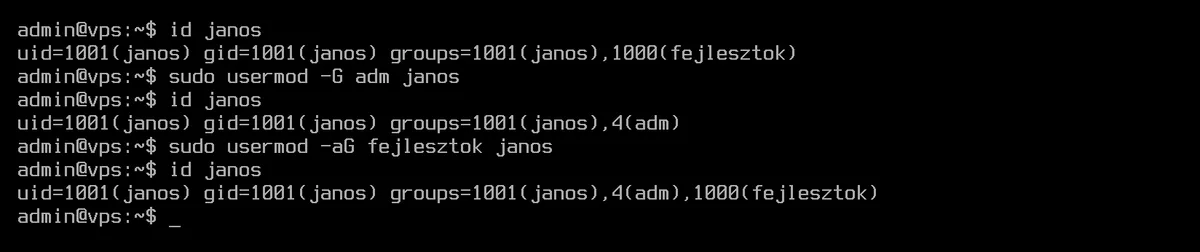
This error may also revoke sudo privileges: if an administrator adds a user to a new group without the -a option, the user will be removed from the wheel or sudo groups. Therefore, always keep a root or sudo session open while making changes. This can be rectified by re-adding the missing groups (usermod -aG).
gpasswd: adding and removing
The gpasswd command only modifies one group at a time, so it is not possible to accidentally clear the group list with it. This is also the simplest way to remove a user from a group:
# Add
sudo gpasswd -a janos fejlesztok

# Removal
sudo gpasswd -d janos fejlesztok
On Ubuntu and Debian, the commands adduser janos fejlesztok and deluser janos fejlesztok do exactly the same thing. On AlmaLinux, adduser is simply another name for useradd; do not use this format there.
When does this come into effect?
Group membership is updated upon login. The new group is not visible in an existing session: the id janos field already shows it, but the id displayed in the user’s own shell does not yet reflect this, and the group’s permissions are not yet in effect. The user must log out and log in again (or, in the case of SSH, establish a new connection).
If you do not wish to log out, the newgrp command will launch a new shell in which the new group is already active:
newgrp fejlesztok
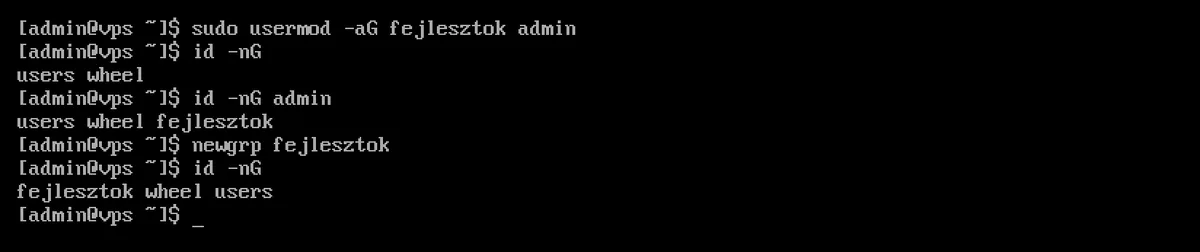
In the newgrp shell, the specified group will be the primary group, so any files created there will also be assigned to this group; typing exit will return you to the original shell. The same applies to services: if you have added a service user to a new group, restart the service.
The ‘wheel’ and ‘sudo’ groups
The right to use sudo is linked to a different group depending on the distribution:
| System | Group | Entry in the /etc/sudoers file |
|---|---|---|
| AlmaLinux, Rocky Linux, RHEL | wheel |
%wheel ALL=(ALL) ALL |
| Ubuntu, Debian | sudo |
%sudo ALL=(ALL:ALL) ALL |
The getent group wheel or getent group sudo commands show which users are granted administrator privileges. The sudo -l -U command displays exactly what a given user is permitted to run, together with the specific rules defined in the /etc/sudoers.d/ directory:
sudo -l -U janos
In the test, for a user not belonging to any group, the message was User janos is not allowed to run sudo on ...; after adding them to the sudo group (ALL : ALL) ALL. The step-by-step process for creating a user and granting sudo privileges is outlined in the article Creating a user and granting sudo privileges on Linux, while the use of sudo is explained in ‘Using the sudo command with examples’.
Creating and deleting groups
# New group (the system picks the GID, above 1000)
sudo groupadd fejlesztok

# Megadott GID-del
sudo groupadd -g 2000 projekt

# System group for a service (GID below 1000)
sudo groupadd -r myapp

# Delete a group
sudo groupdel projekt
A user’s primary group can be changed using the usermod -g command (lower-case g); this is rarely necessary. In the test, the usermod -g command updated the files in the user’s home directory to reflect the new group, while files outside the home directory (for example, under /tmp) remained in the old group. A group cannot be deleted while it is someone’s primary group (groupdel: cannot remove the primary group of user 'janos'); the user must first be reassigned or deleted.
For a shared directory that all members of a group can write to, you must also set the directory’s group and permissions (chgrp, chmod 2775); details of this are described in the article File permissions (chmod, chown) on Linux.
Summary
| Task | Command |
|---|---|
| All users | getent passwd |
| Standard users | awk -F: '$3 >= 1000 && $3 < 60000 {print $1}' /etc/passwd |
| Logged-in users | who, w |
| Previous logins | last, lastlog (Debian 13: lastlog2) |
| All groups | getent group |
| Members of a group | getent group fejlesztok (excluding members of the primary group) |
| A user’s groups | id janos, groups janos |
| Add to group | sudo usermod -aG fejlesztok janos or sudo gpasswd -a janos fejlesztok |
| Removal from a group | sudo gpasswd -d janos fejlesztok |
| Sudo privileges | sudo -l -U janos |