 English
 Magyar


If your Linux server is a member of an Active Directory (AD) domain via SSSD, users can log in not only with a password but also with an SSH key, provided their public key is stored in the AD directory. This means that the keys do not need to be copied into the authorized_keys files on each server: adding a new key or revoking the key of a departing employee is done in one place – in AD – and applies to all connected servers.
The essence of the solution is as follows: the key is stored in the user’s altSecurityIdentities attribute; SSSD is configured to retrieve this attribute; and OpenSSH queries the user’s public keys via the sss_ssh_authorizedkeys command.
Prerequisites
- The server has already joined the domain (for example, using the
realm joincommand), and AD users can log in with their passwords. You can check this using theid felhasznalo@example.comcommand. - The user has a key pair, and their public key (for example,
ssh-ed25519 AAAA... bob@example.com) is to hand. You can generate a key using the commandssh-keygen -t ed25519; see: Generating an SSH key. - In Active Directory, they have permissions to edit user attributes, and on the Linux server, they have
rootprivileges.
1. Active Directory
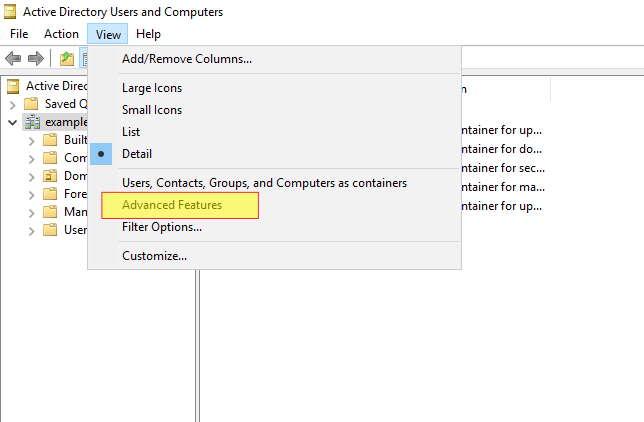
In the Active Directory Users and Computers console, select the ‘Advanced Features’ option from the ‘View’ menu to display the ‘Attribute Editor’ tab.
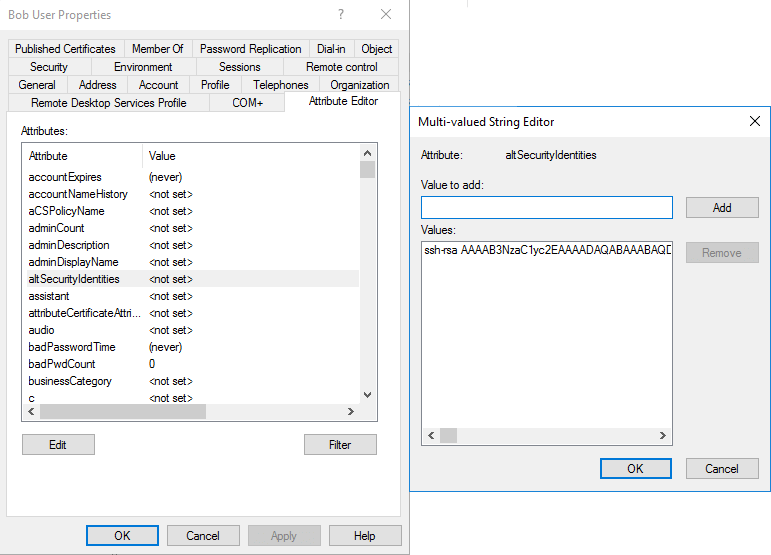
Find the user, open their properties, and click on the ‘Attribute Editor’ tab. Locate the altSecurityIdentities attribute, open it for editing, and paste the user’s public SSH key as a single line. The attribute can store multiple values, so more than one key can be added for a single user.
The equivalent in PowerShell: Set-ADUser bob -Add @{altSecurityIdentities="ssh-ed25519 AAAA... bob@example.com"}.
The altSecurityIdentities attribute is also used to map AD certificates and Kerberos identifiers. If such a mapping already exists for the user, do not overwrite it; simply add a new value.
2. SSSD
In the /etc/sssd/sssd.conf file, within the [sssd] section, add the value ssh to the services line:
services = nss, pam, ssh
In the domain section, specify in which attribute the keys are located:
[domain/example.com]
ldap_user_extra_attrs = altSecurityIdentities
ldap_user_ssh_public_key = altSecurityIdentities
Clear the SSSD cache and restart the service:
systemctl stop sssd
rm -rf /var/lib/sss/db/* /var/lib/sss/mc/*
systemctl start sssd
3. OpenSSH
Add the following lines to the /etc/ssh/sshd_config file:
AuthorizedKeysCommand /usr/bin/sss_ssh_authorizedkeys
AuthorizedKeysCommandUser nobody
According to the documentation for sss_ssh_authorizedkeys, the command should be run by the unauthorised nobody user, not root. Check the configuration, then restart the SSH server (on Debian and Ubuntu, the service is called ssh):
sshd -t
systemctl restart sshd
Checking and troubleshooting
The sss_ssh_authorizedkeys command displays the public keys that SSSD associates with the user:
# sss_ssh_authorizedkeys bob
ssh-ed25519 AAAAC3NzaC1lZDI1NTE5AAAAI... bob@example.com
If this key is displayed but you are still unable to log in:
- The command
sshd -T | grep -i authorizedkeyscommandshows the currently valid configuration. Files in the/etc/ssh/sshd_config.d/directory may override the main configuration, as OpenSSH uses the first value it reads. - In the client area, the command
ssh -v bob@szerverdisplays a detailed list of the keys it has tried. - The reason for the rejection can be seen in the server log (
journalctl -u sshdorjournalctl -u sssd).
If the command returns nothing, check that the permissions for sssd.conf are set to 600, that the owner is root (otherwise SSSD will not even start), and that the key has been entered into the attribute on a single line, without any line breaks. The article on Linux Secure Shell (SSH) provides an overview of how SSH works and key-based authentication.