 English
 Magyar
 Deutsch



In log files, databases and API responses, a long number often appears in place of the date, for example 1767225600. This is the Unix timestamp (also known as epoch time). In this guide, we explain what it means, how to convert it to a readable date and back on a Linux server – such as a KVM VPS – and what to bear in mind regarding time zones and milliseconds.
You can also use our browser-based currency converter to quickly convert individual values; on the server, you can do the same using the commands below.
Unix timestamp converter
Convert a timestamp to a date
- Local time
- UTC
- ISO 8601 (UTC)
- ISO 8601 (local)
- Relative to now
- On the command line
Convert a date to a timestamp
- Unix timestamp
- In milliseconds
- Local time
- UTC
- On the command line
The conversion runs in your browser and sends no data anywhere.
We tested the commands in November 2026 on AlmaLinux 10.2 (GNU coreutils 9.5, gawk 5.3) and Ubuntu 26.04 (uutils coreutils 0.10, gawk 5.3, mawk 1.3.4), while the macOS versions were tested on macOS 26.
What is a Unix timestamp?
A Unix timestamp is the number of seconds that have elapsed since 00:00:00 UTC on 1 January 1970 (the ‘epoch’). Some of its key features are:
- There is no time zone. The same number represents the exact same moment in Budapest, New York and Tokyo; time zones only come into play when the number is converted into a date. For example,
1767225600corresponds to 1 January 2026 at 00:00:00 UTC, which is 01:00:00 (CET) in Budapest. - It does not take leap seconds into account. According to the POSIX standard, each day consists of exactly 86,400 seconds; therefore, there is a difference of a few seconds between the timestamp and astronomical time, which is negligible in practice.
- Dates prior to 1970 are negative:
-1corresponds to 31 December 1969 at 23:59:59 UTC.
Where can you find it? In the output of journalctl -o short-unix, in the audit log (/var/log/audit/audit.log, e.g. msg=audit(1794162987.503:641)), in the INT or BIGINT columns of databases, in JSON APIs, in the exp field of JWT tokens, and in the modification time of files (stat -c %Y fajl). You can read about interpreting logs in our guide Reading log files on Linux.
Seconds, milliseconds or microseconds?
Many systems store timestamps not in seconds, but in finer units. Currently (up to 2286), the number of digits indicates which unit is being used:
| Digits | Unit | Example | Where does this occur? |
|---|---|---|---|
| 10 | seconds | 1767225600 |
date +%s, PHP time(), MySQL UNIX_TIMESTAMP() |
| 13 | millisecond (ms) | 1767225600123 |
JavaScript Date.now(), Java, many REST APIs |
| 16 | microsecond (µs) | 1767225600123456 |
certain log formats and databases |
| 19 | nanosecond (ns) | 1767225600123456789 |
date +%s%N Go |
The most common error is that the program interprets a value in milliseconds as seconds. In this case, the date function does not return an error, but outputs a very distant date:
date -d @1767225600123
# Thu Feb 25 01:02:03 AM CET 57971
In this case, divide the value by 1,000 (or omit the last three digits) and enter it as a decimal:
date -d @$((1767225600123 / 1000))
date -d @1767225600.123 +'%F %T.%3N'
# 2026-01-01 01:00:00.123
Checking the current Unix time
# In seconds
date +%s

# In milliseconds or nanoseconds
date +%s%3N
date +%s%N

# In Bash 5 also without an external command (to the second or to the microsecond)
echo $EPOCHSECONDS
echo $EPOCHREALTIME
Converting a timestamp to a date using the date command
The GNU date command uses the -d (--date) switch to retrieve the @; the @ indicates that it is a Unix timestamp:
# In the server's time zone
date -d @1767225600
# Thu Jan  1 01:00:00 AM CET 2026

# UTC-ben
date -u -d @1767225600
# Thu Jan  1 12:00:00 AM UTC 2026

# In another time zone (does not change the server's setting)
TZ=America/New_York date -d @1767225600
# Wed Dec 31 07:00:00 PM EST 2025

# In ISO 8601 format, with time zone offset
date -d @1767225600 --iso-8601=seconds
# 2026-01-01T01:00:00+01:00

# In RFC 5322 (email header) format
date -d @1767225600 -R
# Thu, 01 Jan 2026 01:00:00 +0100

# In a custom format
date -d @1767225600 +'%Y-%m-%d %H:%M:%S'
# 2026-01-01 01:00:00
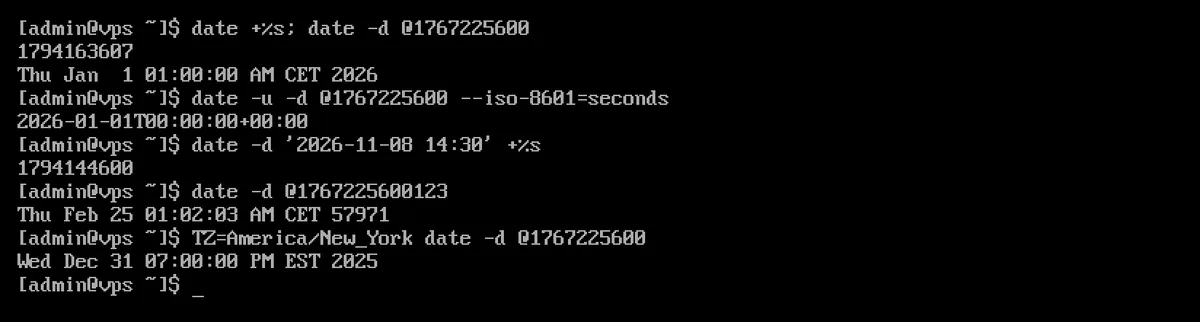
The output language and format are determined by the locale setting. On the AlmaLinux 10 cloud image, the default is en_US.UTF-8, so the output is in English, using the 12-hour format. To use the Hungarian format, install the Hungarian language pack (sudo dnf install glibc-langpack-hu) and set the LC_TIME variable:
LC_TIME=hu_HU.UTF-8 date -d @1767225600
# 2026. jan. 1., csütörtök, 01:00:00 CET
In scripts, it is advisable to use a custom format (such as +'%Y-%m-%d %H:%M:%S' or +%F %T), as this is not dependent on the language settings.
Bash’s built-in printf command can also format timestamps without launching an external program, which is faster when used in loops:
printf '%(%F %T)T\n' 1767225600
# 2026-01-01 01:00:00
Converting a date to a timestamp
The +%s format outputs the Unix timestamp for the specified date. Without a time zone, the date is interpreted in the server’s time zone; therefore, the same date may result in a different timestamp on a different server:
# In the server's time zone (here Europe/Budapest)
date -d '2026-11-08 14:30' +%s
# 1794144600

# Interpreted as UTC
date -u -d '2026-11-08 14:30' +%s
date -d '2026-11-08 14:30 UTC' +%s
# 1794148200

# With time zone offset (ISO 8601)
date -d '2026-11-08T14:30:00+01:00' +%s
# 1794144600

# In a given time zone
TZ=Europe/Budapest date -d '2026-11-08 14:30' +%s
date -d 'TZ="America/New_York" 2026-11-08 14:30' +%s
# 1794166200

# Date only: 00:00 of that day in the server's time zone
date -d '2026-11-08' +%s
# 1794092400
The date function also recognises relative dates, which is useful for scheduled tasks and calculating expiry dates:
date -d 'now + 7 days' +%s
date -d 'tomorrow 00:00' +%s
date -d '+7 days'
The stat command displays a file’s modification time as a timestamp, while the GNU date -r switch displays it as a date:
stat -c %Y /etc/hostname
date -r /etc/hostname +%s
date -r /etc/hostname
Converting timestamps in log files
If the first column of a file contains a Unix timestamp, you can convert it line by line using awks strftime() function. Example file (esemenyek.log):
1767225600 login alice
1767229200 logout alice
1794144600 login bob
# Replace the first column with a readable date (in the server's time zone)
awk '{ $1 = strftime("%Y-%m-%d %H:%M:%S", $1); print }' esemenyek.log
# 2026-01-01 01:00:00 login alice
# 2026-01-01 02:00:00 logout alice
# 2026-11-08 14:30:00 login bob

# In UTC: the third parameter is 1
awk '{ print strftime("%F %T", $1, 1), $2, $3 }' esemenyek.log

# For a timestamp in milliseconds, divide by 1000
awk '{ $1 = strftime("%F %T", $1 / 1000); print }' esemenyek-ms.log
strftime() is not part of the POSIX awk standard, but it is supported by GNU awk (gawk) and version 1.3.4 of the Debian/Ubuntu mawk: in testing, both produced the same result. In testing on AlmaLinux and Ubuntu 26.04, the awk command was gawk. If it does not work on an older system, use a while read loop:
while read -r ts rest; do
  echo "$(date -d @"$ts" '+%F %T') $rest"
done < esemenyek.log
This is slower for large files because it launches a date process for each line; in such cases, printf '%(%F %T)T' is faster.
Some tools convert timestamps themselves: journalctl displays the date by default (whereas the -o short-unix option does the opposite, displaying the timestamp), while in the audit log, the ausearch -i switch outputs the msg=audit(...) values as dates. We have written about analysing web server logs in our post Analysing web server logs.
Quick answers in other languages
PHP
php -r 'echo date("c", 1767225600), PHP_EOL;'
php -r 'echo time(), PHP_EOL;'
php -r 'echo strtotime("2026-11-08 14:30"), PHP_EOL;'
PHP does not use the system time zone, but rather the time zone specified by the date.timezone setting; it ignores the TZ environment variable. On AlmaLinux 10, the default time zone for command-line PHP 8.3 was UTC, which is why the first command returned 2026-01-01T00:00:00+00:00, while strtotime, interpreted as UTC, returned 1794148200. You can specify the time zone in the php.ini file or on a per-command basis:
php -d date.timezone=Europe/Budapest -r 'echo date("c", 1767225600), PHP_EOL;'
# 2026-01-01T01:00:00+01:00
Python
python3 -c 'import time; print(int(time.time()))'
python3 -c 'import datetime as d; print(d.datetime.fromtimestamp(1767225600))'
python3 -c 'import datetime as d; print(d.datetime.fromtimestamp(1767225600, d.timezone.utc).isoformat())'
python3 -c 'import datetime as d; print(int(d.datetime(2026, 11, 8, 14, 30).timestamp()))'
If no time zone is specified, the fromtimestamp() function uses the system time zone (2026-01-01 01:00:00); with the d.timezone.utc parameter, it uses UTC (2026-01-01T00:00:00+00:00).
MySQL and MariaDB
SELECT FROM_UNIXTIME(1767225600);
SELECT FROM_UNIXTIME(1767225600, '%Y.%m.%d %H:%i');
SELECT UNIX_TIMESTAMP('2026-11-08 14:30:00');
SELECT UNIX_TIMESTAMP();
Both functions use the connection’s time zone (time_zone), which is by default the server’s system time zone (SYSTEM). Set it to UTC at the start of the connection: SET time_zone = '+00:00';. Named time zones (e.g. 'Europe/Budapest') only work after the time zone tables have been loaded (mariadb-tzinfo-to-sql); otherwise, you will receive an Unknown or incorrect time zone error. MariaDB 10.11 returns NULL for timestamps after 19 January 2038 (see below). For information on installing MariaDB, see the guide on installing the MariaDB database server.
JavaScript
Date.now();                                // milliseconds
Math.floor(Date.now() / 1000);             // seconds
new Date(1767225600 * 1000).toISOString(); // "2026-01-01T00:00:00.000Z"
The JavaScript Date counts in milliseconds, so a one-second timestamp must be multiplied by 1,000, and the value of Date.now() must be divided by 1,000 before it is passed to a server-side program.
macOS and BSD: date -r
The date command works differently on macOS and BSD systems: instead of -d @..., the -r option expects a Unix timestamp, while the -j -f and -j -f options are used to create a timestamp from a date:
# macOS / BSD
date -r 1767225600
date -u -r 1767225600 '+%Y-%m-%d %H:%M:%S'
date -j -f '%Y-%m-%d %H:%M:%S' '2026-11-08 14:30:00' +%s
On Linux (GNU date), the -r option displays a file’s modification time; therefore, running date -r 1767225600 returns the error No such file or directory.
On Ubuntu 26.04, the date command is part of the uutils coreutils package, written in Rust. The GNU date commands mentioned in the description produced the same result in the test; however, if you do notice a difference, the GNU version is also available as gnudate.
The Year 2038 Problem
Older systems store the timestamp as a signed 32-bit integer, the maximum value of which is 2147483647, corresponding to 19 January 2038 at 03:14:07 UTC. One second later, the number wraps round, and the date becomes 13 December 1901.
64-bit Linux systems and the date command are no longer affected (date -u -d @2147483648 displays 19 January 2038 at 03:14:08 without any issues); the problem persists mainly in older, 32-bit programs and databases:
INT-type columns used to store timestamps: useBIGINTorDATETIMEinstead;- The MySQL and MariaDB
TIMESTAMPcolumn type, which stores dates up to 2038; in the test, the call toFROM_UNIXTIME(2147483648)in MariaDB 10.11 also returnedNULL. According to the documentation, from MariaDB 11.5 onwards, on 64-bit systems, theTIMESTAMPcolumn type and these functions will work until 2106; from MySQL 8.0.28 onwards,FROM_UNIXTIME()andUNIX_TIMESTAMP()will work until 3001, while theTIMESTAMPcolumn type will still only work until 2038.
Time zone and exact time on the server
The conversion will only produce the correct result if the server’s clock is accurate and its time zone is set to the expected value. Our guide on Configuring Hostname, Time Zone and Time Synchronisation explains how to check and set these. Scheduled tasks also run according to the server’s local time; you can read more about this in the article Crontab Syntax and Scheduled Tasks on Linux.