 English
 Magyar
 Deutsch



Before following an installation guide, raising a ticket or planning an update, the first question is always the same: exactly what system is running on the machine? This article explains how to check the name and version of your Linux distribution, the kernel version and the processor architecture, and how to find out how much longer the system will receive security updates.
We tested these commands in November 2026 on AlmaLinux 10.2, AlmaLinux 9.8, Ubuntu 24.04.5 and Debian 13.7, on aarch64 virtual machines installed from the distributions’ own cloud images; the section relating to x86-64 was tested on an x86_64 AlmaLinux 10.2 machine. They work in exactly the same way on a KVM VPS or any other Linux server; for most of them, no sudo is required.
In brief: the most common commands
# Distribution and version (on every current distribution)
cat /etc/os-release

# Summary: system, kernel, architecture (on systemd systems)
hostnamectl

# Kernel version
uname -r

# Processor architecture
uname -m
The /etc/os-release file
The most reliable source is the /etc/os-release file: it has been standardised by systemd and can be found on all modern distributions, including AlmaLinux, Rocky Linux, Ubuntu and Debian.
cat /etc/os-release
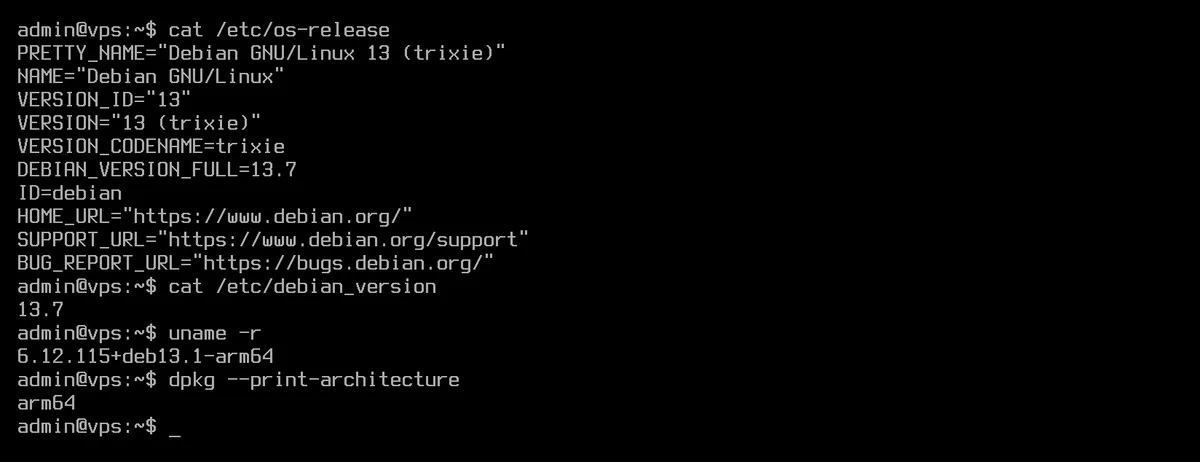
The most important fields:
| Field | Meaning | AlmaLinux 10.2 | Ubuntu 24.04 | Debian 13 |
|---|---|---|---|---|
ID |
Distribution ID, for scripts | almalinux |
ubuntu |
debian |
ID_LIKE |
Which distribution is it based on? | rhel centos fedora |
debian |
(none) |
VERSION_ID |
The version number | 10.2 |
24.04 |
13 |
PRETTY_NAME |
Display name | AlmaLinux 10.2 (Lavender Lion) |
Ubuntu 24.04.5 LTS |
Debian GNU/Linux 13 (trixie) |
VERSION_CODENAME |
Code name | (none) | noble |
trixie |
SUPPORT_END |
End of support | 2035-06-01 |
(none) | (none) |
Two details regarding the test machines: the VERSION_ID field for Debian 13 only contains the major version (13); the exact release (13.7) is shown in the DEBIAN_VERSION_FULL field and in the /etc/debian_version file. In the case of Ubuntu, the point release (24.04.5) is visible in the PRETTY_NAME and VERSION fields.
In scripts
The file is in shell variable format, so a script can read it directly:
. /etc/os-release
echo "$ID $VERSION_ID"
If the script needs to perform a different action depending on the distribution, it should check the ID and ID_LIKE fields, not the text name:
#!/bin/bash
. /etc/os-release
case "$ID $ID_LIKE" in
  *rhel*|*fedora*)  sudo dnf -y install htop ;;
  *debian*)         sudo apt-get -y install htop ;;
  *)                echo "Ismeretlen rendszer: $PRETTY_NAME"; exit 1 ;;
esac
Reading these variables into the current shell; if you wish to avoid this, run the following in a sub-shell: (. /etc/os-release; echo "$VERSION_ID").
hostnamectl: everything in one place
On systems using systemd (which includes all four of the distributions tested), the hostnamectl command provides a summary: the machine’s name, the operating system, the kernel version, the architecture and, on virtual machines, the type of virtualisation as well.
hostnamectl
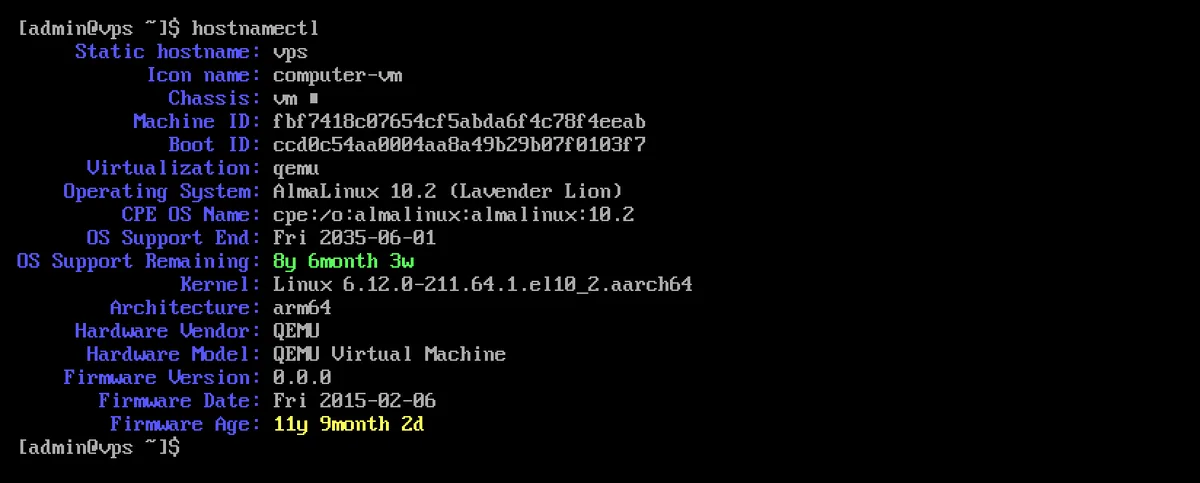
On AlmaLinux 9 and 10, the OS Support End line displays the end of support, while OS Support Remaining displays the time remaining (this is taken from the SUPPORT_END field in /etc/os-release). Ubuntu 24.04 and Debian 13 do not provide such a field, so these two lines are missing there.
lsb_release: not installed everywhere
Many older guides recommend the lsb_release -a command:
lsb_release -a
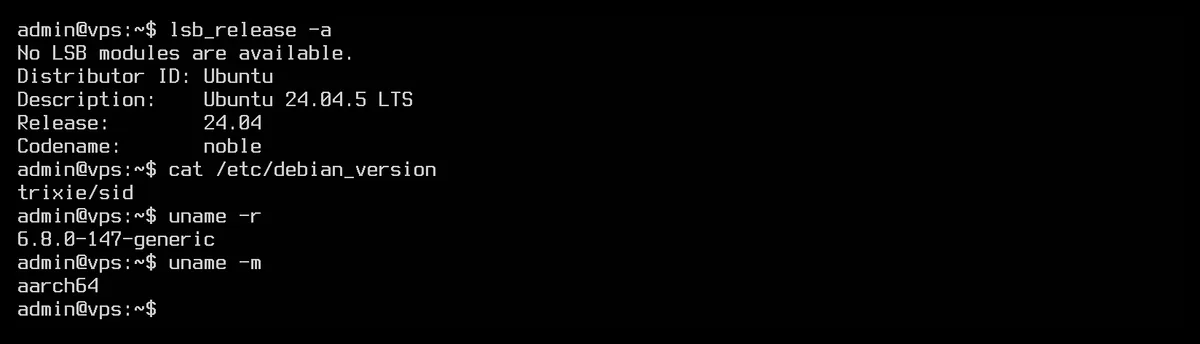
It is available by default on the Ubuntu 24.04 and Debian 13 cloud images (on Ubuntu, the message No LSB modules are available. is not an error). On AlmaLinux 9 and 10, however, it is not installed, and the command not found. Therefore, in scripts, /etc/os-release is the better choice.
The distribution’s own version files
In addition to /etc/os-release, most distributions also store the version in their own file:
# AlmaLinux, Rocky Linux, RHEL (and the old CentOS)
cat /etc/redhat-release
cat /etc/almalinux-release

# Debian
cat /etc/debian_version

# Ubuntu
cat /etc/lsb-release
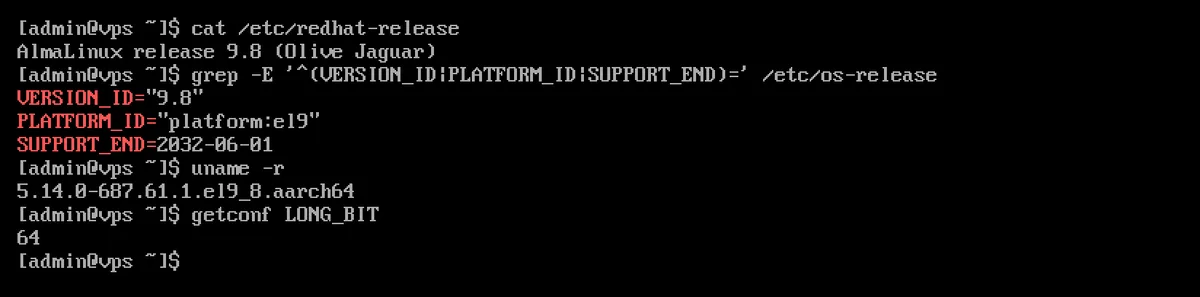
On AlmaLinux, the /etc/redhat-release, /etc/almalinux-release and /etc/system-release files all contain the same line (for example, AlmaLinux release 10.2 (Lavender Lion)). The /etc/os-releases PLATFORM_ID field (platform:el9, platform:el10) indicates which major version of Red Hat Enterprise Linux the system is compatible with.
Please note that Ubuntu also has a /etc/debian_version file, but this does not contain the Ubuntu version: on the Ubuntu 24.04 test machine, it contained trixie/sid, which is the Debian development branch from which the Ubuntu release was derived. On Ubuntu, you should therefore always check the output of /etc/os-release or lsb_release.
If you’re not sure which system you’re using, you can list all such files with a single command:
cat /etc/*release /etc/*version 2>/dev/null
Kernel version: uname
The distribution version and the kernel version are two separate things. The kernel version is displayed by the uname command:
# Kernel version only
uname -r

# Everything on one line: kernel, host name, build date, architecture
uname -a
This is what it looked like on the test machines:
| System | uname -r |
|---|---|
| AlmaLinux 10.2 | 6.12.0-211.64.1.el10_2.aarch64 |
| AlmaLinux 9.8 | 5.14.0-687.61.1.el9_8.aarch64 |
| Ubuntu 24.04.5 | 6.8.0-147-generic |
| Debian 13.7 | 6.12.115+deb13.1-arm64 |
Debian and Ubuntu cloud images often run a separate, cloud-optimised kernel; in such cases, the version number ends with -cloud-amd64 or -cloud-arm64. The kernel version number for AlmaLinux and RHEL does not change within the major version (AlmaLinux 9 runs on kernel 5.14 throughout), with updates indicated by the part following the hyphen. More about the kernel: What is the Linux kernel?
The new kernel installed after the update will only start after a reboot; until then, the uname -r command will show the old version. The article System updates using the dnf and apt commands covers updates.
Architecture: 64-bit, x86 or ARM?
# Kernel architecture: x86_64 or aarch64
uname -m

# Whether the system is 32 or 64 bit
getconf LONG_BIT

# Architecture of the package manager (Debian, Ubuntu)
dpkg --print-architecture
The two worlds use different names for the same thing: the uname -m command and the AlmaLinux packages list x86_64 and aarch64, while the Debian and Ubuntu packages list amd64 and arm64. hostnamectl displays the x86-64 and arm64 formats. Today’s server distributions are no longer produced for 32-bit PCs (i386, i686): AlmaLinux 9 and 10 are 64-bit only, and neither Ubuntu 24.04 nor Debian 13 have 32-bit PC installers.
x86-64-v2, v3: which processor version does the machine support?
x86_64 processors are categorised into levels based on their instruction set (x86-64-v1, v2, v3, v4). This is important because AlmaLinux 10 and RHEL 10 require an x86-64-v3-level processor by default (AlmaLinux also produces a separate x86-64-v2 version for older machines). In glibc version 2.33 and later, the dynamic loader indicates which levels are supported by the given processor:
ld.so --help | grep x86-64
If ld.so cannot be found, call it directly: /lib64/ld-linux-x86-64.so.2 --help. In the test, on a virtual machine running an Intel Xeon E3-1220 v3 (Haswell) processor, the output is:
  x86-64-v4
  x86-64-v3 (supported, searched)
  x86-64-v2 (supported, searched)
The word ‘supported’ indicates the supported levels: this machine supports x86-64-v3 but not v4. The ld.so --help command works on AlmaLinux 9 (glibc 2.34), Ubuntu 24.04 (2.39) and Debian 13 (2.41); on ARM machines, the output does not contain any x86-64 lines.
In a container or on the host machine?
In a Docker or Podman container, the /etc/os-release file shows the operating system of the container image, while the kernel is always that of the host machine, as containers do not have their own kernel:
podman run --rm docker.io/library/ubuntu:24.04 sh -c 'grep PRETTY /etc/os-release; uname -r'

In the test, an Ubuntu 24.04 container running on an AlmaLinux 10.2 machine displayed the name Ubuntu 24.04.5 LTS, but the uname -r command showed the host machine’s el10_2 kernel. If you are asked for the system version in a ticket or on a forum, always specify whether you ran the command inside a container or on the server itself. For information on installing Docker, see the article Installing Docker on Ubuntu, Debian and AlmaLinux.
The situation is similar with virtual machines, only the other way round: on a VPS, the hostnamectl Virtualization line (or the systemd-detect-virt command) shows that the system is running on a virtual machine (qemu in the test), but reveals nothing about the host system.
How long will the system continue to receive updates?
As well as the version number, it is also worth knowing how long security updates will continue to be provided, as patches are no longer released for unsupported systems. AlmaLinux 9 and 10 indicate this themselves in the hostnamectl output under the OS Support End line. According to the manufacturers’ official websites (as of November 2026):
| System | End of full support | End of security updates |
|---|---|---|
| AlmaLinux 8 | 31 May 2024 | 31 May 2029 |
| AlmaLinux 9 | 31 May 2027 | 31 May 2032 |
| AlmaLinux 10 | 31 May 2030 | 31 May 2035 |
| Ubuntu 22.04 LTS | May 2027 | May 2032 (ESM, Ubuntu Pro) |
| Ubuntu 24.04 LTS | May 2029 | May 2034 (ESM, Ubuntu Pro) |
| Ubuntu 26.04 LTS | May 2031 | May 2036 (ESM, Ubuntu Pro) |
| Debian 12 | 11 July 2026 | 30 June 2028 (LTS) |
| Debian 13 | 9 August 2028 | 30 June 2030 (LTS) |
Dates are subject to change; the latest information can be found on the official websites: AlmaLinux releases, Ubuntu release cycle, Debian releases. Ubuntu ESM (Expanded Security Maintenance) is part of Ubuntu Pro; during the Debian LTS period, the Debian LTS team no longer provides updates for all packages.
If your system’s support is due to expire or is about to expire, please upgrade to the next major version: on Ubuntu and Debian, see the article Upgrading Ubuntu and Debian to a new major version; on AlmaLinux and Rocky Linux, see the article Upgrading AlmaLinux and Rocky Linux with ELevate for the steps involved.
Related articles
- What is Linux?
- What are the most popular Linux distributions?
- 7 Linux commands for gathering system information: processor, memory, disks and hardware