English
 Magyar


Adding ‘dummy’ content allows you to populate an empty WordPress site with test content. This enables you to see what a website will look like and how the theme or plugins will appear with the content.
In this article, we’ll show you how to easily add dummy content to your WordPress site.
What are the unit test details for the WordPress template?
The WordPress theme unit test data is an XML file containing the theme’s demo content for testing and development purposes.
This is maintained by the WordPress.org theme review team, which also uses it to test themes submitted to the WordPress.org theme directory.
You can use this WordPress dummy data generator to easily create blog posts and pages, import images and much more. You may find this dummy data useful if you wish to:
- Learn how to develop WordPress templates or create a custom WordPress theme.
- Practise using a WordPress theme.
- Fine-tuning an existing or new template using the WordPress template guide.
- Test the WordPress or WooCommerce website design on a local hosting environment before going live.
First, you need to go to the Theme Unit Test project on GitHub, then click the ‘Code’ button to download the zip file to your computer.
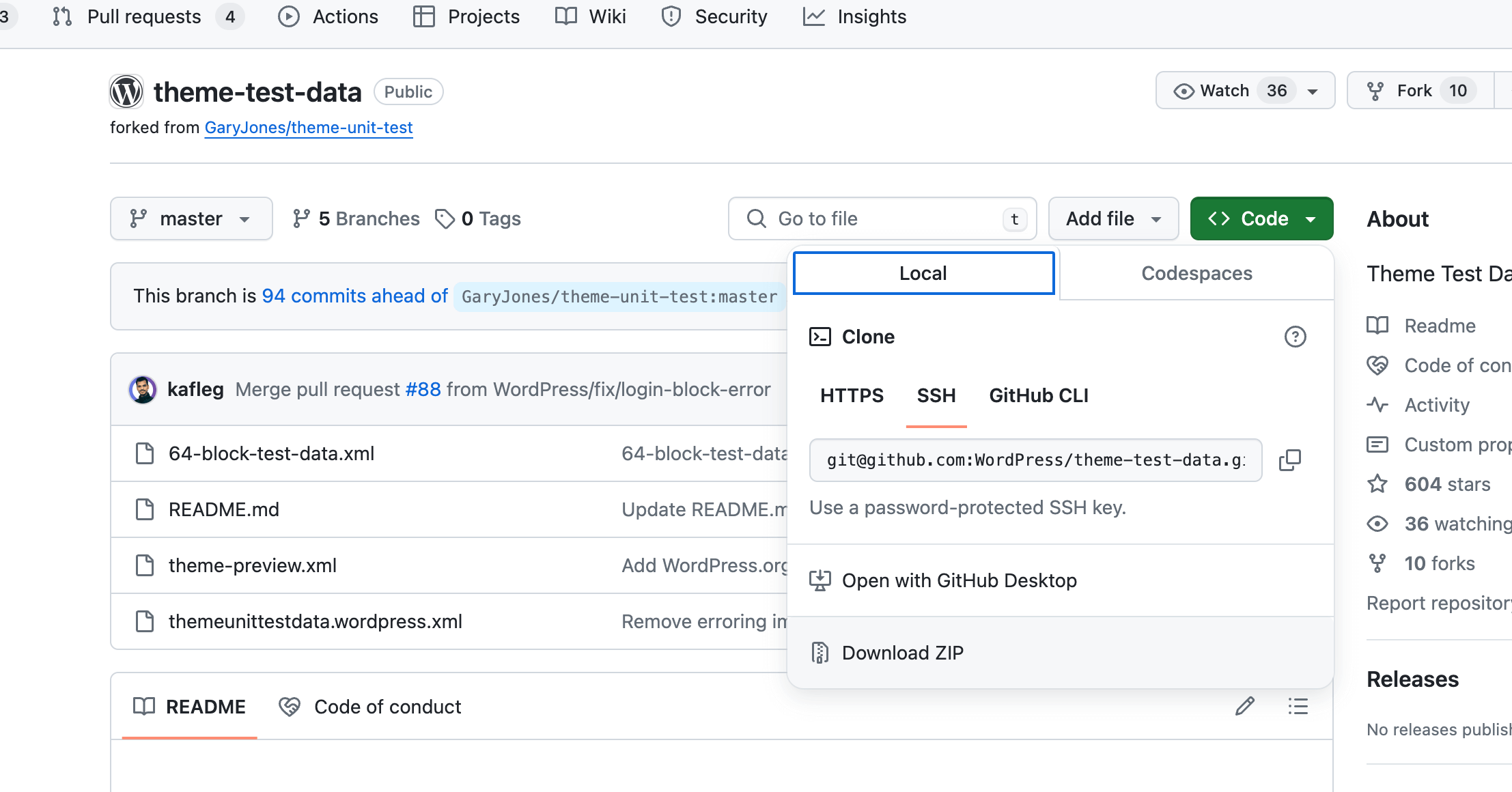
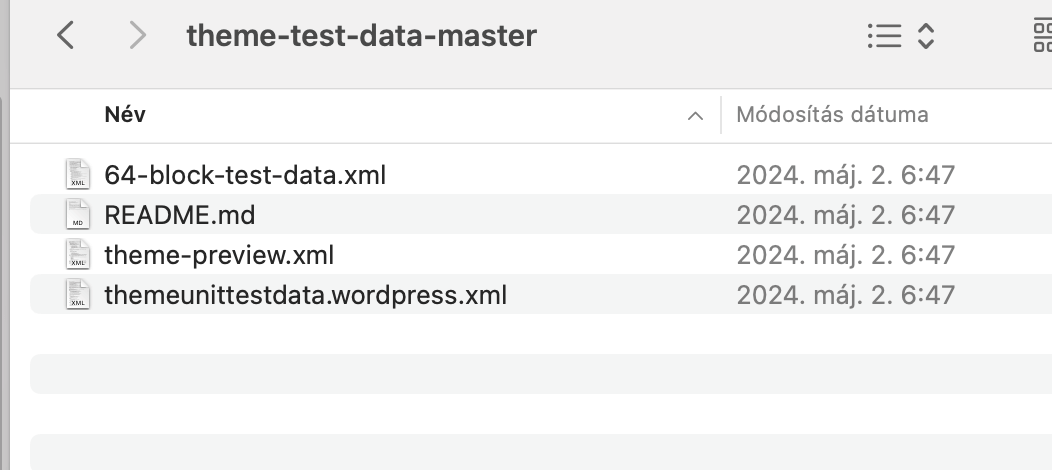
Once you have downloaded the file, you will need to extract it onto your computer. The files will be extracted into a folder called ‘theme-unit-test-master’.
In this folder, you will find three files, including the ‘themeunittestdata.wordpress.xml’ file, which contains all the dummy data we need.
Now that you have the dummy data file, you can import it into any WordPress site.
Ideally, you’ll want to import it into a test site on your computer running a local server. You can also carry out testing by setting up a staging WordPress site.
Simply log in to the WordPress admin area on your test site, then go to Tools » Import. From there, scroll down to the WordPress import option and click on the ‘Install Now’ link.
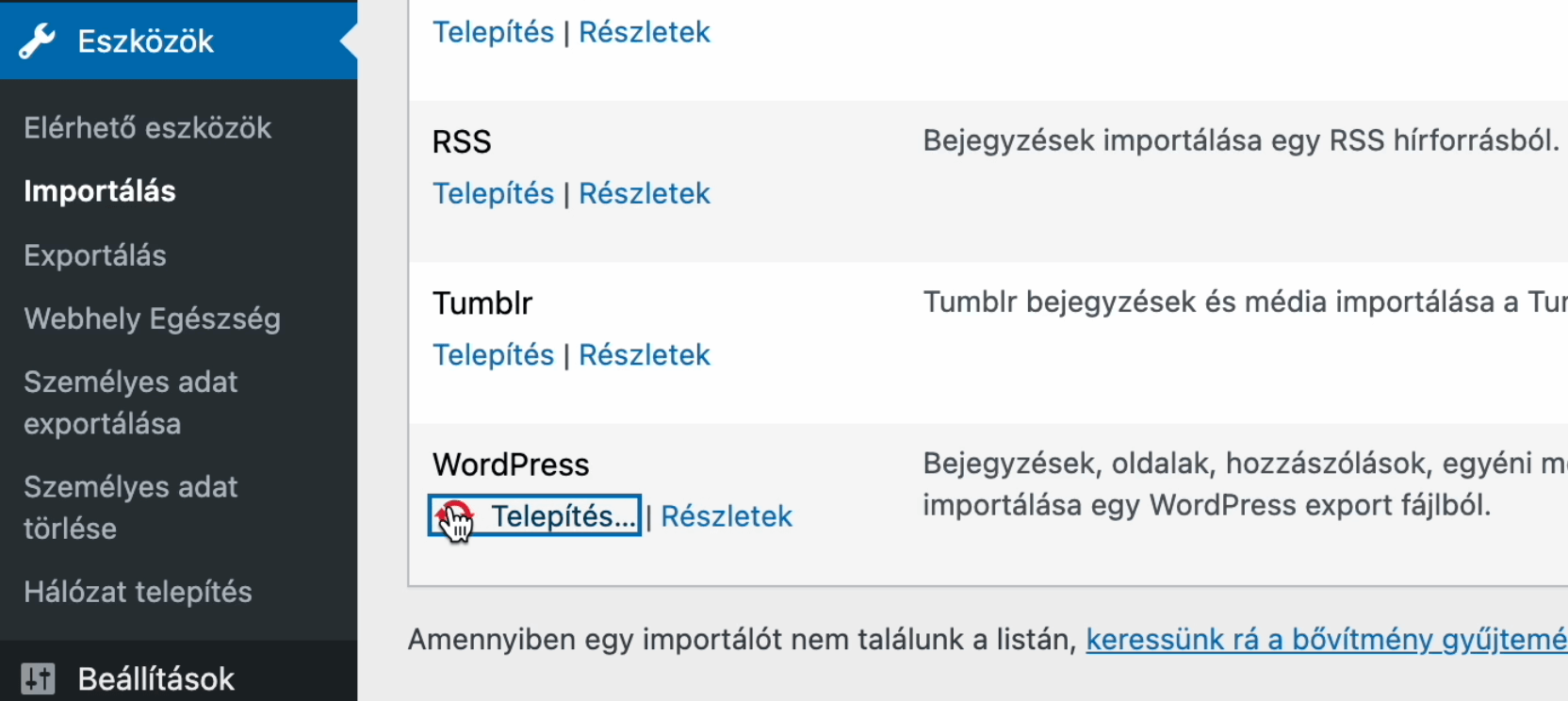
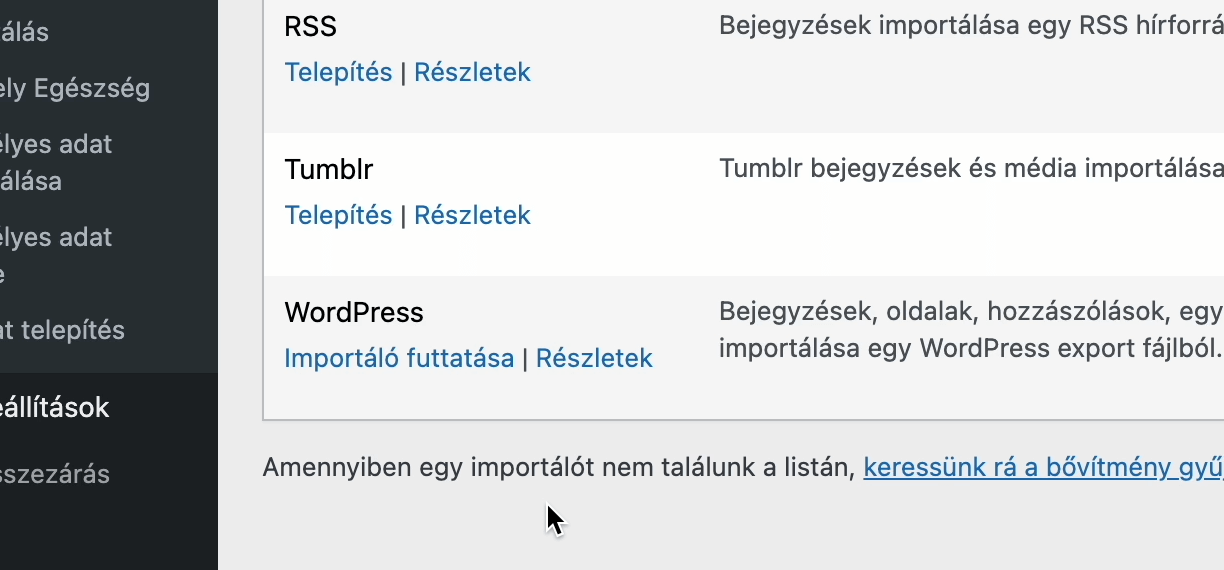
Once the importer has been installed, WordPress will activate it automatically.
Now all you need to do is click on the ‘Run Importer’ link to get started.
On the next screen, click the ‘Select File’ button.
Next, select the Theme Unit Test XML file you downloaded earlier.
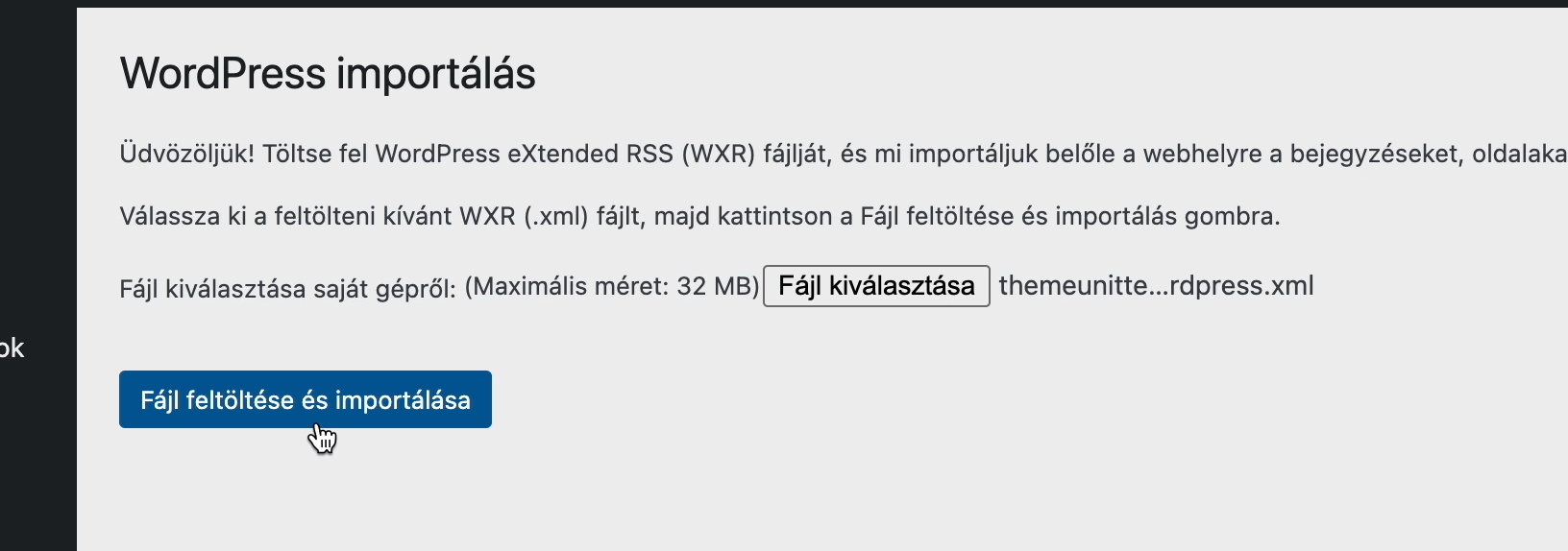
To continue, click on the ‘Upload and import file’ button.
WordPress will now check the attachments in the imported file and ask whether you want to import the existing authors or assign their posts to another user on your site.
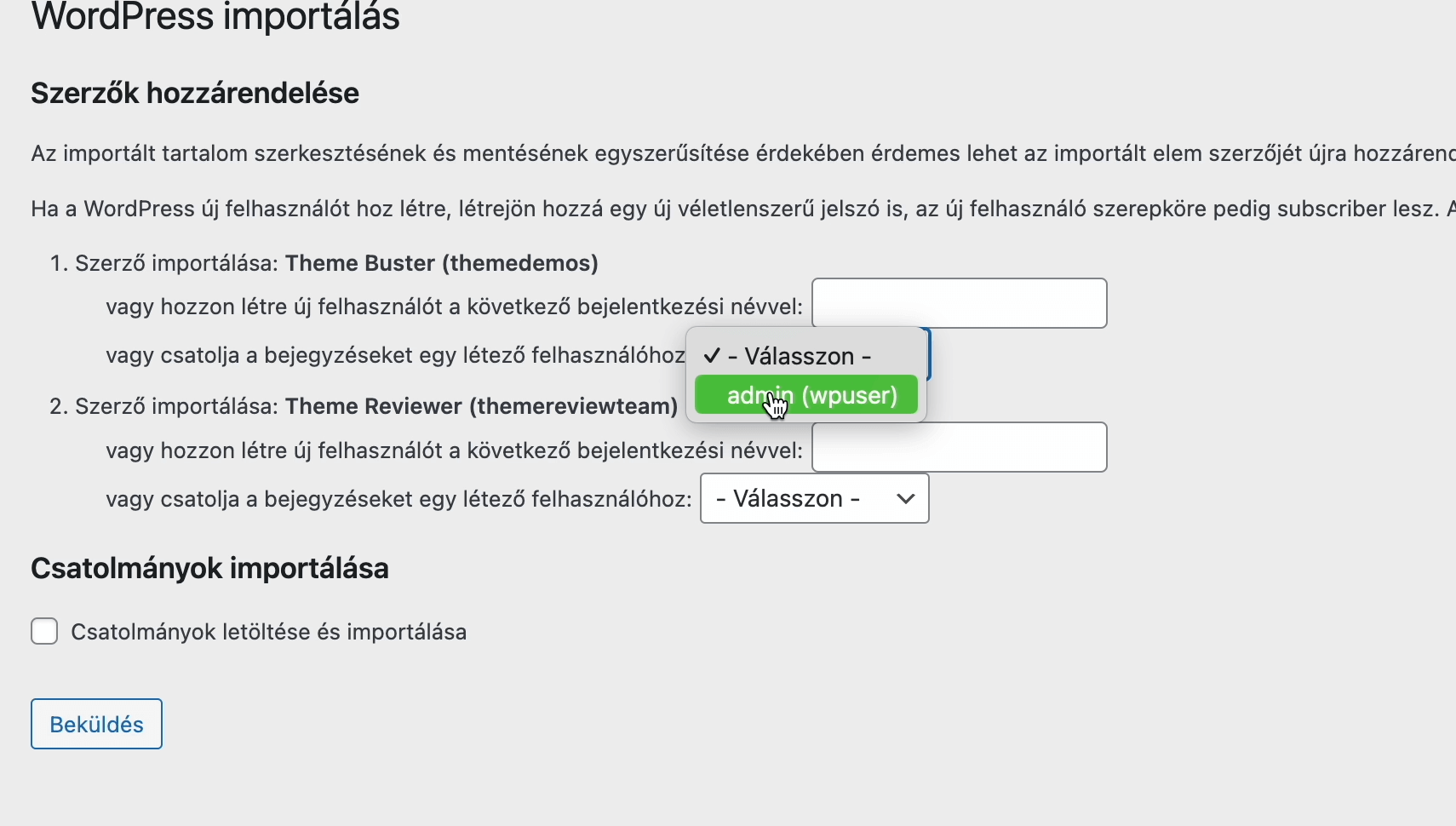
You can choose to import authors, and WordPress will create dummy user accounts for them. You can also assign the imported content to an existing user on your website.
Finally, you can tick the option to import attachments. This allows WordPress to download and store the images in the WordPress media library.
Finally, click the ‘Submit’ button to run the import.