 English
 Magyar


Widgets are elements that appear alongside the content of posts and pages: a search box in the sidebar, a list of recent posts, a calendar or contact details in the footer. As they are not specific to individual pages, they usually appear on every page of the website.
How you manage them depends on which template (theme) you use, so in today’s WordPress there are two different approaches. We tested the steps in October 2026 using WordPress 7.1 with a Hungarian-language interface, with the Twenty Twenty-One (classic) and Twenty Twenty-Five (block) templates, on an aWh cPanel test account. It works in exactly the same way on WordPress hosting plans, as this is WordPress’s own interface.
What template does it use?
Take a look at the ‘Appearance’ menu in the admin interface:
- Classic template: the menu includes the Customisation, Widgets and Menus options.
- Block template: ‘Editor’ appears in the menu, but the ‘Widgets’ option is missing.
If you open the widgets page directly from a block template, you will see this message: The template you are currently using cannot display widgets, as it does not have a sidebar. This is not an error: in a block template, the entire page consists of blocks, so there is no need for a separate widget area.
Adding a widget to a classic template
The theme determines which widget areas are available (for example, a sidebar or footer). The Twenty Twenty-One theme, for example, only has a Footer area; it does not have a sidebar.
- Go to the Appearance › Widgets page.
- Click on the blue ‘+’ button in the top-left corner (Block inserter).
- In the Search field, find the item – for example, the Calendar block – and click on it. The block will be placed in the selected area.
- Arrange the elements within the area by dragging them or using the arrows on the block toolbar.
- Click on the ‘Update’ button in the top right-hand corner. The message ‘Widgets saved’ will then appear, and the item will now be visible on the website.
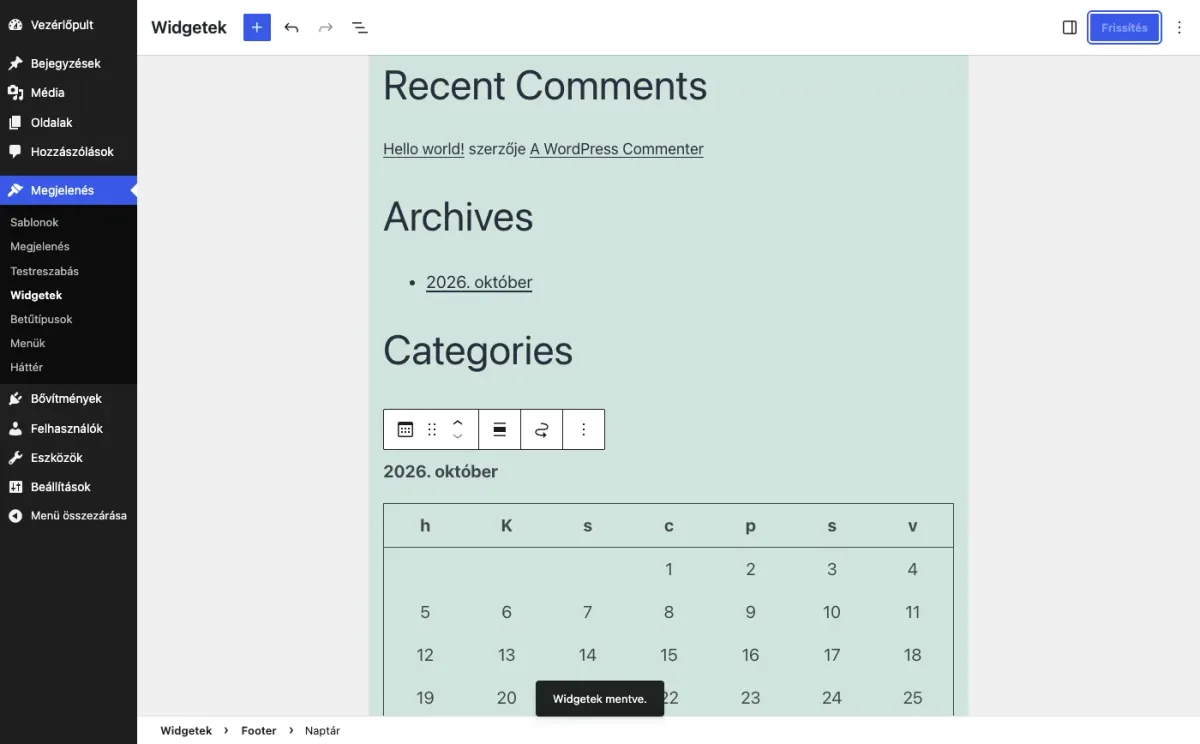
To remove an element, select the block and remove it from the three-dot menu on the toolbar, then click the Update button. Elements left orphaned after a template change are collected in the ‘Disabled widgets’ section; from there, you can restore or delete them.
With live preview
If you would like to see the result as you go along, go to Appearance › Customise › Widgets. Here you can manage the same sections alongside a preview of the website; changes will take effect after publication.
The old widget interface
Instead of the block-based interface, you can revert to the old interface using the Classic Widgets add-on. Once enabled, on the Widgets page, you can drag elements from the ‘Available widgets’ list on the left into the areas. This is useful if an older add-on or template does not work well with the block-based interface.
The same applies to block templates
With block templates, you can customise the sidebar, footer and header in the Editor:
- Go to the Appearance › Editor page.
- Open the template or template section (e.g. the footer) where you want to place the element.
- Click on the + button and select the block. The equivalents of traditional widgets can be found in the Widgets category.
- Save the changes.
If you edit a template section, the change will appear on every page that uses it.
What is each element used for?
- Search: the search function will be available on every page.
- Latest posts, Latest comments, Archives: the basis for blog navigation.
- Custom HTML: embedded code, such as a form from an external service. Only embed code from trusted sources.
- Plugin widgets: installed plugins (such as a newsletter sign-up form or the WooCommerce basket) can add their own items to the list.
What should you look out for?
- Don’t clutter up the sidebar. Every element may involve a query or an external load, and as it runs on every page of the website, any slowdown will be noticeable everywhere. Elements that load external services are the slowest. Our article on speeding up WordPress discusses this in more detail.
- Have a look on your mobile too. Many mobile templates place the sidebar below the content, so important elements only appear at the bottom of the page.
- Cache: if the changes are not visible on the website, clear the cache of your caching plugin and your browser.
- Before changing your template, check that the new template offers the same sections. After switching to a block-based template, you will need to rebuild your old widgets in the Editor.
- After changing your domain, the old address may remain in the widget settings; this is covered in the article on changing URLs.
Our article on the WP Toolkit plugin manager covers how to manage plugins and themes.